1
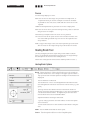
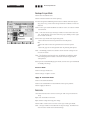
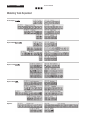
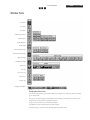
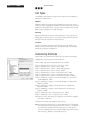
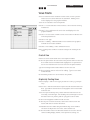
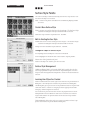
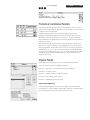
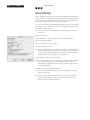
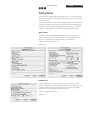
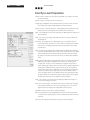
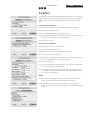
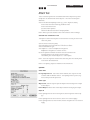
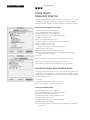
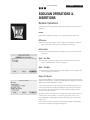
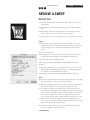
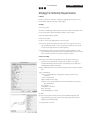
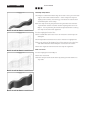
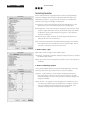
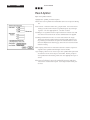
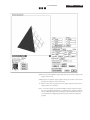
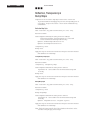
Form-Z Manual 08/03 73 Multi-Copy Set the appropriate reference plane. Set the Topological Level to Object. Set the Self/Copy mode to Multi-Copy. Double click on the Multi-Copy mode and set its options or set them in the Copy Options tab in the transformation tool. Even Increment Choose the Move tool. Click on the object to select it and set its reference point. Move the mouse to create a copy. Click to locate the copy. Additional copies will be generated based on the number entered in the options dialog box and the operation will be ended. The relationship between the original and first copy will be repeated between successive copies. Divide Distance Choose the Move tool. Click on the object to select it and set its reference point. Move the mouse to create a copy. Locate the first copy at the end of the sequence of copies that will be generated. Click to locate the end copy. Additional copies will be generated based on the number entered in the options dialog box and the operation will be ended— (N minus 1) copies will be placed between the original and end copy. The additional copies will be evenly spaced between the original and end copy. Big Angle For Rotation This options works with Divide Distance and the Rotation tool. It determines which of the angles of any rotation is used—the short or long/big distance around the circle. Local Coordinates & Centroids All form-Z objects exist in 3D world space which has a global origin— 0,0,0 of the world axis. In addition, form-Z objects have local coordinates, which are relative to a local origin and coordinate axes. They also have a centroid which is local. The local coordinate axes and centroid of objects can be displayed by turning on the Show Axis and Show Centroid options respectively, in the Wire Frame Options dialog box. The local coordinate system and centroid are generated when an object is created based on the seings chosen in the Objects dialog box. Choose Options > Objects to open the dialog box. The initial positions of the local axes can be changed through the Query tool and clicking on the object.