1
InDesign Manual
08/04
17
IMAGES
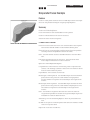
Importing Images & Graphics
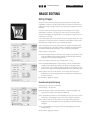
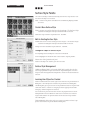
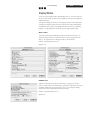
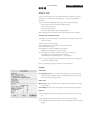
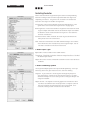
Choose File > Place to begin the process.
Select the file and click Open or double click on the file name.
Position the import pointer where you want the upper left hand corner of the graphic to appear and click to place the graphic.
Notes
Control + Click (Right Click for PC) to bring up a menu of image
manipulators.
If you are going to print your document, is it a good idea to import
3rd party images in TIFF format. Indesign imports easily from
photoshop and illustrator native files as well.
Images can also be imported by drag and drop or copy and paste
techniques.
Most imported files are linked by default in InDesign
Managing Links
Imported files can be linked to or embedded in a InDesign file. When
files are linked their data is not made part of the InDesign file
therefore, the InDesign and all linked files must be kept together
for display and printing. When files are embedded their data is
made part of the InDesign file and you only need the InDesign file for
display and printing.
Save any linked files in the same folder as the document to which
they are linked BEFORE IMPORTING. It is best if they are all at the
same level within the folder because InDesign looks in the document
folder for linked files if their original location (path) has changed.
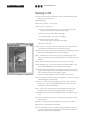
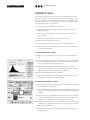
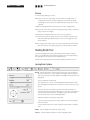
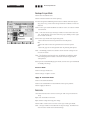
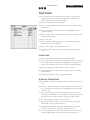
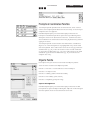
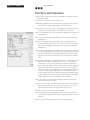
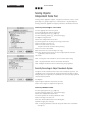
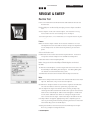
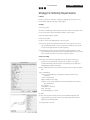
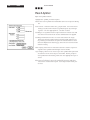
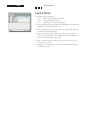
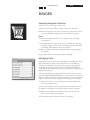
To update a link, click on the Links panel and choose Update Link
from the pull down menu.
Select Link Information from the pull down to see apecific file info.
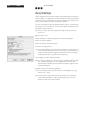
To update or reestablish a link, select Relink from the pull down.
Navigate to the desired file and double click on the file name or
select the file name and click Open.
To embed a link, select Embed File from the pull down.