1
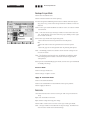
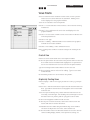
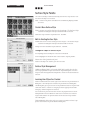
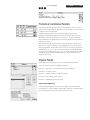
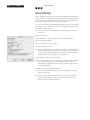
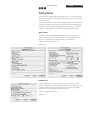
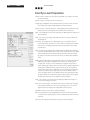
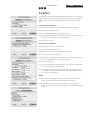
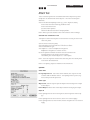
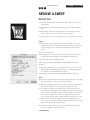
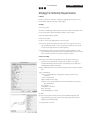
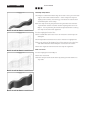
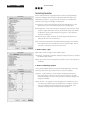
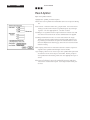
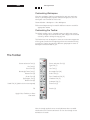
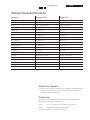
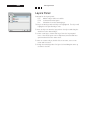
Photoshop Manual 08/03 57 Choose Filter > Blur > Motion Blur: Angle: 45°, Distance: 8. Choose Filter > Sharpen > Unsharp Mask: Amount: 500%, Radius: 1, Threshold: 1. Change the Mode and Opacity of the filtered layer. Judge the appropriateness of the result and adjust as desired. Graphic Pen Activate the desired layer and make a copy. Rename the new layer. Activate the new layer and make or load a selection if you want to apply the filter to a portion of the layer. Choose Filter > Sketch > Graphic Pen: Stroke length: 5, Light/Dark Balance: 50, Stroke Dir.: Right Diag. Change the Mode and Opacity of the filtered layer. Mode: Screen, Opacity: 30%. Judge the appropriateness of the result and adjust as desired. Layer Adjustments Select individual layers and make adjustments changing Mode and Opacity seings and filters. For example, reduce the Opacity of distant entourage elements (e.g., trees) and/or add blur to background layers with the Gaussian Blur filter to simulate the Visual depth cue of Aerial Perspective. Defringe layers as needed. Defringe Inspect the edges of layers to see if there is an obvious contrast between the edge pixels and the adjacent interior pixels. If a strong contrast exists it will create a hallow around the layer. Make the layer active. Choose Layer > Maing > Defringe. Leave Width at 1 and Click OK. Inspect the edges of the layer to see if the desired change has been made. Adjust as desired. This command replaces the pixels at the edge of an image layer with pixels sampled from adjacent interior pixels to eliminate any hallow effect.