1
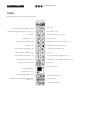
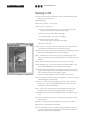
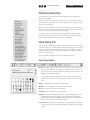
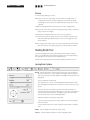
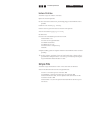
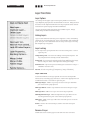
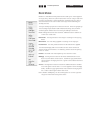
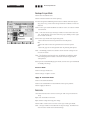
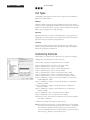
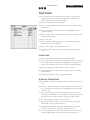
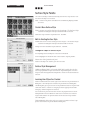
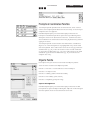
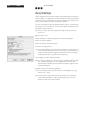
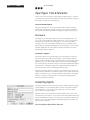
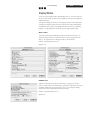
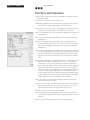
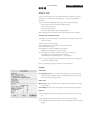
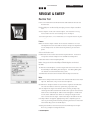
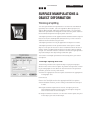
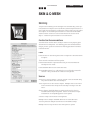
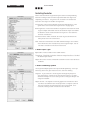
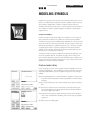
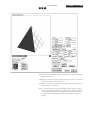
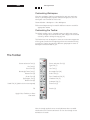
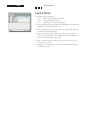
46 08/03 Photoshop Manual Layer Functions Layer Options The triangle in the upper right of the layers palee accesses the Layer Options pop-up menue as illustrated to the left. Many of these functions can be implemented within the layers palee itself as illustrated on the previous page and described below. The layer options include functions that combine layers: Merge Linked, Merge Visible and Flaen Image. Linking Layers Layers can be linked so that they move together. This is achieved by clicking in the second column for a layer which makes a link symbol appear. The layer is now linked with the currently active layer. You may link multiple layers together. Layer Locking At the top of the layers palee there are four locking icons. Left to right they are: Transparency Lock: Prevents the editing of transparent pixels. You may edit pixels that already contain information. Image Lock: It prevents the painting tools from modifying the image, but not a layer's mask. It also prevents moving the image. Position Lock: It prevents you from moving the contents of a layer— it disables the move tool. All Lock: It locks everything (Transparency, Image & Position). Layer Shortcuts Across the boom of the layer palee are six icons that provide shortcuts to activating layer functions. Click on the appropriate icon to add the function. From left to right they are: Add Layer Style: Adds a Layer Style to the active layer based on your choice from a pop-up menu. Add Layer Mask: Adds a Layer Mask to the selected layer or layer set. Add Layer Set: Adds a new Layer Set to the layers palee. Add Adjustment Layer: Adds an Adjustment Layer above the selected layer based on your choice from a pop-up menu. Add Layer: Adds a new Layer above the selected layer or set in the layers palee. Delete: Deletes the selected layer, mask or set from the layers palee. Rename A Layer Double click on the existing layer name and enter the new name.