1
Workforce Census Module for the Primary Care Web Tool (PCWT) – User Guidance
Mark Staff member as a Leaver
If a member of your Practice staff leaves, for whatever reason, your Staff list can be updated
to reflect this change – this is done by marking the staff member as a Leaver.
Access is via the Leaving Information tab on the Staff Record page (page 16) or using the
Mark Staff member as Leaver screen.
Alternatively, if the staff member is leaving to another Practice, their record can be
transferred via the module and their record will automatically be updated to show them as a
leaver – this can be found in the Transfer staff to another Practice section on page 13.
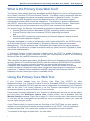
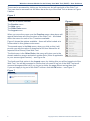
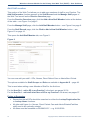
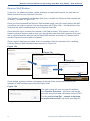
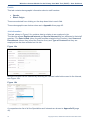
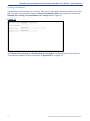
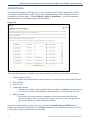
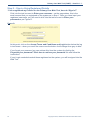
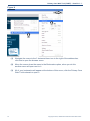
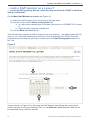
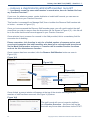
Figure 10a
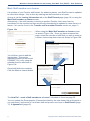
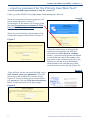
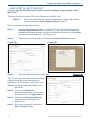
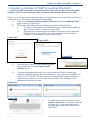
When using the Mark Staff member as Leaver screen
as seen in Figure 10a…Once you have accessed this
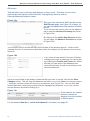
page, select the member of staff that you wish to mark as
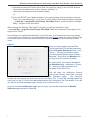
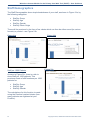
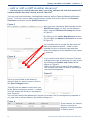
a leaver via the drop down menu as shown in Figure 10b.
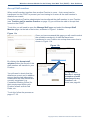
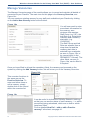
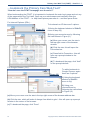
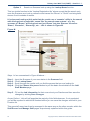
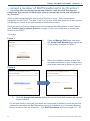
Figure 10b
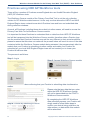
You will then need to add the
leaving date. This can be
manually entered (in the format
DD/MM/YYYY) or by using the
calendar function as shown in
Figure 10b.
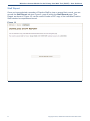
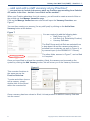
Once both fields are complete,
Click the Mark as Leaver button.
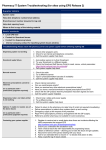
The How Do I…mark a Staff member as a Leaver? crib sheet is found on page 39.
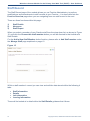
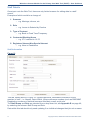
You can update the Demographics (if known/provided by the new starter) tab at this point or
you can leave it and return to it at a later date and process as shown in Staff Details (page
17) & Appendix A (page 45).
11
Copyright © 2015, Health and Social Care Information Centre.