1
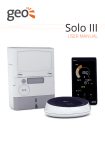
Solo II display
USER MANUAL
Solo II display
1
Welcome to geo’s energy management
service. You’ve taken the first step towards
complete control of your consumption and
microgeneration. Your new Solo II will help
you manage, control and visualise your
energy – leading you effortlessly towards
optimum efficiency.
In this guide you’ll find everything you
need to quickly and simply set up and
start using your display. You’ll also
find more information about how the
monitor works and how it can help you.
In microgeneration mode you can identify
the best times to use heavy-load appliances
(such as your washing machine or tumble
dryer). In consumption mode you can use
the display to help you reduce CO₂ and
save money by giving you real-time, visual
feedback on your energy consumption.
2
You will also have access to energynote,
our online energy management service
that presents all your data in greater detail.
There is no limit to the amount of data you
can upload. See, analyse and explore for
years to come.
You should find everything you need in this
guide, but if you don’t, get in touch and
we’ll be happy to help.
Microgeneration and
consumption modes
The Solo II can measure either
consumption (default) or microgeneration
– but not concurrently. Please note that
when you have chosen either of these
modes then it is not advisable to switch to
the other. If you do, you will lose the data
you have been collecting (from whichever
mode you had previously set up). If you
choose to switch modes, the display will
reset to day one.
Solo II display
Contents
1. WHAT’S IN THE BOX?
5
2. SOLO II LED CONSUMPTION
• Setting up
• Configuring your display
• Basic configuration
Time and date
Budget
Tariffs
Standing charge
Temperature - set point
• Advanced configuration
Mode and preferences
Currency
Temperature unit
Electricity meter
Sleep mode
Week start
6
3. SOLO II CT CONSUMPTION
• Setting up
• Configuring your display
• Basic configuration
Time and date
Budget
Tariffs
Standing charge
Temperature - set point
• Advanced configuration
Mode and preferences
Currency
Temperature units
Calibration
Sleep mode
Week start
11
4. SMART PLUGS
16
5. SOLO II LED GENERATION (MICRO-GEN)
• Setting up
• Basic configuration
Time and date
Feed-in tariff (FiT)
Temperature - set point
• Advanced configuration
Mode and preferences
PV array (kW)
Currency
Temperature units
Generation meter
Sleep mode
Solo II displayWeek start
17
3
6. SOLO II CT MICROGENERATION (MICRO-GEN)
• Setting up
• Basic configuration
Time and date
Feed-in tariff (FiT)
Temperature - set point
• Advanced configuration
Mode and preferences
PV array (kW)
Currency
Temperature unit
Calibration
Sleep mode
Week start
21
7. READING YOUR DISPLAY
• Speedometer
• Numbers along the top
• Numbers along the bottom
• Budget bar and prediction
• Microgeneration threshold
• Temperature
• LED indicator
•Icons
Signal strength
Battery
Tariff
25
8. USING YOUR DISPLAY
• Changing units
• Viewing your history
• Energy stopwatch
• Pairing
• Main sensor
• Temperature sensors 1 & 2
• Bridge
28
9. ENERGYNOTE ONLINE SERVICE 30
10. FAQs
31
11. TECHNICAL INFORMATION
32
12. LEGAL INFORMATION
32
13. SAFETY INFORMATION
32
4
Solo II display
1. WHAT’S IN THE BOX?
Power supply x 2
Transmitter (and batteries)
Sensors
LED sensor
Solo II display
or CT sensor
Internet bridge
Display stand
Ethernet cable
Solo II display
5
3. SOLO II LED CONSUMPTION
Please note: by choosing [CONSUMPTION] mode, you will not be collecting data for
[MICRO-GEN] mode. If you choose to switch modes you will lose all data you have
collected as the display will reset to day one.
Setting up
1. Plug the power supply into the display.
Your display will turn on automatically
when you plug it into the mains supply.
3. The pulse output is a flashing red light
on the front of your meter.
4. Stick the square velcro around the
pulse output.
5. Place the LED sensor over the square
velcro on the meter ensuring that the
geo logo is facing you.
Imp/kWh
Whenever the display is turned on, you
will see the [SET CLOCK] screen.
Use the and buttons on the front of the
display to adjust the time and date – then
press when you have finished.
2. Remove the battery
the transmitter.
tab
6. Plug the LED sensor into the transmitter.
from
battery tab
6
Solo II display
Configuring your display
Before you start using your Solo II we
need to take you through a few simple
set-up steps. The Solo II has two sets
of configuration: [BASIC] configuration
(information you may wish to change
often) and [ADVANCED] configuration
(information you may only set up once or
alter occasionally).
Basic configuration
Press and hold
for three seconds to
enter configuration mode then press
or button to choose your configuration
mode preference.
Using the
button select [BASIC] settings.
Budget
You can set yourself a daily, weekly or
monthly personal budget which the
display will use to help you manage your
electricity. The display can then tell you
whether you’re on target to be within your
budget, and how you’ve compared over
the past few days, weeks, months or the
whole year.
If you enter a monthly cost the Solo II will
automatically calculate the equivalent
daily or weekly cost when it needs to. This
makes it easy for you to enter a budget
that makes sense to you.
You will be asked to set the following:
•
•
•
•
•
•
•
•
•
•
[SET TIME]
[SET YEAR]
[SET MONTH]
[SET DAY]
[BUDGET]
[TARIFF 1]
[TARIFF 2]
[TARIFF 3]
[STANDING CHARGE]
[SET-POINT]
You can get an idea of what to set as your
budget by looking at recent electricity
bills. Please note, the budget is just the
energy used and doesn’t include any
standing charges.
Use the and buttons to select whether
you want a daily, weekly or monthly
budget, then press to confirm.
Next adjust the value of budget you would
like using the and buttons and press
to confirm.
Time and date
If you’ve already set this up press
to
confirm all. Should you want to change
it you can find the settings on p6. The
display also reminds you to check the time
and date each time it is powered up.
Solo II display
7
Tariffs
Use the and to set the second tariff and
then press to confirm.
Use the and buttons to set the time the
second tariff switches on and then press
to confirm.
You need to enter the price you pay for
your energy. If you have only one tariff,
then enter the cost per kWh. This can be
found on your electricity bill.
If you have a block tariff you can work out
an average from your recent bills and enter
as one tariff.
What is a block tariff? A block tariff means
that for the first x number of kWh in each
billing period you pay a more expensive
tariff than normal.
How to calculate it: take the total cost of
electricity for the period (e.g. £120) and
divide it by the amount of kWh you used.
Example:
If you were billed £120 this quarter and
you used 1000kWh, then enter the sum of
£120/1000kWh = £0.12/kWh in the display
setting [TARIFF 1].
Use the and
and then press
Use the and buttons to set the time the
second tariff comes off and then press
to confirm.
If you have entered a second tariff then you
are prompted to enter a third tariff. If you
don’t have one then simply leave it as zero.
Standing charge
buttons to set the tariff
to confirm.
If you don’t have a second tariff, then leave
[TARIFF 2] cost as zero.
If you do have a second tariff, for example
cheaper electricity overnight, then enter
the cost per kWh for that second tariff. If
a second tariff is entered then you need to
enter the time that tariff starts and ends.
8
If you pay your supplier a standing charge
you can enter that amount here.
Use the and buttons to set the daily
standing charge and press to confirm.
Solo II display
Temperature
Mode and preferences
You can use the display to monitor your
energy use [CONSUMPTION] or generated
energy [MICRO-GEN]. The default is
[CONSUMPTION] mode.
and
buttons select
Using the
[CONSUMPTION] and press to confirm.
The display can tell you if your home
is running warmer or cooler than your
ideal temperature.
Currency
and
buttons to set the
Use the
temperature and press to confirm.
Advanced configuration
Press and hold for three seconds to enter
the configuration mode. Using the and
buttons select [ADVANCED] and then press
to confirm.
Using the
and
currency and press
buttons select your
to confirm.
Temperature
You will be asked to set the following:
•
•
•
•
•
•
•
[MODE]
[CURRENCY]
[TEMPERATURE UNITS]
[PULSE]
[DISPLAY OFF]
[DISPLAY ON]
[WEEK START]
Select whether you want the temperature
to be shown in (°C) or (°F).
Using the
and press
Solo II display
and buttons select °C or °F
to confirm.
9
Electricity meter
Week start
You need to tell the display about your
electricity meter. The display works
by detecting the LED flashing on the
meter, but it needs to be told how many
times the pulse flashes per kWh of
energy consumption. This is normally
written on the front of your meter
e.g. ‘1000 imp/kWh’.
Set your preferred day for the start of the
week. This is used by the display when
showing the energy usage for the [LAST
WEEK] and [THIS WEEK].
and
buttons select your
Using the
preferred day and press to confirm.
Using the and buttons enter the value
for imp/kWh from your meter and press
to confirm.
Sleep mode
The sleep mode allows you to tell the
display to turn off overnight. This is done
by entering the [DISPLAY OFF] time and
the [DISPLAY ON] time. During this time
the backlight of the display will be turned
off – if you want to see the display whilst
it is asleep simply press any button and it
will wake up for 60 seconds. If you don’t
want to use the sleep mode then you can
set it to OFF.
Using the and buttons set the [DISPLAY
ON] time to [DISPLAY OFF] then press
to confirm.
If you set a [DISPLAY ON] time, you will
then need to set the [DISPLAY OFF] time
again using the and buttons and then
press to confirm.
10
Solo II display
3. SOLO II CT CONSUMPTION
Please note: by choosing [CONSUMPTION] mode, you will not be collecting data for
[MICRO-GEN] mode. If you choose to switch modes you will lose all data you have
collected as the display will reset to day one.
Setting up
1. Plug the power supply into the display.
For a single phase pack (one mains sensor):
Your display will turn on automatically
when you plug it into the mains supply.
3. At your electricity meter, clip the
sensor around the mains live cable.
Locate your mains live cable, this is
usually identified by the colour brown,
red or the letter “L”. You should hear a
‘click’ to indicate the sensor has been
tightly closed.
Whenever the display is turned on, you
will see the [SET CLOCK] screen.
4. Insert the other end of the sensor
cable in to the socket in the bottom
of the transmitter and ensure it is
fully inserted.
3
Use the and buttons on the front of
the display to adjust the time and date
– then press the
button when you
have finished.
2. Remove the battery
the transmitter.
tab
battery tab
from
For a three phase pack (three mains sensors):
5. At your electricity meter, clip the
sensors around the mains live cables
(attach one sensor per cable). Locate
your mains live cable, this is usually
identified by the colour brown, red or
the letter “L”. You should hear a ‘click’
to indicate that the sensors have been
securely fastened.
6. Insert the other end of the cables in
to the socket in the bottom of the
transmitter and ensure they are
fully inserted.
5
Solo II display
4
6
11
Configuring your display
Before you start using your Solo II we
need to take you through a few simple
set-up steps. The Solo II has two sets of
configuration – [BASIC] configuration items
that you may wish to change often, and
[ADVANCED] configuration items that you
may only set up once or alter occasionally.
Basic configuration
Press and hold
for three seconds to
enter configuration mode then press
or button to choose your configuration
mode preference.
Using the
button select [BASIC] settings.
Budget
You can set yourself a daily, weekly or
monthly personal budget which the
display will use to help you manage your
electricity. The display can then tell you
whether you’re on target to be within your
budget, and how you’ve compared over
the past few days, weeks, months or the
whole year.
If you enter a monthly cost the Solo II will
automatically calculate the equivalent
daily or weekly cost when it needs to. This
makes it easy for you to enter a budget
that makes sense to you.
You will be asked to set the following:
•
•
•
•
•
•
•
•
•
•
[SET TIME]
[SET YEAR]
[SET MONTH]
[SET DAY]
[BUDGET]
[TARIFF 1]
[TARIFF 2]
[TARIFF 3]
[STANDING CHARGE]
[SET-POINT]
You can get an idea of what to set as your
budget by looking at recent electricity
bills. Please note, the budget is just the
energy used and doesn’t include any
standing charges.
Use the and buttons to select whether
you want a daily, weekly or monthly
budget, then press the button.
Next adjust the value of budget you would
like using the and buttons and press
to confirm.
Time and date
If you’ve already set this up press
to
confirm all. Should you want to change
it you can find the settings on p11. The
display also reminds you to check the time
and date each time it is powered up.
12
Solo II display
Tariffs
Use the and buttons to set the second
tariff and then press to confirm.
Use the and buttons to set the time the
second tariff switches on and then press
to confirm.
You need to enter the price you pay for
your energy. If you have only one tariff,
then enter the cost per kWh. This can be
found on your electricity bill.
Use the and buttons to set the time the
second tariff comes off and then press
to confirm.
If you have a block tariff you can work out
an average from your recent bills and enter
as one tariff.
What is a block tariff? Your block tariff
means that for the first x number of kWh
in each billing period you pay a more
expensive tariff than normal.
If you have entered a second tariff then you
are prompted to enter a third tariff. If you
don’t have one then simply leave it as zero.
How to calculate it: take the total cost of
electricity for the period (e.g. £120) and
divide it by the amount of kWh you used.
Example:
If you were billed £120 this quarter and
you used 1000kWh, then enter the sum of
£120/1000kWh = £0.12/kWh in the display
setting [TARIFF 1].
Use the and
and then press
Standing charge
buttons to set the tariff
to confirm
If you don’t have a second tariff, then leave
[TARIFF 2] cost as zero.
If you do have a second tariff, for example
cheaper electricity overnight, then enter
the cost per kWh for that second tariff. If
a second tariff is entered then you need to
enter the time that tariff starts and ends.
Solo II display
If you pay your supplier a standing charge
you can enter that amount here.
Use the and buttons to set the daily
standing charge and press to confirm.
13
Temperature
Mode and preferences
You can use the display to monitor your
energy use [CONSUMPTION] or generated
energy [MICRO-GEN]. The default is
[CONSUMPTION] mode.
and
buttons select
Using the
[CONSUMPTION] and press to confirm.
The display can tell you if your home is
running warmer or cooler than your ideal
temperature.
Currency
and
buttons to set the
Use the
temperature and press to confirm.
Advanced configuration
Press and hold for three seconds to enter
the configuration mode. Using the and
buttons select [ADVANCED] and then press
to confirm.
Using the
and
£ symbol and press
buttons select the
to confirm.
Temperature mode
You will be asked to set the following:
•
•
•
•
•
•
•
[MODE]
[CURRENCY]
[TEMPERATURE UNITS]
[CALIBRATION]
[DISPLAY OFF]
[DISPLAY ON]
[WEEK START]
Select whether you want the temperature
to be shown in (°C) or (°F).
Using the
and press
14
and buttons select °C or °F
to confirm.
Solo II display
Calibration
Week start
The calibration factor is an advanced
setting that typically won’t need to be
adjusted. Calibration adjusts the accuracy
with which the load is measured and the
default is 1.00. During normal usage this
won’t need to be changed.
Set your preferred day for the start of the
week. This is used by the display when
showing the energy usage for the [LAST
WEEK] and [THIS WEEK].
However, if you think the accuracy could
be improved and you want to recalibrate
your display, more details can be found at
www.greenenergyoptions.co.uk/solo2
and
buttons select your
Using the
preferred day and press to confirm.
Sleep mode
The sleep mode allows you to tell the
display to turn off overnight. This is done
by entering the [DISPLAY OFF] time and
the [DISPLAY ON] time. During this time
the backlight of the display will be turned
off – if you want to see the display whilst
it is asleep simply press any button and it
will wake up for 60 seconds. If you don’t
want to use the sleep mode then you can
set it to OFF.
Using the and buttons set the [DISPLAY
ON] time to [DISPLAY OFF] then press
to confirm.
If you set a [DISPLAY ON] time, you will
then need to set the [DISPLAY OFF] time
again using the and buttons and then
press to confirm.
Solo II display
15
4. SMART PLUG PACK
[CONSUMPTION] mode only
Shop online:
http://store.greenenergyoptions.co.uk
energynote:
www.energynote.eu
Smart Plugs (available separately) help
you track and control appliances. Set up
through energynote – our online energy
management service – you can schedule
Smart Plugs to turn appliances on/off at
particular times of the day. You can also
keep a close eye on the true cost of running
appliances, as scheduling, consumption
and control can all be viewed from the
home PC or on the move on a smartphone.
Wherever you are, you have full control
over your energy use.
Two types of geo Smart Plugs are available:
an ‘active’ version that can be monitored
and controlled and a ‘passive’ version
that can only be monitored – suitable for
appliances that shouldn’t be turned off
such as fridges or freezers.
Adding a Smart Plug
Adding a Smart Plug on the Solo II
system is only possible through the
energynote website with a web pack.
www.energynote.co.uk
1. First set up an account.
2. From your home screen on the
energynote site, click on the settings
link in the top right hand corner.
3. Scroll down the page to the Smart Plug
Pairing section.
16
4. Hover your cursor over Add for the
Smart Plug you would like to pair.
5. Click on the Add Smart Plug link that
becomes available. The system will now
give you five minutes to complete the
next steps.
6. With the Smart Plug plugged into a
mains socket, press and hold the button
on the front for 10 seconds until the
button colour changes to amber. It
will pair with the system after a few
seconds. Energynote will confirm a
successful pairing.
You can now label the Smart Plug choosing
from a drop-down menu.
Renaming a Smart Plug
1. From your home screen on the
energynote site, click on the settings
link in the top right hand corner.
2. Scroll down the page to the Smart Plug
Pairing section.
3. Hover your cursor over the Smart Plug
you would like to rename.
4. Click on the label device link that
becomes available and choose
from one of the options in the
drop-down list.
5. Click set to confirm.
Solo II display
5. SOLO II LED GENERATION [MICRO-GEN]
Please note: by choosing [MICRO-GEN] mode, you will not be collecting data for
[CONSUMPTION] mode. If you choose to switch modes you will lose all data you have
collected as the display will reset to day one.
Setting up
1. Plug the power supply into the display.
Your display will turn on automatically
when you plug it into the mains supply.
Whenever the display is turned on, you
will see the [SET CLOCK] screen.
3. The pulse output is a flashing red light
on the front of your meter.
4. Stick the square velcro around the
pulse output.
5. Place the LED sensor over the square
velcro on the meter ensuring that the
geo logo is facing you.
Imp/kWh
Use the and buttons on the front of
the display to adjust the time and date
– then press the
button when you
have finished.
2. Remove the battery
the transmitter.
tab
6. Plug the LED sensor into the transmitter.
from
battery tab
Solo II display
17
Microgeneration mode
Your Solo II is set to show electricity consumption. In order to view microgeneration
data you’ll need to change the mode.
Press and hold for three seconds to enter configuration mode. Using the and
buttons select [ADVANCED] and press to confirm. Scroll through the menu until
you see [MICRO-GEN] then press to confirm.
Basic configuration
Press and hold
for three seconds to
enter configuration mode. Using the
and buttons select [BASIC] and press
to confirm.
Temperature
You will be asked to set the following:
•
•
•
•
•
•
[SET TIME]
[SET YEAR]
[SET MONTH]
[SET DAY]
[FIT]
[SET-POINT]
The display can tell you if your home
is running warmer or cooler than your
ideal temperature.
and
buttons to set the
Use the
temperature and press to confirm.
Feed-in tariff [FiT]
The feed-in tariff is the price you are paid
for the energy you generate. You can
find that on your bill. It’s usually shown
per kilowatt.
e.g. Feed-in tariff = £0.20/kW
18
Solo II display
Advanced configuration
Press and hold for three seconds to enter
configuration mode. Using the
and
buttons select [ADVANCED] and then press
to confirm.
You will be asked to set the following:
•
•
•
•
•
•
•
•
[MODE]
[PV ARRAY KW]
[CURRENCY]
[TEMPERATURE UNITS]
[PULSE]
[DISPLAY OFF]
[DISPLAY ON]
[WEEK START]
Mode and preferences
PV array kW
You will be prompted to put in the
maximum power that you expect to
generate. This tells the display the correct
range to show on the speedo. You can set
it to 2, 4, 6, 8 or 20kW by using the and
buttons and pressing to confirm.
Currency
Using the
and
buttons select your
currency and then press to confirm.
Temperature
You can use the display to monitor your
energy use [CONSUMPTION] or generated
energy [MICRO-GEN]. The default is
[CONSUMPTION] mode.
Using the and buttons select [MICROGEN] and press to confirm.
Select whether you want the temperature
to be shown in centigrade (°C) or
farenheit (°F).
Using the
and press
Solo II display
and buttons select °C or °F
to confirm.
19
Generation meter
Week start
You need to tell the display about your
generation meter. The display works by
detecting the LED flashing on the meter, but
it needs to be told how many times the pulse
flashes per kWh of energy generated. This is
normally written on the front of your meter,
e.g. ‘1000 imp/kWh’.
Set your preferred day for the start of the
week. This is used by the display when
showing the energy usage for the [LAST
WEEK] and [THIS WEEK].
and
buttons select your
Using the
preferred day and press to confirm.
Using the and buttons enter the value
for imp/kWh from your meter and press
to confirm.
Sleep mode
The sleep mode allows you to tell the display
to turn off overnight. This is done by entering
the [DISPLAY OFF] time and the [DISPLAY
ON] time. During this time the backlight of
the display will be turned off – if you want
to see the display whilst it is asleep simply
press any button and it will wake up for 60
seconds. If you don’t want to use the sleep
mode then you can set it to OFF.
Using the and buttons set the [DISPLAY
ON] time to [DISPLAY OFF] then press
to confirm.
If you set a [DISPLAY ON] time, you will then
need to set the [DISPLAY OFF] time again
using the and buttons and then press
to confirm.
20
Solo II display
6. SOLO II CT MICROGENERATION (MICRO-GEN)
Please note: by choosing [MICRO-GEN] mode, you will not be collecting data for
[CONSUMPTION] mode. If you choose to switch modes you will lose all data you have
collected as the display will reset to day one.
Setting up
1. Plug the power supply into the display.
For a single phase pack (one mains sensor):
Your display will turn on automatically
when you plug it into the mains supply.
3. At your generation meter, clip the
sensor around the mains live cable.
Locate your mains live cable, this is
usually identified by the colour brown,
red or the letter “L”. You should hear a
‘click’ to indicate the sensor has been
tightly closed.
Whenever the display is turned on, you
will see the [SET CLOCK] screen.
4. Insert the other end of the sensor
cable in to the socket in the bottom
of the transmitter and ensure it is
fully inserted.
3
Use the and buttons on the front of
the display to adjust the time and date
– then press the
button when you
have finished.
2. Remove the battery
the transmitter.
tab
battery tab
from
For a three phase pack (three mains sensors):
5. At your generation meter, clip the
sensors around the mains live cables
(attach one sensor per cable). Locate
your mains live cable, this is usually
identified by the colour brown, red or
the letter “L”. You should hear a ‘click’
to indicate that the sensors have been
securely fastened.
6. Insert the other end of the cables in
to the socket in the bottom of the
transmitter and ensure they are
fully inserted.
5
Solo II display
4
6
21
Microgeneration mode
Your Solo II is set to show electricity consumption. In order to view microgeneration
data you’ll need to change the mode.
Press and hold for three seconds to enter configuration mode. Using the and
buttons select [ADVANCED] and press to confirm. Scroll through the menu until
you see [MICRO-GEN] then press to confirm.
Basic configuration
Press and hold
for three seconds to
enter configuration mode. Using the
and buttons select [BASIC] and press
to confirm.
Temperature
You will be asked to set the following:
•
•
[FIT]
[SET-POINT]
Feed-in tariff [FiT]
The display can tell you if your home
is running warmer or cooler than your
ideal temperature.
and
buttons to set the
Use the
temperature and press to confirm.
The feed-in tariff is the price you are paid
for the energy you generate. You can
find that on your bill. It’s usually shown
per kilowatt.
e.g. Feed-in tariff = £0.20/kW
22
Solo II display
Advanced configuration
Press and hold for three seconds to enter
configuration mode. Using the
and
buttons select [ADVANCED] and then press
to confirm.
You will be asked to set the following:
•
•
•
•
•
•
•
•
[MODE]
[PV ARRAY KW]
[CURRENCY]
[TEMPERATURE UNITS]
[PULSE]
[DISPLAY OFF]
[DISPLAY ON]
[WEEK START]
Mode and preferences
PV array kW
You will be prompted to put in the
maximum power that you expect to
generate. This tells the display the correct
range to show on the speedo. You can set
it to 2, 4, 6, 8 or 20kW by using the and
buttons and pressing to confirm.
Currency
Using the
and
buttons select the
£ symbol and then press to confirm.
Temperature
You can use the display to monitor your
energy use [CONSUMPTION] or generated
energy [MICRO-GEN]. The default is
[CONSUMPTION] mode.
Using the and buttons select [MICROGEN] and press to confirm.
Select whether you want the temperature
to be shown in centigrade (°C) or
farenheit (°F).
Using the
and press
Solo II display
and buttons select °C or °F
to confirm.
23
Calibration
Week start
The calibration factor is an advanced
setting that typically won’t need to be
adjusted. Calibration adjusts the accuracy
with which the load is measured and the
default is 1.00. During normal usage this
won’t need to be changed.
Set your preferred day for the start of the
week. This is used by the display when
showing the energy usage for the [LAST
WEEK] and [THIS WEEK].
However, if you think the accuracy could
be improved and you want to recalibrate
your display, more details can be found at
www.greenenergyoptions.co.uk/solo2.
and
buttons select your
Using the
preferred day and press to confirm.
Sleep mode
The sleep mode allows you to tell the display
to turn off overnight. This is done by entering
the [DISPLAY OFF] time and the [DISPLAY
ON] time. During this time the backlight of
the display will be turned off – if you want
to see the display whilst it is asleep simply
press any button and it will wake up for 60
seconds. If you don’t want to use the sleep
mode then you can set it to OFF.
Using the and buttons set the [DISPLAY
ON] time to [DISPLAY OFF] then press
to confirm.
If you set a [DISPLAY ON] time, you will then
need to set the [DISPLAY OFF] time again
using the and buttons and then press
to confirm.
24
Solo II display
7. READING YOUR DISPLAY
Speedometer
The speedometer shows you how much
electricity you are consuming or generating
right now depending on which mode
you have selected. The display refreshes
automatically every three seconds.
Numbers along the bottom
These show how much energy has been
consumed or generated over the time
period you have asked it to show. You
can view this in cost, earnings, currency
or carbon.
Budget bar and prediction
The speedometer shows power up to
20kW and will update every three seconds.
Numbers along the top
[CONSUMPTION] mode only.
If you have set yourself a budget, then
the display shows if you are predicted
to be under or over your budget (today,
this week, this month) or were over/
under your budget (yesterday, last week,
last month).
These show how much energy has been
consumed or generated over the time
period you have asked it to show. You
can view this in cost, earnings, currency
or carbon.
Solo II display
The display predicts whether you will be
within your budget for the period shown.
It predicts this from your consumption
so far, and its estimate of your future
consumption based on how you have
used energy previously. If the display is
predicting you’ll be in budget then it will
show a tick, if it predicts you will be over
budget then it will show a cross. If neither
is shown then you are exactly on budget.
25
Note that the budget doesn’t include any
standing charge element, it just measures
the amount of energy used.
50%
LED indicator
The LED indicator is located to the right
side of the
button. This shows your
current energy use.
±5%
10%
20%
33%
Microgeneration threshold
[MICRO-GEN] mode only.
● = low
● = medium
● = high
This lights up when you are generating
enough power to run a heavy-load
appliance (e.g. your tumble dryer or
washing machine).
Temperature
The Solo II has one built-in sensor that is
displayed on the left. If the temperature of
your home is higher than the temperature
you set on the display, the display will
show the heatwave icon ( ). If the
temperature is lower, the display will show
the snowflake icon ( ). You can purchase
an additional sensor that you can pair to
the second slot on the right.
26
Solo II display
Icons
Signal strength
The signal strength icon
shows the quality of
the radio connection to
the transmitter. If
is
flashing the communication is intermittent.
Try moving the display and the transmitter
closer together.
Battery
This
will flash when
the batteries in the
transmitter are running
low. If you lose power
altogether you don’t need to worry, as
the transmitter will hold the data for
30 days.
Solo II display
Tariff
The
money
bag
symbol indicates the
tariffs you are using
based on what you
have set up and which of the tariffs is
currently active.
If you are only using tariff 1 one money
bag will be displayed.
If you use tariffs 1 and 2 (e.g. day and
overnight tariffs) the tariff that is active is
shown by two money bags:
•
When the day tariff is active, you will
see two money bags.
•
When the day tariff is active but due
to change within 30 minutes, one of
the bags will flash.
•
When the night tariff is active, you will
only see one money bag.
27
8. USING YOUR DISPLAY
Changing units
You can change how you display the unit
of consumption or generation by pressing
. You can view usage in cost, earnings,
currency or carbon.
On entering the stopwatch mode the
display will briefly show the word
[STOPWATCH] and then show the
current status.
Viewing your history
The stopwatch is started and stopped by
pressing the button.
To view previous usage, press the
button. The display will cycle through the
previous periods of usage:
•
Today
•
Yesterday
•
Day before yesterday (displayed as the
named day of the week)
•
This week (from the start day to now)
•
Last week (the previous week, start
day to start day)
•
This month (calendar month, from the
1st of the month to now)
•
Last month (previous calendar month)
•
The stopwatch is reset by pressing and
holding
A long press of the or buttons will take
you back to the home screen.
•
The stopwatch units can be changed
by pressing
Note that the speedometer and upper
digits always relate to ‘Today’.
•
To leave the stopwatch screen, press
Energy stopwatch
The energy stopwatch mode is entered
by pressing the button on any of the
consumption screens.
The energy stopwatch allows you to
measure the energy consumption of a
task, such as running the dishwasher, to
see how much it costs.
28
Whilst the stopwatch is running the
icon is shown. You can return to the home
screen or any other screen whilst the
stopwatch is running.
Note:
• The upper portion of the display
continues to show today’s usage
whilst in stopwatch mode.
•
The maximum duration
stopwatch is 24 hours.
for
the
Solo II display
Pairing
To enter pairing mode press and
same time for a few seconds.
at the
Transmitter [MAIN SENSOR]
If the main sensor (transmitter) is already
paired it will show [CONN] (connected). If
not, it will show [NONE].
To unpair the transmitter press and hold
until the display shows [NONE].
For the LED transmitter
To pair the transmitter press and hold the
button on the transmitter until the LED
flashes. The display is now paired and will
show [CONN].
For the CT transmitter
Your Solo II uses an integrated temperature
sensor. On the display menu it’s shown
as temperature sensor 1. If you choose
to pair an additional temperature sensor
you can pair this to temperature sensor 2
(currently empty). If you wish to use two
additional temperature sensors, you’ll need
to overwrite temperature sensor 1.
Temperature sensors
Your Solo II uses an integrated temperature
sensor. On the display menu it’s shown
as temperature sensor 1. If you choose
to pair an additional temperature sensor
you can pair this to temperature sensor 2
(currently empty). If you wish to use two
additional temperature sensors, you’ll need
to overwrite temperature sensor 1.
Remove the battery
temperature sensor
tab
from
the
battery tab
Temperature sensor 1
For when you want two additional
temperature sensors.
The Solo II uses its integrated temperature
sensor for sensor 1. If you prefer
to use two additional temperature
Solo II display
then
sensors (available separately)
one can be paired in place of the
integrated sensor.
The display will show [T1 SENSOR],
and will show [NONE] if it is using its
integrated sensor.
1. To pair an additional sensor, ensure
the display is showing [NONE] and
then press and hold the button on the
additional temperature sensor until its
LED flashes. The display will pair and
change to [CONN]
2. To unpair the additional sensor and use
the integrated sensor instead, press
and hold the button until the display
shows [NONE]
Temperature Sensor 2
(available separately)
The display will show [T2 SENSOR], and will
show [CONN] if a sensor is paired.
1. To unpair the additional sensor press
and hold the button until the display
shows [NONE]
2. To pair an additional sensor, ensure
the display is showing [NONE] and
then press and hold the button on the
additional temperature sensor until its
LED flashes. The display will pair and
change to [CONN]
Bridge
The Solo II connects to the web using
the bridge.
The display will show [BRIDGE] If it is
already paired with a Bridge, the display will
show [CONN]
1. To unpair the bridge, press and
hold the button until the display
shows [NONE]
2. To pair the bridge, ensure the display
is showing [NONE] and then press the
button on the bridge to initiate pairing.
After a few seconds the display will
change to [CONN]
29
9. ENERGYNOTE ONLINE SERVICES
www.energynote.co.uk
The Solo II pack come with a bridge.
The bridge connects wirelessly to your
display and to the internet via an Ethernet
connection to your broadband router.
•
Name each of your Smart Plugs
(consumption mode only) for easy
reference. That way you are less likely
to turn off the wrong appliance.
The online service allows you to:
•
Switch individual Smart Plugs on/off.
•
•
Schedule Smart Plugs to switch on/off
at set times.
•
Do all of the above from anywhere you
can access the internet. You can use
your smartphone to do all of this.
•
30
Personalise the display on your website
– you can view your energy use in lots
of different ways so you can choose the
one that suits you best.
View your entire consumption history
– the display holds up to one month of
information, but your website keeps a
complete record.
Solo II display
10. FAQs
Q. Why is my display not showing any data?
A.The display is out of range of the
transmitter. Either move them closer
together or move the display to
somewhere with better signal strength.
If you’re still having problems, call
the helpline.
Q. Why has my display turned itself off?
Q. Can I export the data from my Solo II
into Excel?
A. Yes. First upload your data from your
display onto energynote. You can
then export it as a .csv file into Excel.
From your energynote homepage, go
to Devices and press download (as
shown below).
A. You have sleep mode enabled. You
can change this under configurations
[ADVANCED].
Q. How can I see the signal strength for
the external temperature sensor?
A. The signal strength can be viewed on
the pairing screen.
For further technical support please visit
www.greenenergyoptions.co.uk/solo2
Q. What is the microgeneration threshold?
A. The threshold is set to 750W. If you’re
generating more than this, the icon
will light up.
Solo II display
31
11. TECHNICAL INFORMATION
12. LEGAL INFORMATION
geo is a registered trademark of Green
Energy Options Ltd. Copyright 2013 Green
Energy Options Ltd. All rights reserved.
Green Energy Options Limited (geo) makes
no representations and gives no warranties
of any kind in relation to the contents of this
document and all warranties, conditions and
other terms implied by statute or common
law are, to the fullest extent permitted by
law, hereby excluded.
In particular, geo assumes no responsibility
for any errors or omissions that may appear
in this document and makes no commitment
to either update or keep current the
information contained in this document.
geo retains the right to make changes to
this document (including any specifications
contained herein) at any time without notice.
No part of this document may be modified,
copied, reproduced, republished, published,
transmitted or distributed in any form or by
any means without the prior written consent
of geo. The contents of this document
are to be used solely for the purpose for
which they are provided by geo and for no
other purpose.
All content, text, graphics and all other
materials contained in this document are
owned by geo (or its licensor’s), and all
proprietary and intellectual property rights
(including copyright, design rights, trade
secrets, trade names, logos and trade marks)
wherever arising in relation to this document
vest in geo (or its licensor’s) and all such
rights are reserved.
13. SAFETY INFORMATION
Keep the display away from water
Clean with a soft, dry cloth
If any of the components appear
damaged, contact us
This is a self-installing display. There
is no need for you to connect or
disconnect any cabling – and you won’t
need access to your electricity meter
Do not fit rechargeable batteries
32
To protect the environment, please
take your batteries to a recycling centre
for safe disposal
For use in a dry, indoor environment
only
Please only use the power supply
provided
This product is RoHS compliant and
CE approved
Solo II display