1
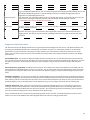
To open the Proposal document, click on the hyperlink under the Id field. Once the proposal document, navigate to the proposal actions tab. At the bottom of the tab you will find the workflow action buttons. return for edit: Send ad hoc request: Approve: Terminate: Close: The document is sent back to the initiator for changes. This can be done at any level in the workflow chain. However, once it is resubmitted into routing, all approvals have to be obtained again. The document can be submitted to ad hoc routers. The document is approved by the user and it goes on to the next approver. The document is terminated by an approver as a valid research administration transaction and is canceled and CANNOT be edited. The document is closed and no action is taken. Budget Budget documents are electronic documents that are part of the KC Proposal Development module and are attached to Proposal Development documents in the system. A Budget is an estimate of expenditures proposed to be incurred in the performance of a proposed sponsored research project. This document allows you to create and copy portions of budget “draft” versions where you may specify performance periods, personnel and costs while taking advantage of automatic calculations for inflation, salary increases and overhead, and get necessary reviews and approvals in order to finalize it, save and store for ongoing modification. The budget document includes pre-‐populated information such as key data elements and default values that are brought forth from the associated Proposal document. There is a specific right/role for budget creation, however, multiple users can be working in different functional areas simultaneously. Institutional rates like F&A and fringe benefits are applied automatically. Multiple budget versions can be created. Functionality includes calculation of the total cost of research and period cost limits. Budget details maps to Grants.gov, and also flows throw to the KC Awards module. Budget Versions Tab The budget versions tab is where you first create you budget document. To create a budget; name the budget and click on the add button. Once the add button has been clicked, the panel expands with additional information that will be filled out once you create your budget. To start working on the budget, click the open button. 32