1
MRS_WebClient_Bedienung.fm
Operating the OpenScape Web Client
Rule Profile – Handling Calls with Rules
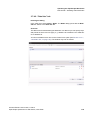
Bottom section
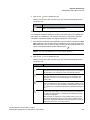
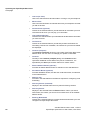
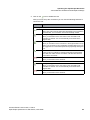
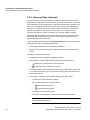
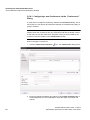
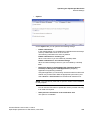
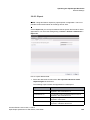
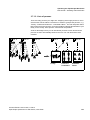
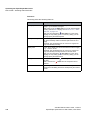
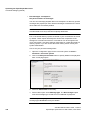
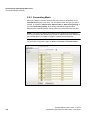
For a rule selected in the top section you can perform the following settings in the
bottom section:
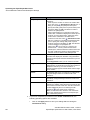
Function
Description
Specify the priority group For each rule you can set the priority groups “High”, “Normal”
and “Low”.
Set a rule to the highest
priority (senator status)
By clicking the
Set the current rule to highest priority
and copy to all profiles icon a rule is set to the highest
priority and added to all profiles.
Application example:
You expect a phone call from your garage and you want this
call be routed to your cell phone at any rate and any time, no
matter which profile is currently active. You thus need not
modify each single profile.
Resetting the senator status:
To reset this status you can either delete the rule (Section
3.7.4.1, ““New/edit” Tab”, on page 163) or deactivate the
checkbox for each profile in the “Assign profiles to rule:”
window (Section 3.7.4.5, ““Assign profiles to rule” Dialog”, on
page 173).
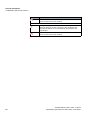
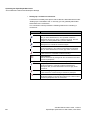
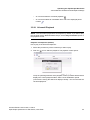
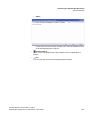
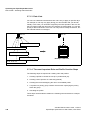
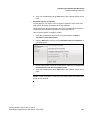
Display rule information
With a click on the
Information on icon the rule
information is summarized in a separate dialog.
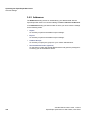
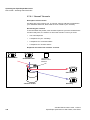
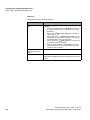
Specify settings
For each rule you can specify the following settings:
– “If call from”, see Section 3.7.4.2, ““If call from” Dialog”,
on page 167
– “If date / time”, see Section 3.7.4.3, ““Date/Time”
Dialog”, on page 169
– “Action”, see Section 3.7.4.4, ““Action” Dialog”, on page
171
– “Assigned profiles”, see Section 3.7.4.5, ““Assign
profiles to rule” Dialog”, on page 173
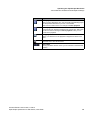
After clicking the
Edit entry icon the editing window of the
respective setting opens.
After clicking the
Reset standard icon the respective
setting is reset to the default value.
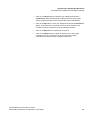
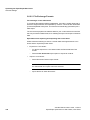
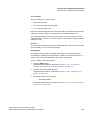
Reset modifications
By clicking the Undo button the modifications that you have
performed are reset.
A31003-S2370-U105-2-7619, 11/2013
OpenScape Xpressions V7 Web Client, User Guide
165