1
MRS_WebClient_Bedienung.fm
Operating the OpenScape Web Client
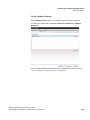
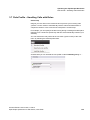
Journal Window Features and Workspace Dialogs
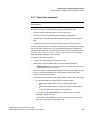
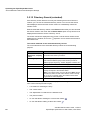
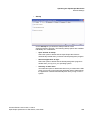
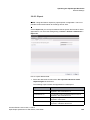
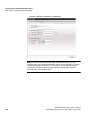
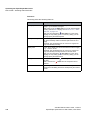
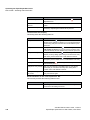
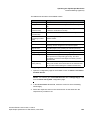
Field name
Description
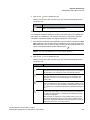
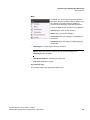
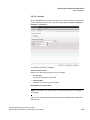
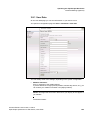
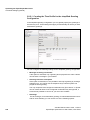
Select
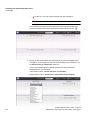
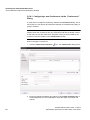
Combo box for selecting an already created conference
for editing.
If you want to add a new conference, click the New
conference icon.
Note: If no conference has been configured yet, the
mask is empty and you can start making your entries.
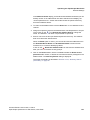
Name
Assign a name to the conference. Under this name the
conference is displayed in the Conferences frame. The
name must not exceed 30 characters.
Creator
Here you can see the name of the person that configures
the conference.
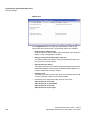
Start time
Select the checkbox next to Start time if the conference
is to start at a specific time. An entry field appears in
which you can set the date and time for the conference
start and in another entry field you can specify the
conference duration.
Click in these fields to make the appropriate definitions.
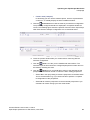
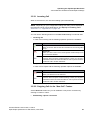
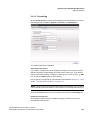
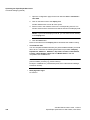
Start time: Default is the time at which you opened the
Conferences dialog. Click in this field or enable the
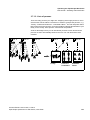
Show calendar icon to change the start time. The
calendar dialog opens. Here you can define the date and
time.
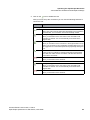
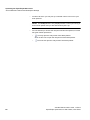
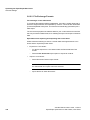
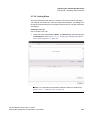
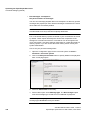
How to set the date: Click the day of the displayed month
on which the conference is to take place.
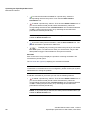
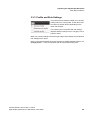
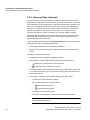
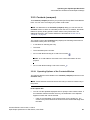
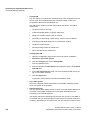
You can browse the months using the arrow icons (arrow
pointing to the right > upward and arrow pointing to the
left < downward). Via the doublearrows (<< >>) you can
browse the dates. The
icon in the middle position
displays the current month.
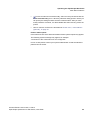
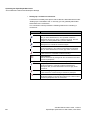
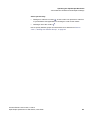
You can set the time via the icons situated next to the
time display:
The two clock icons on the left serve for counting hours
up (+) or down (-); the two clock icons on the right serve
for setting minutes (counting up (+) or down (-)).
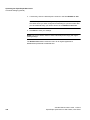
Click the OK button in the calendar dialog to save the
settings.
Click the Cancel button to close the dialog without
performing a change.
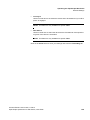
Duration: The conference duration default is 60 minutes.
If you want to change the conference duration, click in the
entry field and specify the desired value.
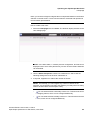
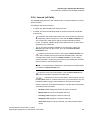
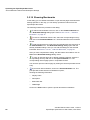
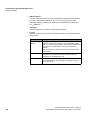
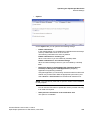
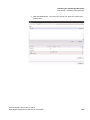
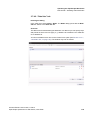
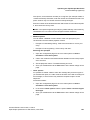
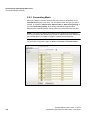
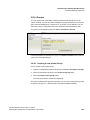
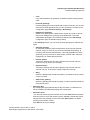
Participants
This section lists all conference members.
The inviting user is automatically placed in the list as first
entry.
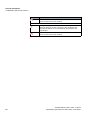
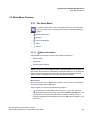
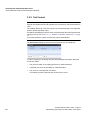
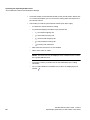
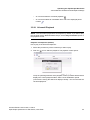
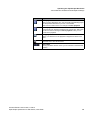
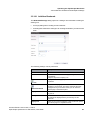
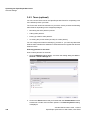
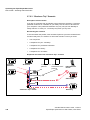
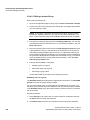
A participant entry in the journal contains the following
information (from left to right):
• The name of the conference participant
• The conference participant’s telephone number
• The icon to edit the subscriber entry
• The icon for deleting an added conference
participant
A31003-S2370-U105-2-7619, 11/2013
OpenScape Xpressions V7 Web Client, User Guide
77