1
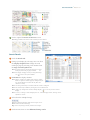
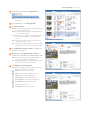
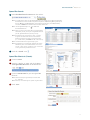
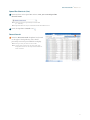
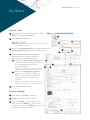
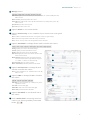
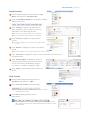
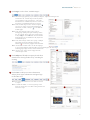
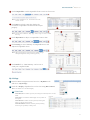
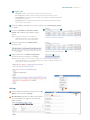
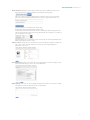
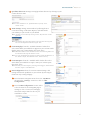
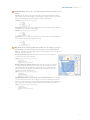
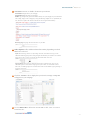
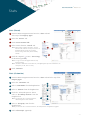
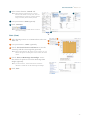
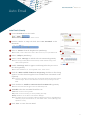
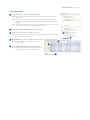
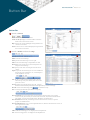
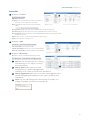
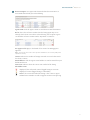
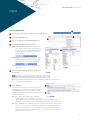
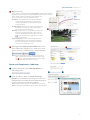
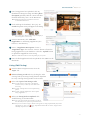
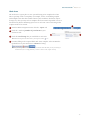
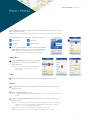
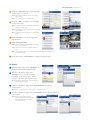
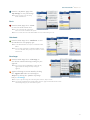
Quick Start Guide Matrix™ 6.7 7 Click Comparables to add comparables from a search or from a cart. Note: for more information, see, “Criteria Search” in the, “Search” section. 8 Click Map to include a map that displays the location of comparables in relation to the subject property. 7 8 Note: you must first include the, “Map” page, in the, “Pages” section to enable this step. 9 Click Adjustments to adjust a comparable’s feature value. 10 Click Pricing to view a Summary of Comparable Prices and Adjusted Comparable Prices. Note: add a suggested price based on the low, median, average and high comparable values provided (optional). 11 9 Click Finish for a, “CMA Summary” and to view or email your completed CMA. 10 My Listings 1 From the Matrix navigation menu, hover the, “My Matrix” tab and select, “My Listings”. 2 Click the, “Display” dropdown list to select the listing Hit Counters. s. Note: all columns are re-calculated nightly. 2a Client Data 1 Client Portals: the number of portals your listing has reached by Direct or Auto uto Email. Client Views: total number of Full Display views by Clients in their portal. 2 Client Favorites: number of Clients presently marking this listing as a favorite in their portal. Client Possibilities: number of Clients presently marking this listing as a possibility in their portal. 19