1
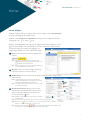
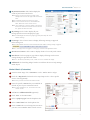
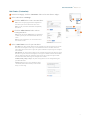
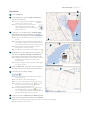
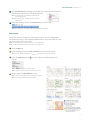
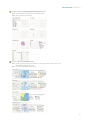
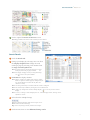
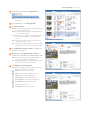
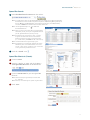
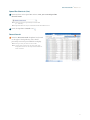
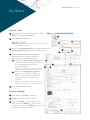
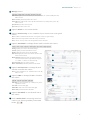
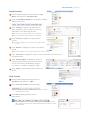
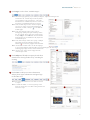
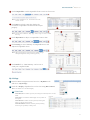
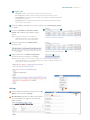
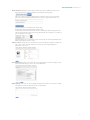
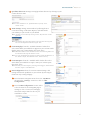
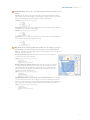
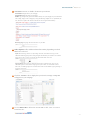
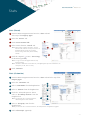
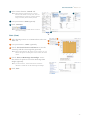
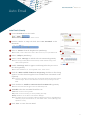
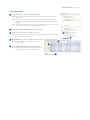
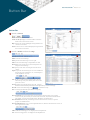
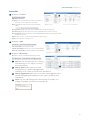
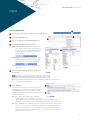
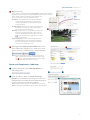
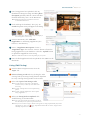
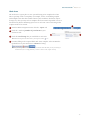
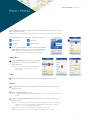
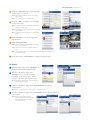
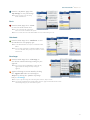
Quick Start Guide Matrix™ 6.7 6 Select listing(s) and use the Button Bar to perform a task. Note: see, “Button Bar” section for a full list of Button Bar functionality. 7 Click an MLS# to view listing details. 8 View listing photos. 7 Note: hover over the main listing photo and click either arrow to cycle through the photos. Note: the number of photos available is displayed in the left corner of the photo taskbar. Note: click the main listing photo, or the Expand icon in the photo task bar, to open photos in a modal pop-up window. 6 Note: click the New Window icon in the photo taskbar to open photos in a new window. Note: to play/pause the photo slideshow, click the play/pause button located in the right corner of the photo taskbar. 9 10 9 10 View additional listings results by clicking the, “Previous/Next” links. 8 Return to your original search results by clicking the, “Return to [my default] display” link. Note: [my default] will display as your default display type (e.g. Single Line, Multiline, Thumbnail etc.). Note: changing the display type in the Display dropdown list will also return you to your search results. 11 View additional listing options. Note: though some MLS’s may display additional icons, the following are included in most systems. Map: view listing location on a map. Photo: view listing photo/slideshow pop-up. Supplements: view listing supplements. Change History: view listing change history. Property History: view property listing history. Watch Listing: add listing to watched list. Tax: view listing tax record. Virtual Tour: view listing virtual tour. 11 12