1
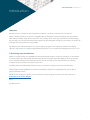
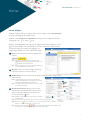
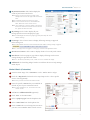
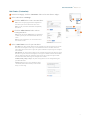
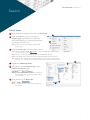
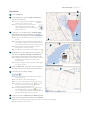
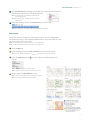
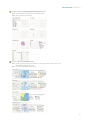
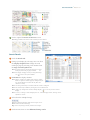
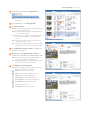
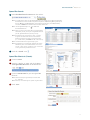
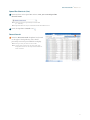
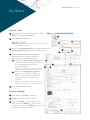
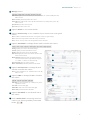
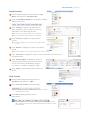
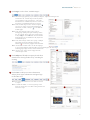
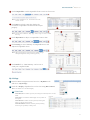
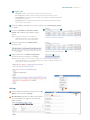
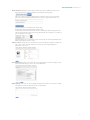
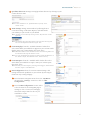
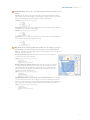
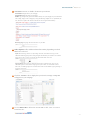
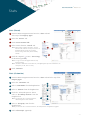
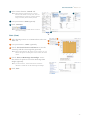
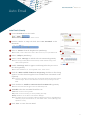
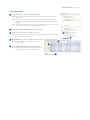
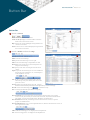
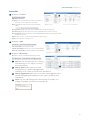
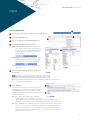
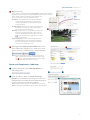
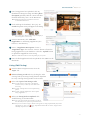
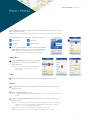
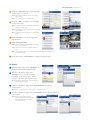
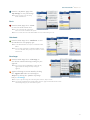
Quick Start Guide Matrix™ 6.7 My Matrix Contacts (Add) 1 2 From the Matrix navigation menu, hover the, “My Matrix” tab and select, “Contacts”. 1 Click, “Add” on the Button Bar. 4a 3 Note: see, “My Matrix > Contacts” in the “Button Bar” section for a full ull list of Button Bar functionality. 3 4 From the, “Personal Information” modal pop-up, fill out all mandatory fields (highlighted background in yellow). 4b 5 4 Additional optional fields, (no highlighted background) can be viewed by clicking the, “Show All Fields” link on the Button Bar. 4a Select the, "Enable Reverse Prospecting" checkbox to show the listing agent that their listing has been sent to this (anonymous) contact. 2 2 1 3 5 Note: for more information on "Reverse Prospect" see, "My Matrix > My Listings" in the "Button Bar" section. 4b Select the, "Mortgage Pre-Approved" checkbox if this contact has been preapproved (this will be indicated in the listing agent's reverse prospecting section). Note: for more information on "Reverse Prospect" see, "My Matrix > My Listings" in the "Button Bar" section. 5 Click, “Save” on the Button Bar. Contacts (Manage) 1 View number of, “Contacts” displayed. 2 Search for contacts by name or by filter. 3 Click the, “Expand” icon to open a section panel. Click the, “Collapse” icon to close a section panel. Click the, “Collapse All” icon to close all subsection panels at once. 4 15