1
Sample scenarios
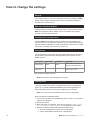
The following scenarios are examples of how the event management system
can control video streams. When changing the settings, remember click OK
button to confirm settings.
Switching I-frames only to full frames stream by motion
detection sensor
In this case Encoder streams I-frames only in normal mode. When motion is
detected in video channel 1, encoder starts streaming full frame video.
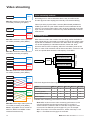
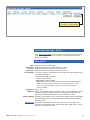
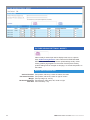
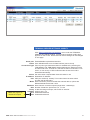
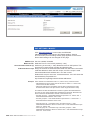
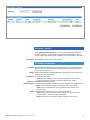
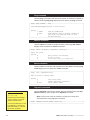
Select “2: Normal: I-Frames / Triggered: All” option
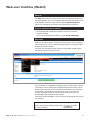
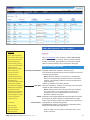
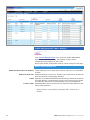
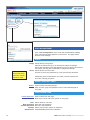
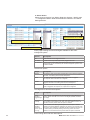
1. Click “Connection” menu under the Configuration/Video/Edit Video
Encoding Settings page and select “2: Normal: I frames / Triggered:
All” option from the Filtering (Normal/Triggered) pull-down menu.
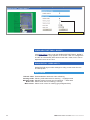
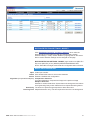
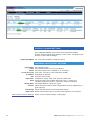
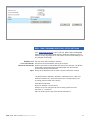
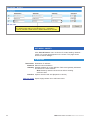
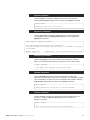
Select “1: Level sensitive trigger high” option
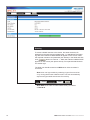
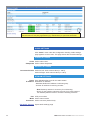
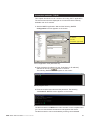
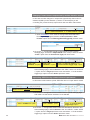
2. Select the MD1 for the input where camera is connected from “Actions”
menu under the Configuration/Motion Detection/Edit Motion Detection
page and select “1: Level sensitive trigger high” option from the Action
pull-down menu.
Switching I-frames only to full frames stream by contact
closure input sensor
In this case encoder streams I-frames only in normal mode. When CC
input 1 is closed, encoder starts streaming full frame video.
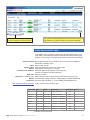
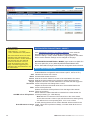
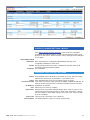
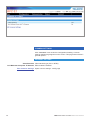
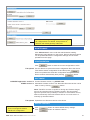
Select “2: Normal: I-Frames / Triggered: All” option
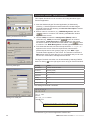
1. Click “Connection” menu under the Configuration/Video/Edit Video
Encoding Settings page and select “2: Normal: I frames / Triggered: All”
option from the Filtering (Normal/Triggered) pull-down menu.
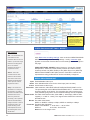
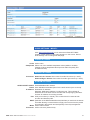
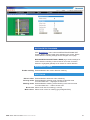
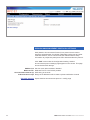
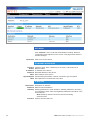
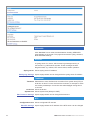
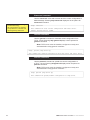
Select “CC INPUT 1” option
Select “1: Level sensitive trigger high” option
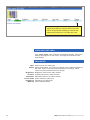
Note! CC polarity can set to reversed by changing Action
setting to “5:Level sensitive trigger low”. See table
“Action linking items and their descriptions”.
MPX series video encoders user manual
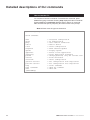
2. Select the MD1 for the input where camera is connected from “Actions”
menu under the Configuration/Motion Detection/Edit Motion Detection
page and select “1: Level sensitive trigger high” option from the Action
pull-down menu.
67