1
2
SIMSIDES User Guide
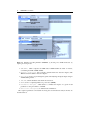
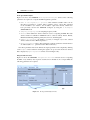
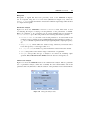
opens, listing all folders on the search path. From this dialog box, click the button
Add with Subfolders and select the SIMSIDES directory to add to the search
path. In order to reuse the newly modified search path including SIMSIDES directory
and subdirectories, click Save, and finally click Close. This procedure–illustrated in
Figure 1.1a–must be done only the first time SIMSIDES is installed in the hard disk.
In order to start SIMSIDES, type simsides at the MATLAB prompt and the SIMSIDES
main window is displayed, as illustrated in Figure 1.1b.
1.2
Building and Editing Σ∆M Architectures in SIMSIDES
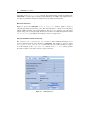
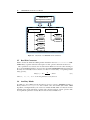
To create a new Σ∆M architecture in SIMSIDES, select File and then New Architecture
in the main menu, and a new SIMULINK model window is displayed. Alternatively, an
existing Σ∆M architecture can be opened by selecting File -> Open Architecture as
illustrated in Figure 1.2.
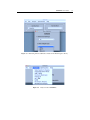
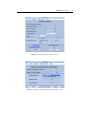
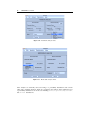
In order to define a Σ∆M block diagram in SIMSIDES, the required building blocks
can be incorporated from the Edit menu as shown in Figure 1.3. Both SIMULINK and
SIMSIDES library models can be included by selecting Edit -> SIMULINK Library or
Edit -> Add block , respectively. The latter option allows users to browse through all
SIMSIDES library models. This way, clicking on Edit -> Add blocka new window is
displayed where the user can select either ideal or real building blocks, by choosing either
Add Ideal Block or Add Real Block menus, respectively. In both cases, building-block
models are organized in a set of sublibraries, namely: integrators, quantizers & comparators,
D/A converters, resonators, and auxiliary blocks. The latter are only available in real libraries.
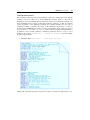
Some model libraries are grouped in sublibraries that contain different models
corresponding to different kinds of circuit implementations. For instance, if library
Real Integrators is selected, a new window is displayed where the user can select the
circuit technique (CT, SC, or SI) as well as the type of integrator (i.e., either FE or LD in
the case of SC and SI integrators, and Gm-C, Gm-MC, active-RC, MOSFET-C in the case
of CT integrators). As an illustration, Figure 1.3 shows different sublibraries contained in the
Real Integrators library. A complete list of model libraries and sublibraries is given in
Chapter 2 of this user guide.
Once the Σ∆M block diagram is completed and the different building-block model
parameters have been defined in the MATLAB workspace, the modulator can be simulated
in SIMULINK following the same procedure as for the simulation of an arbitrary model
in SIMULINK; i.e., choosing Simulation -> Start menu in the SIMULINK model
window.
1.3
Analyzing Σ∆Ms in SIMSIDES
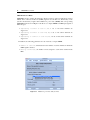
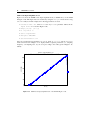
Simulation output data can be post-processed in SIMULINK using the Analysis menu. As
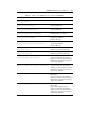
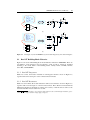
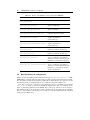
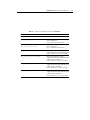
illustrated in Figure 1.4, the Analysis menu includes the following submenus:
• Node Spectrum Analysis, which computes and plots the FFT magnitude spectrum
of a given signal.
• Integrated Power Noise, used for calculating and graphically representing the
IBN within a given signal bandwidth.