1
Radeon X1600/X1900
(*) No Gravity is using Geometry Shaders in some level (mission 10). We
have report of severe slow down running on Radeon HD 2400/2600. We are
currently working on a specific patch for this video card.
1.2 - Graphics Settings
> No Gravity has limited graphics settings at this time : You can
choose between fullscreen (using the native resolution of your display
or windowed which is 1280x800).
> Check you OpenGL version on http://www.realtech-vr.com/glview/
> We recommend a Geforce 9x or better with 1920x1200 for best
experience, and 16:10 display.
> About this version, (compared to the PSP version), the HD version
uses higher definitions textures (up to 8 times), higher 3D models, new
post-process FX, in-game digitalized voices.
1.2 - Input Settings
> No Gravity takes advantage of HID devices for input. You can connect
mouse, joystick to control the game.
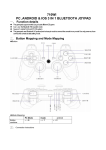
Dual Shock 3 (Around 54 USD)
> SIXAXIS and Dualshock3 are the preferred controller for No Gravity.
In MacOSX Snow Leopard, you don’t need to install any special drivers
to use a Bluetooth SIXAXIS / Dualshock3 PlayStation 3 pad. Simply
connect it with an USB cable, then hold the PS button down for a few
seconds. You can then unplug the cable and voilà, the pad is paired
(although the 4 red LEDS will always blink, it works). To turn it off
and disconnect, hold the PS button again for a while.
XBOX 360 controller for Windows (Around 77 USD)
> XBOX 360 controller for Windows is also perfect for No Gravity. You
need to install this driver from http://tattiebogle.net/index.php/
ProjectRoot/Xbox360Controller/OsxDriver to enable XBOX 360 controller.
You need to reconfigure each joystick button.
> Other joystick should work without much of problems, however, try to
get either a SIXAXIS or XBOX 360, we cannot guarantee