1
Installation Guide
5 Configure
After completion of the Installation as described in Section 2, you are ready to configure your T23
FLEET.
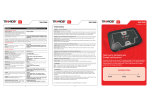
Figure 3 - T23 FLEET Control Panel
Your T23 FLEET has 3 lights to indicate the status of the unit. Green means OK and red and blue
means that you have a problem. T23 FLEET buttons require you to press for 2 seconds to prevent
accidental triggering.
Power LED - Green:
Flashing (5 seconds)
On
Off
Power LED - Orange:
Flashing (5 seconds)
Power LED - Yellow:
On
GSM LED – Red:
On
Off
Flashing
GPS LED - Blue:
On
Off
Power Button
Personal Assistance Button
(SOS/ATB)
Power is on
Charging
Power is off or T23 FLEET is sleeping
Power is ON but is too low
Charging and the power is still low
T23 FLEET is not connected to the GSM network
T23 FLEET is connected to the GSM network
T23 FLEET is having problems sending a SMS.
T23 FLEET does not have a GPS fix
T23 FLEET has a GPS fix
Press for 2 seconds to activate
Press for 2 seconds to activate.
When using an external SOS/ATB button, the T23 FLEET is configured to arm the Alarm by
pressing the button for less than 5 seconds. The external SOS/ATB can also be used to activate the
phone functions.
Phone Button
Press once to answer incoming call
Press for 2 seconds or more to initiate an outgoing call to User 1,
press a second time for User 2, etc. Second and third press does
not have to be 2 seconds.
Incoming call is indicated by the GSM and GPS lights flashing
together.
© 2007 - 2013 Tramigo™ Ltd. All rights reserved. Under the copyright laws, this manual cannot be reproduced in any form
without the prior written permission of Tramigo™.
Page 14