1
e7
Getting Started
Copyright 2004-2005
by MICROS Systems, Inc.
Columbia, MD USA
All Rights Reserved
MD Number: 00070-001
Warranties
Although the best efforts are made to ensure that the information in this manual is
complete and correct, MICROS Systems, Inc. makes no warranty of any kind with
regard to this material, including but not limited to the implied warranties of
marketability and fitness for a particular purpose. Information in this manual is
subject to change without notice. No part of this manual may be reproduced or
transmitted in any form or by any means, electronic or mechanical, including
photocopying, recording, or information recording and retrieval systems, for any
purpose other than for personal use, without the express written permission of
MICROS Systems, Inc.
MICROS Systems, Inc. shall not be liable for errors contained herein or for
incidental or consequential damages in connection with the furnishing,
performance, or use of this manual.
Printing History
New editions of this manual incorporate new and changed material since the
previous edition. Minor corrections and updates may be incorporated into reprints
of the current edition without changing the publication date or the edition number.
Edition
Month
Year
Software Version
1st
June
2004
1.00
2nd
January
2005
1.50
3rd
July
2005
2.00
Table of Contents
CHAPTER 1: Introduction
MICROS e7 System Overview . . . . . . . . . . . . . . . . . . . . . . . . . . . . . . . . . . . . . . . . . . 1-2
Hardware Components. . . . . . . . . . . . . . . . . . . . . . . . . . . . . . . . . . . . . . . . . . . . . . . . . 1-2
MICROS e7 Software Components . . . . . . . . . . . . . . . . . . . . . . . . . . . . . . . . . . . . . . . 1-7
CHAPTER 2: Site
Survey
Getting Started . . . . . . . . . . . . . . . . . . . . . . . . . . . . . . . . . . . . . . . . . . . . . . . . . . . . . . . 2-2
CHAPTER 3: Installation
Installing the MICROS e7 Software . . . . . . . . . . . . . . . . . . . . . . . . . . . . . . . . . . . . . . 3-2
CHAPTER 4: Configuring
the MICROS e7 System
Where To Start . . . . . . . . . . . . . . . . . . . . . . . . . . . . . . . . . . . . . . . . . . . . . . . . . . . . . . . 4-2
Programming Steps . . . . . . . . . . . . . . . . . . . . . . . . . . . . . . . . . . . . . . . . . . . . . . . . . . . 4-6
Programming Follow-Up . . . . . . . . . . . . . . . . . . . . . . . . . . . . . . . . . . . . . . . . . . . . . . . 4-9
Configuration/Programming Tips . . . . . . . . . . . . . . . . . . . . . . . . . . . . . . . . . . . . . . . . 4-11
CHAPTER 5: Using
Configurator
Opening Configurator . . . . . . . . . . . . . . . . . . . . . . . . . . . . . . . . . . . . . . . . . . . . . . . . . 5-2
Configurator Layout. . . . . . . . . . . . . . . . . . . . . . . . . . . . . . . . . . . . . . . . . . . . . . . . . . . 5-3
Using Configurator. . . . . . . . . . . . . . . . . . . . . . . . . . . . . . . . . . . . . . . . . . . . . . . . . . . . 5-7
Appendix A:
Glossary of Terms
CHAPTER 1
Introduction
This chapter contains general information about the hardware and software
components of the MICROS e7 POS System.
In This Chapter...
e7 Getting Started Manual
• MICROS e7 System Overview . . . . . . . . . . . . . . .
1-2
• Hardware Components . . . . . . . . . . . . . . . . . . . . .
• Workstation 4 (WS4) . . . . . . . . . . . . . . . . . . .
• Cash Drawers . . . . . . . . . . . . . . . . . . . . . . . . .
• Printers . . . . . . . . . . . . . . . . . . . . . . . . . . . . . .
• Customer Displays . . . . . . . . . . . . . . . . . . . . .
• License Key . . . . . . . . . . . . . . . . . . . . . . . . . .
1-2
1-2
1-3
1-3
1-4
1-4
• e7 Software Components . . . . . . . . . . . . . . . . . . .
• Point-of-Sale Operations . . . . . . . . . . . . . . . .
• Manager Procedures . . . . . . . . . . . . . . . . . . . .
• Reporting . . . . . . . . . . . . . . . . . . . . . . . . . . . .
• Configurator . . . . . . . . . . . . . . . . . . . . . . . . . .
1-7
1-7
1-7
1-7
1-8
1-1
MICROS e7 System Overview
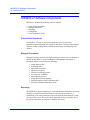
Workstation 4 (WS4) with Magnetic Stripe Reader
MICROS e7 System Overview
MICROS e7 is a robust point-of-sale solution, with the high quality, reliable and
extensive features that the marketplace has grown to expect from MICROS. All of
this has been packaged specifically for the independent restaurateur.
MICROS e7 is a complete solution that utilizes the revolutionary MICROS
Workstation 4 (WS4) POS terminal platform and MICROS' 25 plus years of
industry leading software solutions.
Hardware Components
MICROS e7 consists of a peer-to-peer network of intelligent terminals. Each of
the terminals can also drive up to 2 cash drawers and a single customer display per
terminal. An optional PC or networked guest check or kitchen printer can also be
connected.
MICROS e7 includes the following hardware components:
•
•
•
•
•
•
•
•
WS4 with Magnetic Stripe Reader
Cash Drawers
Printers
Customer Displays
License Key
Scanners
Scale
PC (Optional)
Workstation 4 (WS4) with Magnetic Stripe Reader
MICROS e7 uses the Workstation 4 (WS4) terminal for customer sales and for
recording all time-keeping activity in the system.
The WS4 is a highly reliable 12.1" full color touchscreen terminal running
MICROSOFT Windows CE .NET. The WS4 includes 2 USB ports, 2 Cash
Drawer ports, 3 serial ports, an integrated magnetic stripe reader and a customer
display port. Each terminal is connected to the system via an industry standard
Ethernet TCP/IP network.
The touchscreen on the WS4 has a smooth, flat, touch-sensitive liquid crystal
display (LCD) surface. Touchscreen keys are fully programmable and vary in
size. They can be programmed to perform all functions and operations offered by
traditional keyboards.
1-2
Introduction
Hardware Components
Cash Drawers
The Magnetic Stripe Reader used by the MICROS e7 system is integrated into the
WS4 unit. The MSR reads track 1 (alphanumeric) and 2 (numeric only) of the
magnetic stripe on credit cards and employee cards. Employee cards can be used
to sign employees into the system and to enter manager authorization ID numbers.
Cash Drawers
MICROS e7 currently supports the APG Series 4000 Cash Drawer (MICROS PN
400018-026, -027, -028, and -029), which features an extra deep cash till and a
MICROS DIN connector. These cash drawers are constructed of a highly durable
metal and can be secured with a special key. Database programming determines
which employees will have privileges to open each drawer.
Printers
MICROS e7 printers are used to print customer receipts, kitchen chits, time card
chits, and reports. These printers are used as peripheral devices, connected to the
WS4 units or daisy-chained along a single cable. MICROS e7 allows you to
redirect print jobs to backup printers if a failure occurs, such as low paper, paper
jam, or open door. These printers also have auto-cut mechanisms for pre-cut
receipts.
MICROS e7 currently supports the following types of printers:
• Epson TM-88III — A high-speed, low-noise, thermal printer that can print up
to 16.5 lines per second and can accommodate two different character sets, up
to 95 characters. This is the recommended local printer.
• Epson TM-U220 — A 9-pin, serial impact dot matrix printer that can print 3.5
lines per second and can accommodate three different character sets, up to 128
characters. Recommended as a low cost local or kitchen printer.
• Epson TM-U230 — A more robust version of the TM-U220. It’s sturdy, spillresistant design make it an ideal choice for the site’s primary kitchen printer.
Additionally, the IDN V Multi-lingual printer board can be used with the TM88III and U200 series Epson printers for printing double-byte characters
required for the Asia-Pacific marketplace.
e7 Getting Started Manual
1-3
Hardware Components
Customer Displays
Customer Displays
The customer display shows transaction totals and status. When an order is paid,
the display shows the amount tendered and then any change due to the customer.
Special message text can be defined to appear on the customer display when no
user is signed in. In addition to the integrated WS4 display, MICROS e7 supports
a pole-mounted display that plugs into the display port of the WS4.
The WS4 customer displays are built from a 240 x 64 bitmapped panel. The pole
display tilts and rotates for adjustable viewing.
License Key
For MICROS e7 to be fully operational, a hardware license key must be inserted
into a USB slot on each workstation in the enterprise. License keys are
interchangeable and may be used with any MICROS e7/WS4 unit.
If a hardware key is not present or is inoperable, the user will be notified that a
valid key is required. At that point, the user will be granted an 8-day grace period
for using the software. Once the grace period expires, if a valid key is not
provided, the software will no longer be fully operational.
A standard USB MICROS e7 license key is also required in order to utilize full
functionality on the system PC. Although users may access the MICROS e7
Configurator and Manager Procedures applications to build a database on a PC
without the key, it must be present to run Reports, Reports Plus, and the Credit
Card utilities.
Scanners
MICROS e7 allows an establishment to easily ring and track the sales of individual menu
items through the use of an attached barcode scanner. Any Serial scanner that can be
programmed to append a carriage return <CR> to the end of the output data stream is
supported, such as the Symbol LS-9100.
Scales
MICROS e7 allows an establishment to post sales of menu items that are priced by
weight. The Mettler-Toledo Viva scale interface is supported with MICROS e7.
1-4
Introduction
Hardware Components
PC (Optional)
PC (Optional)
Adding an industry-standard PC to the MICROS e7 system allows users to store guest
check transaction detail for longer periods of time. The amount of detail stored is
dependent on the hard drive space available on the PC.
e7 Getting Started Manual
1-5
Hardware Components
Sample Diagram
Sample Diagram
The following diagram shows an example of a MICROS e7 system.
1-6
Introduction
MICROS e7 Software Components
Point-of-Sale Operations
MICROS e7 Software Components
MICROS e7 includes the following software modules:
•
•
•
•
•
Point-of-Sale Operations
Manager Procedures
Reporting
Configurator
Credit Card Batch Utility
Point-of-Sale Operations
The MICROS e7 Point-of-Sale (POS) application is used to post sales
transactions and clock employees in and out. MICROS e7 also provides manager
functions such as voiding checks, printing system reports, and assigning cash
drawers.
Manager Procedures
Manager Procedures provides privileged employees with easy-to-use shortcuts to
modify the MICROS e7 system and database. With Manager Procedures, a
privileged employee can perform the following:
•
•
•
•
•
•
•
•
•
•
assign employee IDs
set training status
adjust time card entries
edit menu item prices
edit menu item display status
set menu item availability
redirect/disable printers
change default printer language
increment employee and workstation shifts
perform workstation maintenance tasks
Reporting
The MICROS e7 Reports module gives restaurant operators on-demand, real-time
reporting on all POS workstations. Reports can be run for an employee, a
workstation, or the entire restaurant, at any time from any POS terminal, or from
an optional PC system. The results can be displayed on screen, printed to one of
the system roll printers, or printed to a Windows PC printer.
e7 Getting Started Manual
1-7
MICROS e7 Software Components
Configurator
With the e7 System, reports are available in two distinct formats:
• Standard Reports — These reports are based on pre-defined 40-column
report templates. They can be viewed on the POS terminal, or printed on system roll printers or a Windows printer connected to a PC.
• ReportsPlus — These reports are based on flexible HTML templates.
ReportsPlus consolidates summary totals and guest check information for all
workstations in the system. When reviewing the report totals from the POS terminal, the user can take advantage of hyperlinked entries to drill-down into the
data, ending up with a more detailed view of the items on each check.
Configurator
The MICROS e7 Configurator is a graphical configuration tool that allows
privileged employees to easily perform system setup, menu changes, employee
functions and other administrative tasks with a minimal amount of training.
Credit Card Batch Utility
The MICROS e7 Credit Card Batch utility is a graphical tool that allows
privileged employees to easily verify (create & edit) and transfer (settle)
electronic draft data to the credit card processor. You can also view and print
detailed information about each record in a credit card batch and each batch
transfer. Additionally, diagnostics can be performed using a specific credit card
driver.
1-8
Introduction
CHAPTER 2
Site Survey
This chapter contains the MICROS e7 POS System Site Survey for collection of
information about a site before installation.
In This Chapter...
e7 Getting Started Manual
• General . . . . . . . . . . . . . . . . . . . . . . . . . . . . . . . . .
2-2
• Restaurant . . . . . . . . . . . . . . . . . . . . . . . . . . . . . . .
2-4
• Staff . . . . . . . . . . . . . . . . . . . . . . . . . . . . . . . . . . . .
2-7
• Tenders . . . . . . . . . . . . . . . . . . . . . . . . . . . . . . . . .
2-11
• Menu Items . . . . . . . . . . . . . . . . . . . . . . . . . . . . . .
2-13
• Reporting. . . . . . . . . . . . . . . . . . . . . . . . . . . . . . . .
2-14
• Touchscreens . . . . . . . . . . . . . . . . . . . . . . . . . . . . .
2-16
2-1
Getting Started
General
Getting Started
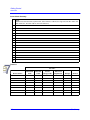
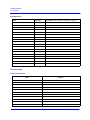
The MICROS e7 Site Survey is available to assist you in collecting information about a site before the
installation of any MICROS equipment. To make installation and setup easier, this section collects
information related to the MICROS e7 database. All you need to do is begin filling in the answers that
apply to your installation site.
General
Site Name
Site Location
Site Contact Info
Proposed Install Date?
Additional Notes
Hardware
Workstations
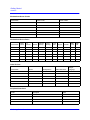
Use this table to define each workstation.
Workstation
2-2
Location
Printers
Attached?
Order
Types
Sign In
Touchscreen
Tracking
Group
Check
Ranges
Cash
Drawers?
Site Survey
Getting Started
Hardware
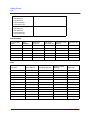
Workstations-Guest Checks
Workstation
Printer Name
Printer Model
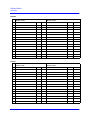
Workstations-Device Roles
Workstation
Guest
Check
CA
Voucher
Journal
Journal
Backup
Local
Backup
Local
Order
Report
Scanner
Time
Card
Time
Chit
Order Devices
Workstation
Device
Backup Device
Redirection Device
Output
Language
Peripherals/Interfaces
Name
e7 Getting Started Manual
Description
Node
2-3
Getting Started
Restaurant
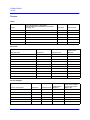
Restaurant
Restaurant
Use Magnetic Cards or IDs
Business Start Day/Time
Languages Used/Active Language
Use Seat Handling
Use Beverage Control
By guest count
Days to keep:
historical totals (up to 60 days)
report details (up to 21 days)a
a. More days of history can be kept if using a larger compact flash or optional PC.
Tables
Number
Name
Order Types
Names
2-4
Site Survey
Getting Started
Restaurant
Headers
Header Name:
Header Name:
Wide
Red
Wide
Red
Wide
Red
1
2
3
4
5
6
7
8
9
10
11
12
13
14
Trailers
Trailer Name:
Trailer Name:
Wide
Red
1
2
3
4
5
6
7
8
9
10
11
12
13
14
e7 Getting Started Manual
2-5
Getting Started
Restaurant
Guest Check Summary
Type:
(Blank Line, Discount Total, Payment Total, Sales Itemizers, Subtotal, Svc Chg Total, Tax Rate Totals, Tax
Rate Totals Net, Tax Total Add On, Tax Total Inclusive)
1
2
3
4
5
6
7
8
9
10
11
12
13
14
Reasons
Use with...
Reason Names
2-6
Menu Item
Voids
Discount
Voids
Service
Charge Voids
Time Card
Adjustments
Pickups
Returns
Site Survey
Getting Started
Staff
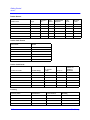
Print Classes
Print On
Print Class Name
Check
Journal
Local
Order
Receipt
Remote Devices
Report
Print On Devices
Print
in Red
Staff
Timekeeping
Labor Week Start Day:
Allocate Labor Hours (actual day
vs. clock-in day):
Payroll (Weekly, Biweekly, etc.)
Payroll Export Needed?
Days To Keep Time Card Detail:
Maximum Age (for Minors):
Prompt for:
Break on clock out?
Paid break on clock out?
Authorization required for:
Early in from paid break?
Late in from paid break?
Early in from unpaid break?
Late in from unpaid break?
e7 Getting Started Manual
2-7
Getting Started
Staff
Regular Break Durations:
Paid Minimum?
Paid Maximum?
Unpaid Minimum?
Unpaid Maximum?
Minor Break Durations:
Paid Minimum?
Paid Maximum?
Unpaid Minimum?
Unpaid Maximum?
Overtime Rules
Overtime Rule
Name
Wage
Multiplier
Daily Hours
Before OT
Hours Before
Labor Week OT
Days Before Labor
Week OT
Consecutive Day
OT
Jobs
Job Name
2-8
Sign In Allowed?
Automatic Sign Out?
Server or Cashier
Banking?
Tipped Job?
Site Survey
Getting Started
Staff
Jobs-Privileges
Privilege
Job 1
Job 2
Job 3
Job 4
Job 5
Job 6
Begin check
Pickup check
Reopen check
Transfer checks
Split/Merge checks
Pickup Others’ checks
Require authorization when
ringing discounts
Require authorization when
ringing service charges
Require authorization when
ringing tenders
Require authorization when
ringing menu items
Use Configurator
Use Reports
Use Manager Procedures
Edit Employees
Edit Menu Items
Edit Remote Printers
Edit Shifts
Peer-To-Peer Maintenance
Use Credit Card Applications
Use database tools
Clear all totals
No Sale
Transaction Cancel
Voids
Returns
Exempt Tax
Change menu
Change order type
Require seat entry
Require cover entry
Require table entry
Manual credit card authorization
Manual credit card entry
e7 Getting Started Manual
2-9
Getting Started
Staff
Reprint credit card voucher
Unmask credit card information
Employees
Gather employee contact information, including their address, phone number, SSN/SIN.
Employee
Name
2-10
Cashier
Cash
Drawer
Language
Jobs / Regular
Pay Rate
Password
ID
Payroll
ID
Secondary ID
Site Survey
Getting Started
Tenders
Tenders
Taxes
Name
Type (Add On, Inclusive, Breakpoint)
(US, Canadian GST, Canadian PST, VAT, Florida
Surcharge, etc.)
Percentage
Start Amount
Discounts
Discount Name
Open/Preset
Amount/Percent
Authorization
Required
Service Charges
Service Charge Name
e7 Getting Started Manual
Open/Preset
Amount/Percent
Authorization
Required
Post to: services charges,
tips paid, charged tips,
employee tips
2-11
Getting Started
Tenders
Tender-General
Tender Name
Type
Exempted
Tax
Open
Drawer
Authorization
Required
Print
Check
Alternate
Trailer
Tender-Cash Presets
Preset Name
Amount
Tender-Credit Cards
Credit Card Name
Preamble Range
CC Account
Length
CA Tip %
Validate CC
Numbers/
Expiration
Currency
Currency Name
2-12
Decimal Places
Conversion Rate
Rounding
Site Survey
Getting Started
Menu Items
Menu Items
Auto Menus
Meal Period Names
Change Automatically?
Times in Effect
Active Workstations
Active Rules
Active Rule Name (Sub, Extra, etc.)
Menu
Gather all menu and condiment lists.
Menu Item Categories
Category Name (Appetizer, Entree, etc.)
e7 Getting Started Manual
Comments
2-13
Getting Started
Reporting
Reporting
Time Periods
Name
Period
Reports
Report Name
System Balance Report
System Tax Report
System Tips Report
System Status Report
Family Group Sales Report
Family Group Detail Sales Report
Major Group Sales Report
Major Group Detail Sales Report
Menu Item Sales Report
Menu Item Detail Sales Report
Menu Item Availability Report (NEW in V2.0)
Menu Item Price Report (NEW in V2.0)
Menu Item Status Report (NEW in V2.0)
Time Period Sales Report
Time Period Detail Sales Report
Void Report
Tender Report
Discount Report
Service Charge Report
Employee Balance Report
Employee Shift Report
2-14
Site Survey
Getting Started
Reporting
Employee Tip Report
Employee Open Check Report
Employee Closed Check Report
Employee Listing Report (NEW in V2.0)
Clock In Status Report
Time Clock Detail Report
Job Code Labor Report
Labor Availability Report
Workstation Balance Report
Workstation Shift Report
Workstation Consolidated Shift Report (NEW in V2.0)
Tracking Groups
Name
e7 Getting Started Manual
Tracking Type
Tracking Number
2-15
Getting Started
Touchscreens
Autosequences
Name
Step Type
Step Details-Action, Report, Autosequence, Ranges
Touchscreens
List of Touchscreens
Name
2-16
Purpose
Site Survey
CHAPTER 3
Installation
This chapter contains general information about installing the software
components of the MICROS e7 POS System.
In This Chapter...
• Installing the MICROS e7 Software . . . . . . . . . . .
• Workstation 4 Platform Image . . . . . . . . . . . .
• MICROS e7 Workstation Installation. . . . . . .
• MICROS e7 PC Installation . . . . . . . . . . . . . .
e7 Getting Started Manual
3-2
3-3
3-4
3-5
3-1
Installing the MICROS e7 Software
Installing the MICROS e7 Software
The MICROS e7 product is available for download from the MICROS Web Site. There
are several download choices that can be made from Member Services | Product Support |
MICROS Products:
• MICROS e7 Workstation Installation
Use the e7 | e7 [Release Version] | e7 Workstation Software link to download the
e7_ws_build_[Version].exe file.
• MICROS e7 PC Prerequisites Installation
Use the e7 | e7 [Release Version] | e7 PC Pre-requisite Software link to download the e7_pc_prereq_2_0_.exe file.
• MICROS e7 PC Installation
Use the e7 | e7 [Release Version] | e7 PC Software link to download the
e7_pc_build_[Version].exe file.
• Workstation 4 Platform Image
Use the e7 | e7 [Release Version] | WS4 Platform Software link to download the
ws4_platform_[Release Version].exe file.
Note
Additionally, the MICROS e7 Documentation can be downloaded from
Member Services on the MICROS Web Site using the following links:
• e7 | Documentation | e7 Marketing Overview downloads the
e7MarketingOverview.pdf file.
• e7 | e7 [Release Version] | Documentation | e7 ReadMe First
downloads the e7_rmf.pdf file.
• e7 | e7 [Release Version] | Documentation | e7 Getting Started
downloads the e7GettingStarted.pdf file.
• e7 | e7 [Release Version] | Documentation | e7 User’s Manual
downloads the e7_UsersManual.pdf file.
3-2
Installation
Installing the MICROS e7 Software
Workstation 4 Platform Image
Workstation 4 Platform Image
Notes
The platform image must be installed prior to installing the
MICROS e7 software on a Workstation 4.
Use these instructions to install the Platform Image on a Workstation 4. The MICROS e7
software will not be installed as part of these instructions. A PC or laptop is required to
extract the zip file and copy the extracted files to the appropriate transfer media, such as a
USB thumb drive.
1. Copy the ws4_platform_[Release Version].exe file from the MICROS Web Site to a
temporary directory on the PC.
2. Double-click on ws4_platform_[Release Version].exe to extract the MICROS e7 files.
3. Enter a directory location where the MICROS e7 files will be extracted
(i.e. c:\wsImage).
4. Click on Unzip.
5. Click on Close.
6. Copy the directory from Step 3 (i.e. c:\wsImage) to a USB thumb drive.
7. Attach the USB thumb drive to the USB slot on the back of the workstation 4.
8. Open Windows Explorer on the workstation 4.
9. Locate the MICROS e7 software directory (i.e. c:\wsImage) on the USB thumb drive.
The USB thumb drive should appear in Explorer as \Hard Disk. The following two
sub-directories should be available:
..\Standalone CAL Upgrade to 32
..\Standalone Eng Platform 14.4
10.From the ..\Standalone CAL Upgrade to 32 directory, run Setup.exe to upgrade the
CAL client software on the workstation.
Notes
This step must be completed prior to installing the 14.4 platform.
Make sure that each workstation has at least 22 MB of free compact
flash space before installing the software on the PC.
11.From the ..\Standalone Eng Platform 14.4 directory, run Setup.exe to install the 14.4
platform. CAL installs the Windows CE image and reboots the workstation.
Notes
e7 Getting Started Manual
If MICROS e7 Version 1.5 is currently installed, then the 14.4
platform has already been installed and this step is not
necessary.
3-3
Installing the MICROS e7 Software
MICROS e7 Workstation Installation
MICROS e7 Workstation Installation
Use these instructions to install the MICROS e7 software on a Workstation 4 that has the
appropriate Windows CE operating system image already installed. A PC or laptop is
required to extract the zip file and copy the extracted files to the appropriate transfer
media, such as a USB thumb drive.
1. Copy the e7_ws_build_[Version].exe file from the MICROS Web Site to a temporary
directory on the PC.
2. Double-click on e7_ws_build_[Version].exe to extract the MICROS e7 files.
3. Enter a directory location where the MICROS e7 files will be extracted. (i.e.
c:\e7Software)
4. Click on Unzip.
5. Click on Close.
6. Copy the directory from Step 3 (i.e. c:\e7Software) to a USB thumb drive.
7. Attach the USB thumb drive to the USB slot on the back of the workstation 4.
8. Open Windows Explorer on the workstation 4.
9. Locate the MICROS e7 software directory (i.e. c:\e7Software) on the USB thumb
drive. The USB thumb drive should appear in Explorer as \Hard Disk.
10.Run Setup.exe. CAL installs the MICROS e7 software and reboots the workstation.
3-4
Installation
Installing the MICROS e7 Software
MICROS e7 PC Installation
MICROS e7 PC Installation
With MICROS e7, a PC can be setup to run the MICROS e7 ReportsPlus, Configurator,
and Credit Cards modules. To use these applications on a PC, the .NET framework
(Version 1.1) must be installed using the e7 PC Prerequisites installation and MICROS e7
software must be installed using the e7 PC Setup installation. Optionally, the PC may be
configured to be a CAL server for the MICROS e7 site, so that it can be used to update the
workstations with the MICROS e7 workstation software.
Note
The .NET framework (Version 1.1) must be installed on the PC
prior to running the e7 PC setup program. Use the
e7_pc_prereq_2_0_.exe file that can be downloaded from the
MICROS Web Site to install the .NET framework.
Use these instructions to extract the PC Prerequisites zip (.exe) file and install the
extracted files to a PC.
Extracting the MICROS e7 PC Prerequisite Files
1. Copy the e7_pc_prereq_[Version].exe file from the MICROS Web Site to a
temporary directory on the PC.
2. Double-click on e7_pc_prereq_[Version].exe to extract the files.
3. Enter a directory location where the MICROS e7 files will be extracted. (i.e.
c:\e7Prereq)
4. Click on Unzip.
5. Click on Close.
Installing the MICROS e7 Prerequisite Files to a PC
1. Open Windows Explorer on the PC.
2. Locate the MICROS e7 prerequisites directory (i.e. c:\e7Prereq) that you
extracted in the previous steps.
3. Run e7PreReqs.exe.
4. The necessary files are installed. This may take a few minutes.
e7 Getting Started Manual
3-5
Installing the MICROS e7 Software
MICROS e7 PC Installation
Use these instructions to extract the PC Setup zip (.exe) file and install the extracted files
to a PC.
Extracting the MICROS e7 PC Setup Files
1. Copy the e7_pc_build_[Version].exe file from the MICROS Web Site to a temporary
directory on the PC.
2. Double-click on e7_pc_build_[Version].exe to extract the MICROS e7 files.
3. Enter a directory location where the MICROS e7 files will be extracted. (i.e. c:\e7CD)
4. Click on Unzip.
5. Click on Close.
Note
The MICROS e7 installation can be started from the directory where
you extracted files in these previous steps (i.e. c:\e7CD) using the
instructions below.
or
These extracted MICROS e7 files can be burned onto a CD. Then,
Launch.exe can be executed to start the product installation.
Installing the MICROS e7 PC Setup Files to a PC
Note
Once the CAL software is installed on the PC, the system will
automatically upgrade each workstation. Make sure that each
workstation has at least 22 MB of free compact flash space before
installing the software on the PC.
1. Open Windows Explorer on the PC.
2. Locate the MICROS e7 software directory (i.e. c:\e7CD) that you extracted in the previous steps.
3. Run e7PCSetup.exe.
4. Click Next from the e7 Setup Welcome screen.
5. Review the End User License Agreement, click I Accept the Agreement, and
click Next.
6. Enter the location where MICROS e7 will be installed. The default destination location
is the same as the previously installed version of MICROS e7 or c:\Program
Files\MICROS\e7 for a new installation. Use the Browse button to select a different
destination location.
3-6
Installation
Installing the MICROS e7 Software
MICROS e7 PC Installation
7. Select the additional tasks to be performed by the MICROS e7 installation and click
Next.
• Create shortcut on the desktop—Creates a desktop shortcut for the e7.exe file in
the \bin folder. The name of the desktop shortcut is MICROS e7 and the default
folder is the \bin folder.
• Create shortcut in the Start Menu—Creates a selection for MICROS e7 in Start
Menu | Programs on the PC.
• Create shortcut in the Startup folder—Creates a shortcut in the PC’s startup
folder for the e7.exe program.
• Install MICROS CAL Service—Installs the MICROS CAL Service on the PC. If
the CAL server is already installed, this choice is greyed out.
8. Click Finish to begin installing MICROS e7.
Warning
e7 Getting Started Manual
After the CAL server install, the workstation operating system images
are automatically updated, if necessary. In MICROS e7 Version 1.0,
the package had to be selected from each workstation to update the
clients. This is no longer necessary with MICROS e7 Version 1.5 or
later.
3-7
Installing the MICROS e7 Software
MICROS e7 PC Installation
3-8
Installation
CHAPTER 4
Configuring the MICROS e7
System
This chapter contains information about programming the e7 POS System.
In This Chapter...
e7 Getting Started Manual
• Where To Start . . . . . . . . . . . . . . . . . . . . . . . . . . .
• Using the Site Survey . . . . . . . . . . . . . . . . . . .
• Creating a New Database . . . . . . . . . . . . . . . .
4-2
4-2
4-2
• Programming Steps . . . . . . . . . . . . . . . . . . . . . . . .
4-6
• Programming Follow-Up . . . . . . . . . . . . . . . . . . .
• Back Up the Database. . . . . . . . . . . . . . . . . . .
• Review the Site Survey. . . . . . . . . . . . . . . . . .
• Test the Database . . . . . . . . . . . . . . . . . . . . . .
• Clear Totals. . . . . . . . . . . . . . . . . . . . . . . . . . .
4-9
4-9
4-9
4-9
4-10
• Configuration/Programming Tips . . . . . . . . . . . . .
4-11
4-1
Where To Start
Using the Site Survey
Where To Start
Using the Site Survey
The site survey should be completed by the programmer/installer early in the installation
process, so that you can use it when developing a MICROS e7 database.
The MICROS e7 Site Survey from chapter 2 of the Getting Started manual contains
questionnaires and charts for compiling information about the restaurant. The
programmer/installer conducts interviews with restaurant management to acquire the
information.
If you have not yet completed the site survey, do so before developing the database. The
site survey will ensure greater success during and after the installation.
Creating a New Database
There are several ways you can create a new database:
• Adapt the MICROS e7 sample database
• Adapt a MICROS e7 database from a similar site
• Program a blank database
Note
Starting with an existing database, one that has common
features enabled, is faster and easier than programming from a
blank database.
Adapting the Sample Database
MICROS provides a sample e7 database with every system. The sample database contains
records you can modify, and has a typical set of features already enabled.
Adapting a Similar Database
Some restaurants may use similar operating procedures and menus. When installing a
system in a new restaurant, you may wish to copy the database from an existing site and
modify it to meet the new restaurant’s specific needs.
4-2
Configuring the MICROS e7 System
Where To Start
Creating a New Database
How To Adapt a Sample or Similar Database
1. Exit the MICROS e7 application.
2. Delete the ..\db directory and all of its sub-directories.
3. Delete any files in the ..\DbBackups directory.
4. Copy the sample or similar database to \\CF\micros\e7\DbBackups on the Workstation
or the \\[Install Directory]\DbBackups directory on the PC. The sample database is
located in the ..\Samples directory.
5. Make sure the database is named either backup.001.gz or backup.002.gz.
6. Restart the MICROS e7 application. A blank database is created and Configurator is
started.
7. From Configurator, select the Utilities | Restore the database option.
8. Select Yes to confirm that you want to Restore a database.
9. The database is restored.
How To Program a Blank (Shell) Database
A blank (or shell) database is an empty database with records created for only the fixedlength tables. When starting MICROS e7 after installation, the system will detect that no
database exists in the ..\db directory and create a blank database.
With a blank database, the Configurator application is automatically started and these
steps must be performed prior to exiting the Configurator application:
• define languages
• create a sign in touchscreen
• create a default touchscreen
• define a workstation
• define a PC (if required)
• create an authorized employee
e7 Getting Started Manual
4-3
Where To Start
Creating a New Database
Defining Languages
1. Open the Restaurant form and select the Language tab.
2. Enter a name for each of the required languages and mark them as Active.
3. If the language uses double-byte characters, mark the Is unicode option.
4. Click on the Restaurant | General tab.
5. Select the Default language.
6. Save your changes.
Creating a Sign In Touchscreen
1. Open the Touchscreens form.
2. Create a Sign In screen using the Logo template.
3. Add Sign In, Numeric, and Exit buttons.
4. Save your changes.
Creating a Default Touchscreen
1. Open the Touchscreens form.
2. Create a Default Touchscreen using the MaxButtons template.
3. Add a Configurator button and Sign Out button to this screen.
4. Save your changes.
Defining a Workstation
1. Open the Workstations form.
2. Enter a name for Workstation 1.
3. Select the Sign in touchscreen created in the previous steps.
4. Enter the Start and End check number ranges as 1 to 1000.
5. Save your changes.
4-4
Configuring the MICROS e7 System
Where To Start
Creating a New Database
Defining a PC
Perform these steps if you are using a PC with the MICROS e7 system or if you are
configuring a database on a PC.
1. Open the PC form.
2. Enter a name for the PC.
3. Select the workstation settings to be used in the Use workstation settings from field.
4. Select the Sign in touchscreen created in the previous steps.
5. Select the Default touchscreen created in the previous steps.
6. Save your changes.
Creating an Authorized Employee
1. Open the Jobs form and create a “Property Expert” job with super-user privileges,
including the priviliege to Use Configurator on the Privileges tab.
2. Open the Employees form and create an employee record. Link this employee to the
“Property Expert” job you just created and assign a Password ID. Remember this ID
for use when logging into MICROS e7 applications in the future.
Now you may continue to program the forms using the order shown in the following
Programming Steps or exit the Configurator application. You will be prompted to enter
the Password ID that you just created when attempting to re-enter Configurator.
Note
If you need to return to a blank (shell) database state:
1. Exit the MICROS e7 application.
2. Delete the ..\db directory and all of its sub-directories.
3. Restart the MICROS e7 application.
4. A blank (shell) database is created.
e7 Getting Started Manual
4-5
Programming Steps
Creating a New Database
Programming Steps
Systematically completing information in the forms is the fastest way to program a
database. Start with the first form in the list below and work your way down the list.
Depending on the restaurant’s needs, you may not need to program every form.
Configurator Form
Jobs
Instructions
Add and name Job Categories
Add and define Jobs
*Return to link touchscreens
Configurator Access
Add and define the forms in which access should be limited
Overtime
Add and name overtime rules
Add and define overtime levels
Add and define overtime rule/level information
Employees
Add and name employee types
Add and define employees
Headers
Add and name header record
Add line data detail on the Main tab
Trailers
Add and name trailer record
Add line data detail on the Main tab
Time Periods
Add and define time period
Timekeeping
Define general timekeeping and break information
Taxes
Define the required tax types
Order Types
Define the required order types
Currency
Add and define the required currencies
Reasons
Add and define reasons
Report Groups
Add and name major groups
Add and name family groups
CAEDC Drivers
Add and define the required authorization driver(s)
Add and define the required settlement driver(s)
Tenders
Add and define all loan tenders
Add and define all payment tenders
Add and define all pickup tenders
Add and define all service total tenders
* Return to define interfaces
4-6
Configuring the MICROS e7 System
Programming Steps
Creating a New Database
Configurator Form
Restaurant
Instructions
Define additional restaurant information
* Return to link tracking group
Add all tables required for the restaurant on the Tables tab
Define the check summary information on the Guest Check
Summary tab
Workstations
Name and define each workstation on the General & Options tabs
* Return to link touchscreens and tracking groups
Add and define each device connected to each workstation on the
Devices tab
*Return to link order devices on the Order devices tab
Add and define each device role on the Device Roles tab
Order Devices
Define order devices
Return to Workstations to link order devices on the Workstations |
Order Devices tab
PC
Define all necessary PC-related information
* Return to link touchscreens
Interfaces
Define all interfaces (e.g., PMS, Scale interfaces)
Tenders
Add and define all tender interfaces
Auto Menus
Add and define all auto menu information
Print Classes
Add and define all print classes
Discount Groups
Name all discount groups
Discounts
Add and define all discounts
Service Charges
Add and define all service charges
Active Rules
Add and define all active modifier rules
Menu Item Quantity
Add and define all active menu item quantity rules
Menu
Add and define menu categories
Add and define menu items
Add and define condiment groups
Add and define condiments
e7 Getting Started Manual
4-7
Programming Steps
Creating a New Database
Configurator Form
Touchscreens
Instructions
Add and define touchscreens
Return to Jobs to link touchscreens
Return to Workstations to link touchscreens
Return to PC to link touchscreens
Tracking Groups
Add tracking group names
Add and define tracking group details
Return to Workstations to link tracking groups
Return to Restaurant to link tracking group
Autosequences
Add and name autosequences
Add and define autosequence steps
4-8
Configuring the MICROS e7 System
Programming Follow-Up
Back Up the Database
Programming Follow-Up
After you finish programming, wrap up with the following checklist:
• Back up the database
• Review the site survey
• Test the database
• Clear totals
Perform these tasks before using the database in a live environment.
Back Up the Database
Once you have a working database in place, you will probably continue to make changes.
When you make a change to the database, don’t forget to make a backup. Use the
Configurator | Backup the database option to save the current database to the
\\CF\micros\e7\DbBackups directory.
Review the Site Survey
Review the site survey. The features enabled in the database should correspond to the
requirements indicated by the site survey. Review the menu items with the menu provided
by the restaurant. Check the employee information in the database with that provided by
the restaurant.
Test the Database
Testing the database helps you ensure that the database meets operational requirements.
Test every key and every feature to make sure they work correctly. For example, are
employee privileges set correctly? Can you access every menu item on the correct
touchscreens and at the correct prices?
Printing
Use your test to verify that all menu items, discounts, service charges, tender/media and
reports are printing on the appropriate remote, journal, guest check, and local order
printers.
Reports
Run all reports to verify they are set up correctly, including tracking groups.
e7 Getting Started Manual
4-9
Programming Follow-Up
Clear Totals
Clear Totals
After testing the database, clear any totals that you may have accumulated. Use the
Configurator | Clear all totals option to remove all accumulated totals. Only privileged
employees will be allowed to clear totals.
Note
4-10
The Jobs | Privileges | Clear all totals privilege should only be
set for the Installer/Micros Support job.
Configuring the MICROS e7 System
Configuration/Programming Tips
Clear Totals
Configuration/Programming Tips
• Using a PC for Programming: You may find it faster and more efficient to perform
your initial database programming from a PC.
• Using a PC with Stand By Mode: It is recommended that Stand By Mode be disabled
on a PC that is part of a MICROS e7 installation. If the PC goes into Stand By Mode,
any workstation that attempts to communicate with the PC will appear to be frozen for
approximately 20 seconds while the system determines that the PC is unavailable. All
future communications will occur instantly.
• Touchscreen Programming: Provide a way out of every screen by including a sign
out key, previous screen key, cancel transaction key or link to another screen with a
way out.
• Touchscreen Programming: It is recommended that you do not place a Condiment/
SLU/Container Area on a condiment touchscreen. The container value may not appear
correctly.
• Job/Employee Programming: Jobs should be defined prior to creating employee
records because a default job must be assigned to each employee. Also, prior to deleting a job, remove any necessary employee-job links by reassigning the job being
deleted or by deleting any employees who are assigned the job being deleted.
• Menu Item Programming: Time can be saved by copying similar menu items and
changing the necessary information, such as the menu item name, touchscreen name,
price, etc.
• Autosequence Programming: An End-of-Day autosequence can be programmed to
run automatically in the event that a manager forgets to run End-of-Day before leaving
for the evening or when a restaurant is closed for a day or more. To define the autosequence to run automatically, select an autosequence from the Restaurant | General |
Autosequence field. Use the Restaurant | General | Run on field to select the workstation (or PC) where the autosequence will run and the Restaurant | General | Start time
field to select a time when the autosequence will automatically run. Note: This time
must be later than the Business Date Start Time.
• e7config.txt Configuration File: If erroneous information is entered before the
UwsObjectNumber or LocationIdName lines, the MICROS e7 system prompts for a
new location and workstation number to be entered. If this new information is entered,
the old configuration file is overwritten.
• Printing Error: If the printer door is opened on a TMT88 II or TMT88 III printer
while a transaction is being sent to the printer, a Retry or Abort Print? message will display. Power cycle the printer to reset it.
e7 Getting Started Manual
4-11
Configuration/Programming Tips
Clear Totals
4-12
Configuring the MICROS e7 System
CHAPTER 5
Using Configurator
This chapter contains information about using the MICROS e7 Configurator
module to program a MICROS e7 System.
In This Chapter...
e7 Getting Started Manual
• Opening Configurator . . . . . . . . . . . . . . . . . . . . . .
5-2
• Configurator Layout . . . . . . . . . . . . . . . . . . . . . . .
• Toolbars . . . . . . . . . . . . . . . . . . . . . . . . . . . . .
• Using Record View. . . . . . . . . . . . . . . . . . . . .
• Using Table View . . . . . . . . . . . . . . . . . . . . . .
5-3
5-3
5-4
5-6
• Using Configurator . . . . . . . . . . . . . . . . . . . . . . . .
• Adding Records . . . . . . . . . . . . . . . . . . . . . . .
• Copying Records . . . . . . . . . . . . . . . . . . . . . .
• Editing Records . . . . . . . . . . . . . . . . . . . . . . .
• Deleting Records . . . . . . . . . . . . . . . . . . . . . .
• Finding Records . . . . . . . . . . . . . . . . . . . . . . .
• Saving Changes . . . . . . . . . . . . . . . . . . . . . . .
• Using Help . . . . . . . . . . . . . . . . . . . . . . . . . . .
• Utilities . . . . . . . . . . . . . . . . . . . . . . . . . . . . . .
• Touchscreen Designer. . . . . . . . . . . . . . . . . . .
5-7
5-7
5-7
5-8
5-8
5-9
5-10
5-10
5-11
5-16
5-1
Opening Configurator
Opening Configurator
The MICROS e7 Configurator is a graphical configuration tool that allows privileged
employees to easily perform system setup, menu changes and other administrative tasks.
To Open Configurator:
1. Enter your ID number and press the Sign In key from the MICROS e7 system.
2. Press the Configurator key to launch the MICROS e7 Configurator module.
Note
• Only employees assigned a job with the Jobs | Privileges |
Use Configurator option enabled will have access to the
Configurator module.
• Access to individual Configurator forms may be prevented
for certain jobs by defining access in the Configurator
Access form.
5-2
Using Configurator
Configurator Layout
Toolbars
Configurator Layout
The MICROS e7 Configurator has a toolbar panel at the top of the screen for navigating &
altering the database information. The bottom portion of the screen displays the database
information in either record view or table view format.
Toolbars
The following table describes each of the fields and buttons available from the toolbar
panel.
Toolbar Panel
Form Access
Displays a drop-down listing of all the forms available for
configuring a database.
Save Changes
Saves the current changes.
Undo Changes
Reverts any changes made since the last save.
Form Tasks Menu
Displays the tasks available for the currently selected
form, including Add, Delete, Copy, Paste.
Find
Allows you to access the Search screen for locating a
specific record.
Prev Form
Allows you to return to a previously accessed form.
Next Form
Allows you to move to another form that has been
previously accessed.
Toggle Input Keyboard
Displays or hides the input keyboard.
Help
Launches Configurator Help for the currently displayed
form.
Utilities
Allows you to perform various functions, such as setting
Configurator options or exporting database information.
Return to Operations
Closes Configurator and returns to POS Operations.
e7 Getting Started Manual
5-3
Configurator Layout
Using Record View
Using Record View
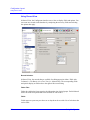
In Record View, the Configurator interface uses a form to display fields and options. You
can create new records in the database by completing the necessary fields and selecting
the options that apply.
Record Selection
In Record View, the records that are available for editing appear in either a Table with
Columns (i.e. Tax Rates) or in a Tree View (i.e. Menu Items). The corresponding fields
and options display on folder tabs to the right of this record listing.
Folder Tabs
Folder tabs within the forms organize the information into logical groups. Each folder tab
shows the fields and options that can be defined for each record.
Fields
Fields appear as open entry text boxes or as drop-down boxes with a list of selections that
can be made.
5-4
Using Configurator
Configurator Layout
Using Record View
Form Links
The field labels that appear in blue underlined text are links to other forms. When you
click on a form link, the corresponding form opens so you can edit or create records in that
form.
Language Name Editor
Multiple names can be entered for text fields by clicking the
Ellipse button to launch
the Name Editor. The language text that appears on the workstation displays and prints to
output devices can be specified.
Options
Option selections appear as checkboxes when you are working in record view. To select,
click (or tap) the box. A check appears to indicate that the option is selected. To clear an
option, click (or tap) the box to remove the check.
e7 Getting Started Manual
5-5
Configurator Layout
Using Table View
Using Table View
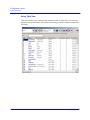
Table View allows you to easily navigate multiple records. In Table View, you can copy
and paste rows of information. You can also add, change, or delete multiple records more
efficiently.
5-6
Using Configurator
Using Configurator
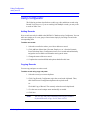
Adding Records
Using Configurator
The following sections describe how to add, copy, edit, and delete records using
Record View. However, if you are working with multiple records, you may want
to work in Table View.
Adding Records
New records can easily be added to the MICROS e7 database using Configurator. You can
add a new employee or a new group of menu items simply by inserting a record in the
corresponding form.
To add a new record:
1. Select the record below where you wish to add a new record.
2. Click Add Item (Menu Item, Discount, Employee, etc.) from the Dynamic
Form Tasks drop-down. Configurator creates a new record and automatically
assigns the next available record number and a generic name.
3. Change the name of the new record.
4. Complete the associated fields and options that define this item.
Copying Records
You can copy and paste an entire record.
To add a record using copy and paste:
1. Select the record you want to duplicate.
2. Click Copy Record. Configurator copies the record to the clipboard. Then,
click Paste Record. Configurator duplicates the copied record.
Or
Click Add Copy of Record. The currently selected record is duplicated.
3. Give the new record a unique name and modify as needed.
4. Click Save.
Note
e7 Getting Started Manual
You can copy and paste individual fields using the standard
keyboard shortcuts. (Copy: Ctrl-C, Paste: Ctrl-V)
5-7
Using Configurator
Editing Records
Editing Records
Edits may be completed in Table View or Record View.
To edit a record:
1. Click the field you want to edit.
2. Remove any old information and type the new information.
3. Click Save.
To undo changes:
1. Click the Undo button.
2. Any changes made since the last time changes were saved are reversed.
Deleting Records
You may occasionally need to delete a record from the database. For example, a discount
that is no longer offered could be deleted.
To delete a record:
1. Select the record you want to delete.
2. Click the Delete Item button from the Dynamic Form Task drop-down. The
system asks you to confirm the deletion.
3. Click OK. The record is removed from the database.
5-8
Using Configurator
Using Configurator
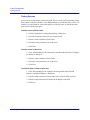
Finding Records
Finding Records
You can locate records within a form using Find. This is a useful tool for searching a form
that contains a long list of records, or for making changes to records that share a value. For
example, you can search for a particular employee record by name, or find all the menu
item records with the same price.
To find a record in Record View:
1. Click the Find button. Configurator displays a dialog box.
2. Select the field name of the item you wish to search.
3. Enter the word or number in Field Value.
4. Select the search parameters you wish to use.
5. Click Find.
To find a record in Table View
1. Click on the heading for the column to be searched and select Find. Configurator displays a dialog box.
2. Enter the word or number in Field Value.
3. Select the search parameters you wish to use.
4. Click First.
To find and replace a field in Table View
1. Click on the heading for the column to be changed and select Find and
Replace. Configurator displays a dialog box.
2. Enter the word or number to locate in the Select value to search for field.
3. Enter the replacement word or number in the Replace with field.
4. Click First.
e7 Getting Started Manual
5-9
Using Configurator
Saving Changes
Saving Changes
To save a change:
1. Click Save.
Note
Changes are automatically saved when moving to another
record.
Using Help
Configurator offers online help for each form.
To access help:
1. Open the form in which assistance is desired.
2. Click the Help button.
5-10
Using Configurator
Using Configurator
Utilities
Utilities
Use the Configurator Utilities to perform the various form and database activities listed
below:
• Switch view between record and table view
• Refresh currently displayed form information
• Adjust the Input Keyboard
• Backup/restore the database
• Export and import database information
• Clear database totals
• Assign a network ID
• Retrieve the database
Switch View
Switch View changes between record view and table view for the currently displayed
form.
Note
Table View is not available on every form.
To switch a view:
1. Select the Utilities | Switch View option.
2. The currently displayed form changes from table view to record view or from
record view to table view.
Refresh Form
Refresh Form updates the information in the current form. A form may need to be updated
if the data changes while Configurator is running. This may occur if two people are
making database changes in Configurator at the same time.
To refresh a form:
1. Select the Utilities | Refresh Form option.
2. The information in the currently displayed form is updated.
e7 Getting Started Manual
5-11
Using Configurator
Utilities
Input Keyboard
Use this utility to display the input keyboard on a Workstation 4 that does not have a
physical keyboard attached.
To toggle the input keyboard:
1. Select the Toggle Keyboard button from the button bar.
2. The input keyboard is displayed (or hidden).
To adjust the size of the input keyboard:
1. Select the Toggle Keyboard button from the button bar.
2. Select the Utilities | Next input method option.
The input keyboard panel toggles between the large keyboard and the small
keyboard.
Backup/Restore the Database
When you make a change to the database, don’t forget to make a backup. Up to 2 database
backup files are maintained in the DbBackups directory:
• backup.001.gz
• backup.002.gz
If both of these files exist in the DbBackups directory, the file with the older date and time
stamp is overwritten.
To backup the database:
1. Select the Utilities | Backup the database option.
2. The current database is copied to the \\CF\micros\e7\DbBackups directory.
Note
On the PC, the database is copied to the \\[Install
Directory]\DbBackups directory.
To restore the database:
A database can be restored from the DbBackups directory. If only one backup file exists,
then that database will be restored. If both backup files exist, then the database with the
more recent date and time stamp will be restored.
Note
5-12
Only database backups with the backup.001.gz and
backup.002.gz filenames can be restored.
Using Configurator
Using Configurator
Utilities
1. Select the Utilities | Restore the database option.
2. Select Yes to confirm that you want to Restore a database.
3. The most recent database backup is restored.
Exporting and Importing Configuration Information
Warning
Make a backup before importing any configuration information
into a MICROS e7 database. If an import fails or an attempt is
made to import bad data, the database could be left unusable.
Configuration information can be exported from and imported into the database.
Use the Configurator | Restaurant | General | Delimiter and Configurator | Restaurant |
General | File extension boxes to define the delimiter and file extension to use when
exporting configuration information from the MICROS e7 database.
To export database information:
1. Select the Utilities | Export the database option.
2. The definition information is exported to the \\CF\micros\e7\DbExports directory.
Note
On the PC, the database is exported to the \\[Install
Directory]\DbExports directory.
To import and append database information:
Use this option to add new records to the database.
1. Place the files to be imported in the \\CF\micros\e7\DbImports directory.
Note
On the PC, the database is imported from the \\[Install
Directory]\DbImports directory.
Note
The import files must follow the exported text file format, with
the first line being the column names and subsequent lines
being records in the table.
2. Select the Utilities | Import and Append database option.
3. Select Yes to the confirmation prompt to import the database files.
e7 Getting Started Manual
5-13
Using Configurator
Utilities
To import and replace database information:
Use this option to replace entire database tables. This operation deletes the entries that
already exist in the database for the types of records you are importing.
1. Place the files to be imported in the \\CF\micros\e7\DbImports directory.
Note
The import files must follow the exported text file format, with
the first line being the column names and subsequent lines
being records in the table.
2. Select the Utilities | Import and Replace.
3. Select Yes to the confirmation prompt to import the database files.
Clearing Totals
Prior to going live, clear any totals posted during database programming and testing. Only
privileged employees will be allowed to clear totals.
Note
The Jobs | Privileges | Clear all totals option should only be set
for the Installer/Micros Support job.
To clear all totals:
Use this option only when instructed to do so by MICROS Customer Service Personnel.
1. Select the Utilities | Clear all totals option.
2. Select Yes to confirm the deletion. All totals are cleared for every workstation
that is currently active and communicating.
To clear a particular workstation’s totals:
Use this option only when instructed to do so by MICROS Customer Service Personnel.
1. Select the Utilities | Clear all totals for this workstation option.
2. Select Yes to confirm that you want to clear totals for this workstation.
5-14
Using Configurator
Using Configurator
Utilities
Network Identification
A network identification must be defined at each individual workstation. The Location ID
can be the name of the restaurant. The Location ID must be spelled exactly the same on all
workstations and the PC and is case-sensitive. If the Location ID does not match on a
workstation (or PC), then the workstations will not communicate and “Network Inactive”
displays in Manager Procedures | Workstations.
Note
It is recommended that you do not change the Workstation
Number after a site goes live with totals.
To define the network identification:
1. Select the Utilities | Network identification option.
2. Select the Workstation Number that corresponds to this workstation’s object
number in the Configurator | Workstations form.
3. Enter a Network Location ID for the MICROS e7 system. This ID must be the
same for all workstations to allow for communication and synchronization.
4. Select OK to save the changes.
Retrieve the database
All database definitions can be retrieved from another node on the network. This
allows a new workstation to be brought online quickly by retrieving the definition
information from another node.
To retrieve a database:
1. Select the Utilities | Retrieve a database option.
2. Select Yes to the confirmation prompt to retrieve a database.
If an attempt is made to retrieve a database from the PC, each workstation is
accessed starting at workstation 1. The definition information is retrieved from the
first workstation found with network connectivity. If an attempt is made to retrieve
a database from a workstation, the PC is accessed if available. If no PC is
available, each workstation is accessed starting at workstation 1.
e7 Getting Started Manual
5-15
Using Configurator
Touchscreen Designer
Touchscreen Designer
Touchscreen Designer provides a very simple method of visually creating touchscreens.
The image below shows a sample touchscreen created with Touchscreen Designer.
Touchscreen Designer Menu
Menu Options
5-16
Description
Add a New Touchscreen
Creates a new touchscreen. You are prompted to enter
the name of the new touchscreen.
Add a Copy of Touchscreen
Creates a new touchscreen that is a copy of the currently
displayed screen. You are prompted to enter the name of
the new touchscreen.
Delete Touchscreen
Deletes the currently displayed touchscreen.
Rename Touchscreen
Prompts for entry of a new touchscreen name.
Add a Category/SLU/Container
Area
Adds a category/SLU/container area to the currently
displayed touchscreen.
Change Language
Changes the language currently displayed on the
touchscreen key text while in Touchscreen Designer.
Using Configurator
Using Configurator
Touchscreen Designer
Touchscreen Designer Buttons
Button
Description
New Button
Adds a new touchscreen key.
Delete
Deletes the currently selected touchscreen key.
Touchscreen Designer Fields
Field
Description
Function
Select the function to be performed by this key.
Value
Enter/select a value for the function performed by this
key.
Legend
Enter a word or phrase to display on this key.
Button Color
Select the background color for this key.
Text Color
Select the text color for this key.
Image
Select an image to display on this key.
Image Placement
Select the location (left, right, top, bottom, or center)
where the designated image will display on this key.
Font Size
Enter the font size for text displaying on this key.
Font Style
Select the font style (regular, bold, underline, or italic)
to use when displaying text on this key.
Category Buttons (Width, Height)
Enter the width and height for the category buttons.
To Add a Touchscreen:
1. Select the Add a New Touchscreen option.
2. Enter the new touchscreen’s name on the New Touchscreen screen prompt and
click OK.
To Add a Copy of a Touchscreen:
1. Select the touchscreen to copy.
2. Select the Add a Copy of Touchscreen option.
3. Enter the new touchscreen’s name on the Copy Touchscreen screen prompt
and click OK.
e7 Getting Started Manual
5-17
Using Configurator
Touchscreen Designer
To Modify a Touchscreen:
Add a Touchscreen Key
1. Click the New Button button. A default key is added to the current touchscreen.
2. Move the key to the desired location.
3. Resize the touchscreen key, as desired.
4. Specify the associated parameters for this touchscreen key.
Delete a Touchscreen Key:
1. Select the key to be deleted.
2. Click the Delete button. The system asks you to confirm the deletion.
3. Click OK. The key is removed from the touchscreen.
Add a Category/SLU/Container Area:
1. Select Add a Category/SLU/Container Area from the Dynamic Form Task
drop-down.
2. Move the Category/SLU/Container Area to the desired location.
3. Resize the Category/SLU/Container Area, as desired.
4. Specify the associated parameters for this Category/SLU/Container Area.
To Delete a Touchscreen:
1. Select the touchscreen to be deleted.
2. Select the Delete Touchscreen option from the Dynamic Form Task dropdown. The system asks you to confirm the deletion.
3. Click OK. The touchscreen is removed from the database.
To Rename a Touchscreen:
1. Select the touchscreen to rename.
2. Select the Rename Touchscreen option.
3. Enter the touchscreen’s new name on the Rename Touchscreen screen prompt
and click OK.
5-18
Using Configurator
Using Configurator
Touchscreen Designer
To Save Touchscreen Changes:
1. Select another touchscreen from the Touchscreen field or exit the Touchscreen
Designer form.
2. Click Yes to confirm saving the changes.
e7 Getting Started Manual
5-19
Using Configurator
Touchscreen Designer
5-20
Using Configurator
Appendix A
Glossary of Terms
Active Rules
Active rules are prefixes used to qualify a condiment menu item selection.
Examples of active rules are [No], [Extra], [Side], and [Sub].
Active rule keys are displayed on the condiment screen and should be pressed
before the condiment selection to which it refers (e.g., [No] + [Tomato] ).
The modifier rule is printed on the same line as the condiment item.
See also: Modifier.
Active Seat
When seat handling is used, the Active Seat is the seat number on which the
next transaction will act, such as posting a menu item. The active seat number
can be changed in two ways:
• User presses [Seat Number] key and enters the new number at the prompt.
• User press the [Increment Seat] key to advance to the next number in the
sequence. If the current seat number is “3,” pressing this key will change
the seat number to “4.”
Add-on Breakpoint Tax
The Add-on Breakpoint Tax method uses the item price to calculate a tax,
using a breakpoint table. The tax is then added to the bill. For example, if the
item price is $4.36, the breakpoint table might show that items with a price
between $4.20 and $4.40 are taxed at $0.21. Thus, the total due is $4.57
($4.36 + $0.21).
See also: Add-on Percentage (%) Tax, Add-on Tax, Breakpoint Tax, Inclusive
Tax, VAT (Value Added Tax).
MICROS e7 POS SYSTEM
A-1
Add-on Percentage (%) Tax
The Add-on Percentage (%) Tax method uses the item price to calculate a
tax, using a percentage. The tax is then added to the bill. For example, if the
tax rate is 5% and the item price is $5.00, the system calculates 5% of $5.00
and posts $0.25 tax to the check for a total due of $5.25.
See also: Add-on Breakpoint Tax, Add-on Tax, Breakpoint Tax, Inclusive Tax,
VAT (Value Added Tax).
Add-on Tax
The Add-on Tax method uses the item price to calculate tax, which is then
added to the bill. This method is commonly used in the United States.
See also: Add-on Breakpoint Tax, Add-on Percentage (%) Tax, Breakpoint
Tax, Inclusive Tax, VAT (Value Added Tax).
Autocut Printing
Autocut printing is provided by all MICROS e7 stand-alone roll printer
models. After Guest Checks, Receipts, etc., are printed, the printer
automatically cuts the paper below the printed information.
Auto Menus
Auto Menus allows a menu to automatically change based on the time of day
and the day of the week. The settings may be changed during a transaction by
manual selection of the menu.
See also: Menu.
Autosequence
An Autosequence is a predefined set of reports or other actions that can be
performed in a single key stroke. This saves managers’ time and reduces
employee training time.
An autosequence may be run while workstations are operating without
interfering with transactions.
See also: ReportsPlus Module.
A-2
Glossary of Terms
Barcode
A barcode label is a method of storing specific information in a coded stripe
of bars and spaces. When used in a retail environment, this information may
include the price of a menu item, as well as various inventory and other
control information.
Barcodes may be printed and applied by an individual establishment. The
establishment may also elect to use UPC, a specific type of barcode.
See also: UPC.
Begin Check
There are four ways to begin, or open, a guest check:
• Begin check by check number
• Begin check by name
• Begin check by table number
• Begin a fast transaction.
When you begin a check, you become the “Check Employee” for the check. If
another employee later picks up that check, that operator is called the
“Transaction Employee”.
Once an open check has been service totaled, it can be picked up again. When
a guest check is service totaled, all check detail is retained in memory, but it is
removed from the workstation display to free it for other activity, such as
opening another guest check. To post sales to a guest check, it must be begun
or “picked up” first.
See also: Check Employee, Fast Transaction, Open Check, Pickup Check,
Transaction Employee.
MICROS e7 POS System
A-3
Beverage Control
The Beverage Control feature allows you to control and track whether a
menu item that is usually a part of every guest check has been included on the
check. This will ensure that self-service beverages are posted by the server.
The System reviews the guest check detail for beverage information
according to specified parameters. If the review indicates that the Beverage
Control parameters have not been satisfied, a prompt is displayed to advise
the operator accordingly. The operator can either respond to the prompt by
entering the required beverage items, or by-pass the prompt by either service
totalling or tendering the guest check.
Beverage Control Tracking Totals are used to track and report the operator's
response to the Beverage Control prompt. Tracking Totals provide
information about guest checks that were closed with an insufficient number
of beverages, as well as information about beverages that were added to guest
checks as a result of a Beverage Control prompt.
See also: Guest Check, Tracking Total.
Break
A Break is a rest period for hourly workers, such as lunch break, that can be
tracked by the MICROS e7 Time and Attendance system. Breaks can be
either paid or unpaid. The time spent on unpaid breaks subtracts from the
total time credited for pay by the MICROS e7 System.
The MICROS e7 System can be programmed to set time limits on breaks.
Since some state labor laws establish different minimum break requirements
for minors, separate break parameters may be defined for minor employees.
See also: Clock In/Out, Minor,Timekeeping.
A-4
Glossary of Terms
Breakpoint Tax
Breakpoints are used to establish the points at which an increase in sales will
increase tax by one cent. Breakpoint tax tables are often used by governments
to create a taxing pattern that matches certain pricing tendencies. For
example, a breakpoint tax might be zero for sales from zero to twenty cents
and then one cent from twenty-one to forty cents. Twenty cents would be the
breakpoint for this tax. The tax cycle would eventually repeat (1 cent tax for
every 20 cents in sales) after a certain point.
See also: Add-on Breakpoint Tax, Add-on Percentage (%) Tax, Add-on Tax,
Inclusive Tax, VAT (Value Added Tax).
Business Date Start Time
The Business Date Start Time is the pivot point used by the system to
calculate daily sales totals. It is set by a manager (or an installer) as the start
of the business day.
See also: Business Week Start Day.
Business Week Start Day
The Business Week Start Day is the pivot point used by the system to
calculate weekly sales totals. It is set by a manager (or an installer) as the first
day of the work week.
See also: Business Date Start Time.
CA/EDC
Credit Authorization (CA) is a MICROS e7 option that automatically
transmits a request for credit approval to a credit card center before accepting
a credit card for payment. Electronic Draft Capture (EDC) automatically
transfers a record of daily credit card transactions to a servicing credit card
processor.
See also: Credit Card Settlement.
Canadian Tax
See: GST (Goods and Services Tax), PST (Provincial Sales Tax).
MICROS e7 POS System
A-5
Cancel Transaction
See: Transaction Cancel.
Cash Drawer
Cash drawer is a device physically attached to a workstation for the purpose
of storing currency. A workstation may have one or two cash drawers
attached. Access to cash drawers may be restricted by programming to certain
employees. When a privileged employee presses a key programmed to open a
cash drawer, the workstation signals the correct drawer to open. The drawer
may also be locked or opened in emergencies with a cash drawer key.
Cashier Banking
Cashier Banking is used when employees do not tender (or close) their own
checks. If this method is used, employees (or customers) bring their checks to
a cashier to be paid and closed.
See also: Server (Self) Banking.
Charge Payment
A Charge Payment is any payment by voucher such as a credit card, room
charge, direct billing, etc. This form of payment may include a charged tip.
See also: Charged Tip, CA/EDC.
Charged Tip
A Charged Tip is a voluntary gratuity, or service charge, that the guest adds
to his payment by writing the tip amount on the charge voucher.
Like the meal payment, the tip is “charged” to a credit card, hotel room
account, etc. A charged tip is credited to the check employee when the guest
check is tendered. The employee is paid the charged tip in cash through a
separate action, usually with the [Tips Paid] key.
As an alternative, Charged Tips can add automatically to the Tips Paid total
on the Employee Tip Report. If this method is used, no separate action is
required. At the end of the shift, the cashier simply removes the cash from the
cash drawer, and pays the server.
See also: Direct Tip, Service Charge, Tips Paid.
A-6
Glossary of Terms
Check Employee
The Check Employee is the employee currently responsible for a guest
check; usually, it is the employee signed into a workstation who began the
check. The individual’s check name prints on the check. Totals accumulated
during the life of the check accumulate to this employee’s totals, regardless of
who actually posts to the check.
See also: Begin Check, Open Check, Pickup Check, Service Total, Tips Paid,
Transaction Employee.
Check Number
Every guest check (or Fast Transaction) that is begun at a workstation is
assigned a Check Number. The check number may be used to pickup or
track a guest check, particularly in a bar, where table numbers are not used.
Guest check numbers are assigned by the MICROS e7 System automatically.
See also: Table Number.
Chit
A Chit is any piece of paper on which a validation is printed. This term
appears in communications messages and prompts that relate to validations.
Clock In/Out
Clock In/Out procedures tell the MICROS e7 System when to begin and end
crediting an employee for payable work hours. Employees who are required
to clock in (hourly, as opposed to salaried, workers) cannot sign in to a
workstation unless they are first clocked in to the system.
See also: Sign In.
Closed Check
A Closed Check is a guest check that has been fully tendered so that the
balance due equals 0. When the balance due is reduced to, or below zero,
using a tendering key, the check is automatically closed. If the balance due is
reduced to zero by discounts, voids, returns, etc., the check remains open.
See also: Open Check, Reopen Closed Check.
MICROS e7 POS System
A-7
Condiment
See Modifier.
Configurator Module
The Configurator Module is an integral part of the MICROS e7 System,
providing the means to create and edit the database that defines the
parameters of the system, i.e., to program the restaurant’s operation into the
system. It is used to define all system hardware devices, the information files
which are common to the entire system, and those that are specific to each
workstation, e.g., menu items, employees, and methods of payment. Detailed
information on this module is found in the MICROS e7 Getting Started
Manual.
See also: Manager Procedures Module, POS Operations Module.
Consolidation
Consolidation is the act of combining menu items that are identical so that
instead of having a separate entry item, they appear as one line with a
quantity. For example, instead of having five separate lines for coffee on the
check, they would be consolidated to one line: “5 Coffee”.
See also: Print Group.
Container
Containers are used to specify the range of menu item sizes (e.g., small,
medium, large) available to the customer and to assign prices accordingly.
When ordering a menu item, the container key is pressed before the menu
item to which it applies (e.g., [Large] + [Soda]). The size is printed on the
same line as the menu item. If a container key is not selected, the default size/
price will be applied.
Cover
See: Guest Count.
A-8
Glossary of Terms
Cover Charge
A Cover Charge is a preset amount that is added to a guest check on a per
person basis. A cover charge is often used to “cover” the cost of live
entertainment. For example, during music performances, a $5.00 charge may
be added to a check for each person at a table. A cover charge can be setup as
a menu item or service charge.
Credit Card
Credit Cards, such as VISA and American Express, are defined in the
Tender form as “Payment” keys. After the employee enters a payment
amount, the Credit Card information, including the account number and
expiration date, is usually entered in the system by swiping the card through a
magnetic stripe reader. (This information can also be entered manually.) The
Credit Card information prints on the guest check, customer receipt, and the
journal.
See also: CA/EDC, Charged Tip.
Credit Card Preamble
A Credit Card Preamble is the first one to four digits of a credit card
account number that serves to identify the credit card type. For example,
VISA account numbers begin with 4 and American Express account numbers
all begin with 37. Thus, for VISA cards, the preamble is 4 and for American
Express the preamble is 37. Tender/Media keys can be programmed to accept
only payments from credit cards with the correct preamble, reducing the risk
of a payment amount being posted to the wrong credit card.
Credit Card Settlement
Credit Card Settlement is the processes of automatically transferring a
record of daily credit card transactions to a credit card processor. A status
report can be printed which provides a record of the transfer.
See also: CA/EDC.
MICROS e7 POS System
A-9
Currency Conversion
The Currency Conversion feature provides the ability to use and convert
currencies as tender/media during transactions, and track those currencies
received for balancing purposes. The MICROS e7 System can define a local
currency and other currencies.
During a transaction, it is possible to convert between the local currency and
other currencies using just one key per currency. The System can be
programmed to display change due in either the base or other currency.
See also: Local Currency, Other Currency.
Customer Display
The Customer Display is an optional device which can be mounted on the
WS4 or on a remote pole. As items are posted on the workstation, the
customer display shows the price for a few seconds, then the current total,
until the next entry is completed. After the check is tendered, the change due
displays for the customer. Special message text can be defined to appear on
the customer display when no user is signed in.
Date Format
The MICROS e7 System may be programmed to display one of two Date
Formats: month/day/year (6/3/2007), or day/month/year (03/06/2007). Note
that if day/month/year is used, the day and month are shown with 2 places.
See also: Time Format.
Default Touchscreen
A Default Touchscreen automatically displays under certain conditions
(usually when an employee signs in) unless or until a different condition
overrides it.
A-10
Glossary of Terms
Direct Tip
Direct Tips are those that a customer gives in cash directly to a server or
bartender. Employees use the [Direct Tips] key to enter the amount of tips
they’ve received in cash. The system may be programmed to require an
employee to declare tips when clocking out. This information is added to Tips
Totals on the Employee Tip Report and used for Income Tax purposes.
Note: Direct Tips are independent of Tips Paid or Charged Tips which are
tracked separately.
See also: Charged Tip, Indirect Tip, Tips Paid.
Discount
A Discount reduces the price of an item or the subtotal of a check. Discounts
may be applied using one of four methods: fixed dollar amount, open dollar
amount, fixed percentage, and open percentage.
A discount may be applied to a menu item if the menu item is assigned to the
Discount Group. In this way, discounts may be programmed to affect all or
only some types of menu items (e.g., food, liquor, etc.).
See also: Discount Group, Employee Meal, Item Discount, Service Charge,
Subtotal Discount.
Discount Group
Discount groups allow you to only discount certain items when applying a
discount. For example, a restaurant may offer a 15% case of wine discount.
All bottles of wine are linked to discount group #4 - Wine Disc. If a customer
orders 2 entrees, some sodas, and 12 bottles of wine on one check, applying
the 15% Wine Discount would only discount the bottles of wine. The entrees
and soda would not be discounted because they are linked to a different
discount group.
Display Language
The Display Language on the workstation displays (check detail, touch keys,
error messages, etc.) can be changed by pressing the [Change Language] key.
Also, each employee can be assigned a Default Language that is used when
the employee signs in. Up to 4 languages can be defined.
This allows each member of the staff to receive information in the language in
which they are most comfortable.
See also: Output Language.
MICROS e7 POS System
A-11
Double-byte
Double-byte is a character set using 16-bit (two-byte) characters, which is
necessary for many Asia-Pacific languages, such as Chinese.
See also: Unicode.
Employee
An Employee is any person who is defined in the Employee form. Examples
of employees include: servers, who post transactions; kitchen staff, who
simply use the Time and Attendance functions; and supervisors, who sign on
to run reports or make changes to the system. If Timekeeping is used, each
employee maintains his/her own set of labor totals.
See also: Check Employee,Transaction Employee.
Employee ID
The Employee ID is a number of up to ten digits assigned to an employee for
identification. The number is used when signing on to a workstation and,
optionally, for other employee transactions such as declaring or paying tips
and recording employee meals or discounts.
For security purposes, the workstation never displays the employee ID. If
employee cards are used, the employee ID can be entered through a Mag
Stripe Reader.
See also: Magnetic Stripe Reader.
Employee Meal
An Employee Meal may be a “shift meal” that an employee consumes during
the course of a shift, or it may be a meal that the employee consumes while
dining in the establishment off-duty. The employee meal can be recorded
with a specially programmed discount key or tendering key (but not both).
Use the Employee Meal Discount when the employee must pay for part of
their meal. Use Employee Meal Tender when the employee does not pay for
their meal or if the total consumed is noted on their paycheck.
See also: Discount, Tender.
A-12
Glossary of Terms
Error Correct
The MICROS e7 System can be programmed to count all voids made in the
current round (voids made before the check has been subtotaled) as Error
Corrections. These error corrections will be totaled separately from voids,
and do not require authorization.
See also: Transaction Cancel, Void.
Family Group
A Family Group is a grouping of related menu items for reporting sales
summaries. Each menu item is linked to a Family and a Major Group. Family
Groups are often subsets of a Major Group. For example, menu items linked
to Family Groups Salads, Sandwiches, or Quiches might also be linked to a
Major Group called Entrées. The Family Group Detail Sales Report and
Family Group Sales Report provide sales information for each family group
programmed in the MICROS e7 System.
See also: Major Group.
Fast Transaction
A Fast Transaction is a sales transaction that is started by pressing a menu
item key. The employee does not need to begin the transaction with a [Begin
Check] key, and does not need to enter a check number when beginning a
check. A fast transaction is usually tendered immediately.
See also: Begin Check.
Fixed Price
Fixed Prices are those that are entered for each menu item in the Menu Items
| Prices form. Each menu item may be programmed with multiple prices that
correspond to different times of day, sizes of menu item, or other price
changes that occur regularly.
See also: Open Price, Priced/Non-Priced Menu Item.
MICROS e7 POS System
A-13
Florida Liquor Surcharge Tax
The Florida Liquor Surcharge Tax feature provides the ability to apply a
predefined dollar value surcharge to a menu item. This feature is designed to
meet taxation requirements that are specific to the State of Florida and,
therefore, should only be used by those establishments operating within the
State of Florida.
Goods and Services Tax
See: GST (Goods and Services Tax).
Gratuity
See: Charged Tip.
GST (Goods and Services Tax)
GST is a Canadian federal tax on the sale of Goods and Services. On January
1, 1991 the rate was set at 7%. It applied to most services and all goods
except groceries. Special programming is available in the MICROS e7
System to adapt to the variety of relationships that may exist between the
federal sales tax (GST) and each provincial sales tax (PST).
See also: PST (Provincial Sales Tax).
Guest Check
A Guest Check is a record of all sales to one or more customers, from the
customer’s first order to the final payment (or transfer to another customer’s
check). Detail entries include menu items, discounts, service charges, voids,
returns, and tender/media entries.
See also: Print Check, Soft Check.
Guest Name
The Guest Name feature allows an employee to enter a descriptor of
alphanumeric characters to be used in conjunction with a check number, a
table number, or both. Up to 12 characters may appear on the Operations
screen and up to 20 characters may be printed on a check.
See also: Check Number, Guest Check, Table Number.
A-14
Glossary of Terms
Guest Count
Guest Count, often called cover count or covers, is the number of guests at a
table. It is used as a performance or activity measure based on some form of
customer counting. The employee specifies (or changes) the number of guests
served by a guest check using the [Guest Count] key. Guest counts appear on
sales reports and guest checks.
Header
A Header is user-defined text which is always printed at the top of printer
output. Headers are specified for a variety of purposes, and are found on
remote orders, receipts, guest checks, training checks, and credit card
vouchers. For example, on guest checks, the header might include the
establishment’s name, address, and phone number.
See also: Trailer.
Hold Items
The Hold Items feature is designed for situations when the server needs to
post menu items to a check, but does not want the kitchen to receive the order
and start making it. For example, if the customer orders both appetizers and
entrées, the server would record all items, but send only the appetizers. The
entrées would be held until the appetizers have been served. Doing so ensures
that the entrées are not prepared too soon and are served in their freshest state.
See also: Tender, Tender/Media.
ID Number
See: Employee ID.
MICROS e7 POS System
A-15
Inclusive Tax
U.S. Inclusive Tax is a variation of the U.S. Add-on Tax that includes the tax
in the price of each item. As in the case of Value Added Tax, this tax is
extracted on Financial Reports and Tax Reports. This tax structure is often
used in fast-paced bar environments, to reduce the amount of time a cashier
or bartender must spend making change.
For example, if the tax rate is 5% and the item price is $5.00, then the
inclusive tax method calculates the actual item price using the formula:
$5.00/(1 + 5%) = $4.76. The total price to the customer remains $5.00, but the
net sale price is $4.76 and the included tax is $0.24.
See also: Add-on Breakpoint Tax, Add-on Percentage (%) Tax, Add-on Tax,
Breakpoint Tax, VAT (Value Added Tax).
Indirect Tip
Indirect Tips are cash tips that the server splits with other employees, such
as a bus person. The employee who receives tips indirectly uses the [Indirect
Tips] key to enter the amount of tips they’ve received. The system may be
programmed to require an employee to declare tips when clocking out. This
information is added to Tips Totals on the Employee Tip Report and used for
Income Tax purposes.
See also: Charged Tip, Direct Tip.
Item Discount
An Item Discount is used to reduce the sales price (either by an amount or
percentage) of the last item posted to a check, without affecting the sale price
of other items. For example, a coupon that is used to discount $0.50 off the
price of a single entree is an item discount.
To apply an item discount, select the item in the guest check detail area and
press the [Item Discount] button.
See also: Discount, Subtotal Discount.
Jobs
A Job is an accounting entity that enables a system to track the labor activity
of a group of employees by category of work. Job codes are used to group
labor hours and costs into job categories on reports.
See also: Job Rate.
A-16
Glossary of Terms
Job Rate
A Job Rate is a wage associated with a specific job code in the Employee
form. Since it is programmed by employee, employees can have different
wage rates associated with the same job code.
See also: Jobs.
Journal
The Journal is a record of transaction activity in a system designed to
provide an audit trail of activity independent of copies of guest checks,
validation slips, etc. In the MICROS e7 System, the journal is a printed record
or a file written to a workstation. A detailed journal will be a record of every
transaction throughout the system.
See also: Journal Printer.
Journal Printer
The Journal Printer is designated in the Workstation form and determines
where the journal will print.
See also: Journal.
Kitchen Display System (KDS)
The MICROS e7 Kitchen Display System is an order output display
designed to increase efficiency and improve guest service through better
kitchen coordination. The Kitchen Display System (KDS) replaces the
traditional paper order chits with a visual, dynamic display of food orders sent
to the kitchen for preparation.
Labor Week Start Day
The Labor Week Start Day is the pivot point used by the system to calculate
weekly labor totals. It is set by a manager (or an installer) as the first day of
the work week.
See: Business Week Start Day.
MICROS e7 POS System
A-17
Labor Week Start Time
The Labor Week Start Time is the pivot point used by the system to
calculate weekly labor totals. It is set by a manager (or an installer) as the
start of the business day.
See: Business Date Start Time.
Loan
See: Media Loan/Pickup.
Local Currency
The Local Currency is the principal, or local, medium of exchange used in
the establishment. The decimal place is set in the Restaurant form, based on
the decimal place requirements of the base currency. If more than one
currency is accepted, the other currencies are programmed, with exchange
rates, in the Currency form.
See also: Currency Conversion, Other Currency.
Local Order Output
Local Order Output is often used to print or display orders on devices near
the workstation. For example, if a restaurant has a wine cellar, the managers
may want to use local order output. The employee enters the order; a local
printer prints the order; and the server takes the chit to a manager or
sommelier, who would open the cellar and retrieve the wine.
See also: Order Output, Remote Order Output.
Local Order Receipt
See: Local Order Output.
Magnetic Stripe Reader
A Magnetic Stripe Reader is a component of the WS4 that reads
information off of the magnetic stripe on an employee card or credit card.
Magnetic employee cards contain employee identification numbers, which
are numbers employees use to sign in and clock in. The same magnetic stripe
reader can also read credit cards.
See also: Credit Card, Employee ID, Sign In.
A-18
Glossary of Terms
Major Group
A Major Group is a grouping of related menu items for reporting sales summaries.
Major Groups are considered the more general category of sales, while Family
Groups are more specific. The Major Group Detail Sales Report and Major Group
Summary Sales Report provide sales information for each major group programmed
in the MICROS e7 System.
See also: Family Group.
Manager Procedures Module
The Manager Procedures module is used to perform tasks that modify
(change or update) the MICROS e7 system’s database. For example, the
manager can use this functionality to change menu item prices and
availability.
See also: Configurator Module, POS Operations Module.
Media Loan/Pickup
[Media Loan] keys are used to record non-sales transactions that place cash
in a workstation cash drawer. [Media Pickup] keys are used to record nonsales transactions that remove cash from a drawer. This feature may be
tracked in a tracking group. Otherwise, it has no effect on any report.
See also: Tender/Media.
Menu
Menus are used to control item availability and to determine the item price,
depending on when or where it is ordered.
For example, if the active menu is set to “Breakfast,” the food selection
screen would present only those menu items available during the breakfast
hours (e.g., eggs, pancakes, waffles, omelets, etc.). When the menu is
changed to “Dinner,” the touch keys for breakfast items would be replaced
with dinner options (e.g., steak, lobster, pastas).
Similarly, menus can be used to set the prices of menu items for promotional
purposes. In this case, beer, wine, and other alcohol-related products might be
priced lower when the active menu is “Happy Hour,” than it would be during
lunch or dinner.
MICROS e7 POS System
A-19
Menu Item
Menu Item refers to an item that is commonly listed for sale on a restaurant
menu, such as Hamburger, Shrimp, Coffee, and Apple Pie. Typically these
items are priced and tracked on sales reports.
Other sale and non-sale items that may be listed as “regular” menu items are
modifiers (priced and non-priced) and retail items. For example, a retail item,
such as a T-shirt, is not usually found on a menu, but is still programmed and
referred to as a menu item.
Menu Item Availability
The availability of menu items can be designated in the MICROS e7 system.
Menu items can be marked as Out of Menu Item (or 86’d), preventing orders
from being placed that cannot be filled.
This allows servers to advise customers at the time they place their order that
a menu item is no longer available instead of placing the order and waiting
for the kitchen to tell the server the item is 86'd.
Menu Item Quantity
Menu item quantity allows you to alter the tax applied to a menu item once
a certain quantity threshold has been reached. For example, tax may be
reduced if you purchase 6 bakery items.
Merge Check
The [Merge Check] key allows a user to combine two guest checks into one.
The new combined check will reflect all sales detail and totals of both checks.
The previous checks will be closed to a zero balance and cannot be adjusted
later.
MICROS e7 Restaurant Management System
MICROS e7 Restaurant Management System is a robust point-of-sale
solution, with the high quality, reliable and extensive features that the
marketplace has grown to expect from MICROS, packaged specifically for
the independent restaurateur.
A-20
Glossary of Terms
Minor
Minor refers to an underage employee (e.g., under 16, depending on local
employment laws). Many states provide for extended break periods if the
employee is a minor. In the MICROS e7 Time and Attendance system, break
periods (paid and unpaid) can be defined separately and applied to minor and
adult employees. For example, a 30 minute break may be allowed for minor
employees, while only 15 minutes is allowed for adult employees.
See also: Break, Clock In/Out,and Timekeeping.
Modifier
Modifiers are a special type of menu item that allows servers to modify their
orders to meet a customer’s specific request. For example, when ordering a
hamburger, an employee can be offered modifier choices of Rare, Medium,
Well, etc.
See also: Active Rules, Priced/Non-Priced Menu Item.
mymicros.net
Mymicros.net is a content rich Internet portal for the restaurant industry that
includes access to hosted applications for point-of-sale, back office, data
warehousing, business intelligence and other business applications and
content, creating the next-generation model of restaurant enterprise systems
and extending the capability for existing MICROS customers.
Net Sales
Net Sales are the revenue totals recorded by an employee, minus all voids,
returned items, and discounts.
Non-Priced Menu Item
See: Priced/Non-Priced Menu Item.
Numeric Keypad
Numeric keypad refers to the sixteen (16) programmable touch keys on the
workstation screen. Usually the keypad includes the numerals 0 through 9, the
decimal key, the 00 key, and the [Backspace], [Enter], [Cancel] and [Clear]
keys.
MICROS e7 POS System
A-21
Open
Open refers to a type of discount, service charge, or menu item price. If
defined as “open”, the employee must enter the amount of discount or service
charge, or the price, in the case of a menu item.
See also: Open Price, Preset.
Open Check
An Open Check is any check which has been opened (either by Table
Number or Check Number) and serviced totaled (with or without an amount).
See also: Check Employee, Closed Check, Service Total.
Open Price
Open Price means the menu item does not have a fixed price associated with
it. Open Pricing is used for menu items that are usually sold as part of a
combination dish or for menu items that change price frequently. Open priced
menu items can also be used to charge for items that are not on the menu, but
which the restaurant agrees to sell.
See also: Fixed Price, Priced/Non-Priced Menu Item.
Order Device
An Order Device is used to print either remote or local order receipts or
requisition chits. For example, remote printing is usually sent to the kitchen
roll printer. Local receipts can be used when servers need to have a printed
chit to present to a bartender when ordering drinks.
Order Output
Order Output sends a work order to a printer. Items posted in a transaction
(e.g., menu items, discounts, service charges, and tender/media) may be
automatically printed or displayed at devices placed at remote locations, such
as a kitchen or bar.
See also: Local Order Output, Order Receipt, Remote Order Output.
A-22
Glossary of Terms
Order Receipt
An Order Receipt is a printed list of specific menu items to be prepared or
issued. A Local Order Receipt prints at a local printer (i.e., near the WS4) and
is given to the server or preparer. A Remote Order Receipt is printed at a
remote order printer such as a hot or cold food preparation area. Order
receipts are the authority to prepare or issue a menu item.
See also: Local Order Output, Order Output, Remote Order Output.
Order Redirection
Order Redirection allows an employee (usually a manager) to change the
routing of order output (remote or local) to a different order device. When the
order prints at the new order device, it includes the header of the original
destination device.
Redirection takes place in response to deliberate intervention by an employee.
It differs from backup printing, which the system performs automatically
when it is unable to output to an order device.
See also: Local Order Output, Remote Order Output.
Order Type
Order Types are menu item sales categories that also, in effect, control the
tax classes. Examples of order types are Take-Out, Dine-In, and Room
Service. Up to eight order types may be defined in the MICROS e7 system.
Order Types are used to separate sales for reports and taxing purposes. Some
jurisdictions require different sales tax structures for take-out food. Order
types allow menu items to be taxed differently in such situations.
See also: Tax Rate.
Other Currency
The Other Currency is any currency used in a system for currency
conversions other than the Local Currency. There may be an unlimited
number of other currencies programmed in the Currency form.
See also: Local Currency, Currency Conversion.
MICROS e7 POS System
A-23
Output Language
Output language specifies the language used when sending orders to the
kitchen. Up to 4 languages can be defined.
This allows each member of the staff to receive information in the language
in which they are most comfortable.
See also: Display Language.
Overtime
Overtime refers to the hours worked and the wage paid to employees after a
specified number of hours in a day or period (such as a week). Separate
regular pay rates and overtime pay rates can be defined for each employee.
See also: Clock In/Out, Timekeeping.
Payment Key
A Payment key is a tender key that is used to apply payment (full or partial)
to the outstanding balance of the current transaction. Payment keys may
include cash, personal check, credit card, and room charge. Payment keys
may be programmed to print the guest check or customer receipt when the
balance due has been reduced to zero.
See also: Pickup Check, Service Total, Tender.
Pay Rate
See: Job Rate.
Pickup
See: Media Loan/Pickup, Pickup Check.
A-24
Glossary of Terms
Pickup Check
Pickup Check is an employee procedure used to re-open a check which was
previously begun and service totaled. Once a check has been picked up (either
by Table Number, Check Number, Table Name, or Check Name), the
employee can continue performing normal sales transactions on the check,
such as adding items or tendering the check. A manager or cashier is usually
given the privilege to pickup other employee checks.
See also: Begin Check, Check Employee,Open Check, Service Total,
Transaction Employee.
POS Operations Module
The POS Operations Module is used for all front-of-the-house activity as the
controller for the workstation, printers, and peripheral devices. Once initiated,
it is used to complete transactions, send messages to printers, and make
changes to the database from any workstation in the System. This module is
described in the e7 User’s Manual.
See also: Configurator Module,Manager Procedures Module.
Post Sales
To Post Sales means to record transactions. Any time a menu item is ordered,
the transaction is posted to the Open Check File. When the items are paid for
(check is closed), the check is posted to the Closed Check File.
See also: Closed Check.
Preamble
See: Credit Card Preamble.
Preset
Preset refers to a type of discount, service charge, or menu item price. If
defined as “preset”, the amount, percentage, or price is programmed in the
System and is automatically calculated and posted to the guest check. Most
items have a preset value.
Preset may also refer to tenders that can be defined for specific cash amounts.
For example, a $20 preset tender may be applied to a check using a $20 preset
tender key instead of entering [2] [0] [.] [0] [0] each time $20 is tendered.
See also: Fixed Price, Open Price.
MICROS e7 POS System
A-25
Priced/Non-Priced Menu Item
Prices (Priced/Non-Priced) are the amount of money each menu item posts
to reports and guest checks. Both menu items and condiment menu items may
be priced. Menu items may be assigned either a positive or negative price. For
example, an entree, steak, might be priced at $9.95, while a menu item
condiment intended for use with sandwiches named NO CHEESE might be
priced at minus (-) $0.15.
Menu items may be programmed not to have a price assigned to them. For
example, prep instructions, such as MEDIUM RARE, are non-priced. Nonpriced menu items do not print on the Menu Item Reports. Also, menu items
with a fixed price of $0.00 do print on reports.
See also: Fixed Price, Open Price.
Print Check
Print Check is a printing option determined by the employee who begins or
picks up the check, whereby the check is not printed until the employee
presses a [Tender] key that is programmed to print the guest check. The
check is usually printed only once, just before it is presented to the customer
for payment. Each time the check is printed, the entire check prints, not just
the current service round.
See also: Guest Check, Soft Check.
Printer
A printer is a hardware component used to print customer receipts, kitchen
chits, time card chits, and reports. These printers are used as peripheral
devices, connected to the WS4 units or daisy-chained along a single cable.
The MICROS e7 System can prompt you to redirect print jobs to backup
printers if a failure occurs, such as low paper, paper jam, or open door. These
printers also have autocut mechanisms for pre-cut receipts.
See also: Roll Printer, Thermal Printer.
Print Group
A Print Group is a method of categorizing menu items so that they are
printed together on output devices, guest checks, and customer receipts. Each
menu item can belong to a single Print Group.
See also: Consolidation, Report Group.
A-26
Glossary of Terms
PMS (Property Management System)
The PMS (Property Management System) interface allows the MICROS e7
system to communicate with a Property Management System (e.g., a Fidelio
Front Office, or other hotel front desk system). Note: PMS message formats
are the standard 1700/2000/3700/4700/8700 interfaces.
See also: PMS Inquire, PMS Posting.
PMS Inquire
PMS Inquire is a function key that accesses a Property Management System
(PMS), usually a hotel’s front desk system, and inquires whether a charge can
be posted to a guest’s account. A cashier might inquire of a PMS system to
see if a customer’s charge may be posted to his account or room folio. Note:
PMS message formats are the standard 1700/2000/3700/4700/8700
interfaces.
See also: PMS (Property Management System), PMS Posting.
PMS Posting
PMS Posting is a function performed by a PMS tendering key that allows an
employee at a workstation to access a Property Management System and
transfer a charge to a customer’s folio. Note: PMS message formats are the
standard 1700/2000/3700/4700/8700 interfaces.
See also: PMS (Property Management System), PMS Inquire.
PST (Provincial Sales Tax)
PST (Provincial Sales Tax) is a Canadian tax applied by an individual
province. Some provinces charge a local PST in addition to GST while some
do not. A PST may be calculated on the sales balance or it may be calculated
on the total of sales plus GST. Tax Rates 2, 3, and 4 are available for use for
up to three PST rates.
See also: GST (Goods and Services Tax).
Reason
A reason provides the ability to track the cause of an activity, such as a void/
return, time card adjustment, or tender pickup.
MICROS e7 POS System
A-27
Reference Entry
In the MICROS e7 System, a Reference Entry is a string of numbers or
characters that can be required to be entered with a transaction entry. For
example, when closing a check to a credit card, a credit card number
(reference number) is always required. Or, when sales tax is exempted from a
check, the person’s Tax Exemption Number (reference number) may be
required. Reference entry prints and displays with the item entered as
additional information.
Remote Order Output
Remote Order Output is used when you do not want the employee who
posts orders in a transaction (the server) to hand-deliver the orders to the
person who prepares them (the cook or bartender). Remote order receipts are
printed on a stand-alone roll printer.
See also: Local Order Output, Order Output, Order Receipt.
Remote Order Receipt
See: Remote Order Output.
Reopen Closed Check
Reopen Closed Check allows a closed check to be reactivated in the system.
A reopened check is treated as any other opened check. That is, the server
may add, modify, or void menu items, discounts, service charges, and tender/
media entries, as well as change seat assignments and the number of guests.
See also: Closed Check.
Repeat Item
This feature allows a server to re-order a selected item using the [Repeat
Item] key. Repeat Item is intended for use in situations where customers may
want to order the same set of items again. The best example of this is a group
of four customers in a cocktail lounge who tell the server, “We’ll have
another round”. The server picks up their guest check, selects the items to
repeat and presses the [Repeat Item] key.
A-28
Glossary of Terms
Report Group
A Report Group provides a means of subtotalling and sorting items on a
report. It also provides a means of selecting items to include in a report. Major
groups, family groups, and menu item groups are considered report groups.
See also: Major Group, Family Group, Menu Item.
ReportsPlus Module
The ReportsPlus Module allows users to generate system reports using
HTML-based templates. When reviewing the report totals from the POS
terminal, the user can drill-down into more detail, ultimately ending up with a
view of the check detail.
Return
A Returned menu item is one that is prepared and then rejected by the
customer, or for some other reason not delivered to the customer. A menu
item that is ordered but not prepared can be voided from the customer’s
check. A return is treated as a different action than a void because inventory
and preparation costs are incurred when a menu item is prepared but not
consumed or paid for. A return is performed using a [Return] key
programmed on the touchscreen. The return is posted to the check as a
negative amount to reduce the check total.
See also: Void.
Roll Printer
A Roll Printer is normally used for printing remote order receipts, local order
receipts, guest checks, customer receipts, reports, or journal printing. A Roll
printer prints on a continuous feed roll of paper. MICROS roll printers have
two color (black/blue and red) printing, an internal take-up reel for one copy
of multi-layered carbon paper, if used, and an automatic paper cutter.
See: Printer.
Round
See: Service Round.
MICROS e7 POS System
A-29
Round Total Due
Round Total Due forces the balance due on a transaction to be rounded up or
down to the nearest 5 or 10 to meet the requirements of currencies that do not
have unit denominations; that is, the smallest unit of currency is 5 or 10, not
1. The difference between the sales price of the menu item and the amount
charged after rounding posts to the Rounding Total field on Financial reports.
Scanner
A Scanner allows an operator to enter items for sale without having to read
information from the item, or find the item on the keyboard. This is especially
useful when many different items are available, as in a gift shop.
See also: Menu Item.
Seat Detail
Seat Detail is the group of transaction items that were posted to a particular
seat number.
See also: Seat Number.
Seat Number
Many restaurants assign Seat Numbers to positions at a table. This way, food
can be delivered to the guest by a food runner without asking the guest to
identify their food. The MICROS e7 System allows employees to assign seat
numbers as each menu item is ordered. The seat numbers are then printed on
remote order chits to aid in preparation timing and in assembling orders for
delivery.
See also: Seat Detail, Split Check.
Server
A Server is any employee authorized to sign on to a workstation and perform
sales transactions.
See also: Employee.
A-30
Glossary of Terms
Server (Self) Banking
A server is Self Banking when they are responsible for the control and
accounting of cash and payment vouchers relating to his or her guest checks
during a shift. A non-self banking server will require a cashier to close out his
or her guest checks, receive payment, and disburse change.
Service Charge
A Service Charge is an amount that is added to the sales transaction for a
service rendered. Service charges are determined from a base amount (e.g.,
cover charge $5.00) or by percentage (e.g., room charge 15%). Typical
service charges include: Charged tips, Room Service Charge, Entertainment
Cover Charges, etc.
See also: Charged Tip, Discount.
Service Round
A Service Round is defined as all transaction activity between the time a
guest check is begun or picked up and when it is tendered or service totaled.
During a service round, the guest check appears on the workstation display
and can have sales, discounts, service charges, etc. recorded.
See also: Service Total, Transaction.
Service Total
A Service Total ends the current service round, triggering output to order
devices. It temporarily removes a guest check from the workstation display,
and saves the check information in the Open Check File for later recall using
the Pickup Check screen.
See also: Check Employee, Open Check, Payment Key, Pickup Check, Service
Round, Tender.
Shared Item
The Shared Item feature permits the distribution of a portion of the monetary
value associated with an item between guest checks. The monetary value of a
menu item, a discount, and/or a service charge may be shared (distributed) in
equal portions.
See also: Discount, Menu Item, Service Charge.
MICROS e7 POS System
A-31
Shifts
In a restaurant, a Shift is the scheduled duty period for an employee.
Employees reconcile or balance their activity at the end of their shift.
The MICROS e7 system supports shift management by enforcing the
balancing of an employee’s sales activity at the end of the shift.
Sign In
Sign In refers to the procedure that identifies to the System which employee
is accessing the workstation or MICROS e7 software module. Every
employee must enter a “secret” ID or use an Employee Magnetic Card (with
an encoded number) to sign in. The ID is linked to the employee’s job
privileges which determines what an employee is allowed to do while signed
in. The employee may be required to clock in before signing in.
See also: Clock In/Out, Employee ID, Magnetic Stripe Reader.
Soft Check
A Soft Check is a guest check printed on a continuous paper roll. Soft checks
are less expensive than pre-printed checks made from card stock. Typically
soft checks are presented to the guest in a check folder.
See also: Guest Check, Print Check.
Split Check
A Split Check is a portion of the original check detail that is split off of the
existing check to form a new one. It is the opposite of the Merge Check
function. To split a check, open the check to be split and select the [Split
Check] key. Highlight the item(s) to be moved and touch-select the new
check area. Select the Done key from the Split Check Window once all of the
items have been moved to the appropriate check. This new check is assigned
its own guest check number.
See also: Seat Number.
A-32
Glossary of Terms
Subtotal Discount
A Subtotal Discount is used to reduce the sales price (either by an amount or
percentage) of all discountable menu items on the guest check. The menu
items must be linked to the same discount groups as the subtotal discount. For
example, a coupon which is used to discount 10% off the price of a meal is a
subtotal discount.
See also: Discount, Item Discount.
Table Number
A Table Number is a separate seating location for one or more guests in the
restaurant. Table numbers are assigned by employees when a check is begun.
Usually, only servers are required to use table numbers. However, in some
restaurants, bartenders designate each seat at the bar as a separate table. In
addition to a Table Number, a Check Number is assigned to each check by the
system.
See also: Check Number.
Table Turn
Table Turn is used to express the productivity or activity level of a table. A
turn begins when a guest check is opened by table number at a table where no
other guest checks are currently open. That turn ends when a guest check is
subsequently closed leaving no other guest checks open at that table.
Tax Exemption
Tax Exemption may be used to forgive one or more tax rates in a sales
transaction. The MICROS e7 system allows taxes to be exempted or masked
by Touchscreen Function Keys, Tender/Media, or Order Types.
See also: Tax Rate.
Tax Mask
See: Tax Exemption.
MICROS e7 POS System
A-33
Tax Rate
Tax Rates are the rates that the federal, state, province, or city has decreed
will be charged on certain types of menu items or service charges. For
example, a state might charge a four percent tax on prepared foods, but not on
alcoholic drinks.
See also: Order Type, Tax Exemption.
Tax Type
The MICROS e7 System supports tax systems used in many countries,
including, United States add-on and inclusive taxes and Canadian GST and
PST taxes.
Tender
A Tender provides a way to finalize a sales transaction by payment of the
balance due. The action of a tender is recorded in the MICROS e7 System
through a tendering key. Tendering keys include credit card, room charge,
and cash keys.
See also: CA/EDC, Employee Meal, Service Total, Tender/Media.
Tender/Media
Tender/ Media is a generic name for a variety of functions which are used in
and out of sales transactions, i.e., to account for the flow of cash and value of
goods and services rendered when a service round or transaction is completed
and totals posting occurs.
See also: Media Loan/Pickup, Tender.
Thermal Printer
Thermal Printers offer a faster and quieter variation on the standard impactprinting roll printer. They can be used for all MICROS e7 printing such as:
guest checks, receipts, validation chits, remote orders, and credit card
vouchers.
See also: Printer.
Threshold Tax
See: Add-on Breakpoint Tax, Breakpoint Tax.
A-34
Glossary of Terms
Timekeeping
Timekeeping is the capability of the MICROS e7 System to be used as a time
clock to print time cards, calculate gross wages and hours, and provide
management with labor, cost, and time analysis information. In addition,
optional totals provide labor hours and labor costs compared to sales totals
statistics on certain financial reports for marketing and sales analysis
purposes.
See also: Clock In/Out, Overtime, Time Chit.
Time Chit
A Time Chit is a slip that records a single clock-in or clock-out. A single
clock in/out entry consists of the date and time, clock in or out status, the job,
and the time worked. Time chits provide a “validation” record of a single time
clock action. These may be issued if the employee wishes to keep a record of
his time clock activity for personal record-keeping purposes. Some
restaurants use time chits as a verification of clocked-in status.
See also: Clock In/Out, Timekeeping.
Time Format
Two display Time Formats are available: 12-hour (AM/PM) and 24-hour
(“military”).
See also: Date Format.
Time Periods
Time Periods are used to track sales activity during specific time spans for
reporting and analysis purposes. Time periods may overlap, and may be
active on select days of the week. Tracking Groups may be linked to
individual time periods so that time period reports may reflect sales activity
for certain menu items within the specified window of time.
MICROS e7 POS System
A-35
Tips Paid
Tips which are paid out to the Check Employee are known as Tips Paid.
Usually at the end of a shift, the Check Employee is paid the value of the
charged tip in cash through a separate action using the [Tips Paid] key.
As an alternative, Charged Tips can add automatically to the Tips Paid total
on the Employee Tip Report. In which case, no separate action is required,
and the cashier simply removes the cash from the cash drawer, and pays the
server.
See also: Charged Tip, Check Employee.
Total
A Total is a decimal or integer that represents specific sales or labor activity.
Totals fall into two groups: counts and sums. A count is the number of times
the activity took place and a sum is the total value of the activity. Almost all
activity that can take place on a workstation adds to one or more totals.
For example, posting the sale of a cup of coffee adds to a total for that menu
item, for the family and major group coffee is linked to, the employee sales
total, the sales total for the System, and if programmed, the sales total for the
Time Period.
TouchVoid
A Void is a method of correcting an error made during a sales transaction. An
item can be removed from the current service round by touching it and then
pressing [Void].
Touchscreen
A Touchscreen is an integrated hardware device used on the WS4, which
consists of a back-lit LCD display with a pressure sensing overlay. The
touchscreen displays transaction detail, prompts, summary total information,
and programmable key images. When a finger touches a point on the display,
the System determines the location. If the location is within the boundaries of
a programmed key, the System responds as if a physical key had been
pressed.
A-36
Glossary of Terms
Tracking Group
Tracking Groups are used to customize reports to track specific items, or
perform calculations, that are not included in the standard body of MICROS
e7 Reports. Each tracking group can define tracking totals, such as menu
items, tender/media, discounts, and service charges. These items can be
grouped with totals, subtotals, or subtracted from each other.
Tracking groups simply provide a format for totals to post to reports. Once
tracking groups have been created, they can be linked to:
• Employees
• Time Periods
• Workstations
• System
The scope of the tracking group report will vary depending on the link.
Whenever a financial report is taken, the tracking group report prints after the
body of the report.
See also: Tracking Total.
Tracking Total
A Tracking Total consists of two items: a count and a value. The count is the
number of times the item being tracked was posted in a transaction. The value
is the sum of the associated amounts. A tracking total may be defined as a
particular keystroke such as a menu item or discount, or the sum of a
preceding set of tracking totals. For example, if you tracked the Major Group
Wine by employee, the Employee Financial Report would show which
employees sold the most wine during their shift.
See also: Tracking Group.
Trailer
A Trailer is user-defined text which is always printed at the bottom of printer
output. Trailers are specified for a variety of purposes, and are found on guest
checks, training checks, and credit card vouchers. For example, credit card
vouchers might print lines for customers to sign their name and add a tip.
See also: Header.
MICROS e7 POS System
A-37
Training Mode
Training Mode allows an employee to enter sales without affecting real
system totals. A separate set of training totals is kept which reflect the
practice session of the training employee. While in Training Mode, order
output is disabled and guest checks are printed with a special header for that
employee.
Transaction
A Transaction is a set of actions taken with a guest check or fast transaction
that starts with beginning a fast transaction or guest check, or picking up a
guest check, and ends with an action to close the guest check: service total,
tender, or transaction cancel.
See also: Service Round.
Transaction Cancel
The [Transaction Cancel] key will delete an entire service round, as long as
the order has not been service totaled or tendered in full. When this key is
used to exit a guest check, no totals are affected other than the Transaction
Cancel totals.
See also: Error Correct, Void.
Transaction Employee
The Transaction Employee is the employee who is posting sales to a guest
check that has been picked up. The Transaction Employee is usually the
Check Employee (the person who began the check). However, managers and
cashiers may be privileged to be the Transaction Employee, i.e., be able to
post to another employee’s check.
See also: Begin Check, Check Employee, Pickup Check.
Transaction Detail Item
A Transaction Detail Item is any of several items that can post to a
transaction and add to the check detail that is retained by the database. These
may include menu items, discounts, service charges, tender/media, reference
numbers, voids, returns, currency conversions, etc.
A-38
Glossary of Terms
Transaction Void
A Transaction Void is used to create a negative check. To use a transaction
void, press the [Transaction Void] key, begin a check, then enter the menu
items to be voided. Once all of the items have been entered, close the check to
one of the payment keys. This function, if used, is usually reserved for
managers.
See also: Void.
Transfer Check
Transfer Check is a procedure to change the ownership of a single guest
check. Any sales posted by the first employee are reported for that employee
on Financial Reports.
See also: Merge Check.
Turn
See: Table Turn.
Unicode
Unicode is the internationally accepted standard character set for the
internationalization of software in multilingual environments. MICROS e7
supports Unicode for the double-byte character set used in the Asia-Pacific
marketplace.
See also: Double-byte.
Universal Price Code
See: UPC.
UPC
A Universal Price Code (UPC) is a barcoding system that is printed on most
retail products today. UPC programming allows a retail shop to use barcode
scanners to post sales.
See also: Barcode, Scanner.
MICROS e7 POS System
A-39
VAT (Value Added Tax)
VAT (or Value Added Tax), is a form of sales tax used in some countries
other than the United States, where the item price must always include the
tax. VAT is similar to the Inclusive Tax used with the Add-on tax. The tax is
extracted on the Financial and Tax Reports.
See also: Add-on Tax, Breakpoint Tax, Inclusive Tax.
Void
A Void is a cancellation of a transaction item such as a menu item sale,
discount, service charge, or partial tender. When an item is voided in the
same service round in which it was posted, it is simply erased. When it is
voided in a later service round, a new entry is posted to subtract the item from
the subtotal. The exception is percentage discounts, which cannot be voided
in a later service round. A void is a means for correcting an erroneous entry.
It cannot be used to change a service already performed. If the server drops
the entree, the remains are not voided, they are returned.
See also: Error Correct, Return, TouchVoid, Transaction Cancel,
Transaction Void.
Workstation (WS)
The principal hardware device of the MICROS e7 System is the
Workstation (WS), which is the MICROS e7 System Point-of-Sale device.
Each WS can include a screen display, a touchscreen, a magnetic card reader,
and a cash drawer(s). A Workstation may be used for several purposes
including:
• Clocking in and clocking out employees
• Placing and totalling orders
• Recording payment
• Printing guest checks and customer receipts
• Running reports
• Making changes to the database.
See also: Magnetic Stripe Reader, Printer, Workstation 4.
A-40
Glossary of Terms
Workstation 4
MICROS e7 uses the Workstation 4 (WS4) terminal for customer sales and
for recording all time-keeping activity in the system.
The WS4 is a highly reliable, solid state, 12.1" full color touchscreen terminal
running MICROSOFT Windows CE .NET. The WS4 includes 2 USB ports, 2
Cash Drawer ports, 3 serial ports, an integrated magnetic card reader and a
customer display port.
Each terminal is connected to the system via an industry standard Ethernet
TCP/IP network. Each terminal contains a database which stores definition
information and guest check information. This database is synchronized on all
terminals in the system. Definition changes and guest checks are updated
immediately between all of the terminals. Printer access is also shared via the
TCP/IP network. The peer-to-peer architecture gives the system built in
resiliency capabilities. This protects the operation from a single point-offailure which would affect the ability to service guests.
See also: Magnetic Stripe Reader, Printer, Workstation (WS).
MICROS e7 POS System
A-41
A-42
Glossary of Terms
Index
A
active rules
programming steps
site survey
auto menus
programming steps
site survey
autosequences
programming steps
4-7
2-13
4-7
2-13
4-8
B
backing up the database
4-9, 5-12
C
CAEDC drivers
programming steps
cash drawers
clearing totals
Configurator
about
adding records
backup/restore the database
clearing totals
copying records
deleting records
editing records
finding records
input keyboard
layout
network identification
opening the application
saving changes
toolbars
Touchscreen Designer
using help
using record view
using table view
Configurator access
programming steps
configuring MICROS e7
adapting a sample database
adapting a similar database
programming a shell database
Credit Card Batch
about
currency
programming steps
site survey
customer display
5-10
5-4
5-6
4-6
4-2
4-2
4-3
1-8
4-6
2-12
1-4
D
4-6
1-3
4-10, 5-14
1-8
5-7
5-12
5-14
5-7
5-8
5-8
5-9
5-12
5-3
5-15
5-2
5-10
5-3
5-16
discount groups
programming steps
discounts
programming steps
site survey
4-7
4-7
2-11
E
employees
programming steps
2-10
4-6
G
glossary
1-1
Index
H
Hardware
cash drawers
customer display
license key
PC
printers
scale
scanner
system diagram
Workstation 4
headers
programming steps
site survey
Introduction
1-3
1-4
1-4, 1-5
1-5
1-3
1-4
1-4
1-6
1-2
4-6
2-5
I
input keyboard
interfaces
programming steps
5-12
4-7
J
jobs
programming steps
site survey
4-6
2-8
1-4, 1-5
M
Manager Procedures
about
menu
programming steps
site survey
menu item categories
menu item quantity
programming steps
MICROS e7
N
network identification
5-15
O
Operations
about
order devices
programming steps
site survey
order types
programming steps
site survey
overtime
programming steps
overtime rules
site survey
1-7
4-7
2-3
4-6
2-4
4-6
2-8
P
L
license key
1-2
1-7
4-7
2-13
2-13
4-7
PC
programming steps
peripherals
site survey
print classes
programming steps
site survey
printers
programming follow-up
backing up the database
clearing totals
reviewing the site survey
testing the database
programming steps
active rules
auto menus
autosequences
CAEDC drivers
Configurator access
currency
1-5
4-7
2-3
4-7
2-7
1-3
4-9
4-10
4-9
4-9
4-7
4-7
4-8
4-6
4-6
4-6
Index
discount groups
discounts
employees
headers
interfaces
jobs
menu
menu item quantity
order devices
order types
overtime
PC
print classes
reasons
report groups
restaurant
service charges
taxes
tenders
time periods
timekeeping
touchscreens
tracking groups
trailers
workstations
programming tips
4-7
4-7
4-6
4-6
4-7
4-6
4-7
4-7
4-7
4-6
4-6
4-7
4-7
4-6
4-6
4-7
4-7
4-6
4-6
4-6
4-6
4-8
4-8
4-6
4-7
4-11
R
reasons
programming steps
report groups
programming steps
Reports
about
HTML-based
standard 40-column
reports
site survey
ReportsPlus
restaurant
programming steps
site survey
restoring the database
4-6
4-6
1-7
1-8
1-8
2-14
1-8
4-7
2-4
5-12
S
scale
scanner
service charges
programming steps
site survey
site survey
active rules
auto menus
currency
discounts
employees
general
headers
jobs
menu
menu item categories
order devices
order types
overtime rules
peripherals
print classes
reports
restaurant
reviewing
service charges
tables
tax rates
tender
time periods
timekeeping
touchscreens
tracking groups
trailers
using the
workstations
software modules
Configurator
Credit Card Batch
Manager Prodcedures
Operations
Reports
1-4
1-4
4-7
2-11
2-10, 2-13
2-13
2-13
2-12
2-11
2-10
2-2
2-5
2-8
2-13
2-13
2-3
2-4
2-8
2-3
2-7
2-14
2-4
4-9
2-11
2-4
2-11
2-12
2-14
2-7
2-16
2-14
2-5
4-2
2-2
1-7
1-8
1-8
1-7
1-7
1-7
Index
T
W
tables
site survey
2-4
tax rates
site survey
2-11
taxes
programming steps
4-6
tender
site survey
2-12
tenders
programming steps
4-6
testing the database
4-9
time periods
programming steps
4-6
site survey
2-14
timekeeping
programming steps
4-6
site survey
2-7
Touchscreen Designer
5-16
adding a category/SLU/container area 5-18
adding a touchscreen
5-17
adding a touchscreen key
5-18
buttons
5-17
copying a touchscreen
5-17
deleting a touchscreen
5-18
deleting a touchscreen key
5-18
fields
5-17
menu
5-16
renaming a touchscreen
5-18
saving a touchscreen
5-19
touchscreens
programming steps
4-8
site survey
2-16
tracking groups
programming steps
4-8
site survey
2-14
trailers
programming steps
4-6
site survey
2-5
Workstation 4
workstations
programming steps
site survey
1-2
4-7
2-2