1
Xtreme User Manual
April 17, 2014
signal quality. The best performance for serious observing would be to use S-VHS with either
model of the MallinCam Hypers, the B/W the color camera. I have noticed that certain type of
capture devices won't show as much of a difference, but when a high resolution unit is used, the
difference is remarkable.
Imaging - Solar – Sun
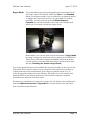
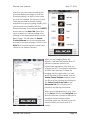
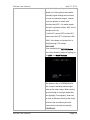
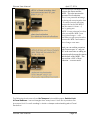
Here's some more detail on how I've captured the solar image I posted today. I use 2 separate
images. The first one was the prominence which were taken at shutter speed of 350/sec at F 6.3
with the 10 SCT. The seconds set of images were the surface structure which was taken at
12,000/sec shutter speed at F/6.3 with the same 10" SCT. I combined the two, then change the
monochrome image into red / orange. This was very simple using Photoshop. This is a result of
only 4 coded images. The image shows the excellent dynamic response of the camera without
having to take hundreds of frames and coding them like most do. The high gain circuitry really
shines here resulting in a excellent signal to noise ratio. High gain is very important in video ccd
camera for astronomy work.
Imaging – Sun
Here's an image just taken this afternoon (Dec 4 2006) from my Downtown location in Ottawa.
Sun was only 22 deg above horizon and just above the roof line of the house. Imaged with a LX
200 GPS 10" with F/6.3 focal reducer in ALT-AZ with a Thousand Oaks H Alpha Solar filter 0.9 A.
4 images coded with RegiStax 4.0. Camera was MallinCam Hyper B/W (monochrome) Video
CCD Camera. Color done with Photoshop 7, processed with RegiStax 4.0. This is my first H
Alpha complete with surface details.
Settings on the camera were: ALC Shutter Speed: 12,000/sec. (Something SC II or III can't do)
AGC: OFF
Gamma: 1.0
APC: Horizontal and Vertical turned all the way down (left) with V set at one step up.
Imaging - Monitor
When I observe and image in color, I use a monochrome monitor on my color camera. When I
capture the image to computer it is in color. Using a monochrome monitor on a color camera
gives me a much sharper and brighter image to allow a more precise focus. I try to adjust the
color USB 2 adapter settings to match the view of the monochrome monitor as far as brightness
and sharpness is concern. I then adjust the color on the camera to give me the best color
combination using the computer monitor.
Imaging - USB 2.0 Adapter – Color / B/W
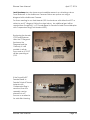
The USB 2.0 adapter is a device that allows you to connect the 75 Ohms or S-Video NTSC or
PAL video signal output of the camera to computer so you may see the live image on computer.
This device is a converter that digitize the signal mentioned above. If you have a high resolution
video card in your computer that allows you to connect a video signal in, you do not need the
USB 2.0 device. The camera is strictly video output to be use on a viewing monitor. It cannot be
connected to computer unless you have a video card that will allow you to do so.
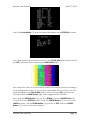
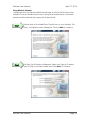
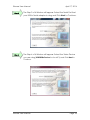
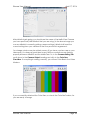
Using the USB 2.0 software called AMCAP or ULEAD Video Studio 6 or version 7 (which is
included in the USB 2.0 adapter) you can turn down the function "Saturation" in order to see the
image in black and white using a color camera. This function cannot be done through the camera.
You can control the RED and BLUE by turning the adjustment in the camera MENU but the
GREEN is fixed.
Xtreme User Manual
Page 108