1
Before You Begin – Setting your Default EPAF Routing Queue and your Proxies
Setting your Default EPAF Routing Queue
For each EPAF type you originate, you must set up a default EPAF Routing Queue. This is the path each EPAF type will
travel as it goes through the approval process. To set your defaults, log into the EPAF system, select EPAF Originator
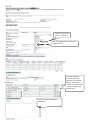
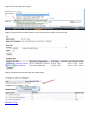
Summary, and then select Default Routing Queue. The following screen will appear:
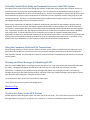
! Select Approval Level and then
select the GO button so that the
approval levels below will populate.
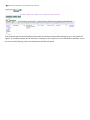
After setting the Default Routing Queue you must hit
Save and Add New Rows to save your settings.
In the above screen shot the Federal Workstudy student hire option was selected as the Approval Category. In setting
up your Default Routing Queues, you must select every type of Approval Category you can initiate EPAFs for and select
the Default Routing Queue for each Approval Category. In the above screen shot Federal Workstudy Student was
selected and the Go button was selected to refresh the screen. When the screen refreshes, the Approval Levels and the
Required Action fields will be populated. You will then need to select the magnifying glass next to each Approval Level
and select the Users at each level that approve your department’s EPAFs. Once you have gone through the process of
setting these defaults, the approval queue section of the EPAFs you originate will pre-populate with the Users you have
selected and in ordinary circumstances you shouldn’t need to adjust it for each and every EPAF. However, on occasion a
circumstance could occur for a particular EPAF where you may need to change a user in the Approval Queue for an
EPAF. If that happens, these changes can be made within the EPAF itself, and those changes will only apply to that
particular EPAF. If there is a more permanent change in roles (for example a new Department Head is hired in your
department, or a new Financial Aid Administrator joins the Financial Aid team) you will need to go back into this screen
to adjust the Default Routing Queue settings that your EPAFs typically follow.
Setting your Proxies
Every person who is an EPAF Approver of any kind needs to be sure to set up proxy access for another user in the event
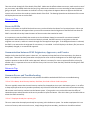
that someone else needs to approve an EPAF on their behalf. To designate another user as your proxy, select the EPAF
Proxy Records menu item when you log into the EPAF system. When you do this, the following screen will appear: