1
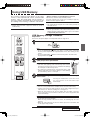
Using USB Memory
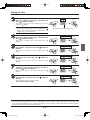
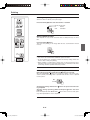
Press the Color
Color
Press the Save
button and select Color or Black & White.
Color mode lamp
Lit
Printing will be in color.
Unlit
Printing will be in black & white.
button to store
Flashing indicator “rotates” sequentially during USB memory
storage operation.
Save
Display window
• The reading operation is performed for a one-sheet portion (while the sheet is scrolled) and USB memory storage
starts after the scrolling completes.
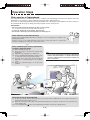
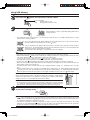
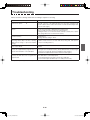
The (5 second) flashing “US” display indicates that the USB memory has not been inserted. Please
insert the USB memory and then press the Save
button.
A (5 second) flashing “FL” display indicates that there is insufficient free capacity to permit storage in
USB memory. The flashing display will stop when the USB memory device is removed. Replace with
a USB memory device having sufficient capacity.
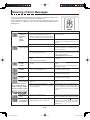
See “Meaning of Error Messages” on Page E-28 for other error displays.
Note
• Depending on the USB memory, it may take time for recognition or it may take time for saving.
• When the ON/Standby
button is pressed during the reading operation, the reading operation will be discontinued and the partially read image data will be stored in the USB memory.
To move the sheet surface, press the Feed
button after the scrolling has stopped.
• The image that is projected onto the sheet surface will not be saved to USB memory.
• A press of the Print
button during USB memory storage starts the printing after storage is completed.
• When the wide type (C-11W) Captureboard has been adjusted to the paper size in the horizontal direction, the
image will be compressed to about 75%.
• The date and time of the saved file will reflect the Captureboard time setting. See “Setting the Time” on Page
E-14.
• When a certain amount of free capacity is not available in the USB memory, “FL” will be displayed when the Save
button is pressed. Also, when insufficient free capacity arises during saving, “FL” will be displayed at that time.
Delete the data and return the sheet surface to the original condition, then press the Save
button again.
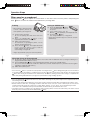
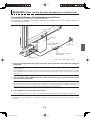
Removing the USB memory
Check that the flashing rotation of the display window has changed to steady lighting
and that the USB memory access indicator is not flashing, then pull the USB memory
straight out. (Please see your USB memory manual for details.)
/ y
Ndb
On
ta Y
S R
O
M
E
M
Notice
• Do not unplug the USB memory device during the USB memory storage operation
(i.e., during the rotating, flashing display in the display window), or while the access
indicator of the USB memory device is flashing because data will be destroyed.
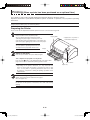
When the Captureboard is not going to be used, press the ON/Standby
off the power (standby mode).
button and switch
ON/
Standby
Note
” letters appearing at one-second intervals in a moving display in the display window indicate that a USB
• “
memory device is mounted. Unplugging the USB memory device will switch off the power. (A function that serves
as a reminder to unplug the USB memory device)
• If no button is operated for 30 minutes or greater, the unit is set to the sleep mode and the LEDs on the control
button is pressed, the LEDs on the display window turn on. If the save buttopanel turn off. If the ON/Standby
nis pressed at this time, storing of the data in the USB memory device starts.
E-24
C-11_man_E.indd E-24
07.7.30 6:05:02 PM