1
Applications
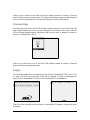
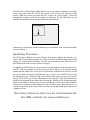
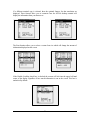
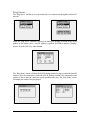
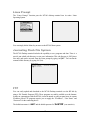
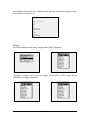
If you are using the CommandLink™ software, and the proper User ID and Password are
entered, then the Applications Menu is displayed. These are the programs that are available on
the CommandLink™ Server for this user. Other users may see other programs depending on
the settings in the CommandLink™ Administrator.
If no application is chosen, then the connection will be closed.
Additional programs can be created and modified by using the CommandLink™ Developer.
Refer to the CommandLink™ documentation for instructions on how to use the
CommandLink™ software.
Telnet
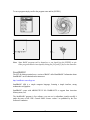
For users who have their own Telnet applications, the M7140 desktop terminal can be setup to
simply run a telnet session.
In the above examples, it was assumed that the M7140 would be connecting to a
CommandLink™ host server. If you would like to connect to your own telnet server, the
procedure is exactly the same. To run your telnet session you would simply enter the IP
address of your telnet server. An instruction on setting the IP address is explained under the
section “Connection Settings” of this manual.
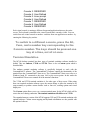
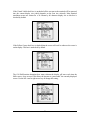
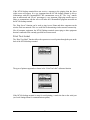
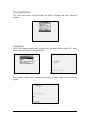
Once the M7140 desktop terminal has successfully attached to a wireless network, it
automatically attempts to start a telnet session. The server address and parameters for making
this connection are listed under the Connection Settings menu of the M7140 desktop terminal.
Switching virtual consoles
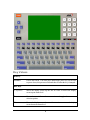
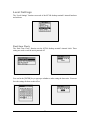
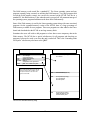
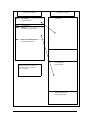
The LCD screen and the keyboard are collectively referred to as the console. To let you
interact with several applications all at once, the M7140 permits multiple sessions to be run
concurrently on consoles by means of virtual consoles. The virtual consoles are defined as
follows:
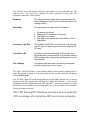
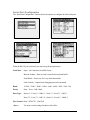
Console 1: Menus
Console 2: Communications Session or User Program
18