1
Section 2b: Using the Network - Administrators
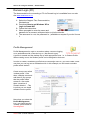
Smart Login (PC)
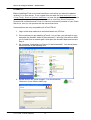
1. Turn on machine and ensure that the machine is connected to the network via UTP
cable.
2. Login to XP
3. Make sure that the computer is on the network.
1. Start, run. Cmd <ok> (black window should appear)
2. ipconfig /release <enter> (you should see 0.0.0.0)
3. ipconfig /renew <enter>
4. exit (black window should disappear)
4. Login to server
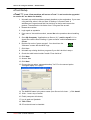
1. start, run, \\saturn\applications (where Saturn is your server Netbios name)
<ok>
2. username = sysadmin, password = you should know this
5. Install Smart Login
1. D/click on “smartlogin” folder
2. D/click on “smartlogin-setup”
3. Next
4. I accept, Next
5. Next
6. Next
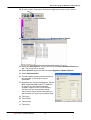
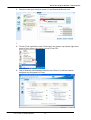
7. Tick all three boxes
8. Install
9. Next
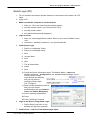
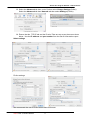
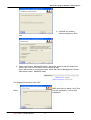
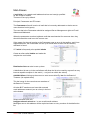
10. Check the Server Information sheet. The Netbios Name - saturn and
Netbios workgroup – workgroup are our standard default settings. If your
Server name or SmartLogin Domain are different,
then you will need to
confirgure Smart Login.
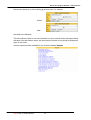
Tick “Configure”.
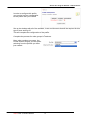
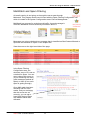
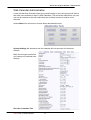
11. Either modify the default profile or
add your own school
profile/session with your Netbios
name and Netbios Workgroup.
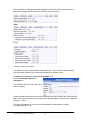
12. Add or update profile/session .
13. Close
14. Close “smartlogin” window.
6. Login to the Server using Smart Login
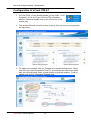
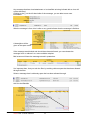
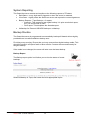
1. D/click Smart Login icon on the
desktop and log in as sysadmin.
7. Install eTrust – refer to eTrust Section page below
Smart-Net 2.1 User’s Manual
5