1
Section 2b: Using the Network - Administrators
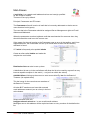
Group Membership
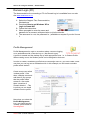
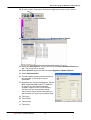
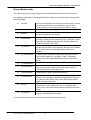
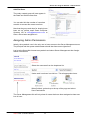
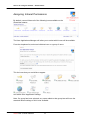
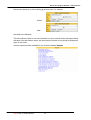
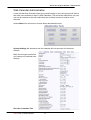
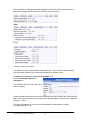
This area is where you select the parts of the network that the user will have access to.
The following description of the Network drives will help you to decide which groups users
should belong to.
H:Home
Every user has their own Home area on the server, to save
documents which are not accessible by anyone else.
This is where you save things you don’t want to share.
L:Libraryfiles
Library is where the library data is stored.
M:SMS
SMS is where the School Management System data may
be stored eg Musac or Integris.
O:Officefiles
P:Galleries
Officefiles is where office staff share information with the
principal. Users who are members of the “officefiles” group
also have the ability to save files into Teacher Read. e.g.
Financial records. GST, BOT.
Galleries is where multimedia files (e.g. videos, music) and
photos can be stored. Files stored in this area are viewable
by all users from the multimedia gallery icon in your
intranet.
R:TeacherRead
Teachers have read-only access here and can not save
files in this location e.g. “originals”, NAGs, Templates.
(Note: Only users with Officefiles access can save files
here).
T:TeacherWrite
Teacherwrite is where teachers share files.
S:StudentRead
U:StudentWrite
Students have read-only access here and can not save
files in this location. (Note: Only users with Teacher or
Officefiles rights can save files here.).
Studentwrite is where students share files.
V:Applications
X:Utils
Y:CDRoms
Applications is where Smart-Net required applications are
stored. You may add yourUtiles own applications here too.
eg. printer drivers (Note: Only users with Domain Admin
rights can save files here).
Utils is where Smart-Net required utilities are stored. You
may add your own utilities here too, eg. spyware tools
(Note: Only users with Domain Admin rights can save files
here)
CDRoms that support running from a network drive can be
copied or installed to this location.
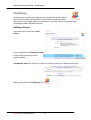
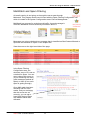
You can create other areas if you need them (refer File Sharing below).
Smart-Net 2.1 User’s Manual
21