1
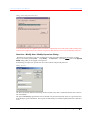
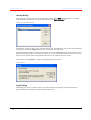
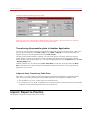
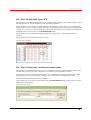
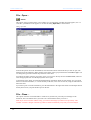
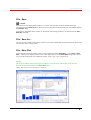
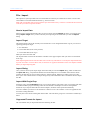
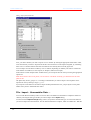
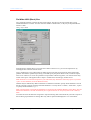
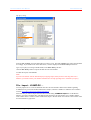
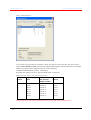
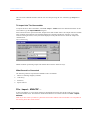
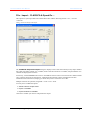
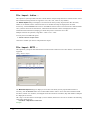
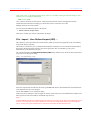
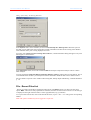
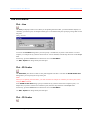
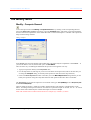
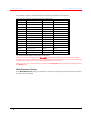
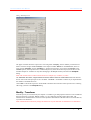
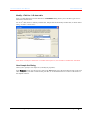
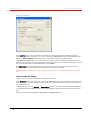
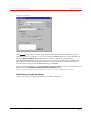
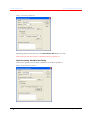
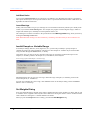
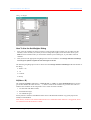
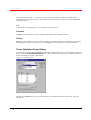
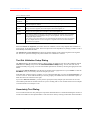
The Unscrambler User Manual Camo Software AS Exporting a Model in ASCII-MOD Format All results necessary to define a model can be written in the ASCII-MOD format, allowing another program to read in everything necessary to reproduce the model you have made in The Unscrambler. You can also export the model to NSAS or Vision format, etc. This option allows you to export an Unscrambler model to another program, using the ASCII-MOD file format. Go to File - Export Model and select the kind of result file you want to export. Type in the name of the file you want to export in the Export… dialog, or click the Browse button to get a list of all available models. The ASCII-MOD file structure is described in the Technical References chapter, which is available as a .PDF file from CAMO’s web site www.camo.com/TheUnscrambler/Appendices . Exporting a Result Matrix You can also export any result matrix to another file format, e.g. as an ASCII file. A data table can be written from an Editor to disk in different file formats, e.g. JCAMP-DX (a file format used by many spectroscopic software programs). Plain ASCII file format is the most commonly used, as it is easily read by most other programs. You must import result matrices into an Editor using File - Import - Unscrambler Results before you can write them to disk in another file format. Importing Data into The Unscrambler Using Drag’n Drop The Drag’n drop feature is a very fast way to transfer data between Windows applications. You can use Drag’n drop to import data into The Unscrambler from applications such as Microsoft Excel. Note: Data tables can only be transferred as “text”, i.e. it is not possible to link or embed them in other applications (i.e. you cannot use OLE or DDE to transfer them). Transferring Data from Spreadsheets into The Unscrambler The easiest way to transfer data from Excel and Lotus spreadsheets is to have both programs open at the same time and use Drag’n drop (see section Importing Data into The Unscrambler Using Drag’n Drop). However, there are times when you do not want to open an extra program and still want to import the spreadsheet file directly from disk. For instance, you may not have Excel on your PC, but you would still like to import data from an Excel file that you got from a colleague into The Unscrambler. In those cases, it is smart to have used the Names function of the spreadsheet program and given the different matrices a name. You should also do this for sample and variable names. If The Unscrambler detects that you have named some areas of the spreadsheet, you can quickly select the name from the range list instead of typing the cell area. Do this from the Import from Worksheet dialog which pops up after choosing File - Import - Excel (or Lotus). The Unscrambler Program Operation Useful Tips for Import / Export 41