1
Compiling and Downloading a Configuration to the System
Connecting
several OPs to the
MPI configuration
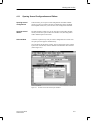
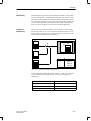
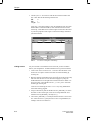
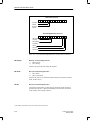
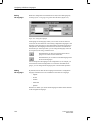
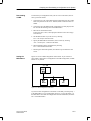
If you wish to connect several OP25/35/37s to the MPI configuration, you
must connect them one after the other. First physically connect a device.
Then download the configuration. Only then can you physically connect the
next OP. If you were to physically connect both OPs first and then download
the configuration, address conflicts would result. The reason for this is that
both OPs have the same address. This is not allowed in the MPI configuration.
14.1.2 Downloading a Configuration to the OP45
Download
methods
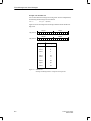
With the OP45, you can download the configuration in two ways. This depends on the device – PC (or PU) or OP45 – on which you created the configuration.
Configuration
created on
PC or PU
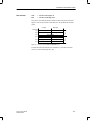
Download the configuration as described in section 14.1.1 (serial download)
or
copy the compile file, name.fud, to a floppy disk. Place the OP45 in DOS
mode and copy the file called name.fud as OP45.fud to drive D:\. The
configuration called D:\OP45.fud is active every time the OP45 starts up
in normal operation (control and process monitoring).
Configuration
created on OP45
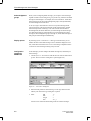
If your configuration was created on the OP45 in DOS mode, copy the compiled file called name.fud to drive D:\ as D:\OP45.fud. The configuration called D:\OP45.fud is active every time the OP45 starts up in normal
operation (control and process monitoring).
Note
When copying the compiled file, always specify its full name. On account of
a DOS problem, when you use wildcard characters such as *, it is possible
that not all of the file will be copied.
14-4
ProTool User’s Guide
Release 09/96