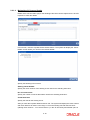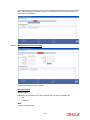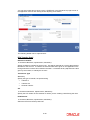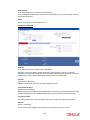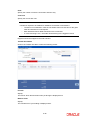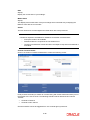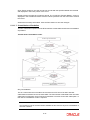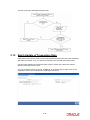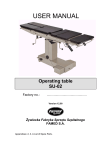
1
Transactions User Guide Oracle FLEXCUBE Investor Servicing Release 12.0.3.0.0 Part No. E53392-01 April 2014 Table of Contents 1. About This Manual ................................................................................... 1-1 1.1 1.2 1.3 1.4 1.5 1.6 1.7 1.8 2. 2.3 2.4 What is Standing Instruction?.................................................................................. 2-1 Initiating Standing Instructions................................................................................. 2-1 2.2.1 Fields in Standing Instruction Detail Screen.............................................. 2-3 2.2.2 UH Deal Link Summary ........................................................................... 2-25 2.2.3 Retrieving Deals for Investors ................................................................. 2-25 2.2.4 Viewing Deals for Investors ..................................................................... 2-26 2.2.5 Deleting Deals for Investors .................................................................... 2-26 2.2.6 Authorizing Deals for Investors................................................................. 2-26 2.2.7 Amending Deals for Investors .................................................................. 2-26 2.2.8 Authorizing Amended Deals for Investors ................................................ 2-27 2.2.9 Processing Back Data Propagation for SI Transactions........................... 2-28 Operations on Unauthorized Standing Instruction................................................. 2-29 2.3.1 Standing Instruction Summary screen...................................................... 2-29 2.3.2 Retrieving Standing Instruction in Summary Screen ................................ 2-29 2.3.3 Viewing Standing Instruction .................................................................... 2-30 2.3.4 Deleting Standing Instruction.................................................................... 2-30 2.3.5 Authorizing Standing Instruction............................................................... 2-31 2.3.6 Amending Standing Instruction................................................................. 2-31 2.3.7 Authorizing Amended Standing Instruction .............................................. 2-32 Plan Maintenance.................................................................................................. 2-32 2.4.1 Fields in Savings Plan Maintenance Screen ............................................ 2-33 2.4.2 Plan Maintenance Summary screen......................................................... 2-36 2.4.3 Retrieving Savings Plan in Summary screen ........................................... 2-36 2.4.4 Editing Savings Plan................................................................................. 2-37 2.4.5 Viewing Savings Plan .............................................................................. 2-37 2.4.6 Deleting Savings Plan .............................................................................. 2-37 2.4.7 Authorizing Savings Plan.......................................................................... 2-38 2.4.8 Amending Savings Plan ........................................................................... 2-38 2.4.9 Authorizing Amended Savings Plan ......................................................... 2-38 IRA Plans .................................................................................................. 3-1 3.1 3.2 4. 1-1 1-1 1-1 1-1 1-1 1-2 1-2 1-2 1-2 1-3 Maintaining Standing Instructions ......................................................... 2-1 2.1 2.2 3. Introduction.............................................................................................................. Related Documents ................................................................................................. Audience.................................................................................................................. Organization ............................................................................................................ Conventions Used in this Manual ............................................................................ 1.5.1 General Conventions.................................................................................. 1.5.2 Keyboard Conventions ............................................................................... Glossary of Icons..................................................................................................... Abbreviations and Acronyms................................................................................... Getting Help............................................................................................................. IRA Plans................................................................................................................. 3-1 Unit Holders and Unit Holder Accounts ................................................................... 3-1 Processing Transaction Requests ......................................................... 4-1 4.1 Introduction.............................................................................................................. 4-1 4.2 4.3 4.4 4.5 4.6 5. Finding what You Need in this Chapter ................................................................... 4-1 Types of Transaction Requests............................................................................... 4-2 Transactions Generated by FCC............................................................................. 4-4 4.4.1 Subscription Transaction Generation ......................................................... 4-4 4.4.2 Redemption Transaction Generation.......................................................... 4-4 Transaction Processing –Flow of Events ................................................................ 4-4 4.5.1 Unauthorized Stage.................................................................................... 4-4 4.5.2 Authorized Stage ........................................................................................ 4-5 4.5.3 Amendment Stage...................................................................................... 4-6 4.5.4 Allocation of Transactions .......................................................................... 4-6 Transaction Processing Procedures........................................................................ 4-7 4.6.1 Before you Enter Transaction Request ...................................................... 4-7 4.6.2 Entering and Saving IPO Transactions ...................................................... 4-9 4.6.3 FCIS IPO Subscription Summary Screen................................................. 4-22 4.6.4 Entering Bulk Transactions ...................................................................... 4-25 4.6.5 Transaction Details section ..................................................................... 4-27 4.6.6 Specifying Settlement Details................................................................... 4-29 4.6.7 Viewing Balance Holdings of a Unit Holder .............................................. 4-33 4.6.8 Operations supported in FCIS Bulk Transaction screen .......................... 4-33 4.6.9 FCIS Bulk Transaction Summary Screen................................................. 4-33 4.6.10 Entering and Saving Subscription Transactions in Detail......................... 4-36 4.6.11 Cancelling Transactions ........................................................................... 4-44 4.6.12 FCIS Subscription Transaction Summary Screen .................................... 4-45 4.6.13 Entering Subscription Transactions in Light Weight Detail....................... 4-49 4.6.14 Entering and Saving Redemption Transactions ....................................... 4-50 4.6.15 FCIS Redemption Transaction Summary Screen .................................... 4-58 4.6.16 Entering and Saving Redemption Transactions in Light Weight Detail .... 4-62 4.6.17 Entering and Saving Switch Transactions ................................................ 4-63 4.6.18 Entering and Saving Switch Transactions in Light Weight Detail ............. 4-73 4.6.19 FCIS Transaction Switch Summary Screen ............................................. 4-75 4.6.20 Entering and Saving Transfer Transactions ............................................. 4-78 4.6.21 Entering and Saving Transfer Transactions in Light Weight Detail .......... 4-86 4.6.22 FCIS Transfer Summary Screen .............................................................. 4-87 4.6.23 Entering and Saving Block Transactions.................................................. 4-91 4.6.24 FCIS Block Transaction Summary Screen ............................................... 4-94 4.6.25 Entering and Saving Unblock Transactions.............................................. 4-97 4.6.26 FCIS Unblock Transaction Summary Screen ......................................... 4-101 4.6.27 Checking for Duplicate Transactions...................................................... 4-104 4.6.28 Entering and Saving Split Transactions.................................................. 4-104 4.6.29 FCIS Split Transaction Summary Screen............................................... 4-108 4.6.30 Entering and Saving Consolidation Transactions................................... 4-111 4.6.31 FCIS Consolidation Transaction Summary Screen ................................ 4-114 4.6.32 Entering and Saving Reissue Transactions............................................ 4-118 4.6.33 FCIS Reissue Transaction Summary Screen ......................................... 4-121 4.6.34 Defaulting of Price Date in Transaction Screens.................................... 4-125 4.6.35 Completing Transaction.......................................................................... 4-127 4.6.36 Processing Back Data Propagation for Transactions ............................. 4-128 Processing Transactions - II ................................................................... 5-1 5.1 Maintaining Details in Transaction Screens ............................................................ 5-1 5.1.1 Client Information Section .......................................................................... 5-1 5.1.2 To Client Information Section ..................................................................... 5-2 5.1.3 Transaction Information Section................................................................. 5-3 5.1.4 Viewing Details of Projected Allocation – Allocation Projection Screen ... 5-17 5.1.5 Viewing Allocation Details ........................................................................ 5-20 5.1.6 Transaction KYC Details Screen .............................................................. 5-21 5.1.7 Viewing Details of UH Deals Setup .......................................................... 5-23 5.1.8 Broker Details Section .............................................................................. 5-24 5.1.9 Settlement Details Section ....................................................................... 5-26 5.1.10 Pledgee Details Section ........................................................................... 5-36 5.1.11 Fee Payment Details Section ................................................................... 5-37 5.1.12 Certificate Details Section ........................................................................ 5-39 5.1.13 Load Override Section.............................................................................. 5-41 5.1.14 Limit Orders Section ................................................................................. 5-44 5.1.15 Allocation Details Section ......................................................................... 5-44 5.1.16 Document Details Section ........................................................................ 5-45 5.1.17 Additional Information Section.................................................................. 5-46 5.2 Mandatory Information for All Transaction Types.................................................. 5-46 5.3 Viewing Fund-wise Balances of Unit Holders........................................................ 5-47 5.4 Contract Notes for Transactions............................................................................ 5-48 5.5 Entering Payment Details for Transactions ........................................................... 5-49 5.5.1 Payment Incomplete Transactions ........................................................... 5-49 5.5.2 Gross Basis and Net Basis Transactions ................................................. 5-49 5.6 Exchange Rate Incomplete Transactions.............................................................. 5-49 5.6.1 Exchange Rate Enrichment for Exchange Rate Incomplete Transactions 5-50 5.6.2 Performing Exchange Rate Enrichment ................................................... 5-50 5.6.3 Performing Bulk Update of Exchange Rate.............................................. 5-51 5.6.4 Authorizing Exchange Rate Enrichments ................................................. 5-52 5.6.5 Clearing Payment Instruments ................................................................. 5-53 5.6.6 Fields in Payment Clearing Screen .......................................................... 5-55 5.6.7 Tracking Status of Returned Cheques ..................................................... 5-55 5.6.8 Fields in Payment Clearing Screen .......................................................... 5-57 5.7 Transaction Load Override .................................................................................... 5-58 5.7.1 Overriding loads in Transaction Load Override Screen............................ 5-59 5.7.2 Forcing Recalculation ............................................................................... 5-60 5.7.3 Fields in Transaction Load Override Detail screen .................................. 5-61 5.8 Intra-day Checks for Transactions......................................................................... 5-65 5.8.1 Fields in this Screen ................................................................................. 5-66 5.8.2 Pre-EOD Check for Intra-day Transaction Validation ............................... 5-66 5.8.3 Intra-day Check – Example ...................................................................... 5-67 5.9 Readjusting Unit Holder Portfolio .......................................................................... 5-68 5.9.1 Fields in the Readjustment of UH Portfolio Screen .................................. 5-68 5.9.2 Processing Readjustment Portfolios......................................................... 5-71 5.9.3 UH Portfolio Readjustment Summary Screen ......................................... 5-71 5.9.4 Initiating and Processing Queries............................................................. 5-75 5.9.5 Fields in Help Desk Detail Screen ............................................................ 5-76 5.9.6 Viewing or Editing Helpdesk Query .......................................................... 5-78 5.10 Sending and Receiving Messages ........................................................................ 5-81 5.10.1 Send Messages ....................................................................................... 5-81 5.10.2 Receive Messages .................................................................................. 5-82 5.11 Transfer IN, Consolidation, Out and Transfer Process.......................................... 5-82 5.11.1 RTA Transfers Summary Screen ............................................................. 5.12 Batch Update of Transaction Date ........................................................................ 5.13 Tracking Cheques ................................................................................................. 5.13.1 Fields in Cheque Tracking Summary Screen ........................................... 6. Adjustment and Amount Block Transactions ....................................... 6-1 6.1 6.2 6.3 6.4 6.5 7. 5-87 5-92 5-93 5-94 Entering Transactions with Specific Prices.............................................................. 6-1 6.1.1 Adjustment Transaction Detail Screens ..................................................... 6-1 6.1.2 Entering Adjustment Transaction .............................................................. 6-1 6.1.3 Fields in Adjustment Transaction Detail Screens ....................................... 6-2 Adjustment Transaction Summary Screens .......................................................... 6-13 6.2.1 Retrieving Transaction in Transaction Summary Screens ....................... 6-13 6.2.2 Editing Adjustment Transaction................................................................ 6-14 6.2.3 Viewing Transaction ................................................................................. 6-14 6.2.4 Deleting Adjustment Transaction.............................................................. 6-15 6.2.5 Authorizing Adjustment Transactions ....................................................... 6-15 6.2.6 Amending Transaction.............................................................................. 6-16 Block or Unblock Transactions by Amounts .......................................................... 6-17 6.3.1 Entering Amount Block or Unblock Transactions ..................................... 6-17 6.3.2 Fields in Amount Block screens ............................................................... 6-18 Redeeming Units for Unblocked Amounts............................................................. 6-24 6.4.1 Processing Redemption Transactions against Unblocked Amounts ........ 6-24 6.4.2 Retrieving Amount Block/ Unblock Summary Screens............................. 6-25 6.4.3 Editing Amount Block/ Unblock Transaction............................................. 6-26 6.4.4 Viewing Amount Block/ Unblock Transaction ........................................... 6-26 6.4.5 Deleting Amount Block/ Unblock Transaction .......................................... 6-26 Authorizing Amount Block/ Unblock Transactions................................................. 6-27 6.5.1 Amending Amount Block / Unblock Transactions..................................... 6-27 6.5.2 Authorizing Amended Amount Block/ Unblock Transactions ................... 6-28 Function ID Glossary ............................................................................... 7-1 1. About This Manual 1.1 Introduction Welcome to Oracle FLEXCUBE Investor Servicing ™, a comprehensive mutual funds automation software from Oracle Financial Servicing Software Ltd. ©. This Oracle FLEXCUBE Investor Servicing User Manual helps you use the system to achieve optimum automation of all your mutual fund investor servicing processes. It contains guidelines for specific tasks, descriptions of various features and processes in the system and general information. 1.2 Related Documents The User Manual is organized in to various parts, each discussing a component of the Oracle FLEXCUBE Investor Servicing system. 1.3 Audience This Fund Manager User Manual is intended for the Fund Administrator users and system operators in the AMC. 1.4 Organization This volume of the Fund Manager User manual is organized under the following chapter sequence: 1.5 Chapter 1 About This Manual explains the structure, audience, organization, and related documents of this manual. Chapter 2 Transactions –Maintaining Standing Instructions explains the maintenance of standing instructions for an investor account. Chapter 3 Transactions –IRA Plans explains the processes involved in the creation of retirement plans in retirement investment products for investors. Chapter 4 Transactions –Processing Transaction Requests is intended for the Teller users and contains guidelines for the initiation and processing of investor transactions. Chapter 5 Transactions –Processing Transactions – II explains how to process transactions. It also explains how to retrieve, edit, and view the details of a transaction. Chapter 6 Transactions – Adjustment and Amount Block Transactions explains the processing of adjustment and amount block / unblock transactions. Conventions Used in this Manual Before you begin using this User Manual, it is important to understand the typographical conventions used in it. 1-1 1.5.1 1.5.2 1.6 General Conventions Convention Type of Information Italic type Functional /foreign terms Validations for fields on a screen References to related Headings/Users Manuals For emphasis Numbered Bullet Step by step procedures Keyboard Conventions Convention Type of Information Keys All keys of the keyboard are represented in capital letters. For example, <CTRL>. Shortcut keys All short cut keys are contained in brackets. For example, <ALT+SHIFT>. Glossary of Icons This User Manual may refer to all or some of the following icons. Icons Function Exit Add Row Delete Row Option List 1.7 Abbreviations and Acronyms The following acronyms and abbreviations are adhered to in this User Manual: Abbreviation/ Acronym Meaning ADMIN User Administrator AGY The Agency Branch component of the system AMC Asset Management Company BOD Beginning of Day CDSC Contingent Deferred Sales Charge CGT Capital Gains Tax 1-2 1.8 Abbreviation/ Acronym Meaning CIF Customer Information File EOD End of Day EPU Earnings per unit FC-IS Oracle FLEXCUBE Investor Servicing FMG The Fund Manager component of the system FPADMIN Oracle FLEXCUBE Administrator ID Identification IHPP Inflation Hedged Pension Plan IPO Initial Public Offering LEP Life and Endowment Products LOI Letter of Intent NAV Net Asset Value REG The Registrar component of the system ROA Rights of Accumulation ROI Return on Investment SI Standing Instructions SMS Security Management System URL Uniform Resource Locator VAT Value Added Tax WAUC Weighted Average Unit Cost Getting Help Online help is available for all tasks. You can get help for any function by clicking the help icon provided or by pressing F1. 1-3 2. Maintaining Standing Instructions 2.1 What is Standing Instruction? An investor in your AMC may wish to subscribe into any of the funds of the AMC at regular periodic intervals separated by a pre-defined frequency. The investor may want to withdraw investment from any of the funds at regular periodic intervals. These transactions of subscribing or withdrawing investment could be requested by investors could be based on any regular savings plans or withdrawal plans they have decided upon for the purpose of managing their investment and savings. Whenever these kind of periodic transactions are to be effected, the investor gives the AMC a standing instruction to carry out the same. This would mean that according to the preferences of the investor, the AMC would automatically enter and process these periodic transactions in the investor’s account, without manual intervention from the investor. A standing instruction given by an investor will always result in a transaction in the investor account. 2.2 Initiating Standing Instructions To enter a standing instruction for an investor into the system, you must capture the details of the instruction in the ‘FCIS Standing Instructions Detail’ screen. You can invoke this screen by typing ‘UTDSIN’ in the field at the top right corner of the Application tool bar and clicking on the adjoining arrow button. Note You can enter details regarding standing instructions provided you have checked the ‘Allow Systematic Plans’ Option in the Transaction Processing Rules screen. In this screen, you must capture the following details for the instruction, as given by the investor: The unit holder ID of the investor that is requesting the standing instruction. The description of the standing instruction. The level at which you are entering the standing instruction; plan level or fund level. If you have chosen Plan Level, indicate the funds in which the transactions resulting from the standing instruction would be put through, in the investor’s account. However, if you are entering the standing instructions for a single fund then indicate the SI Level as fund Level and indicate the fund in which the transactions resulting from the standing instruction would be put through, in the investor’s account. At this stage, all the fields will be available in the screen. The type of transaction that would result when the standing instruction is processed. Whether the processing of the standing instruction must result in the generation of authorized transactions in the investor’s account. The mode in which the resulting transaction of the specified type must be accepted. The currency for the resulting transaction. The value of the transaction, to be reckoned in the preferred mode. 2-1 Whether the loads for the resulting transactions must be applied on a gross basis or net basis. The brokers, if any, identified for the transactions, with their appropriate split percentages. For certificate option funds and scrip-based funds, the certificate details. The start and end dates that signify the period during which the standing instruction must be processed, at the specified frequency. The frequency at which the standing instructions must be processed, during the defined period. The period, in days, during which reminders must be generated for the standing instruction. The details of any desired escalation in transaction values. The details of payment, if any, for the transactions. After you specify all these details, click ‘Ok’ button. The record of the instruction is saved and the Standing Instructions Number is generated and displayed to you, for future reference. If a transaction type has been suspended for the fund you have selected, standing instructions related to the fund for that transaction are also suspended. The system, however, allows you to maintain exceptions for which the suspension will not be applicable. The process of saving standard instructions, if suspension rules and exemptions have been maintained, is as follows: At the time of saving, the system checks if a suspension rule applies for the given fund and transaction type selected for the SI. If suspension is applicable, then system would check if reference type applicable for standing instruction (reference type for standing instruction 41) is exempt from the suspension rule. If the reference type is exempt from the suspension rule, then system checks the value of field ‘Suspension applicability for SI’. If the value is ‘N’ (New) or ‘B’ (Both), the system allows the save. Else, it displays the following error message as “Transaction Type is Suspended”. For more details on maintaining exceptions for suspended transactions, please refer the chapter ‘Setting Up Fund Rules (II)’ 2-2 2.2.1 Fields in Standing Instruction Detail Screen Select 'New' from the Actions menu in the Application tool bar or click new icon to enter the details of the Standing Instruction screen. 2.2.1.1 Maintaining SI Basic Info The system retrieves the name of the selected unit holder and displays it alongside this field when you click the Validate link. Click ‘SI Basic Info’ tab to enter the details. Client Information Section In this section, specify the details of the CIF Account or the investor that has requested for the standing instruction. To retrieve a CIF Account number or a unit holder number, click Find. Unit Holder ID Alphanumeric, Optional. This information is mandatory if you have specified a CIF number. Select the unit holder for whom the standing instruction request is being entered. The system retrieves the name of the selected unit holder and displays it alongside this field, when you click the Validate link. When you specify the CIF Number, all the unit holders that fall under the CIF are displayed in the drop down list in this field. You can make your choice from this list. 2-3 You must select a unit holder that is not restricted (or does not belong to a restricted category) for the fund into which the transaction is being entered. If not, the system does not allow the transaction to be saved. Unitholder Name The system retrieves the name of the selected unit holder and displays it alongside this field, when you click the Validate link. CIF Number Alphanumeric, Optional Specify the number of the CIF for whom the standing instruction is being entered, in this field. The system retrieves the name of the CIF Account and displays it alongside this field, when you click the Validate link. You must select a CIF that is not restricted (or does not belong to a restricted category) for the fund into which the transaction is being entered. If not, the system does not allow the transaction to be saved. You can specify the unit holder or the CIF unit holder to whom the transfer of ownership is being affected in the case of transfer transactions being generated by the standing instruction in the following fields:. This section is not applicable to any other transaction type other than transfer. To Unit Holder ID and To Unitholder Name 12 Characters Maximum, Alphanumeric, Optional. This information is mandatory if you have specified a CIF account. Select the unit holder to whom the transfer of ownership is being affected. The system retrieves the name of the selected unit holder and displays it alongside this field when you click the Validate link. When you specify the CIF Number, all the unit holders that fall under the CIF are displayed in the drop down list in this field. You can make your choice from this list. If you have selected a unit holder for the selected CIF using the Find link, the name and number of the selected unit holder is displayed here. You must select a unit holder that is not restricted (or does not belong to a restricted category) for the fund into which the transaction is being entered. If not, the system does not allow the transaction to be saved. To CIF Number Alphanumeric, Optional Specify the number of the CIF to which the transfer is being affected, in this field. The system retrieves the name of the CIF account and displays it alongside this field when you click the Validate link. You must select a CIF that is not restricted (or does not belong to a restricted category) for the fund into which the transaction is being entered. If not, the system does not allow the transaction to be saved. SI Details Section In this section, capture all details pertaining to the standing instruction itself. 2-4 SI Number System Generated Information This is a unique identifier that is given to each standing instruction by the system, for all future reference. This number is generated automatically by the system when you have entered all the mandatory information for the standing instruction in this screen, and saved it. Description 255 Character Maximum, Alphanumeric, Optional Narrate a brief description of the standing instruction. This description could typically be indicative of the nature and impact of the standing instructions. SI Level Alphanumeric, Optional Select the option ‘Fund Level’ if the standing instruction is applicable for an individual fund. Else, select ‘Plan Level’ to indicate that the standing instruction is applicable for a savings plan. By default, the SI level will be Fund level. Note Depending on SI Level that you select, certain fields will be displayed. SI Status After a standing instruction is authorized, it could be: Active: This means that the instruction is still being processed, and transactions have been put through. Paused: This means that the authorized instruction record exists in the database, but no processing is taking place in respect of the same. Cancelled: This means that the instruction has been annulled and no processing is scheduled to take place in respect of the same. Fund ID 6 Character Maximum, Alphanumeric, Mandatory Select the fund in which any transactions resulting from the standing instruction must be put through. When you specify the fund, the ISIN Code of the fund is displayed in the ISIN Code field along with the fund name. Note This field will be displayed only if the SI level is ‘Fund Level’. Plan Code Alphanumeric, Mandatory Select the plan for which the standing instruction will be applicable. Any transactions resulting from the standing instruction will be put through in the funds maintained in the plan. When you specify the plan, the description of the plan is displayed alongside. 2-5 Note This field will be displayed only if the SI level is ‘Plan Level’. No. Of Consecutive Payment Rejections Display Displays the number of times the SI payments have been consecutively rejected. As and when the payment is rejected, the count is incremented by one and it is reset to zero when a payment is successful. The standing instruction status will be set to ‘Cancel, if the number of payment rejected is more than the SI payment rejections allowed. In this case the further SI transactions will not be generated. No. Of Cumulative Payment Rejections Display Displays the total number of times the SI payments have been so far rejected. As and when the payment is rejected, the count is incremented by one. The standing instruction status will be set to ‘Cancel, if the number of payments rejected is more than or equal to the SI payment rejections allowed. In this case the further SI transactions will not be generated. Description Display This field displays the reason for rejection of the SI payments. SI Auto-Termination Cumulative Counter Optional Specify the maximum number of times the SI payment rejections are allowed before the auto termination. If you have not maintained any value, then on saving/modifying the SI transaction, the system defaults the value maintained at the ‘Plan Maintenance’ screen, if the SI level is ‘Plan’. Similarly, if the SI level is ‘Fund’, then the system defaults the value maintained in the ‘Transaction Processing Rule – Detail’ screen. However, the value available here is considered for auto termination of the standing instruction. If you set this counter to zero, then the SI is cancelled on the very first rejection of the payment and the SI status maintained as ‘Cancel’. If there is no value maintained, then the SI will not be automatically terminated if the payment is rejected. Note After automatically terminating the SI, the system will set the description for the SI to ‘Cancelled due to exceeding cumulative payment rejections’. SI Auto Termination Consecutive Counter Optional Specify the maximum number of times consecutive SI payment rejections are allowed before the SI is automatically terminated. If you have not maintained any value, then on saving/ modifying the SI transaction, the system defaults the value maintained at the ‘Plan Maintenance’ screen, if the SI level is ‘Plan’. Similarly, if the SI level is ‘Fund’, then the system defaults the value maintained in the ‘Transaction Processing Rule – Detail’ screen. However, the value available here is considered for auto termination of the standing instruction. 2-6 If you set this counter to zero, then the SI is cancelled on the very first rejection of the payment. If there is no value maintained, then the SI will not be automatically terminated if the payment is rejected. Note After automatically terminating the SI, the system will set the description for the SI to ‘Cancelled due to exceeding consecutive payment rejections’. No. of SI Transactions Generated Display The system displays the number of SI transactions generated for the fund/plan. If this value is found to be equal to the limit set for the fund (in ‘Fixed No of SI Installments’ field in the Transaction Processing Rules) and the SI Level is ‘Fund’, then the SI will be cancelled. Similarly, where the SI Level is ‘Plan’, an SI will be cancelled if the number of SI transactions generated is found to be equal to the ‘Fixed no of SI installments’ for any of the funds under that plan”. In both cases, after cancelling the SI, the system will update the SI Status to ‘Cancel’ and the SI Description field to ‘Cancelled due to exceeding number of maximum transactions allowed’. Default Intermediary Click ‘Default Details’ button to capture the remaining details for the standing instruction, if any. These details could include: Details of transactions that could result when the standing instruction is processed. Details of any brokers identified for the transactions. Details of the instructions given for the transactions. Details of any escalation for the standing instruction. Details of any payment made for the processing of standing instructions. The Standing Instructions Other Details screen is opened when you click this link. Transaction Details In this section, specify the details of any transactions that would result when the standing instruction is processed in the system. Transaction Type Mandatory From the list, select the type of transaction that must be generated when the standing instruction is processed. Standing instructions can be processed for the following transaction types – IPO, Subscription, Redemption, Switch From and Transfer. If you select the option ‘Switch From’, the following fields will be displayed: To Fund ID To ISIN Phase In Phase In Type 2-7 These fields have been explained later in this User Manual. Note If you have chosen Plan Level as the SI level then the transaction type is defaulted as ‘Subscription’. You will not be allowed to change this. Transaction Currency Alphanumeric, Mandatory From the list, select the currency in which the transactions generated in respect of the standing instruction will be processed. In case, the unit holder does not have an account for the transaction currency, you can choose the multi-currency account in SI Bank Details screen – if the mode of payment is ‘Transfer’ and payment type is ‘Self’. Gross or Net Mandatory Specify whether the transaction is a gross or net transaction. Note If you have chosen Plan Level as the SI level then this field defaulted as ‘Gross’. You will not be allowed to change this. Currency Description Display Only The system displays the currency name of the specified SI Transaction Currency based on the details maintained at ‘Currency Maintenance’ level. Transaction Mode Alphanumeric, Mandatory Indicate the mode in which the transaction value is to be reckoned, for transactions generated in respect of processing of the standing instruction. The mode you choose could either be Amount, Units or Percentage (of holdings). Note If you have chosen Plan Level as the SI level then the transaction mode is defaulted as ‘Amount’. You will not be allowed to change this. First Generation Date Date, Optional Enter a date on which the system should a transaction apart from generating on the Standard Instruction start date. This date should be lesser than the Standard Instruction start date and Greater than or equal to the application date. The date specified here cannot be edited or amended once you save the transaction. Amount Indicate the value of the transaction that is to be generated in respect of the instruction, whether an amount, number of units, or a percentage of holdings. 2-8 If you specify an amount or a number of units in this field, the value must always be within the Minimum, Maximum and Step Transaction Amount or Units ranges specified for the relevant transaction for standing instructions in the Transaction Processing Rules, and the amount or units specified for the investor category to which the selected unit holder belongs, in the fund Investor Category Limits. Generate Auth Txns Optional Select the option Yes/No from drop-down list to indicate whether authorized/unauthorized transactions generates when the standing instruction is processed This specification is applicable and enabled only for scrip-less funds, and for funds in which the Aging Policy is based on Transaction Receipts (from the Transaction Processing Rules for the fund).This option is not applicable for certificate-option funds in which the unit holder has requested for certificates. Delivery Option Select the delivery option from the drop down list. Phase In The ‘Phase In’ field is enabled only if the ‘Transaction Type’ field is set to ‘Switch’. Select ‘Yes’, if you want the system to allow Multiple Fund Transfer, i.e. moving fund amount from many funds to another. The ‘Phase In’ switch feature is generally used by the Investment Frontiers. You would not be able to capture the ratio from these funds as these would be phased out in same number of occurrences. For example, if Fund1 is phased in to Fund3 and Fund4 with Phase occurrence of 5, say, after 2 occurrences, the investor cannot phase in to Fund 5 and Fund 6, as the process will be duplicated. Note The following points need to be considered: – If a particular date a phase-in has been scheduled is a holiday the transaction will be generated on the next working day. – If the ‘From’ and the ‘To’ funds belong to two different AMC’s the switch will be considered a normal switch and not a pseudo switch. – Many to Many Funds feature will not be supported for the following: – Pensions – Unit Trust Standing Instructions Example An investor John wants to invest amount 3000 on Funds, say FUND1 and FUND2. He has set ‘Phase In Occurrences’ to 5, and frequency as Monthly, i.e., the fund will be divided into 5 units on monthly basis. ‘To Fund Ratio’ has been set to 50%, i.e., FUND1 is equally divided into FUND 3 and FUND4. Similarly, FUND 2 is also equally divided into FUND3 and FUND4. 2-9 This is displayed in the table as shown: From Funds To Funds To Fund Ratio FUND1 FUND3 50% FUND2 FUND4 50% Unit balances can be set for every month manually shown as follows: Month Fund Units 1st FUND1 1000 FUND2 2000 FUND1 850 FUND2 1700 FUND1 630 FUND2 1260 FUND1 450 FUND2 850 FUND1 250 FUND2 500 2nd 3rd 4th 5th For the first month, the phase occurrence value is 5. The unit for the first month for FUND1 is 1000/5 = 200 and for FUND2 is 2000/5 = 400. Similarly, for second month, the unit for FUND1 is 850/4 = 212.5 and for FUND2 is 1700/4 = 425 and so on. The unit details for 5 phase occurrences are as shown in the table: Policy SI Details Fund Split Details Ref No Month Mode Value Fund Units Remaining Occurrence s Ref 1 1 Units 0 FUND1 200 5 FUND2 400 FUND1 212.5 FUND2 425 FUND1 210 FUND2 420 FUND1 225 FUND2 425 Ref 2 Ref 3 Ref 4 2 3 4 Units Units Units 0 0 0 2-10 4 3 2 Policy SI Details Fund Split Details Ref No Month Mode Value Fund Units Remaining Occurrence s Ref 5 5 Units 0 FUND1 250 1 FUND2 500 Since the ‘To Fund Ratio’ is set to 50%, the units obtained in the above table are equally divided into FUND3 and FUND4. The Unit Transaction details are as shown in the table below: Ref No Month From Fund To Fund Units SW1 1 FUND1 FUND3 100 SW2 FUND1 FUND4 100 SW3 FUND2 FUND3 200 SW4 FUND2 FUND4 200 FUND1 FUND3 106.25 SW6 FUND1 FUND4 106.25 SW7 FUND2 FUND3 212.5 SW8 FUND2 FUND4 212.5 FUND1 FUND3 105 SW10 FUND1 FUND4 105 SW11 FUND2 FUND3 210 SW12 FUND2 FUND4 210 FUND1 FUND3 112.5 SW14 FUND1 FUND4 112.5 SW15 FUND2 FUND3 212.5 SW16 FUND2 FUND4 212.5 FUND1 FUND3 125 SW18 FUND1 FUND4 125 SW19 FUND2 FUND3 250 SW20 FUND2 FUND4 250 SW5 SW9 SW13 SW17 2 3 4 5 2-11 Phase In Type Mandatory if the ‘Transaction Type’ is ‘Switch’ Selecting the ‘Phase In Type’ to ‘Holdings’, the system will switch out the fund holdings within the specified number of occurrences to the selected fund. To Fund ID Select the fund to which the selected unit holder has requested to switch the investment. If you specify the code of a fund, the ISIN Code of the fund is displayed in the To ISIN field. Fund Name Display Only The system displays the fund name of the specified ‘To Fund ID’ based on the details maintained at ‘Fund Rule Maintenance’ level. Certificates Required? Optional For funds that have the certificate option as specified in the Shares Characteristics rules, specify whether the selected unit holder has requested certificates for the standing instruction transaction. If yes, then choose the Yes option in this field, and specify the number of certificates requested in the Number of Certificates field. Single Certificate? Mandatory only if you have chosen the ‘Yes’ option in the Certificate Required field. Select the denomination of certificates, whether single or multiple, that will be involved in the transaction, if certificates have been requested. For IPO and subscription, specify whether the unit holder has requested a single certificate or multiple certificates. For redemption, switch and transfer, specify whether a single certificate or multiple certificates are being redeemed, switched or transferred. For transfer transactions, specify whether the transferee unit holder has requested single or multiple certificates. If you choose the ‘Multiple’ option in this field, then the certificates involved in the transaction will be reckoned in denominations governed by the maximum and minimum certificate denominations specified for the fund in the Shares Characteristics rule. From Issued Balances Optional Select ‘Yes’ from the adjoining option list, if you need to process transactions from issued balances. The system defaults the value as ‘No’. Campaign Code Optional You can link the campaign to the subscription and switch transaction type of standing instruction. Specify the campaign to be mapped. You can also select the campaign code from the option list. The campaign codes with the start and the end date in between the first payment date or the SI generation date (if the first payment date is not mentioned) is displayed in the option list. Note – You can edit the campaign code but cannot amend it if there is even a single transaction already generated due to this SI. 2-12 – The system will not validate that the selected campaign code is linked to the unit holder or not. – The system will not validate that the selected campaign code is linked to the selected funds or not. – The system will not consider the campaign code attached to the SI if the campaign code end date is passed before the transaction generation. In this case, you have to manually amend the campaign code and extend the end date. Dates and Reminders Section In this section, specify the period during which the standing instruction is to be processed for the unit holder, as well as the frequency at which it must be processed. SI Start Date DD/MM/YYYY Date, Mandatory Specify the date on and following which the standing instruction must be processed, at the defined frequency. You can select the date using the system provided calendar. SI End Date DD/MM/YYYY Date, Mandatory Specify the date until which the standing instructions must be processed, at the defined frequency. You can select the date using the system provided calendar. Frequency Alphanumeric, Mandatory From the list, select the frequency at which the standing instruction must be processed, within the period defined between the start and end dates. Note If the SI Cut-Off Day function is applicable for this installation, it will be effective only if the frequency specified in this field is ‘monthly’ or higher. Reminder Period 3 Characters Maximum, Numeric, Mandatory Enter a value in days to specify the requirement of reminder before the processing of the standing instruction. Last Processed DD/MM/YYYY Date, Optional The system displays the date when this standing instruction was last processed. For a new standing instruction, this field will be blank. Reminder Before Action? Mandatory If you select the option as ‘Yes’, then the Unit Holder will be intimidated before SI generation No. Of SI Transactions Specify the number of SI transactions for Monthly, Quarterly, Half yearly and Yearly frequencies. 2-13 Escalation Details Section Unit holders may need to have the values of transactions generated for a standing instruction to be escalated at a pre-defined frequency. This is known as escalation. Escalation is possible only for certain transaction types like IPO and subscription. You can capture the details pertaining to any such desired escalation in the Escalation Details section. Escalation Start Date Date, Optional Specify the date on which the escalation of the instruction will begin. This date has to be later than the SI Start date, but earlier than the SI End Date. Escalation End Date Date, Optional Specify the date on which the escalation of the instruction will cease. This date has to be later than the SI Escalation Start Date, but earlier than the SI End Date. Escalation Frequency Alphanumeric, Optional Specify the frequency at which the escalation is to take place. You can select the desired frequency format from the drop down list. The escalation frequency must always be greater than or equal to the standing instruction frequency. Escalation Type Alphanumeric, Optional Specify whether the escalation is an amount/units-based escalation or a percentage escalation. Select the desired type from the drop down list. Next Escalation Date Date, Optional This is the date on which the next escalation will take place. It is updated by the system based on the standing instructions start date and the escalation frequency in the case of a new record. For records retrieved in the Amend mode, this date may be altered in the amend session. Note If escalation is requested, then you must specify ALL the details in this section as mandatory information, to enable the system to process the escalation. Escalation Value Optional Enter the value by which the standing instruction transaction value must be escalated. 2-14 2.2.1.2 Maintaining SI Fund Info This section is displayed only if the SI level is ‘Plan Level’. In this section, specify the details of all the funds in which any transactions that would result when the standing instruction is processed in the system will be put through. Fund ID 6 Character Maximum, Alphanumeric, Mandatory Select the fund in which any transactions resulting from the standing instruction must be put through. When you specify the fund, name of the fund is displayed in the Fund Name field. The option list displays all the funds that are mapped to the savings plan. From Issued Balances You can select ‘Yes’ to set ‘From Issued Balances’. Else, select ‘No’. Certificate Required? Optional For funds that have the certificate option as specified in the Shares Characteristics rules, specify whether the selected unit holder has requested certificates for the standing instruction transaction. If yes, then choose the Yes option in this field, and specify the number of certificates requested in the Number of Certificates field. Single Certificate? Mandatory only if you have chosen the ‘Yes’ option in the Certificate Required field. Select the denomination of certificates, whether single or multiple, that will be involved in the subscription transaction, if certificates have been requested. Minimum Holding Check Required? Optional You can use this field to indicate whether the system must perform the minimum holdings validation when the subscription transactions in respect of the standing instruction are generated. If this option is selected for a standing instruction, the system validates that the current holdings of the investor either equal or exceed the minimum holdings value specified in the Limit for Standing Instructions defined for the fund, when the subscription transactions in respect of the standing instruction are generated. 2-15 This specification can be maintained only if the Minimum Holdings Check has been indicated as applicable for the fund for which the standing instructions are being entered. Price Basis Alphanumeric, Mandatory The default price basis defined in the Distributor Price Basis Setup, if any, for the fund, transaction type, distributor and investment account type involved in the standing instruction, is displayed in this field. If no price basis has been maintained in the Distributor Price Basis Setup, the default price basis specified for the fund and transaction type for the instruction, from the fund rules, is displayed here. Contribution Percentage Numeric, Optional Indicate the percentage of holdings of the transaction that is to be generated in respect of the instruction. Contribution Amount Numeric, Mandatory Indicate the value of the contribution of the investor for the subscription transaction that is to be generated in respect of the instruction. Note The amount specified here should be greater than or equal to the minimum contribution amount specified for the savings plan. The sum of the contribution amount for all funds must be equal to the transaction value. Contribution Percentage Numeric, Optional Indicate the percentage of holdings of the transaction that is to be generated in respect of the instruction. 2.2.1.3 Maintaining SI Intermediary Details In this section, specify any brokers that are to be deemed as applicable for the transactions generated for the standing instruction. Any identified brokers for the selected unit holder are displayed here, from the unit holder account profile, along with the parent brokers and the split percentages. You can alter this list, or add to it. The split percentages that you specify for all brokers you choose for the transactions must sum up exactly to one hundred percent. If brokers are designated as mandatory for the fund in which the standing instruction transactions are to be put through, you must specify at least one broker in this section, s mandatory information. 2-16 Click ‘SI Intermediary’ tab to enter the details. Entity Type Mandatory Select the Entity Type from the drop down. Broker/ Intermediary Alphanumeric, Optional You can also select the broker preferred by the investor from the list, and the corresponding information regarding the Intermediary and Parent Broker Name will automatically be populated in the adjoining fields on selection of the Broker Name. Split Percentage Percentage Format, Mandatory for each selected broker code Specify the percentage of the commission derived for the standing instruction transaction that is to be accrued to the broker. The split percentages that you specify for all brokers you choose for the transactions must sum up exactly to one hundred percent. From Or To Leg Optional Select the From or To leg from the drop down. 2-17 2.2.1.4 Maintaining SI Payment Details Details of the checks used to pay for the standing instructions can be captured here. Click ‘SI Payment’ to enter the details. In this screen, click the ‘Populate Check Details’ button. The system will display the ‘Check Details’ screen where you can fill in the relevant details. Specify the following in this screen: Starting Check Number Specify the check number of the starting check used for the standing instruction. No. of Check Leaves Specify the number of checks that will be used for the standing instruction. Check Start Date Specify the date for the starting check. After you enter the requisite details and click ‘OK’. The system will display the check number and check date for all checks in the range i.e. from the starting check till the last check (starting check number + no of check leaves -1) in the ‘SI Check Payment Details’ pane in 2-18 the ‘SI Payments’ tab (as shown below). The check dates will be derived from the ‘Check Start Date’ and the Standing Instruction frequency. If the frequency has not been specified, the dates will not be displayed. 2.2.1.5 Maintaining SI Delivery Details Specify the following SI delivery details: Delivery Details Delivery Type Indicate the type of delivery from the drop-down list. The options available are: Self Third Party IBAN Specify the IBAN number. 2-19 Clearing Agent/ Custodian Bank Specify the clearing agent or custodian bank. The adjoining option list displays the valid clearing agent /custodian bank list. You can choose the appropriate one. Account Number Specify the account number. Account Name Specify the account name. Bank Name Specify the name of the bank. Address Type Specify the address type. City Indicate the name of the city. BIC Code Enter the BIC code. Country Indicate the name of the country. Description The system displays the description of the specified country Address Line1,2 Specify the address information in the two lines available. Zip Code Specify the zip code. Certificate Denominations Certificate Denominations Enter the certificate denominations. Certificate Description Enter a description of the certificate. 2.2.1.6 Maintaining SI Bank Details The details of the payments made for the standing instruction transactions can be captured here. This information is only applicable for IPO, Subscription and Redemption transaction types. 2-20 Click ‘SI Bank Details’ tab to enter the details. The following screen shows the SI Bank Details: The payment details include the following: The mode through which the payment is made, either check or transfer The type of payment, that is, whether the payment is being made by the unit holder that has requested the transaction or by an external third party. The details of the bank and branch of the bank for the payment The details of any payment instruments such as checks, the number and date. In the case of payment by account transfer, the details of the bank account to which / from which the payment is being made from: – The maintained accounts in the Transfer Details option list in case of payment through transfer – The accounts in the Payment Bank Account option list in case of payment through cheque Note The system fetches bank accounts based on the payment currency and Mode of Payment (specified in SI bank Details). If the payment currency account is not maintained, you can choose the multi-currency account available. Mode of Payment You can select it as cheque or money transfer. Payment Type Alphanumeric, Mandatory The payment type refers to whether the payment is being made by the unit holder who has requested for the transaction or by an external third party. Accordingly, select “self” if the 2-21 payment is being made by the unit holder, and select “third party” if the payment is being made by an external party other than the unit holder. Payment Bank Code Payment Bank Code is the Bank ID of the Unit Holder. Bank Name Display Only The system displays the Bank name of the specified payment bank based on the details maintained at ‘Entity Maintenance’ level. Payment Branch Payment Branch is the branch code of the bank selected. Branch Name Display Only The system displays the Branch name of the specified payment branch based on the details maintained at ‘Entity Maintenance’ level. IBAN 36 Characters Only; Alphanumeric; Optional Specify the IBAN (International Bank Account Number) of the account holder. Transfer Details Section Transfer Details A/c Holder Name Display Only When you select the bank account of the unit holder that is being used to make the payment, the name of the holder of the transfer account is displayed here. Account Type Display Only When you select the bank account of the unit holder that is being used to make the payment, the type of the transfer account is displayed here. Account Number Display Only When you select the bank account of the unit holder that is being used to make the payment, the account number of the transfer account is displayed here. Third Party Details Section When you select the ‘Mode of Payment’ as Third Party, you will be able to capture the details pertaining to third party. Following are the fields in the Third Party Details section. Third Party Details Third Party Address Line 1-4 Third Party Reference Third Party US State Country Third Party Zip Code 2-22 2.2.1.7 BIC Code Maintaining SI Routing Details You need to maintain the following details: Swift Format Optional At the time of transaction input, the routing details specified here are picked up for the combination of fund, transaction type and transaction currency. Bank Charged Optional Indicate whether the bank charges must be levied upon the beneficiary, the remitter or must be shared between the two. Beneficiary Details Beneficiary Specify beneficiary details. Beneficiary Add1,2,3 Enter beneficiary address. There are three lines available for this information. Beneficiary IBAN Enter the IBAN account number of the beneficiary. Beneficiary BIC Code Enter the BIC code of the beneficiary. Beneficiary ACC No Enter the account number of the beneficiary. Beneficiary Code Enter the code of the beneficiary. 2-23 Beneficiary Info Enter more information about the beneficiary. Intermediary Details Intermediary Specify Intermediary details. Intermediary Add1,2,3 Enter Intermediary address. There are three lines available for this information. Intermediary IBAN Enter the IBAN account number of the intermediary. Intermediary BIC Code Enter the BIC code of the Intermediary. Intermediary ACC No Enter the account number of the Intermediary. Intermediary Code Enter the code of the Intermediary. Intermediary Info Enter more information about the Intermediary. Further Credit details Further Credit Name Specify the further credit name. Further Credit Acc No Specify the further credit account number. Reference Reference1 Provide the first reference. Reference2 Provide the second reference. 2-24 2.2.2 UH Deal Link Summary You can view the details of all the deals set up for the unit holder in the ‘Unitholder Deal Summary’ menu. You can invoke this screen by typing ‘UTSUHDEL’ in the field at the top right corner of the Application tool bar and clicking on the adjoining arrow button. 2.2.3 Retrieving Deals for Investors You can retrieve a previously entered record in the Unitholder Deal Summary screen, as follows: Specify any or all of the following details in the Unitholder Deal Summary screen: The status of the record in the Authorized field. If you choose the “Blank Space” option, then all the record that involves the specified unit holder are retrieved. The status of the record in the Open field. If you choose the “Blank Space” option, then all the records that involve the specified unit holder are retrieved. The Unit Holder / CIF Number The Apply At CIF Level The Apply Deal At The Load ID Click ‘Search’ button to view the records. All records with the specified details are retrieved and displayed in the lower portion of the screen. Note You can also retrieve the individual record detail from the detail screen by doing query in the following manner: – Press F7 – Input the Load ID – Press F8 You can perform Edit, Delete, Amend, Authorize, Confirm operation by selecting from the Action list. 2-25 You can also search the record by using combination of % and alphanumeric value. 2.2.4 Viewing Deals for Investors To view a record that you have previously entered, you must retrieve the same in the Unitholder Deal Summary screen, as follows: 2.2.5 Invoke the Unitholder Deal Summary Screen from the Browser. Select the status of the record that you want to retrieve for viewing in the Authorized field. You can also view all records that are either unauthorized or authorized only, by choosing the Unauthorized/ Authorized option. Specify any or all of the details of the record in the corresponding fields on the screen, and click ‘Search’ button. All records with the specified details are retrieved and displayed in the lower portion of the screen. Double click the record that you want to view in the list of displayed records. The UNITHOLDERDEAL Detail screen is displayed in View mode. Deleting Deals for Investors You can delete only unauthorized records in the system. To delete a record that you have previously entered: 2.2.6 Invoke the Unitholder Deal Summary screen from the Browser. Select the status of the record that you want to retrieve for deletion. Specify any or all of the details and click ‘Search’ button. All records with the specified details are retrieved and displayed in the lower portion of the screen. Double click the record that you want to delete. The Unitholder Deal Detail screen is displayed. Select Delete operation from the Action list. The system prompts you to confirm the deletion, and the record is deleted physically from the system database. Authorizing Deals for Investors An unauthorized Unitholder Deal records must be authorized in the system for it to be processed. To authorize a record: Invoke the Unitholder Deal Summary screen from the Browser. Select the status of the record that you want to retrieve for authorization. Typically, choose the Unauthorized option. Specify any or all of the details of the record in the corresponding fields on the screen. Click ‘Search’ button. All records with the specified details that are pending authorization are retrieved and displayed in the lower portion of the screen. Double click the transaction that you wish to authorize. The Unitholder Deal Detail screen is displayed. Select Authorize operation from Action. When the checker authorizes a record, details of validations, if any, that were overridden by the maker of the record during the Save operation, are displayed. If any of these overrides results in an error, the checker must reject the transaction. 2.2.7 Amending Deals for Investors After an Unitholder Deal record is authorized, it can be modified using the Unlock operation from Action list. To make changes to a record after authorization: Invoke the Unitholder Deal Summary screen from the Browser. 2-26 2.2.8 Select the status of the record that you wish to retrieve for amendment. You can only amend only authorized records. Specify any or all of the details of the Unitholder Deal in the screen. All records with the specified details are retrieved and displayed in the lower portion of the screen. Double click the record that you want to amend. The Unitholder Deal Detail screen is displayed in Amendment mode. Click the Unlock operation from the Action list to amend the record. Amend the necessary information. Click the Save button to save the changes. Authorizing Amended Deals for Investors An amended Unitholder Deal record must be authorized for the amendment to be made effective in the system. The authorization of amended records can only be done from Fund Manager Module and Agency branch Module. The process of authorization is subsequently the same as that for normal transactions. When you retrieve a deal record for the purpose of amendment in this screen, it is displayed in the UH Deal Setup Detail screen, in Amend mode. All the non-editable field values are displayed as labels, while the editable fields are enabled for data entry changes. Note When you make changes to any authorized record in the system database through the amendment operation, the record with the amended information is saved as an unauthorized record in the system. For your amendment changes to be effective, the amended record must be subsequently authorized. When it is authorized, it is saved in the system database as an authorized record with the amendment information, and is effective. You can cancel an existing negotiated deal by changing the status to cancel. When you authorize this change, the deal set up is nullified. You can invoke the ‘Unitholder Deal Maintenance Detail’ screen by typing ‘UTDUHDEL’ in the field at the top right corner of the Application tool bar and clicking on the adjoining arrow button. The Unit holder deal records matching the search criterion specified is displayed in row lists in the lower grid portion of the screen. From this results list, choose the unit holder deal that 2-27 you want to view by double clicking on a record. The Unit Holder - Deal Setup screen is invoked in View mode as shown below, where you can view the details of the record. For further information on this screen, refer Deals for an investor Section” of the “Setting Up Investor Preferences” chapter under. 2.2.9 Processing Back Data Propagation for SI Transactions You can correct erroneous transactions as well as enter those that have been missed out and compute the effect these have on the current holdings of the unit holder through the back data propagation process. To facilitate this propagation process, two schemas are used – the business (or normal) schema and the report schema. You are required to enter the correct data in the business schema for the required transactions and select these for propagation, again from the business schema. The transactions will be simulated in the report schema and the results can be viewed in the business schema. 2-28 Refer the chapter ‘Back Data Propagation’ for more details on the back data propagation process. 2.3 Operations on Unauthorized Standing Instruction After you have saved a standing instruction record in the Standing Instruction Detail screen, you can perform the following operations: 2.3.1 Edit the instruction record as many times as necessary before having it authorized. Only the user that has entered the record can edit it. Have another user authorize the record. Delete the record. Standing Instruction Summary screen To either edit, authorize or delete an unauthorized standing instruction, use the ‘FCIS Standing Instructions Summary’ screen. You can invoke this screen by typing ‘UTSSIN’ in the field at the top right corner of the Application tool bar and clicking on the adjoining arrow button. The following screen is invoked: 2.3.2 Retrieving Standing Instruction in Summary Screen You can retrieve a previously entered record in the Standing Instructions Summary screen, as follows: Specify any or all of the following details in Standing Instructions Summary screen: The status of the record in the Authorized field. If you choose the “Blank Space” option, then all the records that involve the specified unit holder are retrieved. The status of the record in the Open field. If you choose the “Blank Space” option, then all the records that involve the specified unit holder are retrieved. The SI Number 2-29 The Unit Holder ID The Fund ID The Transaction Type The Status The Start Date The End Date The Escalation Start Date The Escalation End Date Last Processed Date Agent Code Click ‘Search’ button to view the records. All records with the specified details are retrieved and displayed in the lower portion of the screen. Note You can also retrieve the individual record detail from the detail screen by doing query in the following manner: – Press F7 – Input the Unit Holder ID. – Press F8 You can perform Edit, Delete, Amend, Authorize, Reverse, Confirm operation by selecting from the Action list. You can also search the record by using combination of % and alphanumeric value. 2.3.3 Viewing Standing Instruction To view a record that you have previously entered, you must retrieve the same in the Standing Instructions Summary screen, as follows: 2.3.4 Invoke the Standing Instructions Summary Screen from the Browser. Select the status of the record that you want to retrieve for viewing in the Authorized field. You can also view all records that are either unauthorized or authorized only, by choosing the Unauthorized / Authorized option. Specify any or all of the details of the record in the corresponding fields on the screen, and click ‘Search’ button. All records with the specified details are retrieved and displayed in the lower portion of the screen. Double click the record that you want to view in the list of displayed records. The Standing Instructions Detail screen is displayed in View mode. Deleting Standing Instruction You can delete only unauthorized records in the system. To delete a record that you have previously entered: Invoke the Standing Instructions Summary screen from the Browser. Select the status of the record that you want to retrieve for deletion. Specify any or all of the details and click ‘Search’ button. All records with the specified details are retrieved and displayed in the lower portion of the screen. 2-30 2.3.5 Double click the record that you want to delete. The Standing Instructions Detail screen is displayed. Select Delete operation from the Action list. The system prompts you to confirm the deletion, and the record is deleted physically from the system database. Authorizing Standing Instruction An unauthorized Standing Instructions record must be authorized in the system for it to be processed. To authorize a record: Invoke the Standing Instructions Summary screen from the Browser. Select the status of the record that you want to retrieve for authorization. Typically, choose the Unauthorized option. Specify any or all of the details of the record in the corresponding fields on the screen. Click ‘Search’ button. All records with the specified details that are pending authorization are retrieved and displayed in the lower portion of the screen. Double click the record that you wish to authorize. The Standing Instructions Detail screen is displayed. Select Authorize operation from Action. When the checker authorizes a record, details of validations, if any, that were overridden by the maker of the record during the Save operation, are displayed. If any of these overrides results in an error, the checker must reject the transaction. 2.3.6 Amending Standing Instruction After a Standing Instructions record is authorized, it can be modified using the Unlock operation from Action list. To make changes to a record after authorization: Invoke the Standing Instructions Summary screen from the Browser. Select the status of the record that you wish to retrieve for amendment. You can only amend only authorized records. Specify any or all of the details of the Standing Instructions in the screen. All records with the specified details are retrieved and displayed in the lower portion of the screen. Double click the record that you want to amend. The Standing Instructions Detail screen is displayed in Amendment mode. Click the Unlock operation from the Action list to amend the record. Amend the necessary information. Click the Save button to save the changes. Changes during amendment During an amendment, you can change any of the following details of a standing instruction: Escalation Details The escalation details such as SI Escalation Frequency, Next Escalation Date, Escalation Type and Escalation Value may be amended. Transfer bank details for account transfer payments The transfer bank account details can be altered only for those standing instructions for which the Mode of Payment is Transfer. Payment mode and check details The Mode of Payment can be amended from Transfer to Check or vice versa during amendment of a standing instruction. The check details cannot be altered if the checks are still unprocessed. 2-31 Broker details The broker may be altered during amendment. Unit Holder Bank Details You can change the bank details of an active standing instruction. If the modified bank are attached to any active Income Distribution Setup (IDS), Standing Instruction Setup or Policy SI (Premiums or Annuities), the system displays a warning message. Cancelling / pausing / reactivating a Standing Instruction After a standing instruction is authorized, it could be: Active: This means that the instruction is still being processed, and transactions have been put through. Paused: The authorized instruction record exists in the database, but no processing is taking place in respect of the same Cancelled: The instruction has been annulled and no processing is scheduled to take place in respect of the same During amendment of an authorized standing instruction in this screen, you can change the status of the record. You can 2.3.7 Pause an active instruction, by changing the status from Active to Paused in the Instruction Status field. In such a case, all future processing in respect of the instruction will be held back and not put through, till further notice Cancel an active instruction, by changing the status from Active to Cancelled in the Instruction Status field. In such a case, the instruction is deemed as annulled, and future processing and scheduling for the same is stopped indefinitely. Once you cancel an active instruction, you cannot make it active again. Re-activate a paused instruction, by changing the status from Paused to Active in the Instruction Status field. When you do so, processing for the instruction will begin again. Authorizing Amended Standing Instruction An amended Standing Instructions record must be authorized for the amendment to be made effective in the system. The authorization of amended records can only be done from Fund Manager Module and Agency branch Module. The process of authorization is subsequently the same as that for normal transactions. 2.4 Plan Maintenance Templates are particularly useful when you are entering standing instructions for multiple funds with the same characteristics for a unit holder, wherein options and rules are applicable to all funds belonging to the investor. Use the ‘Plan Maintenance Detail’ screen to create templates for standing instructions. You can invoke this screen by typing ‘UTDRSPM’ in the field at the top right corner of the Application tool bar and clicking on the adjoining arrow button. 2-32 2.4.1 Fields in Savings Plan Maintenance Screen Select 'New' from the Actions menu in the Application tool bar or click new icon to enter the details of the Plan Maintenance screen. 2.4.1.1 Plan Details Section Plan Code 6 Characters Maximum, Alphanumeric, Mandatory Provide a unique identification for the new template you are creating, in this field. Plan Description 60 Characters Maximum, Alphanumeric, Mandatory Enter descriptive text, a short phrase that qualifies the plan. 2.4.1.2 Contribution Details Section In this section, specify the period during which the standing instruction is to be processed for the unit holder, the minimum contribution amount, as well as the frequency at which it must be processed. 2-33 Minimum Contribution Amount Numeric, Mandatory Indicate the minimum value of the transaction amount that is to be generated in respect of the instruction. Contribution Currency Alphanumeric, Mandatory From the list, select the currency in which the transactions generated in respect of the standing instruction will be processed. Contribution Frequency Alphanumeric, Mandatory From the list, select the frequency at which the standing instruction must be processed. The value specified here will be defaulted to all the underlying standing instructions. SI Auto-Termination Cumulative Counter Optional Specify the maximum number of times the SI payment rejections are allowed before the auto termination. SI Auto Termination Consecutive Counter Optional Specify the maximum number of times consecutive SI payment rejections should be allowed before the SI is automatically terminated. Minimum Contribution Period Alphanumeric, Mandatory From the list, select the unit in which minimum period between the Start Date and End Date of the standing instructions is to be reckoned. Value Numeric, Mandatory Specify the value of the minimum contribution period between the Start Date and End Date of the standing instructions. Note Minimum Contribution Period and Value should be proportionate to Contribution Frequency. For example, if the Contribution Frequency is ‘Months’ then the Minimum Contribution Period and value should be above a month’s time. 2.4.1.3 Bank Details Section In this section, you specify details of any bank accounts operated for the savings plan. Bank Alphanumeric, Optional From the list, select the name of the bank in which the account is held. 2-34 Branch Alphanumeric, Optional From the list, select the name of the branch of the bank in which the account is held. Account Number Alphanumeric, Optional Specify the number of the account for the plan in the selected bank. Account Name 100 Character Maximum, Alphanumeric, Optional Specify the name in which the account is maintained for the plan. Pay Code Alphanumeric, Optional Enter the pay code of the bank in which the account is held. Payment Due Date (DD/MM/YYYY) Date Format, Optional Specify the date on which the payment is due. The payment date cannot be back dated. Auto Pay Credit 20 Character Maximum, Alphanumeric, Optional Specify the auto pay credit number for the savings plan. IBAN 36 Characters Only; Alphanumeric; Optional Specify the IBAN (International Bank Account Number) of the account holder. 2.4.1.4 Fund Details Section Fund ID Alphanumeric; Mandatory Select the fund in which the transactions resulting from the standing instruction would be put through, in the investor’s account. You can select multiple funds. However, all the funds should be from the Same AMC (or Agent in the Distributor installation). Fund Name Display The name of the fund that you select will be displayed. FUND ISIN Display The Fund ISIN of the fund you have chosen will be displayed. Delete You can delete a record by clicking delete icon. 2-35 Note You can check more than one ‘Delete’ box and then click on the link Delete. After specifying the above details, click ‘Ok’ button to save the savings plan template. 2.4.2 Plan Maintenance Summary screen To either edit, authorize or delete an unauthorized savings plan, use the ‘Plan Maintenance Summary’ screen. You can invoke this screen by typing ‘UTSRSPM’ in the field at the top right corner of the Application tool bar and clicking on the adjoining arrow button. The following screen is invoked: 2.4.3 Retrieving Savings Plan in Summary screen You can retrieve a previously entered record in the Plan Maintenance Summary screen, as follows: Specify any or all of the following details in the Plan Maintenance Summary screen: The status of the transaction in the Authorized field. If you choose the “Blank Space” option, then all the records that involve the specified unit holder are retrieved. The status of the record in the Record Status field. If you choose the “Blank Space” option, then all the records that involve the specified unit holder are retrieved. The Plan Code The Plan Description The Contribution Currency The Contribution Frequency Click ‘Search’ button to view the records. All records with the specified details are retrieved and displayed in the lower portion of the screen. Note You can also retrieve the individual record detail from the detail screen by doing query in the following manner: 2-36 – Press F7. – Input the Plan Code. – Press F8. You can perform Edit, Delete, Amend, Authorize, Reverse, Confirm operation by selecting from the Action list. You can also search the record by using combination of % and alphanumeric value. 2.4.4 Editing Savings Plan You can modify the details of Plan Maintenance parameters that you have already entered into the system, provided it has not been subsequently authorized. You can perform this operation as follows: 2.4.5 Invoke the Plan Maintenance Summary screen from the Browser. Select the status of the record that you want to retrieve for modification in the Authorization Status field. You can only modify records that are unauthorized. Accordingly, choose the Unauthorized option. Specify any or all of the details in the corresponding fields to retrieve the record that is to be modified. All unauthorized records with the specified details are retrieved and displayed in the lower portion of the screen. Double click the record that you want to modify in the list of displayed records. The Plan Maintenance Detail screen is displayed. Select Unlock Operation from Action list to modify the record. Modify the necessary information. Click Save to save your changes. Plan Maintenance Detail screen is closed and the changes made are reflected in the Plan Maintenance Summary screen. Viewing Savings Plan To view a record that you have previously entered, you must retrieve the same in the Plan Maintenance Summary screen, as follows: 2.4.6 Invoke the Plan Maintenance Summary Screen from the Browser. Select the status of the record that you want to retrieve for viewing in the Authorization Status field. You can also view all records that are either unauthorized or authorized only, by choosing the Unauthorized / Authorized option. Specify any or all of the details of the record in the corresponding fields on the screen, and click ‘Search’ button. All records with the specified details are retrieved and displayed in the lower portion of the screen. Double click the record that you want to view in the list of displayed records. The Plan Maintenance Detail screen is displayed in View mode. Deleting Savings Plan You can delete only unauthorized records in the system. To delete a record that you have previously entered: Invoke the Plan Maintenance Summary screen from the Browser. Select the status of the record that you want to retrieve for deletion. Specify any or all of the details and click ‘Search’ button. All records with the specified details are retrieved and displayed in the lower portion of the screen. 2-37 2.4.7 Double click the record that you want to delete. The Plan Maintenance Detail screen is displayed. Select Delete operation from the Action list. The system prompts you to confirm the deletion, and the record is deleted physically from the system database. Authorizing Savings Plan An unauthorized Plan Maintenance record must be authorized in the system for it to be processed. To authorize a record: Invoke the Plan Maintenance Summary screen from the Browser. Select the status of the record that you want to retrieve for authorization. Typically, choose the Unauthorized option. Specify any or all of the details of the record in the corresponding fields on the screen. Click ‘Search’ button. All records with the specified details that are pending authorization are retrieved and displayed in the lower portion of the screen. Double click the transaction that you wish to authorize. The Plan Maintenance Detail screen is displayed. Select Authorize operation from Action. When the checker authorizes a record, details of validations, if any, that were overridden by the maker of the record during the Save operation, are displayed. If any of these overrides results in an error, the checker must reject the transaction. 2.4.8 Amending Savings Plan After a Plan Maintenance record is authorized, it can be modified using the Unlock operation from Action list. To make changes to a record after authorization: Invoke the Plan Maintenance Summary screen from the Browser. Select the status of the record that you wish to retrieve for amendment. You can only amend only authorized records. Specify any or all of the details of the Plan Maintenance in the screen. All records with the specified details are retrieved and displayed in the lower portion of the screen. Double click the record that you want to amend. The Plan Maintenance Detail screen is displayed in Amendment mode. Click the Unlock operation from the Action list to amend the record. Amend the necessary information. Click the Save button to save the changes. Changes during amendment During an amendment, you can change any of the details of the savings plan except the Plan Id and the Plan Description. 2.4.9 Authorizing Amended Savings Plan An amended Plan Maintenance record must be authorized for the amendment to be made effective in the system. The authorization of amended records can only be done from Fund Manager Module and Agency branch Module. The process of authorization is subsequently the same as that for normal transactions 2-38 3. IRA Plans 3.1 IRA Plans Your AMC may offer investors retirement planning products. An investor who invests in a retirement planning product invests into the underlying funds in the product portfolio. Under each product, your AMC may offer different patterns of investment. Each such investment pattern is called a plan. It is essentially is an investment into the underlying portfolios of the product, and lays down the guidelines for the desired pattern of investment. A plan inherits the basic attributes defined for the product in which it is purchased. After you define the different products that you offer to investors, you can accept requests from investors for purchasing or subscribing to plans in the products. An investor can purchase plans in any of the active products defined in the system. 3.2 Unit Holders and Unit Holder Accounts Any investor who desires to invest in any of the products by purchasing a plan in a product must be a valid unit holder with an account in the system. Therefore, you must set up a unit holder account for such an investor in the system, through the Unitholder menu in the Browser. You can create policies for both authorized and unauthorized unit holders. If a policy is created for an unauthorized unit holder, the unauthorized account must be authorized before the End of Day process is put through on the date of creation. For unit holders who wish to invest in IRA plans or retirement plans, you must use a product that has been defined with retirement features. For a detailed discussion of the Unit Holder New Account screen, refer the “Managing Investor Accounts” 3-1 4. Processing Transaction Requests 4.1 Introduction Transactions are the operations that are requested by investors upon their holdings in any fund, with the prospect of reaping higher returns or distributing their holdings more profitably. To this end, they can enter into any of the following types of transactions: IPO Purchases (or Subscriptions) Sales (or Redemption) Switch Transfer Block Unblock Consolidation Split Reissue Transaction Enrichment This chapter enables you to understand how transaction requests are accepted and processed in the FC-IS system. It consists of the following sections: 4.2 Types of Transaction Requests Transaction Processing – The flow of events Transaction Processing Procedures Fields in the Transaction Detail screens Fields in the Transaction Summary screens Mandatory Information for all transaction types Finding what You Need in this Chapter To understand the different types of transaction requests that may be encountered in an AMC, refer the section Types of Transaction Requests. To understand the flow of events according to which transaction requests are accepted and processed in the FC-IS system, refer the section Transaction Processing – The flow of events. To understand how to perform any procedures in respect of transaction processing, refer the section Transaction Processing Procedures. For a description of all the fields in the Transaction Detail screen, refer the section Fields in the Transaction Detail screens. Similarly, for a description of all fields in the Transaction Summary screen, refer the section Fields in the Transaction Summary screens. For an exhaustive list of all mandatory information that you need to capture in the transaction screens, refer the section Mandatory Information for all transaction types. 4-1 4.3 Types of Transaction Requests IPO Subscription and Subscription When an investor chooses to invest capital into a fund, the investment is typically made by ‘buying’ units in the fund. This is also known as ‘subscribing’ into the fund. The investor can subscribe to a fund either during its Initial Public Offering (IPO) Period, or later. If the subscription is made during the IPO Period, the resulting transaction is an IPO subscription transaction, and the unit price for these transactions is fixed, generally the par value of the units, and not dependent on the prevalent net asset value for the fund. If the investor’s subscription is made after the initial IPO Period, the resulting transaction is known plainly as a subscription transaction, and the unit price for these transactions will vary on a fixed frequency basis, depending upon the prevalent net asset value of the fund. Redemption When an investor decides to pull investment out of a fund (or disinvest in a fund), the units held by the investor are sold back to the fund (“redeemed”) at the prevalent Net Asset Value on the date of sale. This kind of a transaction is known as a redemption transaction. An investor can redeem all the holdings (complete redemption) or part of the holdings (partial redemption) While “redeeming” or selling back units to the fund, the investor recovers the value of the holdings in the fund at that given point in time. It also means that the fund buys back its units from the investor. An investor can redeem a specified number of units, or a specified amount, or a specified percentage of the holdings in any fund. The fund may also prompt the investor to partially redeem the holdings under the following circumstances: The minimum registered capital has fallen below the minimum limit defined for the fund in the fund rules. In such a case, the redemption transaction is not allocated at all. The fund investor category limit falling down to the minimum limit defined for the fund in the fund rules. Partial redemption may also occur due to other prevailing circumstances. The AMC can set a limit on the total volume of redemption transactions that would be accepted for a fund on a given business day. The limit could be specified in terms of a percentage or an amount. Redemption transactions that are requested which result in exceeding the limit set for the fund will not be accepted, in such a case. In the system, if the investor’s balance reduces to zero as an account of a redemption transaction, the investor’s account will be marked as pending closure. Redemption through check writing An investor may also request for the check writing facility, for usage of holdings in any of the funds. In such a case, a checkbook is issued to the investor for each fund. The investor may issue checks for payments, to any third party. When these checks are presented at the specified bank, they are sent to the appropriate clearing house. The bank then sends a file to the AMC, containing used check information from the clearing house. 4-2 When the AMC receives details of used checks from the bank, a redemption transaction is initiated in the investor’s account, and units are redeemed in the fund for which the checkbook was issued, to the extent of amount used on each check. No payment details are required for such redemption transactions. Switch An investor may choose to “switch” the investment in one fund, to another fund, for any reason. This would mean redeeming the investment in one fund and investing this redeemed capital in the other desired fund. This kind of exchange or switch is called a switch transaction. In the system, a switch transaction is processed as two separate transactions, the first involving a redemption from the first fund, and the second involving a subscription to the second fund. The switching facility in the system provides for switching either between funds in the same fund family, or between any two funds of the AMC. Switching within the same fund is defined as ‘Bed and Breakfast switch’ (the ‘Switch from’ fund and the ‘Switch to’ fund in a switch transaction is same). Transfer An investor may choose to transfer ownership of holdings in any fund to another investor. This kind of a transfer of ownership is called a transfer transaction. A transfer transaction is different from a switch transaction in the sense that in a transfer transaction, the fund remains the same whereas the unit holder changes. Block / Unblock Typically, when lien is noted in respect of an investor’s holdings in a fund either in part or entirely, the concerned units are said to be “blocked”. These blocked units are subsequently (and temporarily) unavailable to the investor for further transacting. Blocking of units could also occur due to any reason other than lien noting. The process of blocking units is called a block transaction. To release the blocked units for further transacting, the investor must ‘unblock’ these units, or the lien must be lifted. This is known as an unblock transaction. Split / Consolidation / Reissue In certain funds, the investors receive certificates that are representative of their holdings (investment units) in the fund. These funds are called scrip-based funds. In certain funds, the investors are given units for their investment in the fund, without certificates. These funds are called scrip-less funds. In certain funds, the investor is given the option of requesting for certificates. If the investor chooses to receive certificates, then the fund furnishes the same. If not, then no certificates are issued. Such funds are termed as certificate-option funds. In scrip-based funds and certificate option funds where certificates have been requested for, an investor may choose to: Split a single certificate into certificates of smaller denominations, resulting in a split transaction. Merge many certificates of smaller denominations into a single certificate of their total denomination, resulting in a consolidation transaction. Seek a ‘reissue’ of certificates for reasons of losing a certificate or mutilation of certification etc, resulting in a reissue transaction. In such an event, the reissued certificates are printed with a ‘Duplicate’ tag on them. The FC-IS system provides the facility to process any of the transaction types enumerated above. 4-3 4.4 Transactions Generated by FCC To recall, at installations where Oracle FLEXCUBE Corporate (FCC) is also present, an interface is defined between FCC and FC-IS. A ‘Sweep-Out’ event in FCC triggers a subscription transaction and ‘Sweep-In’ FCC event triggers net redemption transaction in FCIS. 4.4.1 Subscription Transaction Generation Whenever a ‘Sweep-Out’ event occurs in an FCC account, a subscription transaction is triggered in the corresponding unit holder account in FC-IS. The subscription transaction is generated as an authorized transaction. During authorization, FC-IS debits the FCC account for the gross transaction amount and the relevant FCC GL entries are posted. The payment details will be defaulted with the details of the Sweep-Out FCC Account. After the sweep-out event, an End of Cycle (EOC) operation checks the FCC account balance. If the balance exceeds the sweep-out limit, then the surplus balance will be moved to FCIS. All Fund level validations for subscription is applicable for sweep-out transactions. 4.4.2 Redemption Transaction Generation Similarly, a ‘Sweep-In’ event in an FCC account triggers a redemption transaction in the corresponding unit holder account in FC-IS. On allocation, FC-IS credits the FCC account with the net redeemable amount. The payment details will be defaulted with the details of the Sweep-In FCC Account. Whenever a retail teller transaction is authorized in FCC, a Sweep-In process is triggered in FCC and a corresponding redemption transaction is triggered in FCIS. Note 4.5 – Sweep-In transactions are applicable only for Retail teller transactions. – You will not be allowed to reverse subscription/redemption transactions generated due to the Sweep-In/Sweep-Out. Sweep-In/Sweep-Out is originated from the default bank accounts maintained for the unit holder in FC-IS. Transaction Processing –Flow of Events A transaction is processed in the system in the following sequence of events: 4.5.1 Unauthorized Stage The transaction is first initiated into the system database when it is entered into the Transaction Detail screen for the required transaction type. In this screen, it is saved as an unauthorized transaction, which means that it is not reflected in the system’s financial data stores as yet. The transaction is given a unique identification called the Transaction Number. During this unauthorized phase of the transaction, you can edit the details of the transaction as many times as is deemed necessary, using the Edit operation through the Transaction Summary screen. The transaction number is not changed when you edit a transaction. An unauthorized transaction can only be edited by the user who initiated it into the system. 4-4 Due to various reasons, the supervisor can also reject transactions. Any such rejected transaction can also be edited. 4.5.2 Authorized Stage When the transaction is authorized, the value of the transaction will be reflected in the system database. The user who enters the transaction in the system cannot authorize it. A user other than the one that entered the transaction can perform authorization. When a transaction is authorized, the authorizer must re-key the transaction amount or number of units, which was specified for the transaction during transaction entry. When this is successfully done, the transaction can be authorized. The events that take place when you authorize a transaction can be understood from the table given below: Online Allocatio n facility Mode of Payment Available Cash Available Check / Credit Card / Transfer Available Check / Credit Card / Transfer Not Available Cash Not Available Check / Credit Card / Transfer Check / Credit Card / Transfer allocations on par with cash Upon Authorization Allocation of Units Confirmed units allocated Confirmed units allocated upon authorization Available Provisional Units allocated Provisional Units allocated upon authorization, confirmed units on the date on which the check / credit card / transfer instrument is cleared in the system Not Available No allocation at authorization Confirmed units are allocated only on the date on which the check / credit card / transfer instrument is cleared in the system Units allocated by End of Day processes on the date of authorization Units allocated by End of Day processes on the date of authorization Provisional Units allocated by the End of Day processes on the date of authorization Provisional Units allocated by the End of Day processes on the date of authorization, confirmed units on the date on which the check / credit card / transfer instrument is cleared in the system. Available 4-5 Online Allocatio n facility Not Available Mode of Payment Check / Credit Card / Transfer Check / Credit Card / Transfer allocations on par with cash Not Available Upon Authorization No allocation at authorization Allocation of Units Units allocated by End of Day processes on the date on which the payment instrument is cleared in the system “*” – as designated in Transaction Processing Rules for the fund 4.5.3 Amendment Stage After authorization, changes to a transaction request can only be made through an amendment. You can no longer “edit” the transaction through the Transaction Summary screen. You must choose the Amend menu option. Therefore, amendments are operations that you can perform only on authorized transaction records. The amendment facility is not available for the following types of transactions: Block Unblock Consolidation Split Reissue You can amend an authorized transaction: Before the units in respect of the transaction have been allocated. After the allocation of units in respect of the same Within the default amendment period specified in the Defaults Maintenance When you amend a transaction, the amended record is saved as an unauthorized transaction, with a transaction number that is different from that of the original transaction before amendment. Subsequently, the amended transaction must be authorized again for it to be effective. The authorization of an amended transaction can be done only from the Fund Manager module. Note Once a transaction is amended and the amendment has been subsequently authorized, it cannot be amended again. 4.5.4 Allocation of Transactions Once a transaction is authorized, the units in respect of it must be allocated to the concerned unit holder. The unit holder’s balance holdings in the system database must reflect the changes due to the acquisition or the sale of units due to the transaction. The allocation processes in the system perform this function. 4-6 To understand how allocation is performed, refer to the Allocation chapter in Fund Manager User Manual. Allocation can be performed in any (or all) of the following three ways: Online Allocation The allocation is performed at the time the transaction is authorized, i.e., simultaneously with authorization. This is true for amended transactions for which the amendment is authorized, too. Online allocation is only possible if it is designated as available in the Transaction Processing Rules for the fund. Allocation by the End of Day processes All transactions that have been entered and authorized on a given business day will be automatically allocated by the End of Day processes that are performed at the installation for that business day. Allocation through the Menu You can also manually trigger the allocation for a transaction through the corresponding menu item in the End of Day menu category in the Fund Manager component. You can use this facility to perform allocation for transactions involving payment instruments, on the clearing date. 4.6 Transaction Processing Procedures 4.6.1 Before you Enter Transaction Request Before you enter a transaction request from an investor into the system, ensure that the following details have been taken care of: All required static data maintenance for the branch in which you are accepting the transaction must be in place, including the user profiles. The investor that is requesting the transaction must be set up as a valid unit holder in the system, with a Unit Holder ID and a unit holder account. You can accept and process an IPO or subscription transaction request for an unauthorized unit holder. Note You can accept redemption, transfer and unblock transaction requests from unit holders whose account is pending closure in the system. – The funds in which the transaction is requested must be authorized funds that are effective in the system as on the date of the transaction. – The date and time on which you enter the transaction request into the system must be within the Start and End Dates (and Start and End Times) specified for the requested transaction type, in the Transaction Processing Rules. Maintenance for check writing facility For investors using check writing facility, you must ensure that the following have been maintained, before you enter check redemption transactions: For each unit holder who requests use of the check writing facility, it must be specified as allowed, in the account profile, either while creating the account or through an information change. 4-7 The check vendors who will print the checkbooks for investors using the check writing facility, as entities in the system, through the Entity Maintenance. The vendors must also be associated with the funds for which they would print the checkbooks. In the System Parameters, you must maintain ‘MMF Check’ as one of the communication modes through which a transaction request can be entered. The rules that will govern the processing of the check redemption transactions, for each fund. You maintain these rules in the General Operating Rules for a fund. For a detailed description of these rules, refer the chapter ‘Setting up Fund Rules’, in the Fund Setup User manual. The details of checkbooks requested by unit holders for each fund must be maintained, through the Check Book Request screen. Interface definitions that will be used to upload details of used checks from the clearing house, as a bulk file. The upload file contains the number of each check that has been issued, as well as the amount on each check. Interface definitions that would be used to export details of checkbook requests from unit holders to the designated check vendors, and to import details of checkbooks printed against requests, from the check vendors. You define these interfaces using the Interface Definition facility in the system. You can use the Online Execution of Interfaces menu option to execute these interfaces. This option would execute each of the following interfaces that you have defined: To export details of checkbooks requested by unit holders to the designated check vendors To import details of checkbooks printed by check vendors against requests received To trigger automatic generation of check redemption transactions based on the information in the upload file sent by the clearing house or bank. You can also manually enter the redemption transactions in the system, in the Transaction Detail screen for Redemption. Specifying Details for Limit Order Transactions You can enter limit order transactions in the same manner as you would a normal subscription transaction (for a buy order) or a normal redemption transaction (for a sell order), in the corresponding transaction input detail screens. In other words, you can enter a buy order in the Subscription Detail screen, and a sell order in the Redemption Detail screen in the same manner as you would normal subscription and redemption transactions. You must, however, specify the options for the limit orders, in each case. After you have initiated the transactions in the corresponding transaction input screens, the orders would be executed according to the options you have specified, either automatically by the end of day processes (if allowed for the fund) or after manual confirmation is received (if automatic processing is not allowed for the fund) Limit orders can be executed whenever the desired price is prevalent within a specified period (price-based) or on a specified future date (date based). Specifying Delivery Options This feature is only available if your installation has requested for it. To learn how to specify delivery options for a transaction, refer the Annexure. Specifying KYC documents details You can maintain KYC lists for the combination of country type and the investor category. You can check the documents received from the investor while processing a transaction. 4-8 System allows you to save with the transaction even if the unitholder has not submitted all the required KYC documents. However, you will not be allowed to perform the completion operation on that transaction unless all the required documents have been received from the investor. For information on setting up KYC lists, refer the chapter ‘Maintaining Reference Information’ in Reference Information User manual. This feature is only available if your installation has requested for it. 4.6.2 Entering and Saving IPO Transactions Enter an IPO transaction request into the system in the following sequence of events: Navigate to the IPO Subscription Transaction Detail screen. Invoke the ‘’FCIS IPO Subscription Detail’ screen by typing ‘UTDTXN01’ in the field at the top right corner of the Application tool bar and clicking on the adjoining arrow button. Select 'New' from the Actions menu in the Application tool bar or click new icon to enter the details of the IPO Subscription transaction. Specify the Transaction Information, Unit Holder ID, Transaction Date and Fund ID Specify the unit holder that has requested the transaction, in the Transaction Information section. Specify the ID of the unit holder in the Unit Holder field. You must select a unit holder that is not restricted (or does not belong to a restricted category) for the fund into which the transaction is being entered. If not, the system does not allow the transaction to be saved. When you specify the unit holder, 1. The IPO funds in which the specified unit holder can transact are displayed in the Fund Id list of values. 2. The transaction date is reckoned to be the application date by default. You can alter this and specify any date that is not designated as a holiday in the system. If you do specify a holiday, the system prompts you to specify a different date. If you specify an earlier date, the fund that you choose for the transaction must be one for which backdating of transactions is allowed in the Transaction Processing Rules. The 4-9 specified earlier date must also be within the backdating limit, as specified for the fund in the Transaction Processing Rules. 3. Specify the reference number for the transaction in the Reference Number field. If the reference number is designated to be system-generated for the agency branch, then the Reference Number field is locked and the number will be generated by the system when you save the transaction. 4. Select the fund in which the requested transaction is to be put through, from the drop down list in the Fund Id field. 5. You can select Transaction Mode from drop down list. Enter the Transaction Currency in the Transaction Currency Field or select using the LOV. 6. Select Transaction Sub Type and Payment Mode from drop down list. 7. An IPO transaction can be put through in either an Amount or a Units mode. 8. In the Transaction Sub Type field, specify whether the transaction is an initial purchase. After entering all details in Transaction Information section click on ENRICH TRANSACTION button which will default all values from FUND & Unit Holder 9. Select the currency in which the amount value for the transaction will be reckoned, in the Transaction Currency field. The currency you select here must be one that is a valid transaction currency designated for the selected fund in the Fund Transaction Currency rule. 10. Select the mode in which the payment for the transaction will be made, in the Payment Mode field. After entering all values click on Enrich. The list of transactions applicable for the Unit Holder selected is defaulted in UH and Fund section. 4.6.2.1 UH and Fund Section UH Deals Button 1. Click on the UH Deals button to view the details of all the deals set up for the unit holder. Enter the relevant search criteria in the Find Options screen. The system will display the records that match the search criteria you have specified. 2. Choose the unit holder deal that you want to view by clicking on the View button alongside the record. The Unit Holder - Deal Setup screen is invoked in View mode, where you can view the details of the record. 4-10 4.6.2.2 Certificate Section Click on the certificate tab in the FCIS IPO Subscription Detail screen. 1. If the fund you have chosen is a Certificate Option fund as specified in the Shares Characteristics, and the unit holder has requested for certificates, then choose ‘Yes’ in the Certificate Required field. 2. Specify whether a single certificate or multiple certificates have been requested, in the Number of Certificates field. If single certificates have been designated for the fund, you cannot specify multiple certificates here. 3. If you have selected a certificate option fund, then all certificate information fields are enabled. The fields are Certificate Required, Single Certificate, From Issued Balances, and Max Cert Denomination & Min Cert Denomination under Certificate Section. 4-11 4.6.2.3 Transaction Section Click on Transaction tab in the FCIS IPO Subscription Detail screen. 1. Specify the net value exclusive of the loads, in the Gross or Net field. 2. Specify the value of the transaction, in the Transaction Value field. This value will be validated against the minimum, maximum and step values specified for IPO transactions in the Transaction Processing Rules for the fund. It is also validated against the amount / units limit values maintained for both the communication mode selected for the transaction, and the investor category of the selected unit holder. A warning, which can be overridden, is displayed if the value is not within the limits. For transactions by gross amount, a transaction value that exceeds the Minimum Amount for Tax ID that has been specified in the fund rules, the system validates the availability of the PAN Number in the unit holder account profile. If the PAN Number has not been specified in the profile, you must enter a transaction value that does not exceed the Minimum Amount for Tax ID value, or make a change to the unit holder account and specify the PAN Number, and then attempt to input the transaction. 3. Select the exchange rate source to be used, in the Exchange Rate Source field. 4. Click the Calculate button. The system obtains the applicable exchange rate for the application date and computes the equivalent of the transaction value in the fund base currency. This value is displayed in the Amount in Fund Base Currency field. The applied exchange rate is also displayed in the Override Exchange Rate field. Specify the Settlement Information, Payment Type and the bank account for Transfer mode of payment 5. Payment Details button is enabled for payment modes other than ’Cash’ and ‘Against Payment’. Click on the Payment Details button to specify the settlement information. If the payment for the transaction is proposed to be made by check, credit card, debit card, transfer, in kind or multi payment modes, then you must specify settlement instructions in the settlement information screen and the payment details such as the payment type, in the Payment Details screen. 6. For payments by account transfer, you must select the bank account that will be used to make the payment, in the Maintained Bank Accounts field in the Payment Details section 4-12 If you wish to override the applied exchange rate at this stage, select the ‘Yes’ option in the Override Exchange Rate field. Specify the overridden exchange rate in the Applied Exchange Rate field, and click the Calculate button again. If overridden, the overridden exchange rate should be within the permitted fluctuation limits defined in the Source Maintenance. View the projected allocation details, if necessary under transaction 1. At this stage, the transaction is ready to be saved. If you wish to see a projected picture of how the transaction would most possibly be allocated, then click the Project Allocation Details button in Transaction section. You can view the projected allocation details only for funds in which the ageing policy is FIFO (first-in, first-out) or Transaction Receipts. If the prices are not available for IPO transactions on the transaction date, the latest available price is picked up for allocation. 2. When you do so, the system temporarily saves the transaction into temporary stores in the database and gives it a unique key string. The system then performs a ‘mock’ temporary allocation, and displays the details of the same in the Allocation Projection screen. The following allocation details are displayed: The Fund ID and ISIN Code The Product ID The number of units allocated, in the Units field. The Spill Over Product ID and the number of spillover units, in the Spill Over Units field. The Unit Price for the transaction, as on the date of the temporary allocation. The total load amount, in the Load Amount field. The Gross and Net Amounts in fund base currency The Settlement Amount in the transaction currency The following Load Details are displayed: The Fund ID and the ISIN Code The Load ID The Load Description The Load Amount After you have viewed the projected allocation details, click the Close button to close the screen. 4-13 4.6.2.4 Others Section Click on ‘Other’ tab in the FCIS IPO Subscription Detail screen. In this section Settlement Date, Dealing Date, Price Date, Maturity Date, Completion Date & Fund Price Basis will get defaulted when Enrich Transaction button is pressed. User can also allow changing these fields. Other fields in this section are Auto Clear Reinvestments, Auto Clear Provisional Balance, Payment Allowed, LOI transaction, EUSD Option, Cancel Instruction, Base Cost, CPMF Credit Lag, CPMF Bonus Percent, and Lock in period for Gain & Remarks. By default, the settlement date is arrived at by taking the payment lag defined for the fund in the Transaction Processing Rules into consideration.If you have defined a different trade cycle for the fund in the ‘Override Trade Cycle Date’ screen and the transaction falls within the override period mentioned in this maintenance, the system will default the settlement date from the maintenance. The date displayed here can be altered, if required, and you can specify the requisite settlement date. Price Date The field From Price Date is enabled when you select the fund in which the requested transaction is to be put through. The fund should be one for which you have specified forward pricing is applicable. The price date is arrived at by taking into consideration several conditions. This is explained in the section ‘Defaulting of Price Dates in the Transaction’ Screens in this chapter. You can modify this field. If you have defined a different trade cycle for the fund in the ‘Override Trade Cycle Date’ screen and the transaction falls within the override period mentioned in this maintenance, the system will default the price date from the maintenance. Dealing Date By default, the dealing date is derived based on the dealing date maintained for the fund in the Specific Fund Price Date Setup screen. The date displayed here can be altered, if required, and you can specify the requisite dealing date. Dealing date will not be displayed on the screen if it is not maintained for a fund or the fund is not a specific price date fund. System will default the transaction date as the dealing date. 4-14 If you have defined a different trade cycle for the fund in the ‘Override Trade Cycle Date’ screen and the transaction falls within the override period mentioned in this maintenance, the system will default the dealing date from the maintenance. Refer the chapter ‘Other Fund Activities’ in the Fund Manager User Manual for more details on maintaining alternate trade cycles for a fund Specify the Maturity Date for closed-end funds If the fund in which the transaction is being put through is a closed-end fund, then specify the maturity date for the transaction in the Maturity Date field. This field is only applicable for AMCs that have opted for the maturity date facility. Specify the Letter of Intent Applicability If the unit holder that is subscribing to the fund through IPO is designated as a Letter or Intent investor, then specify if the present transaction is to be deemed and processed as a Letter of Intent transaction. This specification is only applicable for LOI unit holders that are transacting in a fund in a group for which LOI is deemed as allowed. This specification is only applicable for LOI unit holders that are transacting in a fund in a group for which LOI is deemed as allowed. Specify the Price Basis Specify the price basis for IPO transactions, for the fund, distributor and investment account type for the transaction. This information is defaulted for the combination either from the Distributor Price Basis Setup, if maintained, or from the fund rules for the selected fund and transaction type. You can override the default if required. 4.6.2.5 Intermediary Section Click on ‘Intermediary’ tab in the FCIS IPO Subscription Detail screen. If a broker has been identified as an intermediary for the transaction, then you must identify the same in this section, along with the commission percentage split for the broker. 4-15 If brokers are designated as mandatory for the fund in which the transaction is being put through, then you must specify at least one broker as mandatory information in this section. If brokers are not mandatory for the fund, and you do not specify any broker in this section, then the system reckons the broker as DIRECT and designates the same as the default broker. Broker Code Select the code of the broker that has been identified as the intermediary for the transaction. By default, the code of the unit holder’s default broker is displayed here. You can specify other brokers too by selecting them from the list. To invoke the list, click the button that is found alongside the Broker Code field. You can also search for the broker using broker legacy codes. Broker Name When you select the broker code, the name of the broker is displayed. Parent Entity Name When you select the broker code, the name of the parent broker for the selected broker is displayed. Split Percentage Specify the percentage of total commission that is to accrue to the selected broker. The sum of all the percentages specified for any brokers identified for the transaction must equal one hundred percent. Delete If the client country parameter ‘TXNBROKERS’ is set to false for your installation, you can enter agent-agency branch as intermediary. You can select at least one set of Agent, Agency branch, Account Officer and IFA combination as part of unitholder. The intermediaries maintained during unit holder creation get defaulted during Transaction, Bulk Transactions and Standing Instruction maintenance and can be overridden. In such cases, following are the fields in this section: Entity type Select the entity type that has been identified as the intermediary for the transaction. Entity ID For each entity type, specify the intermediary in this field. The name of the selected intermediary is displayed in the Entity Name field. While entering a transaction, system will default the intermediary specified here. However, you can override the defaulted value. Entity Name When you select the broker code, the name of the broker is displayed. 4-16 4.6.2.6 Load Override Section Click on ‘Load Override’ tab in the FCIS IPO Subscription Detail screen. In this section, you can override or alter the value of any load (including derived loads, if any) mapped to the selected fund and applicable for the transaction type, which is to be computed at the time of allocation. The frequency of computation for such loads would be "allocation". This section is only enabled for funds that have allocation time loads mapped to them as applicable for the transaction type. Fund ID When you select the fund in which the transaction is to be put through, any mapped allocation time loads are displayed as a list in this section. Load ID The ID of the allocation time load that has been mapped to the fund for the transaction type is displayed here. The load ID is displayed as a link. To view details of the load, click the ID link. If a derived load has been mapped, it is also displayed here and can be overridden. Load Description The description of the allocation time load that has been mapped to the fund for the transaction type is displayed here. 4-17 Amount Percent The type of the allocation time load that has been mapped to the fund for the transaction type is displayed here. The ‘type’ of the load refers to the base value upon which the load is applied. There are two possible types – amount-based loads, and percentage-based loads. Project Return Value The System populates the return value from the load setup. If the UH Deal maintained is same for Unit Holder, Load and Fund Setup then overridden value from UH Deal is displayed. If there are criteria based loans in UT transactions, the criteria is evaluated and only loads applicable for the transaction is displayed. You can view the applicable loads and projected return values by clicking ‘Enrich Transaction’ in the transaction screen. The system uses the projected return value for load amount computation and also to compute the net amount to AMC while generating GO In LEP transactions, if there are criteria based loads, the criteria is evaluated during UT transaction generation and it will be used during allocation. Change type When you override or alter an allocation time load at the time of entering a transaction, you can effect the change in any of the following ways: Discount (reducing the load return value in all the slabs) Increase (increasing the load return value in all slabs) Return Value (assigning an altered return value that will be applicable to all the loads) 4.6.2.7 Limit Order Section Click on ‘Limit Order’ tab in the FCIS IPO Subscription Detail screen. Select the ‘Limit Order for Subscription’ (buy) option in the Type of Transaction field. The Limit Order section is enabled. 4-18 To set up a price-based limit order, specify the following details in the Limit Order section: Select ‘Price Based’ in the Limit Order Type field. Specify the price for the limit order, in the Limit Price field. This represents the price equal to or below which the transaction must be put through (for buy orders). Specify the period within which the limit order must be executed, by indicating the boundary dates, in the Limit Start Date and Limit End Date fields. To set up a date-based limit order, specify the following details in the Limit Order section: 4.6.2.8 Select ‘Date Based’ in the Limit Order Type field. Specify the future date on which the limit order transaction must be executed, in the Limit Date field. Add Info Section Click on ‘Add Info’ tab in the FCIS IPO Subscription Detail screen. The Add Info Tab Click on the Transaction Add Info Tab to enter any additional information for the transaction. You can only maintain additional information if any information heads have been maintained in the System Parameters, to be applicable for the segment. 4-19 4.6.2.9 Fee Payment Section Click on ‘Fee Payment’ tab in the FCIS IPO Subscription Detail screen. 1. If you have selected a fund for which transaction entry charges or allocation charges (or both) are applicable, then the following fields are enabled for data entry: 2. If a transaction entry charge or transaction time fee is applicable for the fund the transaction time fee equivalent in both fund currency and transaction currency is computed by the system and displayed. 3. If you wish to override this fee specify the overridden value in the Fee after Override field. 4. If you have selected a fund for which transaction entry charges or allocation charges (or both) are applicable, then the following fields are enabled for data entry: 5. By clicking ‘UH Deal’ button you can obtain the field- Transaction Fee & Fee in Fund Base Currency. These fields will come under Fee Payment Section denoted by ‘Fee Payment’ button. 6. Specify any remarks for the transaction, in the Remarks field. 4-20 4.6.2.10 KYC Section Click on ‘KYC’ tab in the FCIS IPO Subscription Detail screen. 1. Click on the KYC and Documents section to access the KYC Transaction KYC Details screen. List of KYC documents required for the unit holder is displayed. Mark all documents that have been received from the investor along with the date on which it was received. 2. If the investor has not completed the KYC requirements, specify the date on which document chasing must be initiated. 3. If during a subscription or IPO transaction, the inflow amount is greater than the maximum amount for Tax Id, system verifies if the unit holder has a Tax ID maintained (PAN). If PAN is not specified, system verifies Tax Document in KYC. 4. The system checks if the current transaction is an initial purchase or a subsequent one based on the actual transactions carried out by the UH. In the case of an initial purchase, the system allows you to save an IPO transaction even if the UH has not met the KYC requirements. Note If no list has been maintained for this transaction, you may still record the KYC list for the transaction as well as the unit holder. If KYC list is not maintained for your installation, system will consider the documents as submitted by default. Save the transaction 1. At this stage, you can save the transaction by clicking the Save button at the bottom of the Transaction Information Section. The transaction is saved, and the system generated transaction number (and the reference number, if any) is displayed. 4-21 Note If the Auto-authorization feature is enabled for the Save operation for the AMC ID, then the transaction is saved as an authorized transaction. If not, it is saved as an unauthorized transaction. In either case, the Transaction Number is generated and displayed when you invoke the Save operation. 2. Alternatively, the following information may also need to be captured before you save an IPO transaction. 3. In the Intermediary section, ensure that all the identified brokers for the unit holder, that have not been disabled as on the application date, have been selected, and that the commission split percentages for all selected brokers sum up to one hundred percent. 4. In the Settlement Details under Transaction Section, you may need to capture the payment details for the transaction. 5. In the Load Override section, you may need to override an allocation-frequency charge or load. There are three options available for such overrides - Discount, Return Value and Increase. ‘Discount’ will reduce the slab value by the specified percent/amount for all slabs. ‘Increase’ will increase the slab value by the specified percent/amount for all slabs. ‘Return Value’ will change the return value for all the slabs to the specified percent/ amount. 6. In the Certificate Details section, you may need to alter the minimum and maximum denominations. An override of these specifications is possible if it is allowed as designated in the fund rules. 7. In the Document Details section, you may need to capture the document id of the unit holder. You can either enter the document id or choose the same from the option list provided. This section will be enabled only if your installation is integrated with DMS. 8. You can now save the transaction. 4.6.3 FCIS IPO Subscription Summary Screen You can perform the following operations in this screen: 4.6.3.1 Retrieving a Record in FCIS IPO Subscription Summary Screen You can retrieve a previously entered record in the Summary Screen, as follows: Invoke the ‘FCIS IPO Subscription Summary’ screen by typing ‘UTSTXN01’ in the field at the top right corner of the Application tool bar and clicking on the adjoining arrow button and specify any or all of the following details in the corresponding details. The status of the record in the Authorization Status field. If you choose the ‘Blank Space’ option, then all the records are retrieved. The status of the record in the Record Status field. If you choose the ‘Blank Space’ option, then all records are retrieved Transaction Number Reference Number Fund ID Unit Holder ID Transaction Type Transaction Mode Transaction Date Dealing Date 4-22 Limit Order Details Payment Mode Completion Date Agent Code AMC Maker ID Click ‘Search’ button to view the records. All the records with the specified details are retrieved and displayed in the lower portion of the screen. Note You can also retrieve the individual record detail from the detail screen by querying in the following manner: – Press F7 – Input the Transaction Number – Press F8 You can perform Edit, Delete, Amend, Authorize, Reverse, Confirm operations by selecting the operation from the Action list. You can also search a record by using a combination of % and alphanumeric value. 4.6.3.2 Editing FCIS IPO Subscription Record You can modify the details of FCIS IPO Subscription record that you have already entered into the system, provided it has not subsequently authorized. You can perform this operation as follows: Invoke the FCIS IPO Subscription Summary screen from the Browser. Select the status of the record that you want to retrieve for modification in the Authorization Status field. You can only modify records that are unauthorized. Accordingly, choose the Unauthorized option. 4-23 Specify any or all of the details in the corresponding fields to retrieve the record that is to be modified. Click ‘Search’ button. All unauthorized records with the specified details are retrieved and displayed in the lower portion of the screen. Double click the record that you want to modify in the list of displayed records. The FCIS IPO Subscription Detail screen is displayed. Select Unlock Operation from the Action list to modify the record. Modify the necessary information. Click Save to save your changes. The FCIS IPO Subscription Detail screen is closed and the changes made are reflected in the FCIS IPO Subscription Summary screen. 4.6.3.3 Viewing FCIS IPO Subscription Record To view a record that you have previously input, you must retrieve the same in the FCIS IPO Subscription Summary screen as follows: 4.6.3.4 Invoke the FCIS IPO Subscription Summary screen from the Browser. Select the status of the record that you want to retrieve for viewing in the Authorization Status field. You can also view all records that are either unauthorized or authorized only, by choosing the unauthorized / Authorized option. Specify any or all of the details of the record in the corresponding fields on the screen. Click ‘Search’ button. All records with the specified fields are retrieved and displayed in the lower portion of the screen. Double click the record that you want to view in the list of displayed records. The FCIS IPO Subscription Detail screen is displayed in View mode. Deleting FCIS IPO Subscription Record You can delete only unauthorized records in the system. To delete a record that you have previously entered: 4.6.3.5 Invoke the FCIS IPO Subscription Summary screen from the Browser. Select the status of the record that you want to retrieve for deletion. Specify any or all of the details in the corresponding fields on the screen. Click ‘Search’ button. All records with the specified fields are retrieved and displayed in the lower portion of the screen. Double click the record that you want to delete in the list of displayed records. . The FCIS IPO Subscription Detail screen is displayed. Select Delete Operation from the Action list. The system prompts you to confirm the deletion and the record is physically deleted from the system database. Authorizing FCIS IPO Subscription Record An unauthorized FCIS IPO Subscription record must be authorized in the system for it to be processed. To authorize a record: Invoke the FCIS IPO Subscription Summary screen from the Browser. Select the status of the record that you want to retrieve for authorization. Typically, choose the unauthorized option. Specify any or all of the details in the corresponding fields on the screen. Click ‘Search’ button. All records with the specified details that are pending authorization are retrieved and displayed in the lower portion of the screen. Double click the record that you wish to authorize. The FCIS IPO Subscription Detail screen is displayed. Select Authorize operation from the Action List. 4-24 When a checker authorizes a record, details of validation, if any, that were overridden by the maker of the record during the Save operation are displayed. If any of these overrides results in an error, the checker must reject the record. 4.6.3.6 Amending FCIS IPO Subscription Record After a FCIS IPO Subscription record is authorized, it can be modified using the Unlock operation from the Action List. To make changes to a record after authorization: 4.6.3.7 Invoke the FCIS IPO Subscription Summary screen from the Browser. Select the status of the record that you want to retrieve for authorization. You can only amend authorized records. Specify any or all of the details in the corresponding fields on the screen. Click ‘Search’ button. All records with the specified details that are pending authorization are retrieved and displayed in the lower portion of the screen. Double click the record that you wish to authorize. The FCIS IPO Subscription Detail screen is displayed in amendment mode. Select Unlock operation from the Action List to amend the record. Amend the necessary information and click on Save to save the changes Authorizing Amended FCIS IPO Subscription Record An amended FCIS IPO Subscription record must be authorized for the amendment to be made effective in the system. The authorization of amended records can be done only from Fund Manager Module and Agency Branch module. The subsequent process of authorization is the same as that for normal transactions. 4.6.4 Entering Bulk Transactions You may need to enter multiple transactions in multiple funds for a unit holder. Use ‘FCIS Bulk Transaction’ screen for such requirements. You can invoke this screen by typing ‘UTDTXNB’ in the field at the top right corner of the Application tool bar and click the adjoining arrow. The screen is displayed below: You can maintain the following details: 4-25 Bulk Transaction Number When you save the multiple transactions that you have entered in this screen, a bulk transaction number is generated by the system for each set of multiple transactions entered. You can use the bulk transaction number to retrieve the transactions, in the Bulk Transactions Summary screen. Transaction Date The transaction date is defaulted. However, you can modify the same. Transaction Mode Select the mode of transaction. The options available are: Amount Units Percent Unit Holder ID Specify the unit holder ID. You can also click the ‘Find’ button to list the unit holder IDs maintained in the system. Select the required ID. Unit Holder Name The name of the unit holder is displayed. CIF Number Specify the CIF number of the unit holder for whom you wish to enter multiple transactions. You can also click the ‘Find’ button to list the CIF number maintained in the system. Select the required ID. Aggregate Currency Conditional Specify the aggregate currency. You can also select the currency from the option list provided. The list consists of valid and authorised currencies maintained in the system. Aggregate currency is used in case of multiple transactions with multiple currencies. This currency is used as an intermediate currency to do settlement between outflow and inflow transactions. If the fund base currency is same for all the funds involved in the transaction, then the system defaults the aggregate currency as the fund base currency. However, if the currency is different, then the system prompts to enter the aggregate currency on save. Fund ID Specify the transaction Fund ID. Transaction Type Select the type of transaction from the drop-down list. The options available are: IPO Subscription Subscription Redemption Switch Transfer Multi Transaction 4-26 For a unit holder, you can capture multiple redemptions, for which multiple settlements and subscriptions are captured through one wrapper reference number. This wrapper reference will be the reference number for all the subscription and redemption transactions. If you select the ‘Multi Transaction’ option, then the system will link all the transactions to one reference number. For instance, you can capture multiple transactions as follows: Outflows, Redeem 1000 units from F1 as R1. Redeem 5000 USD from F2 as R2. Redeem 50% from F3 as R3. Inflows, Invest 30% into F4 as S1. Invest 1000 USD to F5 as S2. Invest remaining into F6 as S3. All these transactions will be linked to one wrapper reference number. Fund Name The name of the fund is displayed. ISIN Code Specify the ISIN code. Payment Mode Select the mode of payment from the drop-down list. The following are the options available: Cash Cheque Money Transfer Multi Payment Source ID Select the source through which the transactions are routed. Remarks You can specify any remarks for the transactions. These details are defaulted for all the transactions that you enter through the bulk transaction entry operation. However, if you wish to enter details specific to a particular transaction, you can change the default and make your specification in the ‘Transaction Details’ section. 4.6.5 Transaction Details section You can enter information that is specific to each individual transaction that you wish to enter. To add a new transaction, click the ‘Add’ (+) button. To delete a transaction that you have entered, select the transaction row and click the ‘Delete’ (-) button. The default details that you have specified above are displayed for each transaction. However, you can change the following details: Transaction Date Unit Holder 4-27 Fund ID Transaction Type Sub Type Transaction Mode Transaction Value Payment Mode Gross or Net To Unit Holder To Fund Id Reference Number Transaction Number Status of the transaction Error Note – For multi transactions, only redemption and subscription transactions are allowed – For multi transaction, the transaction date and the unit holder ID are defaulted from the header and you cannot modify the same. – For subscription transactions, you can select the following transaction modes: – Amount – Units – Percentage – Residual – For redemption transactions,’ Residual’ transaction mode is not applicable – You have to maintain different fund IDs for multiple transactions 4-28 4.6.6 Specifying Settlement Details Here, you can maintain settlement details only for the multi transactions. Click the ‘Settlement Details’ button to invoke the ‘Settlement Details’ screen. The screen is displayed below: 4.6.6.1 Settlement Details Settlement Level The settlement level is displayed. Settlement Method The method of settlement is displayed. 4.6.6.2 Transaction Settlement Details Payment reference Number Specify the payment reference number. Sub Payment Mode Select the mode of payment. The following options are available: 4-29 Demand Draft Pay Order Against Payment In Kind Payment CMA Cheque Broker Cheque Cashier Cheque Foreign Cheque Government Cheque Other Institution Cheque Out Of Town Cheque Payroll Deduction Cheque Reserve Bank Cheque Debit Card Credit Card Advice CMA Transfer Direct Debit Money Transfer Telegraphic transfer Wire Transfer Payment Currency Specify the payment currency. You can also select the currency from the adjoining option list. The list consists of valid and authorised currencies maintained in the system. Payment Date Specify the payment date. Payment Amount The payment amount is displayed. Bank Charges Specify the bank charges. Payment Charges Specify the payment charges. Exchange Rate Source Specify the source of exchange rate. You can also select the source of exchange rate from the adjoining option list. This exchange rate source is used to convert aggregate currency to transaction currency and vice versa. FX Rate Specify the foreign exchange rate. FBC Amount Specify the fund base currency amount. 4-30 Due Date Specify the due date of the transaction. Paid Date Specify the paid date of the transaction. Auto Settlement Select ‘Yes’ option if you require auto settlement. Payment Type Select the type of payment: Self Third Party Broker Retained Absorbed/Paid Back Advanced Payment Settlement Status The status of the settlement is displayed. Instrument Status The status of the instrument is displayed Settled Check this option if the transaction is settled. Reversed Check this option if the transaction is reversed. Txn Mode Select the mode of transaction: Amount Percent Units Residual For multi transactions, the ‘Units’ transaction mode is not applicable. Payment Value Specify the value of payment. Click ‘Calculate’ button to calculate the settlement amount. 4.6.6.3 Amount Details Settlement Amount The settlement amount is displayed. 4-31 Payment Amount The payment amount is displayed. 4.6.6.4 Processing Multi Transactions To process the outflow transactions, execute the ‘Multiple Transaction Generation’ batch as part of EOD process. While processing multi transactions, settlement will take precedence over the subscription transactions to be generated (with the exception of settlement of residual). Also, while doing settlement or while generating subscription the following will be the precedence order: Fixed – Units (Not applicable for settlement) Fixed – Amount (For subscription transaction generation, both unit and amount takes same priority) Percentage Residual The system will either create settlement entries or create subscription transactions as per the multiple transactions. Once all the redemption transactions are allocated and settled, the subscription transactions are generated by a BOD batch. If any of the redemption transaction is not allotted, then the system will not pick up the entire wrapper transaction for settlement. In this case, the subscription transaction is also not created. Note – Each outflow and inflow transactions are saved as separate transactions but against the same wrapper reference number – Backdated and future date transactions are allowed only for the out flow transactions – The transaction date for the subscription transaction will be the highest settlement date of the redemption transactions. – The settlement details entered at the individual transaction level will be overridden by the settlement details maintained at the multi transaction level. – Settlement for the subscription transaction will always be by cash and the redemption transaction settlement will be based on the settlement details you have maintained. – Reversing multiple transactions is not allowed from the ‘FCIS Bulk Transaction’ screen. However, you can reverse the individual transaction from online transaction screen. – You can modify the individual linked transaction using the online transaction screen. In this case, the system will display a warning message indicating the transaction is a linked transaction – On saving the multi transaction, if any transaction fails, the system will display an error message. However, it saves the remaining transactions. You can correct the failed transactions and save it again. 4-32 4.6.7 Viewing Balance Holdings of a Unit Holder You can view the available fund balance details of a unit holder. For this, click the ‘View Balance’ button in the ‘FCIS Bulk Transaction Detail’ screen. The ‘Investor Fund Balance’ screen is displayed in view mode displaying the unit holder fund balance details. 4.6.8 Operations supported in FCIS Bulk Transaction screen The following operations can be performed for multiple transactions using ‘FCIS Multiple Transaction’ screen: 4.6.9 New - You can capture outflows and inflows transactions in this screen. This will then be grouped under one transaction. Modify - You can modify the unauthorized multi transactions. Click ‘Unlock’ option in the action menu and amend the individual transaction by editing each transaction using ‘Edit’ option available in the ‘Transaction Details’ section in the ‘FCIS Bulk Transaction Detail’ screen. Delete - To delete a particular transaction, unlock the unauthorized record and select the ‘Delete’ option available in the ‘Transaction Details’ section in the ‘FCIS Bulk Transaction Detail’ screen. Authorize - Authorizing the multi transaction results in authorizing all the linked transactions along with it. FCIS Bulk Transaction Summary Screen You can perform the following operations in this screen: 4.6.9.1 Retrieving a Record in FCIS Bulk Transaction Summary Screen You can retrieve a previously entered record in the Summary Screen, as follows: Invoke the ‘FCIS Bulk Transaction Summary’ screen by typing ‘UTSTXNB’ in the field at the top right corner of the Application tool bar and clicking on the adjoining arrow button and specify any or all of the following details in the corresponding details. 4-33 The status of the record in the Authorization Status field. If you choose the ‘Blank Space’ option, then all the records are retrieved. The status of the record in the Record Status field. If you choose the ‘Blank Space’ option, then all records are retrieved Bulk Transaction Number Maker ID Click ‘Search’ button to view the records. All the records with the specified details are retrieved and displayed in the lower portion of the screen. Note You can also retrieve the individual record detail from the detail screen by querying in the following manner: – Press F7 – Input the Bulk Transaction Number – Press F8 You can perform Edit, Delete, Amend, Authorize, Reverse, Confirm operations by selecting the operation from the Action list. You can also search a record by using a combination of % and alphanumeric value. For example: You can search the record for Fund ID by using the combination of % and alphanumeric value as follows:- 4.6.9.2 Search by A%:- System will fetch all the records whose Fund ID starts from Alphabet ‘A’. For example:- AGC17,AGVO6,AGC74 etc. Search by%7:- System will fetch all the records whose Fund ID ends by numeric value’ 7’ . For example: AGC17, GSD267, AGC77 etc. Search by%17%:- System will fetch all the records whose Fund ID contains the numeric value 17. For example: GSD217, GSD172, AGC17 etc. Editing FCIS Bulk Transaction Record You can modify the details of FCIS Bulk Transaction record that you have already entered into the system, provided it has not subsequently authorized. You can perform this operation as follows: 4-34 Invoke the FCIS Bulk Transaction Summary screen from the Browser. Select the status of the record that you want to retrieve for modification in the Authorization Status field. You can only modify records that are unauthorized. Accordingly, choose the Unauthorized option. Specify any or all of the details in the corresponding fields to retrieve the record that is to be modified. Click ‘Search’ button. All unauthorized records with the specified details are retrieved and displayed in the lower portion of the screen. Double click the record that you want to modify in the list of displayed records. The FCIS Bulk Transaction Detail screen is displayed. Select Unlock Operation from the Action list to modify the record. Modify the necessary information. Click Save to save your changes. The FCIS Bulk Transaction Detail screen is closed and the changes made are reflected in the FCIS Bulk Transaction Summary screen. 4.6.9.3 Viewing FCIS Bulk Transaction Record To view a record that you have previously input, you must retrieve the same in the FCIS Bulk Transaction Summary screen as follows: 4.6.9.4 Invoke the FCIS Bulk Transaction Summary screen from the Browser. Select the status of the record that you want to retrieve for viewing in the Authorization Status field. You can also view all records that are either unauthorized or authorized only, by choosing the unauthorized / Authorized option. Specify any or all of the details of the record in the corresponding fields on the screen. Click ‘Search’ button. All records with the specified fields are retrieved and displayed in the lower portion of the screen. Double click the record that you want to view in the list of displayed records. The FCIS Bulk Transaction Detail screen is displayed in View mode. Deleting FCIS Bulk Transaction Record You can delete only unauthorized records in the system. To delete a record that you have previously entered: 4.6.9.5 Invoke the FCIS Bulk Transaction Summary screen from the Browser. Select the status of the record that you want to retrieve for deletion. Specify any or all of the details in the corresponding fields on the screen. Click ‘Search’ button. All records with the specified fields are retrieved and displayed in the lower portion of the screen. Double click the record that you want to delete in the list of displayed records. The FCIS Bulk Transaction Detail screen is displayed. Select Delete Operation from the Action list. The system prompts you to confirm the deletion and the record is physically deleted from the system database. Authorizing FCIS Bulk Transaction Record An unauthorized FCIS Bulk Transaction record must be authorized in the system for it to be processed. To authorize a record: Invoke the FCIS Bulk Transaction Summary screen from the Browser. Select the status of the record that you want to retrieve for authorization. Typically, choose the unauthorized option. Specify any or all of the details in the corresponding fields on the screen. 4-35 Click ‘Search’ button. All records with the specified details that are pending authorization are retrieved and displayed in the lower portion of the screen. Double click the record that you wish to authorize. The FCIS Bulk Transaction Detail screen is displayed. Select Authorize operation from the Action List. When a checker authorizes a record, details of validation, if any, that were overridden by the maker of the record during the Save operation are displayed. If any of these overrides results in an error, the checker must reject the record. 4.6.9.6 Amending FCIS Bulk Transaction Record After a FCIS Bulk Transaction record is authorized, it can be modified using the Unlock operation from the Action List. To make changes to a record after authorization: 4.6.9.7 Invoke the FCIS Bulk Transaction Summary screen from the Browser. Select the status of the record that you want to retrieve for authorization. You can only amend authorized records. Specify any or all of the details in the corresponding fields on the screen. Click ‘Search’ button. All records with the specified details that are pending authorization are retrieved and displayed in the lower portion of the screen. Double click the record that you wish to authorize. The FCIS Bulk Transaction Detail screen is displayed in amendment mode. Select Unlock operation from the Action List to amend the record. Amend the necessary information and click on Save to save the changes Authorizing Amended FCIS Bulk Transaction Record An amended FCIS Bulk Transaction record must be authorized for the amendment to be made effective in the system. The authorization of amended records can be done only from Fund Manager Module and Agency Branch module. The subsequent process of authorization is the same as that for normal transactions. 4.6.10 Entering and Saving Subscription Transactions in Detail Enter a subscription transaction request into the system in the following sequence of events: Navigate to the Subscription Transaction Detail screen. Invoke the ‘FCIS Subscription Transaction Detail’ screen by typing ‘UTDTXN02’ in the field at the top right corner of the Application tool bar and clicking on the adjoining arrow button. The Transaction Detail screen for subscription transactions is displayed, with all the default information. 4-36 Select ‘New’ from the Actions menu in the Application toolbar or click new icon to enter the details of the Subscription transaction. Transaction Information 1. Specify the unit holder that has requested the transaction, in the transaction Information section. From the find UH button, specify the CIF Number and then choose the required unit holder in the Unit Holder field, or else specify the ID of the unit holder in the Unit Holder field. You must select a CIF or unit holder that is not restricted (or does not belong to a restricted category) for the fund into which the transaction is being entered. If not, the system does not allow the transaction to be saved. 2. When you specify the unit holder, The funds in which the specified unit holder can transact are displayed in the Fund list of values. 3. The transaction date is reckoned to be the application date by default. You can alter this and specify any date that is not designated as a holiday in the system. If you do specify a holiday, the system prompts you to specify a different date. 4. If you specify an earlier date, the fund that you choose for the transaction must be one for which backdating of transactions is allowed in the Transaction Processing Rules. The specified earlier date must also be within the backdating limit, as specified for the fund in the Transaction Processing Rules. 5. Select the mode in which the transaction value will be reckoned, in the Transaction Mode field. 6. In the Transaction Sub Type field, specify whether the transaction is an initial purchase, subsequent purchase or limit order transaction. 7. Provided the client country parameter is set to ‘HSBCSPECIFIC’ for your bank, the validation for settlement date being greater than or equal to the transaction date will not be carried out. 8. Specify the reference number for the transaction in the Reference Number field. If the reference number is designated to be system-generated for the agency branch, then the Reference Number field is locked and the number will be generated by the system when you save the transaction 9. Select the currency in which the amount value for the transaction will be reckoned, in the Transaction Currency field. The currency you select here must be one that is a valid transaction currency designated for the selected fund in the Fund Transaction Currency rule. 4-37 10. Select Transaction mode from drop down list 11. Choose to subscribe to a fund by requesting a number of units. If so, choose the Units option. If the subscription is through an amount, choose the Amount option. 12. Specify the value of the transaction; in the Amount/Units Value field based on transaction mode selected it will change. This value will be validated against the minimum, maximum and step values specified for subscription transactions in the Transaction Processing Rules for the fund. It is also validated against the amount / units limit values maintained for both the communication mode selected for the transaction, and the investor category of the selected unit holder. A warning, which can be overridden, is displayed if the value is not within the limits. 4.6.10.1 UH and Fund Section UH Deals Tab 1. Click on the UH Deals tab to view the details of all the deals set up for the unit holder. Enter the relevant search criteria in the Find Options screen. The system will display the records that match the search criteria you have specified. 2. By Clicking on Enrich transaction button information is defaulted in the UH and fund section. If the selected investor is eligible for tax-exemption, select the tax product in which the investor wishes to purchase units, in the Product ID field. When you select the product, you are indicating to the system that this transaction will affect the used up amount of the non-taxable limit set up for the selected unit holder in the Non-Tax Limits Setup options. The proceeds of the transaction will also be reflected in the system database as non-taxable holdings for the investor. 3. Select the fund in which the requested transaction is to be put through, from the list of values in the Fund Id field. Enter the transaction currency. If you have selected a fund for which transaction entry charges or allocation charges (or both) are applicable, then the following fields are enabled for data entry: The Fee Details The Fee Payment Details Section. The Load Override Section. Choose the unit holder deal that you want to view by clicking on the View button alongside the record. The Unit Holder - Deal Setup screen is invoked in View mode, where you can view the details of the record. 4.6.10.2 Transaction Section Specify the Price Basis 1. Specify the price basis for subscription transactions, for the fund, distributor and investment account type for the transaction. This information is defaulted for the combination either from the Distributor Price Basis Setup, if maintained, or from the fund rules for the selected fund and transaction type. You can override the default if required. For transactions by gross amount, a transaction value that exceeds the Minimum Amount for Tax ID that has been specified in the fund rules, the system validates the availability of the PAN Number in the unit holder account profile. If the PAN Number has not been specified in the profile, you must enter a transaction value that does not exceed the Minimum Amount for Tax ID value, or make a change to the unit holder account and specify the PAN Number, and then attempt to input the transaction. 4-38 2. Specify whether the amount Field must be reckoned either as a gross value from which the loads will be deducted or as a net value exclusive of the loads, in the Gross or Net field. 3. Click the Calculate button. The system obtains the applicable exchange rate for the application date and computes the equivalent of the transaction value in the fund base currency. This value is displayed in the Amount in Fund Base Currency field. The applied exchange rate is also displayed in the Applied Exchange Rate field. 4. If the transaction value is specified in units, then the prevalent price for a consolidation transaction on the transaction date is used to compute the amount of the transaction, and the same is converted into the fund base currency equivalent. 5. Select the exchange rate source to be used, in the Exchange Rate Source field. 6. Select the mode in which the transaction request was communicated, in the Communication Mode field. Whenever an initial subscription with a mode of communication that is part of the restrictive list maintained for the fund, is entered into the system, system throws up an error and does not allow you to save the transaction. 7. Select the mode in which the payment for the transaction will be made, in the Mode of Payment field. 8. Specify any remarks for the transaction, in the Remarks field. Specify the Settlement Information, Payment Type and the bank account for Transfer mode of payment 9. Payment Details button is enabled for payment modes other than ’Cash’ and ‘Against Payment’. Click on the Payment Details button to specify the settlement information. If the payment for the transaction is proposed to be made by check, credit card, debit card, transfer, in kind or multi payment modes, then you must specify settlement instructions in the settlement information screen and the payment details such as the payment type, in the Payment Details screen. 10. For payments by account transfer, you must select the bank account that will be used to make the payment, in the Maintained Bank Accounts field in the Payment Details section. View the projected allocation details, if necessary 1. At this stage, the transaction is ready to be saved. If you wish to see a projected picture of how the transaction would most possibly be allocated, then click the Project Allocation Details button. You can view the projected allocation details only for funds in which the ageing policy is FIFO (first-in, first-out) or Transaction Receipts. If the prices are not available for subscription transactions on the transaction date, the latest available price is picked up for allocation. 2. When you request the allocation process, the system temporarily saves the transaction into temporary stores in the database and gives it a unique key string. The system then performs a ‘mock’ temporary allocation, and displays the details of the same in the Allocation Projection screen. The following allocation details are displayed: The Fund ID and the ISIN Code The Product ID The number of units allocated, in the Units field. The Spill Over Product ID and the number of spillover units, in the Spill Over Units field. The Unit Price for the transaction, as on the date of the temporary allocation. The total load amount, in the Load Amount field. The Gross and Net Amounts in fund base currency 4-39 The Settlement Amount in the transaction currency The following Load Details are displayed during the allocation: The Fund ID and the ISIN Code The Load ID The Load Description The Load Amount After you have viewed the projected allocation details, click the Close button to close the screen. 4.6.10.3 Others Section Specifying the Settlement Date By default, the settlement date is arrived at by taking the payment lag defined for the fund in the Transaction Processing Rules into consideration. The date displayed here can be altered, if required, and you can specify the requisite settlement date. If you have defined a different trade cycle for the fund in the ‘Override Trade Cycle Date’ screen and the transaction falls within the override period mentioned in this maintenance, the system will default the settlement date from the maintenance. Specifying the CPMF Details 1. By default, the CPMF Bonus percentage is displayed here which is arrived at based on the fund CPMF preference. If CPMF Bonus Type is 'Fixed', Percentage cannot be modified during the transaction input i.e., Bonus is credited on the lag EOD activity. Details regarding CPMF Preference are explained in the section ‘Maintaining Fund CPMF Preferences’ in the Fund Manager module. 2. Indicate the lag for the CPMF bonus to be credited. Price Date The field From Price Date is enabled when you select the fund in which the requested transaction is to be put through. The fund should be one for which you have specified forward pricing is applicable. The price date is arrived at by taking into consideration several conditions. This is explained in the section ‘Defaulting of Price Dates in the Transaction’ Screens in this chapter. You can modify this field. If you have defined a different trade cycle for the fund in the ‘Override Trade Cycle Date’ screen and the transaction falls within the override period mentioned in this maintenance, the system will default the price date from the maintenance. Dealing Date By default, the dealing date is derived based on the dealing date maintained for the fund in the Specific Fund Price Date Setup screen. The date displayed here can be altered, if required, and you can specify the requisite dealing date. Dealing date will not be displayed on the screen if it is not maintained for a fund or the fund is not a specific price date fund. System will default the transaction date as the dealing date. If you have defined a different trade cycle for the fund in the ‘Override Trade Cycle Date’ screen and the transaction falls within the override period mentioned in this maintenance, the system will default the dealing date from the maintenance. Refer the chapter ‘Other Fund Activities’ in the Fund Manager User Manual for more details on maintaining alternate trade cycles for a fund 4-40 Completion Date The date on which the transaction is completed is displayed here. Specify the Maturity Date for closed-end funds 1. If the fund in which the transaction is being put through is a closed-end fund, then specify the maturity date for the transaction in the Maturity Date field. This field is only applicable for AMCs that have opted for the maturity date facility. Specify the Letter of Intent Applicability 1. If the unit holder that is subscribing to the fund is designated as a Letter or Intent investor, then specify if the present transaction is to be deemed and processed as a Letter of Intent transaction. 2. This specification is only applicable for LOI unit holders that are transacting in a fund in a group for which LOI is deemed as allowed. Specifying the Balance and Re-Investment Details Select the auto clear provisional balance, and select the type of Auto Clear Re-Investments, form the drop down list. Specify if the payment has been allowed for the transaction. Specify the EUSD Option The EUSD option specified for the unit holder is defaulted at the transaction level provided the fund is a ‘EUSD In Scope’ fund. However, you can modify this value. The options available are: With holding tax Exchange of information Tax exemption certificate System calculates the EUSD tax based on the option specified here. However, EUSD tax is deducted from the settlement amount only if the EUSD option is Withholding tax. Intermediary The default brokers maintained for the specified unit holder that have not been disabled as on the transaction date, are displayed by default in the Intermediary Section of the screen. Load Override Section 1. If you wish to override the applied exchange rate at this stage, select the ‘Yes’ option in the Override Exchange Rate field. Specify the overridden exchange rate in the Exchange Rate Applied field, and click the Calculate button again. If overridden, the overridden exchange rate should be within the permitted fluctuation limits defined in the Source Maintenance. 2. Select the auto clear provisional balance, and select the type of Auto Clear ReInvestments, form the drop down list. Specify if the payment has been allowed for the transaction. KYC and Documents Section 1. Click on the KYC Details button to access the KYC Transaction KYC Details screen. List of KYC documents required for the transaction is displayed. Mark all documents that have been received from the investor along with the date on which it was received. 2. If the investor has not completed the KYC requirements, specify the date on which document chasing must be initiated. 3. If the document submitted is a tax document, then check the ‘Tax Document’ option. 4-41 4. The system checks if the current transaction is an initial purchase or a subsequent one based on the actual transactions carried out by the UH. In the case of a subsequent purchase, if the UH is KYC non-compliant, the system displays a warning message (which you can override) while saving the transaction. 5. If no list has been maintained for this transaction, you may still record the KYC list for the transaction. If KYC list is not maintained for your installation, system will consider the documents as submitted by default. Specify add info, if necessary Click on the Add Info Section to enter any additional information for the transaction. You can only maintain additional information if any information heads have been maintained in the System Parameters, to be applicable for the segment. 1. Alternatively, the following information may also need to be captured before you save a subscription transaction. You can capture this information, by clicking the respective sections 2. In the Intermediary section, ensure that all the identified brokers for the unit holder, that have not been disabled as on the application date, have been selected, and that the commission split percentages for all selected brokers sum up to one hundred percent. 3. In the Load Override section, you may need to override an allocation-frequency charge or load. There are three options available for such overrides - Discount, Return Value and Increase. ‘Discount’ will reduce the slab value by the specified percent/amount for all slabs. ‘Increase’ will increase the slab value by the specified percent/amount for all slabs. ‘Return Value’ will change the return value for all the slabs to the specified percent/ amount. 4. In the Certificate Details section, you may need to alter the minimum and maximum denominations. An override of these specifications is possible if it is allowed as designated in the fund rules. 5. In the Document Details section, you may need to capture the document id of the unit holder. You can either enter the document id or choose the same from the option list provided. This section will be enabled only if your installation is integrated with DMS. 6. You can now save the transaction. Campaign Code Optional Specify the campaign to be mapped. You can also select the campaign code from the option list. The campaign codes which are linked to the selected fund ID and whose start and the end dates are in between the transaction date are displayed in the option list. You can modify the campaign code only before the transaction allocation. 4.6.10.4 Fee Payment Fee Payment Details 1. If a transaction entry charge or transaction time fee is applicable for the fund, then click the Calculate button. The transaction time fee equivalent in both fund currency and transaction currency is computed by the system and displayed. 2. If you wish to override this fee, specify the overridden value in the Fee after Override field. 3. Specify the payment details for the fee in this section. 4.6.10.5 Certificate Section 1. If you have selected a certificate option fund, then all certificate information fields are enabled. The fields are Certificate Required, Number of Certificates and the Certificate Details section. 4-42 2. If the fund you have chosen is a Certificate Option fund as specified in the Shares Characteristics, and the unit holder has requested for certificates, then choose ‘Yes’ in the Certificate Required field. 3. Specify whether a single certificate or multiple certificates have been requested, in the “Single Certificate?” field. If single certificates have been designated for the fund, you cannot specify multiple certificates here. 4.6.10.6 Limit Orders Section 1. Select the ‘Limit Order for Subscription’ (buy) option in the Type of Transaction field. The Limit Order section is enabled. 2. To set up a price-based limit order, specify the following details in the Limit Order section: Select ‘Price Based’ in the Limit Order Type field. Specify the price for the limit order, in the Limit Price field. This represents the price equal to or below which the transaction must be put through (for buy orders). Specify the period within which the limit order must be executed, by indicating the boundary dates, in the Limit Start Date and Limit End Date fields. 3. To set up a date-based limit order, specify the following details in the Limit Order section: Select ‘Date Based’ in the Limit Order Type field. Specify the future date on which the limit order transaction must be executed, in the Limit Date field. Save the transaction At this stage, you can save the transaction by clicking the Save button at the bottom of the Transaction Information Section. The transaction is saved, and the system generated transaction number (and the reference number, if any) is displayed. The system will validate the following if CPMF is applicable for the fund involved in the transaction: Transaction amount should be greater than the minimum amount for CPMF Mode of payment is Money transfer The subscription is Gross-Amount based Only one bank account is maintained in the payment details. The account type of the transfer account is an eligible account type In case 'Credit on Outflow' is ‘No’, and if there is any redemption linked to this subscription before credit date (barring any interim taxation), crediting will not happen. CPMF percentage and Lag cannot be modified for System generated authorized transactions. In Subscription screen, If Lag basis is 'Trigger based', Lag will be defaulted to '-1' and cannot be changed. If Lag basis is 'Transaction date', lag will be 0. Note If the Auto-authorization feature is enabled for the Save operation for the AMC ID, then the transaction is saved as an authorized transaction. If not, it is saved as an unauthorized transaction. In either case, the Transaction Number is generated and displayed when you invoke the Save operation. 4-43 4.6.10.7 Viewing Balance Holdings of a Unit Holder You can view the available fund balance details of a unit holder. For this, click the ‘View Balance’ button in the ‘FCIS Subscription Transaction Detail’ screen. The ‘Investor Fund Balance Summary’ screen is displayed in view mode displaying the unit holder fund balance details. 4.6.11 Cancelling Transactions An initial purchase (subscription) transaction entered into by an investor can be canceled at the investor’s request, through a Cancel operation, provided the cancellation period specified for the fund has not elapsed. When a cancellation is processed, a redemption transaction that annuls the original subscription transaction is generated. Upon successful processing of the cancel operation, the subscription amount refunded. Cancellation is possible only for subscription transactions. To enter a cancellation request, you can use the ‘FCIS Cancel Transaction Detail’ screen. You can invoke this screen by typing ‘UTDCNTXN’ in the field at the top right corner of the Application tool bar and clicking on the adjoining arrow button. You need to specify the following details: The unit holder that has requested for a cancellation The fund in which the subscription was entered, for which a cancellation is being sought The transaction number of the subscription transaction being cancelled The cancellation date, which is deemed to be the current date. It must fall within the cancellation period for the fund. The System checks to see that the transaction being cancelled is an initial purchase, and that the unit holder has no holdings in the fund at the time of cancellation; also, that the cancellation date is within the cancellation period for the fund. If any of these checks fail, an override is sought. 4.6.11.1 Processing Cancellations Cancellations are processed as follows: 4-44 The cancellation is processed based on the fund-level cancellation parameters, as follows: – The price basis for the cancellation depends on the Cancellation Price Basis defined in the fund rules. – The fund load mapping for cancellation would have been set up similar to the loads applicable for the initial subscription, with entity types reversed. Upon authorization, the cancellation creates an underlying redemption transaction with transaction date as the cancellation date and units equal to the original allotted units of the subscription transaction. Upon authorization of the cancellation, the original subscription cannot be amended or reversed. Also, the original subscription cannot be reversed or aged against any other redemption. The cancellation transaction is a sub type of redemption transaction. The administration fee for cancellation is captured as a transaction time fee. If the original transaction has already been redeemed out, the System records an error. If the original transaction has not been settled (that is, there are provisional units), there is no payout due to the generated redemption, which is generated as confirmed and paid. The load amount for the redemption is the sum of loads due to refund of the original load amounts. Allocation of the cancellation age out the original units allotted. The settlement amount after this allocation is the market value of cancellation. Market value of cancellation is taken to be: Units allotted * NAV / Bid / Offer price + Front end load on original purchase 4.6.12 The cancellation amount (settlement amount) due to the transaction is determined as shown below: Market Value more than or equal to original investment amount Market value less than original investment amount Cancellation amount is equal to the original investment amount Cancellation amount is equal to the Market Value. In case of a price increase, the difference between the cancellation amount and original investment amount is accounted to the fund In this case, the difference between the cancellation amount and the original investment amount is ‘Due to Fund Manager’ FCIS Subscription Transaction Summary Screen You can perform the following operations in this screen: 4.6.12.1 Retrieving a Record in FCIS Subscription Transaction Summary Screen You can retrieve a previously entered record in the Summary Screen, as follows: Invoke the ‘FCIS Subscription Transaction Summary’ screen by typing ‘UTSTXN02’ in the field at the top right corner of the Application tool bar and clicking on the adjoining arrow button and specify any or all of the following details in the corresponding details. The status of the record in the Authorization Status field. If you choose the ‘Blank Space’ option, then all the records are retrieved. 4-45 The status of the record in the Record Status field. If you choose the ‘Blank Space’ option, then all records are retrieved Transaction Number Reference Number Fund ID Unit Holder ID Transaction Type Transaction Mode Transaction Date Dealing Date Limit Order Details Payment Mode Completion Date Agent Code AMC Maker ID Click ‘Search’ button to view the records. All the records with the specified details are retrieved and displayed in the lower portion of the screen. Note You can also retrieve the individual record detail from the detail screen by querying in the following manner: – Press F7 – Input the Transaction Number – Press F8 You can perform Edit, Delete, Amend, Authorize, Reverse, Confirm operations by selecting the operation from the Action list. You can also search a record by using a combination of % and alphanumeric value. For example: You can search the record for Fund ID by using the combination of % and alphanumeric value as follows: Search by A% :- System will fetch all the records whose Fund ID starts from Alphabet ‘A’. For example:- AGC17,AGVO6,AGC74 etc. Search by %7 :- System will fetch all the records whose Fund ID ends by numeric value’ 7’ . For example: AGC17, GSD267, AGC77 etc. 4-46 Search by %17%:- System will fetch all the records whose Fund ID contains the numeric value 17. For example: GSD217, GSD172, AGC17 etc 4.6.12.2 Editing FCIS Subscription Transaction Record You can modify the details of FCIS Subscription Transaction record that you have already entered into the system, provided it has not subsequently authorized. You can perform this operation as follows: Invoke the FCIS Subscription Transaction Summary screen from the Browser. Select the status of the record that you want to retrieve for modification in the Authorization Status field. You can only modify records that are unauthorized. Accordingly, choose the Unauthorized option. Specify any or all of the details in the corresponding fields to retrieve the record that is to be modified. Click ‘Search’ button. All unauthorized records with the specified details are retrieved and displayed in the lower portion of the screen. Double click the record that you want to modify in the list of displayed records. The FCIS Subscription Transaction Detail screen is displayed. Select Unlock Operation from the Action list to modify the record. Modify the necessary information. Click Save to save your changes. The FCIS Subscription Transaction Detail screen is closed and the changes made are reflected in the FCIS Subscription Transaction Summary screen. 4.6.12.3 Viewing FCIS Subscription Transaction Record To view a record that you have previously input, you must retrieve the same in the FCIS Subscription Transaction Summary screen as follows: 4-47 Invoke the FCIS Subscription Transaction Summary screen from the Browser. Select the status of the record that you want to retrieve for viewing in the Authorization Status field. You can also view all records that are either unauthorized or authorized only, by choosing the unauthorized / Authorized option. Specify any or all of the details of the record in the corresponding fields on the screen. Click ‘Search’ button. All records with the specified fields are retrieved and displayed in the lower portion of the screen. Double click the record that you want to view in the list of displayed records. The FCIS Subscription Transaction Detail screen is displayed in View mode. 4.6.12.4 Deleting FCIS Subscription Transaction Record You can delete only unauthorized records in the system. To delete a record that you have previously entered: Invoke the FCIS Subscription Transaction Summary screen from the Browser. Select the status of the record that you want to retrieve for deletion. Specify any or all of the details in the corresponding fields on the screen. Click ‘Search’ button. All records with the specified fields are retrieved and displayed in the lower portion of the screen. Double click the record that you want to delete in the list of displayed records. . The FCIS Subscription Transaction Detail screen is displayed. Select Delete Operation from the Action list. The system prompts you to confirm the deletion and the record is physically deleted from the system database. 4.6.12.5 Authorizing FCIS Subscription Transaction Record An unauthorized FCIS Subscription Transaction record must be authorized in the system for it to be processed. To authorize a record: Invoke the FCIS Subscription Transaction Summary screen from the Browser. Select the status of the record that you want to retrieve for authorization. Typically, choose the unauthorized option. Specify any or all of the details in the corresponding fields on the screen. Click ‘Search’ button. All records with the specified details that are pending authorization are retrieved and displayed in the lower portion of the screen. Double click the record that you wish to authorize. The FCIS Subscription Transaction Detail screen is displayed. Select Authorize operation from the Action List. When a checker authorizes a record, details of validation, if any, that were overridden by the maker of the record during the Save operation are displayed. If any of these overrides results in an error, the checker must reject the record. 4.6.12.6 Amending FCIS Subscription Transaction Record After a FCIS Subscription Transaction record is authorized, it can be modified using the Unlock operation from the Action List. To make changes to a record after authorization: Invoke the FCIS Subscription Transaction Summary screen from the Browser. Select the status of the record that you want to retrieve for authorization. You can only amend authorized records. Specify any or all of the details in the corresponding fields on the screen. Click ‘Search’ button. All records with the specified details that are pending authorization are retrieved and displayed in the lower portion of the screen. 4-48 Double click the record that you wish to authorize. The FCIS Subscription Transaction Detail screen is displayed in amendment mode. Select Unlock operation from the Action List to amend the record. Amend the necessary information and click on Save to save the changes 4.6.12.7 Authorizing Amended FCIS Subscription Transaction Record An amended FCIS Subscription Transaction record must be authorized for the amendment to be made effective in the system. The authorization of amended records can be done only from Fund Manager Module and Agency Branch module. The subsequent process of authorization is the same as that for normal transactions. 4.6.13 Entering Subscription Transactions in Light Weight Detail Enter a subscription transaction request into the system in the following sequence of events: Navigate to the Subscription Transaction Light Weight Detail screen. Invoke the ‘FCIS Light Weight Transaction Detail’ screen by typing ‘UTDTXNLT’ in the field at the top right corner of the Application tool bar and clicking on the adjoining arrow button. The Subscription Detail screen for transactions is displayed, with all the default information. To enable the fields for entry select 'New' from the Actions menu in the Application tool bar or click new icon. Unitholder ID Mandatory, Alphanumeric Specify the unit holder id of the unit holder who has requested for the transaction. Transaction Mode Mandatory, Alphanumeric Select the mode in which the transaction value will be reckoned, in the Transaction Mode field. 4-49 Amount/Units/Percentage Value Mandatory, Alphanumeric Specify the valid value of the transaction, in the Amount/Units /Percentage Value field. This depends upon the selection made in the Transaction Mode Fund Id Mandatory, Alphanumeric Specify the fund id for which the requested transaction is to be put through, from the option list in the Fund ID field. Transaction Date Mandatory, Date format By default, the settlement date is arrived at by taking the payment lag defined for the fund in the Transaction Processing Rules into consideration. The date displayed here can be altered, if required, and you can specify the requisite settlement date. Payment Mode Mandatory, Alphanumeric Select the mode in which the payment for the transaction will be made, in the Payment Mode field. Payment Mode Description The description for the mode selected is displayed here Transaction Currency Display, currency Transaction currency will be defaulted as fund base currency, in the Transaction Currency field. Payment mode should be same as fund base currency Refer the session above to know more about the validation of these fields and about the link KYC details and Payment Details. You can now save the transaction. A summary screen will appear showing all the details of the transaction along with defaults and transaction number. Note Multi currency is not handled in light-weight screens and Bulk client defaults should be maintained. 4.6.14 Entering and Saving Redemption Transactions Enter a redemption transaction request into the system in the following sequence of events: Navigate to the Redemption Transaction Detail screen. Invoke the ‘FCIS Redemption Transaction Detail’ screen by typing ‘UTDTXN03’ in the field at the top right corner of the Application tool bar and clicking on the adjoining arrow button. The Transaction Detail screen for redemption transactions is displayed, with all the default 4-50 information. To enable the fields for entry, select 'New' from the Actions menu in the Application tool bar or click new icon. 4.6.14.1 Specifying Details of Transaction Information Section Specify the unit holder that has requested the transaction, in the Transaction Information section. Specify the CIF Number and then choose the required unit holder in the Unit Holder field, or else specify the ID of the unit holder in the Unit Holder field. You must select a CIF or unit holder that is not restricted (or does not belong to a restricted category) for the fund into which the transaction is being entered. If not, the system does not allow the transaction to be saved. When you specify the unit holder, The funds in which the specified unit holder can transact can be selected as Fund ID from the option list. 1. The transaction date is reckoned to be the application date by default. You can alter this and specify any date that is not designated as a holiday in the system. If you do specify a holiday, the system prompts you to specify a different date. If you specify an earlier date, the fund that you choose for the transaction must be one for which backdating of transactions is allowed in the Transaction Processing Rules. The specified earlier date must also be within the backdating limit, as specified for the fund in the Transaction Processing Rules. If the transaction is being put through as a result of a check issued by an investor with the check writing facility, in a fund for which the check writing facility is allowed, you should specify the date of issue of the check as the transaction date. If the unit holder account has a stop instruction (i.e., is frozen), then you can only input the transaction if the transaction date is ahead of the Stop Account Release Date specified in the account profile. 2. Specify the reference number for the transaction in the Reference Number field. If the reference number is designated to be system-generated for the agency branch, then the Reference Number field is locked and the number will be generated by the system when you save the transaction. 4-51 3. Select the mode in which the transaction value will be reckoned, in the Transaction Mode field. The unit holder may wish to redeem an amount, or a certain number of units, or a percentage of the holdings balance. 4. For scrip-based funds and scrip-less funds for which the ageing is based on transaction receipts as designated in the fund rules, the permissible modes are units and percent. If the transaction is being put through as a result of a check issued by an investor with the check writing facility, in a fund for which the check writing facility is allowed, the mode of the transaction is considered by default to be ‘amount’. It cannot be changed. 5. Select the mode in which the payment for the transaction will be made, in the Mode of Payment field. 6. Once you have entered all the details of the transaction click on Enrich Transaction. The relevant details of the transaction are defaulted in the UH and Fund Section 4.6.14.2 Specifying Details in UH and Fund Section UH Deals Tab 1. Click on the UH Deals button to view the details of all the deals set up for the unit holder. Enter the relevant search criteria in the Find Options screen. The system will display the records that match the search criteria you have specified. 2. If the selected investor is eligible for tax-exemption, select the tax product in which the investor wishes to redeem units, in the Product ID field. When you select the product, you are indicating to the system that this transaction will affect the used up amount of the nontaxable limit set up for the selected unit holder in the Non-Tax Limits Setup options. If the investor chooses to redeem all taxable holdings, then choose ALL in this field. 3. Select the fund in which the requested redemption is to be put through, from the drop down list in the Fund field. You can also specify the ISIN Code of the fund. The base currency for the fund is displayed in the Fund Base Currency field. The name of the chosen fund is displayed in the Fund Name field. If you have selected a fund for which transaction entry charges or allocation charges (or both) are applicable, then the following fields are enabled for data entry: The Fee Details including the Calculate Fee button, the Fee in Fund Base Currency, Fee in Transaction Currency, Override Fee and the Fee after Override fields. The Fee Payment Details Section. The Load Override Section. If the document submitted is a tax document, then check the ‘Tax Document’ option. Once all the documents required for the transaction have been received, check the ‘All the requested KYC docs have been received’ option. Note If no list has been maintained for this transaction, you may still record the KYC list for the transaction. If KYC list is not maintained for your installation, system will consider the documents as submitted by default. 4. Click on the UH signature button to verify the signature of the unit holder involved in the transaction. 4.6.14.3 Transaction Section 1. Specify the price basis for redemption transactions, for the fund, distributor and investment account type for the transaction. This information is defaulted for the 4-52 combination either from the Distributor Price Basis Setup, if maintained, or from the fund rules for the selected fund and transaction type. You can override the default if required. 2. Select the exchange rate source to be used, in the Exchange Rate Source field. 3. Click the Calculate button. The system obtains the applicable exchange rate for the application date and computes the equivalent of the transaction value in the fund base currency. This value is displayed in the Amount in Fund Base Currency field. The applied exchange rate is also displayed in the Applied Exchange Rate field. If the transaction value is specified in units or percentage of holdings, then the prevalent price for a consolidation transaction on the transaction date is used to compute the amount of the transaction, and the same is converted into the fund base currency equivalent. 4. Select the mode in which the transaction request was communicated, in the Communication Mode field. For check redemption transactions, the communication mode selected must be ‘MMF Check’. You can view the projected allocation details only for funds in which the ageing policy is FIFO (first-in, first-out) or Transaction Receipts. If the prices are not available for redemption transactions on the transaction date, the latest available price is picked up for allocation. When you do so, the system temporarily saves the transaction into temporary stores in the database and gives it a unique key string. The system then performs a ‘mock’ temporary allocation, and displays the details of the same in the Allocation Projection screen. The following allocation details are displayed: The Fund ID and the ISIN Code The Product ID The number of units allocated, in the Units field. The Unit Price for the transaction, as on the date of the temporary allocation. The total load amount, in the Load Amount field. The Gross and Net Amounts in fund base currency The Settlement Amount in the transaction currency 4.6.14.4 Specifying Details in Other Section During transaction entry, the system defaults the settlement date by considering the payment lag defined for the fund in the Transaction Processing Rules. The settlement date is computed as (Transaction Date + Payment Lag), and displayed in the Settlement Date field. You can override the computed settlement date and specify the required date. If you have defined a different trade cycle for the fund in the ‘Override Trade Cycle Date’ screen and the transaction falls within the override period mentioned in this maintenance, the system will default the settlement date from the maintenance. Price Date The field From Price Date is enabled when you select the fund in which the requested transaction is to be put through. The fund should be one for which you have specified forward pricing is applicable. The price date is arrived at by taking into consideration several conditions. This is explained in the section Defaulting of Price Dates in the Transaction Screens in this chapter. You can modify this field. If you have defined a different trade cycle for the fund in the ‘Override Trade Cycle Date’ screen and the transaction falls within the override period mentioned in this maintenance, the system will default the price date from the maintenance. 4-53 Dealing Date By default, the dealing date is derived based on the dealing date maintained for the fund in the Specific Fund Price Date Setup screen. The date displayed here can be altered, if required, and you can specify the requisite dealing date. Dealing date will not be displayed on the screen if it is not maintained for a fund or the fund is not a specific price date fund. System will default the transaction date as the dealing date. If you have defined a different trade cycle for the fund in the ‘Override Trade Cycle Date’ screen and the transaction falls within the override period mentioned in this maintenance, the system will default the dealing date from the maintenance. Refer the chapter ‘Other Fund Activities’ in the Fund Manager User Manual for more details on maintaining alternate trade cycles for a fund Completion Date The date on which the transaction is completed is displayed here. EUSD Option The EUSD option specified for the unit holder is defaulted at the transaction level provided the fund is a ‘EUSD In Scope’ fund. However, you can modify this value. The options available are With holding tax Exchange of information Tax exemption certificate System calculates the EUSD tax based on the option specified here. However, EUSD tax is deducted from the settlement amount only if the EUSD option is With holding tax. Auto Clear Provisional Balance Check this option to indicate that 100% outflow transaction should include provisionally allotted units. This option will be enabled if the transaction mode is ‘Percent’ and the transaction value is ‘100’. Auto Clear Reinvestments 1. Check this option to indicate that 100% outflow transaction should include freeze held and reinvestment units. This option will be enabled if the transaction mode is ‘Percent’ and the transaction value is ‘100’. 2. If you wish to indicate that standing instructions in respect of the unit holder must be cancelled, you can select the ‘Standing Instruction’ option in the Cancel Instruction field. 3. Specify any remarks for the transaction, in the Remarks field. 4.6.14.5 Override Fee details Section 1. Specify whether the transaction value must be reckoned either as a gross value from which the loads will be deducted or as a net value exclusive of the loads, in the Gross or Net field. 2. If the transaction is being put through as a result of a check issued by an investor with the check writing facility, in a fund for which the check writing facility is allowed, the transaction is considered by default to be ‘amount’, and the Gross or Net indicator is taken by default to be ‘Net’. It cannot be changed. 3. Specify the value of the transaction, in the Amount/Units/Percent field as per the Transaction Mode selected. The unit holder that has requested the transaction must hold the required balance in this fund at the time of redemption. 4-54 This value will be validated against the minimum, maximum and step values specified for redemption transactions in the Transaction Processing Rules for the fund. It is also validated against the amount / units limit values maintained for both the communication mode selected for the transaction, and the investor category of the selected unit holder. A warning, which can be overridden, is displayed if the value is not within the limits. If the client country option ‘NETUNALLOTEDAMT’ is set to true for your bank, then the system will match the units to be redeemed with the unit holder’s current balance minus the unallotted redemptions (if any). If the transaction value exceeds the balance available, the system will throw up an error message. It will not save the transaction. If the transaction is being put through as a result of a check issued by an investor with the check writing facility, in a fund for which the check writing facility is allowed, the transaction amount that you specify here must fall within the minimum and maximum limits specified for the fund, for check redemption transactions. For transactions by gross amount, a transaction value that exceeds the Minimum Amount for Tax ID that has been specified in the fund rules, the system validates the availability of the PAN Number in the unit holder account profile. If the PAN Number has not been specified in the profile, you must enter a transaction value that does not exceed the Minimum Amount for Tax ID value, or make a change to the unit holder account and specify the PAN Number, and then attempt to input the transaction. If specified in the General Operating Rules for the fund, the End of Day processes perform the minimum holdings validation, by picking up all allocated transactions during the business day and grouping according to CIF-level or unit holder-level, as indicated in the General Operating Rules. During this, the system validates whether the current holdings balance of the investor either equals or exceeds the minimum holdings balance specified in the General Operating Rules. 1. Select the currency in which the amount value for the transaction will be reckoned, in the Transaction Currency field. The currency you select here must be one that is a valid transaction currency designated for the selected fund in the Fund Transaction Currency rule. 2. If you wish to override the applied exchange rate at this stage, specify the overridden exchange rate in the Applied Exchange Rate field, and click the Calculate button again. If overridden, the overridden exchange rate should be within the permitted fluctuation limits defined in the Source Maintenance. 3. Choose the unit holder deal that you want to view by clicking on the View button alongside the record. The Unit Holder - Deal Setup screen is invoked in View mode, where you can view the details of the record. 4. At this stage, the transaction is ready to be saved. If you wish to see a projected picture of how the transaction would most possibly be allocated, then click the Project Allocation Details button. 4.6.14.6 Specifying Fee Payment Details 1. Payment Details button is enabled for payment modes other than ’Cash’ and ‘Against Payment’. Click on the Payment Details button to specify the settlement information. If the payment for the transaction is proposed to be made by check, credit card, debit card, transfer, in kind or multi payment modes, then you must specify settlement instructions in the settlement information screen and the payment details such as the payment type, in the Payment Details screen. For check redemption transactions, no payment details need be entered. 2. If the unit holder has requested redemption from the issued or certificate balance, you must specify the numbers of the certificates that are being redeemed, if any. If partial redemption has been requested from any of the certificates, check the Partial check box 4-55 against that certificate in the Certificate Details section. Only one of the certificates can be partially redeemed at a time. Also, you may need to alter the minimum and maximum denominations if so requested. An override of these specifications is possible if it is allowed as designated in the fund rules. 3. If a transaction entry charge or transaction time fee is applicable for the fund, then click the Calculate button. The transaction time fee equivalent in both fund currency and transaction currency is computed by the system and displayed. If you wish to override this fee, specify the overridden value in the Fee after Override field. 4. Click the ‘Details….’ button and then the Fee Payment Details button. Specify the payment details for the fee in this section. 4.6.14.7 KYC and Document Section 1. Click on the KYC Details button to access the KYC Transaction KYC Details screen. List of KYC documents required for the transaction is displayed. Mark all documents that have been received from the investor along with the date on which it was received. 2. If the investor has not completed the KYC requirements, specify the date on which document chasing must be initiated. 3. If the transaction is being put through as a result of a check issued by an investor with the check writing facility, in a fund for which the check writing facility is allowed, you must specify the number of the check against which the redemption transaction is being entered. 4. If the UH is KYC non-compliant at the time of saving the transaction, the system allows the transaction to be saved, but holds back the payment. The transaction is marked complete only on the UH complying with the KYC requirements. Additionally, if the redemption is a partial one, the system displays a warning message which you can override. The check number that you specify must be that of a check that is valid and against which no stop payment has been instructed. If the check is invalid or has a stop payment instruction against it, it is rejected by the system. Note If more than one check is being presented for redemption, you must enter one redemption transaction for each check. 4.6.14.8 Limit Orders Section When you select the “Limit Order for Redemption; during a sale or redemption transaction, in the Transaction Sub Type field, then the Limit Order section is activated. The Transaction Sub Type is considered as the Liquidation Indicator field in this screen. 1. Select the ‘Limit Order for Redemption’ (sell) option in the Liquidation Indicator field. The Limit Order section is enabled. 2. To set up a price-based limit order, specify the following details in the Limit Order section: Select ‘Price Based’ in the Limit Order Type field. Specify the price for the limit order, in the Limit Price field. This represents the price equal to or above which the transaction must be put through (for sell orders). Specify the period within which the limit order must be executed, by indicating the boundary dates, in the Limit Start Date and Limit End Date fields. 3. To set up a date-based limit order, specify the following details in the Limit Order section: 4-56 Select ‘Date Based’ in the Limit Order Type field. Specify the future date on which the limit order transaction must be executed, in the Limit Date field. 4.6.14.9 Certificate Details Section If you have selected a certificate option fund, then all certificate information fields are enabled. The fields are Certificate Required, Number of Certificates and the Certificate Details section. If the unit holder has requested redemption of a portion of the issued balance, then choose ‘Yes’ in the From Issued Balance field. If the unit holder has requested redemption of a portion of the un-issued balance, then choose ‘No’. If the unit holder has requested redemption from both; issued as well as un-issued balances, then choose ' Both' Select the ‘Multiple’ option in the Number of Certificates field. In case of partial outflow, the last certificate is partially redeemed, indicate whether system should generate certificates for spill-over units in the ‘Generate Certificates for Spillover’ field. 4.6.14.10 Additional Information Section Click on the Transaction Add Info box to enter any additional information for the transaction. You can only maintain additional information if any information heads have been maintained in the System Parameters, to be applicable for the segment. The following Load Details are displayed once you have specified all additional information: The Fund ID and the ISIN Code The Load ID The Load Description The Load Amount After you have viewed the projected allocation details, click the Close button to close the screen. For redemption transactions being put through as a result of a check issued through the check writing facility, it is not possible to view the projected allocation details through the Project Allocation Details button. Save the transaction At this stage, you can save the transaction by clicking the Save button at the bottom of the Transaction Information Section. The transaction is saved, and the system generated transaction number (and the reference number, if any) is displayed. Note If the Auto-authorization feature is enabled for the Save operation for the AMC ID, then the transaction is saved as an authorized transaction. If not, it is saved as an unauthorized transaction. In either case, the Transaction Number is generated and displayed when you invoke the Save operation. Specify Intermediary Details, Override Allocation Loads and Document Details, if necessary. Alternatively, the following information may also need to be captured before you save a redemption transaction. 4-57 In the Intermediary section, ensure that all the identified brokers for the unit holder, that have not been disabled as on the application date, have been selected, and that the commission split percentages for all selected brokers sum up to one hundred percent. In the Load Override section, you may need to override an allocation-frequency charge or load. There are three options available for such overrides - Discount, Return Value and Increase. ‘Discount’ will reduce the slab value by the specified percent/amount for all slabs. ‘Increase’ will increase the slab value by the specified percent/amount for all slabs. ‘Return Value’ will change the return value for all the slabs to the specified percent/amount. In the Document Details section, you may need to capture the document id of the unit holder. You can either enter the document id or choose the same from the option list provided. This section will be enabled only if your installation is integrated with DMS. You can now save the transaction. 4.6.14.11 Viewing Balance Holdings of a Unit Holder You can view the available fund balance details of a unit holder. For this, click the ‘View Balance’ button in the ‘FCIS Redemption Transaction Detail’ screen. The ‘Investor Fund Balance Summary’ screen is displayed in view mode displaying the unit holder fund balance details. 4.6.15 FCIS Redemption Transaction Summary Screen You can perform the following operations in this screen: 4.6.15.1 Retrieving a Record in FCIS Redemption Transaction Summary Screen You can retrieve a previously entered record in the Summary Screen, as follows: Invoke the ‘FCIS Redemption Transaction Summary’ screen by typing ‘UTSTXN03’ in the field at the top right corner of the Application tool bar and clicking on the adjoining arrow button and specify any or all of the following details in the corresponding details. The status of the record in the Authorization Status field. If you choose the ‘Blank Space’ option, then all the records are retrieved. 4-58 The status of the record in the Record Status field. If you choose the ‘Blank Space’ option, then all records are retrieved Transaction Number Reference Number Fund ID Unit Holder ID Transaction Type Transaction Mode Transaction Date Dealing Date Limit Order Details Payment Mode Completion Date Agent Code AMC Maker ID Click ‘Search’ button to view the records. All the records with the specified details are retrieved and displayed in the lower portion of the screen. Note You can also retrieve the individual record detail from the detail screen by querying in the following manner: – Press F7 – Input the Transaction Number – Press F8 You can perform Edit, Delete, Amend, Authorize, Reverse, Confirm operations by selecting the operation from the Action list. You can also search a record by using a combination of % and alphanumeric value. Example: You can search the record for Fund ID by using the combination of % and alphanumeric value as follows: Search by A% :- System will fetch all the records whose Fund ID starts from Alphabet ‘A’. For example:- AGC17,AGVO6,AGC74 etc. Search by %7 :- System will fetch all the records whose Fund ID ends by numeric value’ 7’ . For example: AGC17, GSD267, AGC77 etc. 4-59 Search by %17%:- System will fetch all the records whose Fund ID contains the numeric value 17 . For example: GSD217, GSD172, AGC17 etc. . 4.6.15.2 Editing FCIS Redemption Transaction Record You can modify the details of FCIS Redemption Transaction record that you have already entered into the system, provided it has not subsequently authorized. You can perform this operation as follows: Invoke the FCIS Redemption Transaction Summary screen from the Browser. Select the status of the record that you want to retrieve for modification in the Authorization Status field. You can only modify records that are unauthorized. Accordingly, choose the Unauthorized option. Specify any or all of the details in the corresponding fields to retrieve the record that is to be modified. Click ‘Search’ button. All unauthorized records with the specified details are retrieved and displayed in the lower portion of the screen. Double click the record that you want to modify in the list of displayed records. The FCIS Redemption Transaction Detail screen is displayed. Select Unlock Operation from the Action list to modify the record. Modify the necessary information. Click Save to save your changes. The FCIS Redemption Transaction Detail screen is closed and the changes made are reflected in the FCIS Redemption Transaction Summary screen. 4.6.15.3 Viewing FCIS Redemption Transaction Record To view a record that you have previously input, you must retrieve the same in the FCIS Redemption Transaction Summary screen as follows: 4-60 Invoke the FCIS Redemption Transaction Summary screen from the Browser. Select the status of the record that you want to retrieve for viewing in the Authorization Status field. You can also view all records that are either unauthorized or authorized only, by choosing the unauthorized / Authorized option. Specify any or all of the details of the record in the corresponding fields on the screen. Click ‘Search’ button. All records with the specified fields are retrieved and displayed in the lower portion of the screen. Double click the record that you want to view in the list of displayed records. The FCIS Redemption Transaction Detail screen is displayed in View mode. 4.6.15.4 Deleting FCIS Redemption Transaction Record You can delete only unauthorized records in the system. To delete a record that you have previously entered: Invoke the FCIS Redemption Transaction Summary screen from the Browser. Select the status of the record that you want to retrieve for deletion. Specify any or all of the details in the corresponding fields on the screen. Click ‘Search’ button. All records with the specified fields are retrieved and displayed in the lower portion of the screen. Double click the record that you want to delete in the list of displayed records. . The FCIS Redemption Transaction Detail screen is displayed. Select Delete Operation from the Action list. The system prompts you to confirm the deletion and the record is physically deleted from the system database. 4.6.15.5 Authorizing FCIS Redemption Transaction Record An unauthorized FCIS Redemption Transaction record must be authorized in the system for it to be processed. To authorize a record: Invoke the FCIS Redemption Transaction Summary screen from the Browser. Select the status of the record that you want to retrieve for authorization. Typically, choose the unauthorized option. Specify any or all of the details in the corresponding fields on the screen. Click ‘Search’ button. All records with the specified details that are pending authorization are retrieved and displayed in the lower portion of the screen. Double click the record that you wish to authorize. The FCIS Redemption Transaction Detail screen is displayed. Select Authorize operation from the Action List. When a checker authorizes a record, details of validation, if any, that were overridden by the maker of the record during the Save operation are displayed. If any of these overrides results in an error, the checker must reject the record. 4.6.15.6 Amending FCIS Redemption Transaction Record After a FCIS Redemption Transaction record is authorized, it can be modified using the Unlock operation from the Action List. To make changes to a record after authorization: Invoke the FCIS Redemption Transaction Summary screen from the Browser. Select the status of the record that you want to retrieve for authorization. You can only amend authorized records. Specify any or all of the details in the corresponding fields on the screen. Click ‘Search’ button. All records with the specified details that are pending authorization are retrieved and displayed in the lower portion of the screen. 4-61 Double click the record that you wish to authorize. The FCIS Redemption Transaction Detail screen is displayed in amendment mode. Select Unlock operation from the Action List to amend the record. Amend the necessary information and click on Save to save the changes 4.6.15.7 Authorizing Amended FCIS Redemption Transaction Record An amended FCIS Redemption Transaction record must be authorized for the amendment to be made effective in the system. The authorization of amended records can be done only from Fund Manager Module and Agency Branch module. The subsequent process of authorization is the same as that for normal transactions. 4.6.16 Entering and Saving Redemption Transactions in Light Weight Detail You can save a redemption transaction request into the system in the following fields in the following way: Navigate to the Redemption Transaction Light Weight Detail screen. Invoke the ‘FCIS Light Weight Transaction Detail’ screen by typing ‘UTDTXNLT’ in the field at the top right corner of the Application tool bar and clicking on the adjoining arrow button. Specify ‘Redemption’ in the ‘Transaction Type’ field. The Redemption Detail screen for transactions is displayed, with all the default information.. Unitholder ID Mandatory, Alphanumeric Specify the unit holder id of the unit holder who has requested for the transaction. You can select the id from the option list maintained. Transaction Mode Mandatory, Alphanumeric Select the mode in which the transaction value will be reckoned, in the Transaction Mode field. 4-62 Amount/Units/Percent Value Mandatory, Alphanumeric Specify the valid amount, unit or value of the transaction, in the Amount field. Fund Id Mandatory, Alphanumeric Specify the fund id for which the requested transaction is to be put through, from the option list in the Fund ID field. Transaction Date Mandatory, Date format By default, the settlement date is arrived at by taking the payment lag defined for the fund in the Transaction Processing Rules into consideration. The date displayed here can be altered, if required, and you can specify the requisite settlement date. Mode of Transaction Mandatory, Alphanumeric Select the mode in which the payment for the transaction will be made, in the Mode of Payment field. Transaction Currency Display, currency The currency, for which the amount value for the transaction will be reckoned, is displayed in the Transaction Currency field. Refer the session above to know more about the validation of these fields and about the link KYC details and Payment Details. You can now save the transaction. A summary screen will appear showing all the details of the transaction along with defaults and transaction number. Note Ensure that the verified bank accounts are used for redemption transaction. If the bank accounts are unverified, such accounts should not be processed till the account status is changed to ‘Verified’. 4.6.17 Entering and Saving Switch Transactions Enter a switch transaction request into the system in the following sequence of events: Navigate to the Switch Transaction Detail screen. Invoke the ‘FCIS Transaction Switch Detail’ screen by typing ‘UTDTXN04’ in the field at the top right corner of the Application tool bar and clicking on the adjoining arrow button. The Transaction Detail screen for switch transactions is displayed, with all the default information. 4-63 Select 'New' from the Actions menu in the Application tool bar or click new icon to enter the details of the Switch Transaction.. In this screen, you can maintain the following details: 4.6.17.1 Client Information Section Unit Holder ID Mandatory Specify the unit holder who has requested the transaction, in the Client Information section. Specify the CIF Number and then choose the required unit holder in the Unit Holder field, or else specify the ID of the unit holder in the Unit Holder field. You must select a CIF or unit holder that is not restricted (or does not belong to a restricted category) for the fund into which the transaction is being entered. If not, the system does not allow the transaction to be saved. When you specify the unit holder, The funds in which the specified unit holder can transact are displayed in the Fund drop down list. The default brokers maintained for the specified unit holder that have not been disabled as on the transaction date, are displayed by default in the Broker Details Section of the screen. Transaction Date Mandatory The transaction date is reckoned to be the application date by default. You can alter this and specify any date that is not designated as a holiday in the system. If you do specify a holiday, the system prompts you to specify a different date. If you specify an earlier date, the fund that you choose for the transaction must be one for which backdating of transactions is allowed in the Transaction Processing Rules. The 4-64 specified earlier date must also be within the backdating limit, as specified for the fund in the Transaction Processing Rules. If the unit holder account has a stop instruction (i.e., is frozen), then you can only input the transaction if the transaction date is ahead of the Stop Account Release Date specified in the account profile. 4.6.17.2 Transaction Information Section Reference Number Optional Specify the reference number for the transaction in the Reference Number field. If the reference number is designated to be system-generated for the agency branch, then the Reference Number field is locked and the number will be generated by the system when you save the transaction. Transaction Type Mandatory Select the type of switch transaction requested by the unitholder . The available options are: Normal Switch Pseudo Switch CMA Switch Bed and Breakfast Switch In case of normal switch transaction, the following sequence of events occurs: Select the fund from which the requested switching is to be put through, from the drop down list in the Fund field. You can also specify the ISIN Code of the fund. The base currency for the fund is displayed in the Fund Base Currency field. The name of the chosen fund is displayed in the Fund Name field. If you have selected a certificate option fund, then all certificate information fields are enabled. The fields are Certificate Required, Number of Certificates and the Certificate Details section. If you have selected a fund for which transaction entry charges or allocation charges (or both) are applicable, then the following fields are enabled for data entry: The Fee Details including the Calculate Fee button, the Fee in Fund Base Currency, Fee in Transaction Currency, Override Fee and the Fee after Override fields. The Fee Payment Details Section. The Load Override Section. Specify the fund to which the unit holder wishes to switch the investment, in the To Fund field. You can also specify the ISIN Code of the fund. The name of the chosen fund is displayed in the Fund Name field. Switching is allowed either between funds in a fund family or between funds in an AMC, as designated in the Entity Maintenance record for the AMC. You are allowed to switch to a fund provided you do not have any holdings in the fund complementary to the fund you have chosen. In case of pseudo switch transaction, the following fields will be displayed: Subscription Fund Id Subscription Price Basis Switch In Fund Base Currency 4-65 Bed and Breakfast switch means switching within the same fund i.e. if the ‘Switch from’ fund and the ‘Switch to’ fund in a switch transaction are same. In case of Band B switch, the following sequence of events occurs: The system bypasses all the check which restricts switching into same fund at the time of allocation if the reftype is ‘BB’. The system defaults the ‘Switch To’ fund to same as ‘Switch From’ fund. You will not be able to edit the same. For the switch subscription leg, transaction date will be defaulted with the switch redemption leg transaction date For a transaction, you will not be able to specify the settlement details for either the redemption leg or the subscription leg. The transaction currency and the fund base currency should be same. On enriching the transaction, the system defaults the transaction currency to same as the fund base currency. As part of EOD batch, amount based subscription leg transaction is generated once the allocation of redemption leg is through and it is settled. B & B transaction processing and allocation is similar to that of the pseudo switch transaction type. The settlement amount in fund base currency of the redemption transaction will be used as the transaction currency amount for the subscription leg. The transaction currency for the subscription leg will be the fund base currency. Note – Allocation for both redemption and subscription transaction is done on the same day. – Based on the redemption and subscription allocation price, the subscription leg allotted units could be different from the redemption leg allotted units – The Bed & Breakfast subscription transaction is genrated only after its linked redemption and its original subscription transaction status is complete. Specify the Price Basis for both From and To Funds Specify the price basis for switch transactions, for both from and to funds, distributor and investment account type for the transaction. This information is defaulted for the combination either from the Distributor Price Basis Setup, if maintained, or from the fund rules for the selected fund and transaction type. You can override the default if required. Price Date The field From Price Date is enabled when you select the fund in which the requested transaction is to be put through. The fund should be one for which you have specified forward pricing is applicable. The price date is arrived at by taking into consideration several conditions. This is explained in the section ‘Defaulting of Price Dates in the Transaction Screens’ in this chapter. You can modify this field. If you have defined a different trade cycle for the fund in the ‘Override Trade Cycle Date’ screen and the transaction falls within the override period mentioned in this maintenance, the system will default the price date from the maintenance. Dealing Date By default, the dealing date is derived based on the dealing date maintained for the fund in the Specific Fund Price Date Setup screen. The date displayed here can be altered, if required, and you can specify the requisite dealing date. Dealing date will not be displayed on the screen if it is not maintained for a fund or the fund is not a specific price date fund. System will default the transaction date as the dealing date. 4-66 If you have defined a different trade cycle for the fund in the ‘Override Trade Cycle Date’ screen and the transaction falls within the override period mentioned in this maintenance, the system will default the dealing date from the maintenance. Refer the chapter ‘Other Fund Activities’ in the Fund Manager User Manual for more details on maintaining alternate trade cycles for a fund To Dealing Date By default, the To Dealing date is derived based on the dealing date maintained for the fund to which the unit holder wishes to switch the investment in the Specific Fund Price Date Setup screen. The date displayed here can be altered, if required, and you can specify the requisite dealing date. Dealing date will not be displayed on the screen if it is not maintained for a fund or the fund is not a specific price date fund. System will default the transaction date as the dealing date. Campaign Code Optional Specify the campaign to be mapped. You can also select the campaign code from the option list. The campaign codes which are linked to the selected switched in fund ID and whose start and the end dates are in between the transaction date and are displayed in the option list. You can modify the campaign code only before the transaction allocation. Campaign Description Optional The description of the selected campaign is displayed. Note While allotting the transaction with the campaign code, the campaign load is considered instead of the normal load Even though the fund is linked with the campaign code, no campaign load will be applied if the transaction is not linked with campaign code Normal load return value will be replaced with the campaign load return value at the time of allocation. If the campaign load return value is applicable for the transaction, a log is maintained in the system to note that the campaign load has overridden the normal load The applicable load return value for a transaction can be defined at the following levels: – Load – Unit holder deal – Campaign code – Transaction time load override – No criteria set at the campaign maintenance will be applied to select the campaign load The load applied to the transaction at the time of allocation follows the following priority order: 1. Transaction time load override 2. Campaign code 3. Unit holder deal 4. Load 4-67 ‘1’ being the highest priority and ‘4’ being the lowest priority If the campaign load is a multiple slab base, applicable return value for the transaction amount will be considered. Completion Date The date on which the transaction is completed is displayed here. Specify the Certificate Options, if any 1. If the unit holder has requested switching of a portion of the issued balance, then choose ‘Yes’ in the From Issued Balance field. If the unit holder has requested switching of a portion of the un-issued balance, then choose ‘No’. 2. If the unit holder has requested switching of a portion of the issued balance, select either the ‘Single’ or ‘Multiple’ option in the first Number of Certificates field. 3. If the fund being switched to is a Certificate Option fund, and the unit holder has requested certificates in the fund, then select ‘Yes’ in the To Certificate Required field. 4. Specify whether the unit holder has requested for a single certificate or multiple certificates in the ‘switch to fund’, by choosing the appropriate option in the To Number of Certificates field. 5. In case of partial outflow, the last certificate is partially redeemed, indicate whether system should generate certificates for spill-over units in the ‘Generate Certificates for Spillover’ field. Specify the Transaction Mode, Value and Currency 1. Select the mode in which the transaction value will be reckoned, in the Transaction Mode field. The unit holder may wish to switch an amount, or a certain number of units, or a percentage of the holdings balance. 2. For scrip-based funds and scrip-less funds for which the ageing is based on transaction receipts as designated in the fund rules, the permissible modes are units and percent. Similarly, for B&B Switch type, the permissible transaction modes are unit or percentage. Specify the value of the transaction, in the Transaction Value field. The unit holder must hold the required balance in the fund from which the switching is being put through, at the time of entry of the transaction. This value will be validated against the minimum, maximum and step values specified for switch transactions in the Transaction Processing Rules for the fund. It is also validated against the amount / units limit values maintained for both the communication mode selected for the transaction, and the investor category of the selected unit holder. A warning, which can be overridden, is displayed if the value is not within the limits. The transaction value is defaulted as 100 if the transaction type is Modify IDS. If the client country option ‘NETUNALLOTEDAMT’ is set to true for your bank, then the system will match the units to be redeemed with the unit holder’s current balance minus the unallotted switches (if any). If the transaction value exceeds the balance available, the system will throw up an error message. It will not save the transaction. For transactions by gross amount, a transaction value that exceeds the Minimum Amount for Tax ID that has been specified in the fund rules for either the switched-in or switched-out fund, the system validates the availability of the PAN Number in the unit holder account profile. If the PAN Number has not been specified in the profile, you must enter a transaction value that does not exceed the Minimum Amount for Tax ID value, or make a change to the unit holder account and specify the PAN Number, and then attempt to input the transaction. 4-68 If specified in the General Operating Rules for the fund, the End of Day processes perform the minimum holdings validation, by picking up all allocated transactions during the business day and grouping according to CIF-level or unit holder-level, as indicated in the General Operating Rules. During this, the system validates whether the current holdings balance of the investor either equals or exceeds the minimum holdings balance specified in the General Operating Rules. 3. Select the currency in which the amount value for the transaction will be reckoned, in the Transaction Currency field. The currency you select here must be one that is a valid transaction currency designated for the selected fund in the Fund Transaction Currency rule. Conversion of Transaction Value into Fund Base Currency 1. Select the exchange rate source to be used, in the Exchange Rate Source field. 2. Click the Calculate button. The system obtains the applicable exchange rate for the application date and computes the equivalent of the transaction value in the fund base currency. This value is displayed in the Amount in Fund Base Currency field. The applied exchange rate is also displayed in the Applied Exchange Rate field. 3. If the transaction value is specified in units or percentage of holdings, then the prevalent price for a switch transaction on the transaction date is used to compute the amount of the transaction, and the same is converted into the fund base currency equivalent. 4. If you wish to override the applied exchange rate at this stage, select the ‘Yes’ option in the Override Exchange Rate field. Specify the overridden exchange rate in the Applied Exchange Rate field, and click the Calculate button again. If overridden, the overridden exchange rate should be within the permitted fluctuation limits defined in the Source Maintenance. 5. Specify the Communication Mode and Remarks 6. Select the mode in which the transaction request was communicated, in the Communication Mode field. 7. If you wish to indicate that standing instructions in respect of the unit holder must be cancelled, you can select the ‘Standing Instruction’ option in the Cancel Instruction field. 8. Specify any remarks for the transaction, in the Remarks field. Specifying the Retain Ageing Specify if you wish to retain the ageing subscription. You can edit the same at the transaction level. Switch – in exchange rate details 1. Select the exchange rate source to be used, in the Switch - In Exchange Rate Source field 2. Click the Calculate button. The applied exchange rate is also displayed in the Applied Exchange Rate field. During allocation, the system obtains the applicable exchange rate for the application date and computes the equivalent of the switch – out settlement value in the fund base currency. 3. If you wish to override the applied exchange rate at this stage, select the ‘Yes’ option in the Override Exchange Rate field. Specify the overridden exchange rate in the Applied Exchange Rate field, and click the Calculate button again. If overridden, the overridden exchange rate should be within the permitted fluctuation limits defined in the Source Maintenance. 4-69 Override Fee if necessary and specify Fee Payment Details If a transaction entry charge or transaction time fee is applicable for the fund, then click the Calculate button. The transaction time fee equivalent in both fund currency and transaction currency is computed by the system and displayed. Specify the IBAN (International Bank Account Number) of the account holder. If you wish to override this fee, then choose ‘Yes’ in the Override Fee field, and specify the overridden value in the Fee after Override field. Click the ‘Details’ button and then the Fee Payment Details button. Specify the payment details for the fee in this section. Specify the Certificate Details If the unit holder has requested switching of a portion of the issued or certificate balance, you must specify the numbers of the certificates that are being switched, if any. If partial switching has been requested from any of the certificates, check the Partial check box against that certificate in the Certificate Details section. Only one certificate can be partially switched at a time, and you cannot change the number of units in the certificate. Also, you may need to alter the minimum and maximum denominations if so requested. An override of these specifications is possible if it is allowed as designated in the fund rules. Auto Clear Provisional Balance Check this option to indicate that 100% outflow transaction should include provisionally allotted units. This option will be enabled if the transaction mode is ‘Percent’ and the transaction value is ‘100’. Auto Clear Reinvestments Check this option to indicate that 100% outflow transaction should include freeze held and reinvestment units. This option will be enabled if the transaction mode is ‘Percent’ and the transaction value is ‘100’. KYC Details 1. Click on the KYC Details button to access the KYC Transaction KYC Details screen. List of KYC documents required for the transaction is displayed. Mark all documents that have been received from the investor along with the date on which it was received. 2. If the investor has not completed the KYC requirements, specify the date on which document chasing must be initiated. 3. If the document submitted is a tax document, then check the ‘Tax Document’ option. 4. Once all the documents required for the transaction have been received, check the ‘All the requested KYC docs have been received’ option. Note If no list has been maintained for this transaction, you may still record the KYC list for the transaction. If KYC list is not maintained for your installation, system will consider the documents as submitted by default. In the case of a pseudo-switch, if the UH is KYC non-compliant at the time of saving the transaction, the system allows the transaction to be saved, but holds back the redemption payment. Additionally, if the pseudo-switch is partial, the system displays a warning message which you can override. 4-70 The transaction is marked complete only on the UH complying with the KYC requirements. The subscription leg of the Pseudo-Switch is generated only when redemption transaction is marked as completed. The confirmation date of the redemption transaction will be treated as the transaction date for the subscription. UH Deals 1. Click on the UH Deals button to view the details of all the deals set up for the unit holder. Enter the relevant search criteria in the Find Options screen. The system will display the records that match the search criteria you have specified. 2. Choose the unit holder deal that you want to view by clicking on the View button alongside the record. The Unit Holder - Deal Setup screen is invoked in View mode, where you can view the details of the record. View the projected allocation details, if necessary 3. At this stage, the transaction is ready to be saved. If you wish to see a projected picture of how the transaction would most possibly be allocated, click the Project Allocation Details button. You can view the projected allocation details only for funds in which the ageing policy is FIFO (first-in, first-out) or Transaction Receipts. If the prices are not available for switch transactions on the transaction date, the latest available price is picked up for allocation. 4. When you do so, the system temporarily saves the transaction into temporary stores in the database and gives it a unique key string. The system then performs a ‘mock’ temporary allocation, and displays the details of the same in the Allocation Projection screen. The following allocation details are displayed: The Fund ID and the ISIN Code The To Fund ID and the ISIN Code The Product ID The number of units allocated, in the Units field. The Spill Over Product ID and the number of spillover units, in the Spill Over Units field. The Unit Price for the transaction, as on the date of the temporary allocation. The total load amount, in the Load Amount field. The Gross and Net Amounts in fund base currency The Settlement Amount in the transaction currency The following Load Details are displayed: The Fund ID and the ISIN Code The Load ID The Load Description The Load Amount After you have viewed the projected allocation details, click the Close button to close the screen. Specify additional information, if necessary Click on the Transaction Add Info box to enter any additional information for the transaction. You can only maintain additional information if any information heads have been maintained in the System Parameters, to be applicable for the segment. 4-71 Save the transaction At this stage, you can save the transaction by clicking the Save button at the bottom of the Transaction Information Section. The transaction is saved, and the system generated transaction number (and the reference number, if any) is displayed. Note If the Auto-authorization feature is enabled for the Save operation for the AMC ID, then the transaction is saved as an authorized transaction. If not, it is saved as an unauthorized transaction. In either case, the Transaction Number is generated and displayed when you invoke the Save operation. Specify Broker Details, Override Allocation Loads and Document Details, if necessary. 1. Alternatively, the following information may also need to be captured before you save a switch transaction. Click the ‘Details..’ button to capture this information, and then click on the required section link: 2. In the Broker Details section, ensure that all the identified brokers for the unit holder, that have not been disabled as on the application date, have been selected, and that the commission split percentages for all selected brokers sum up to one hundred percent. 3. In the Load Override section, you may need to override an allocation-frequency charge or load. There are three options available for such overrides - Discount, Return Value and Increase. ‘Discount’ will reduce the slab value by the specified percent/amount for all slabs. ‘Increase’ will increase the slab value by the specified percent/amount for all slabs. ‘Return Value’ will change the return value for all the slabs to the specified percent/ amount. 4. In the Document Details section, you may need to capture the document id of the unit holder. You can either enter the document id or choose the same from the option list provided. This section will be enabled only if your installation is integrated with DMS. 5. You can now save the transaction. Note – Pseudo switch transactions can be done for funds belonging to same as well as different AMCs. – Pseudo switch is not handled in Bulk transactions and standing instructions. 4-72 4.6.17.3 Viewing Balance Holdings of a Unit Holder You can view the available fund balance details of a unit holder. For this, click the ‘View Balance’ button in the ‘FCIS Transaction Switch Detail’ screen. The ‘Investor Fund Balance’ screen is displayed in view mode displaying the unit holder fund balance details.. 4.6.18 Entering and Saving Switch Transactions in Light Weight Detail Enter a switch transaction request into the system in the following sequence of events: Navigate to the Switch Transaction Light Weight Detail screen. Invoke the ‘FCIS Light Weight Transaction Detail’ screen by typing ‘UTDTXNLT’ in the field at the top right corner of the Application tool bar and clicking on the adjoining arrow button. Specify ‘Switch Form’ in the ‘Transaction Type’ field. The Switch Detail screen for transactions is displayed, with all the default information.. 4-73 Unitholder ID Mandatory, Alphanumeric Specify the unit holder id of the unit holder who has requested for the transaction. You can select the id from the option list maintained. Type of Transaction Mandatory, Alphanumeric Specify the type of transaction from the drop down list. IPO Subscription Subscription Redemption Switch From Transfer Transaction Sub Type Select the transaction sub type from the drop-down list provided. The following are the options available: Normal Switch Psuedo Switch Cash Management Account Switch Bed and Breakfast Switch Note For a ‘Switch From’ transaction type, you cannot opt the ‘Bed and Breakfast Switch’ sub type. Fund Id Mandatory, Alphanumeric Specify the fund id for which the requested transaction is to be put through, from the option list in the Fund ID field. To Fund Id Mandatory, Alphanumeric Specify the fund to which the unit holder wishes to switch the investment, in the To Fund ID field. Transaction Mode Optional, Alphanumeric Select the mode in which the transaction value will be reckoned, in the Transaction Mode field. Note Transaction Mode will be enabled for only Pseudo switch transactions. 4-74 Transaction Value Mandatory, Alphanumeric Specify the valid value of the transaction, in the Transaction Value field. Transaction Date Mandatory, Date format By default, the settlement date is arrived at by taking the payment lag defined for the fund in the Transaction Processing Rules into consideration. The date displayed here can be altered, if required, and you can specify the requisite settlement date. Mode of Transaction Mandatory, Alphanumeric Select the mode in which the payment for the transaction will be made, in the Mode of Payment field. Transaction Currency Mandatory, currency Specify the currency in which the amount value for the transaction will be reckoned, in the Transaction Currency field. You can now save the transaction. A summary screen will appear showing all the details of the transaction along with defaults and transaction number. Refer the session above to know more about the validation of these fields. 4.6.19 FCIS Transaction Switch Summary Screen You can perform the following operations in this screen: 4.6.19.1 Retrieving a Record in FCIS Transaction Switch Summary Screen You can retrieve a previously entered record in the Summary Screen, as follows: Invoke the ‘FCIS Transaction Switch Summary’ screen by typing ‘UTSTXN04’ in the field at the top right corner of the Application tool bar and clicking on the adjoining arrow button and specify any or all of the following details in the corresponding details. The status of the record in the Authorization Status field. If you choose the ‘Blank Space’ option, then all the records are retrieved. The status of the record in the Record Status field. If you choose the ‘Blank Space’ option, then all records are retrieved Transaction Number Fund ID Unit Holder ID Transaction Type Transaction Mode Transaction Date Payment Mode Ref Type AMC Maker ID 4-75 Click ‘Search’ button to view the records. All the records with the specified details are retrieved and displayed in the lower portion of the screen. Note You can also retrieve the individual record detail from the detail screen by querying in the following manner: – Press F7 – Input the Transaction Number – Press F8 You can perform Edit, Delete, Amend, Authorize, Reverse, Confirm operations by selecting the operation from the Action list. You can also search a record by using a combination of % and alphanumeric value. For example: You can search the record for Fund ID by using the combination of % and alphanumeric value as follows: Search by A% :- System will fetch all the records whose Fund ID starts from Alphabet ‘A’. For example:- AGC17,AGVO6,AGC74 etc. Search by %7 :- System will fetch all the records whose Fund ID ends by numeric value’ 7’ . For example: AGC17, GSD267, AGC77 etc. Search by %17%:- System will fetch all the records whose Fund ID contains the numeric value 17 . For example: GSD217, GSD172, AGC17 etc. . 4.6.19.2 Editing FCIS Transaction Switch Record You can modify the details of FCIS Transaction Switch record that you have already entered into the system, provided it has not subsequently authorized. You can perform this operation as follows: Invoke the FCIS Transaction Switch Summary screen from the Browser. 4-76 Select the status of the record that you want to retrieve for modification in the Authorization Status field. You can only modify records that are unauthorized. Accordingly, choose the Unauthorized option. Specify any or all of the details in the corresponding fields to retrieve the record that is to be modified. Click ‘Search’ button. All unauthorized records with the specified details are retrieved and displayed in the lower portion of the screen. Double click the record that you want to modify in the list of displayed records. The FCIS Transaction Switch Detail screen is displayed. Select Unlock Operation from the Action list to modify the record. Modify the necessary information. Click Save to save your changes. The FCIS Transaction Switch Detail screen is closed and the changes made are reflected in the FCIS Transaction Switch Summary screen. 4.6.19.3 Viewing FCIS Transaction Switch Record To view a record that you have previously input, you must retrieve the same in the FCIS Transaction Switch Summary screen as follows: Invoke the FCIS Transaction Switch Summary screen from the Browser. Select the status of the record that you want to retrieve for viewing in the Authorization Status field. You can also view all records that are either unauthorized or authorized only, by choosing the unauthorized / Authorized option. Specify any or all of the details of the record in the corresponding fields on the screen. Click ‘Search’ button. All records with the specified fields are retrieved and displayed in the lower portion of the screen. Double click the record that you want to view in the list of displayed records. The FCIS Transaction Switch Detail screen is displayed in View mode. 4.6.19.4 Deleting FCIS Transaction Switch Record You can delete only unauthorized records in the system. To delete a record that you have previously entered: Invoke the FCIS Transaction Switch Summary screen from the Browser. Select the status of the record that you want to retrieve for deletion. Specify any or all of the details in the corresponding fields on the screen. Click ‘Search’ button. All records with the specified fields are retrieved and displayed in the lower portion of the screen. Double click the record that you want to delete in the list of displayed records. The FCIS Transaction Switch Detail screen is displayed. Select Delete Operation from the Action list. The system prompts you to confirm the deletion and the record is physically deleted from the system database. 4.6.19.5 Authorizing FCIS Transaction Switch Record An unauthorized FCIS Transaction Switch record must be authorized in the system for it to be processed. To authorize a record: Invoke the FCIS Transaction Switch Summary screen from the Browser. Select the status of the record that you want to retrieve for authorization. Typically, choose the unauthorized option. Specify any or all of the details in the corresponding fields on the screen. 4-77 Click ‘Search’ button. All records with the specified details that are pending authorization are retrieved and displayed in the lower portion of the screen. Double click the record that you wish to authorize. The FCIS Transaction Switch Detail screen is displayed. Select Authorize operation from the Action List. When a checker authorizes a record, details of validation, if any, that were overridden by the maker of the record during the Save operation are displayed. If any of these overrides results in an error, the checker must reject the record. 4.6.19.6 Amending FCIS Transaction Switch Record After a FCIS Transaction Switch record is authorized, it can be modified using the Unlock operation from the Action List. To make changes to a record after authorization: Invoke the FCIS Transaction Switch Summary screen from the Browser. Select the status of the record that you want to retrieve for authorization. You can only amend authorized records. Specify any or all of the details in the corresponding fields on the screen. Click ‘Search’ button. All records with the specified details that are pending authorization are retrieved and displayed in the lower portion of the screen. Double click the record that you wish to authorize. The FCIS Transaction Switch Detail screen is displayed in amendment mode. Select Unlock operation from the Action List to amend the record. Amend the necessary information and click on Save to save the changes 4.6.19.7 Authorizing Amended FCIS Transaction Switch Record An amended FCIS Transaction Switch record must be authorized for the amendment to be made effective in the system. The authorization of amended records can be done only from Fund Manager Module and Agency Branch module. The subsequent process of authorization is the same as that for normal transactions. 4.6.20 Entering and Saving Transfer Transactions To enter a transfer transaction request into the system, perform the following sequence of steps: 4-78 Navigate to the Transfer Transaction Detail screen. Invoke the ‘FCIS Transfer Detail’ screen by typing ‘UTDTXN05’ in the field at the top right corner of the Application tool bar and clicking on the adjoining arrow button. The Transaction Detail screen for Transfer transactions is displayed, with all the default information.. Specify the Client Information and To Client Information 1. Specify the unit holder that has requested the transaction, (the transferor unit holder) in the Client Information section Specify the CIF Number and then choose the required unit holder in the Unit Holder field, or else specify the ID of the unit holder in the Unit Holder field. You must select a CIF or unit holder that is not restricted (or does not belong to a restricted category) for the fund into which the transaction is being entered. If not, the system does not allow the transaction to be saved. When you specify the unit holder, The funds in which the specified unit holder can transact are displayed in the Fund drop down list. The default brokers maintained for the specified unit holder that have not been disabled as on the transaction date, are displayed by default in the Broker Details Section of the screen. 2. Similarly, specify the transferee unit holder in the To Client Information section. Specify the Transaction Date and Reference Number 1. The transaction date is reckoned to be the application date by default. You can alter this and specify any date that is not designated as a holiday in the system. If you do specify a holiday, the system prompts you to specify a different date. If you specify an earlier date, the fund that you choose for the transaction must be one for which backdating of transactions is allowed in the Transaction Processing Rules. The specified earlier date must also be within the backdating limit, as specified for the fund in the Transaction Processing Rules. 4-79 If the unit holder account of the transferor has a stop instruction (i.e., is frozen), then you can only input the transaction if the transaction date is ahead of the Stop Account Release Date specified in the account profile. 2. Specify the reference number for the transaction in the Reference Number field. If the reference number is designated to be system-generated for the agency branch, then the Reference Number field is locked and the number will be generated by the system when you save the transaction. Specify the Fund Select the fund in which the transferor unit holder has holdings that are to be transferred, from the drop down list in the Fund field. You can also specify the ISIN Code of the fund. The base currency for the fund is displayed in the Fund Base Currency field. The name of the chosen fund is displayed in the Fund Name field. If you have selected a certificate option fund, then all certificate information fields are enabled. The fields are Certificate Required, Number of Certificates and the Certificate Details section. If you have selected a fund for which transaction entry charges or allocation charges (or both) are applicable, then the following fields are enabled for data entry: Specify the type of transfer the unitholder has requested for in the Type of Transaction field. The available options depend on the values defined at the params maintenance. In case of scrip-less to scrip-based conversions, select the option ‘Book to Certificate’ and in case of scrip-based to scrip-less select ‘Certificate to Book’. The Fee Details including the Calculate Fee button, the Fee in Fund Base Currency, Fee in Transaction Currency, Override Fee and the Fee after Override fields. – Fee Payment Details Section. – The Load Override Section. Price Date The field From Price Date is enabled when you select the fund in which the requested transaction is to be put through. The fund should be one for which you have specified forward pricing is applicable. The price date is arrived at by taking into consideration several conditions. This is explained in the section ‘Defaulting of Price Dates in the Transaction Screens’ in this chapter. You can modify this field. If you have defined a different trade cycle for the fund in the ‘Override Trade Cycle Date’ screen and the transaction falls within the override period mentioned in this maintenance, the system will default the price date from the maintenance. Dealing Date By default, the dealing date is derived based on the dealing date maintained for the fund in the Specific Fund Price Date Setup screen. The date displayed here can be altered, if required, and you can specify the requisite dealing date. Dealing date will not be displayed on the screen if it is not maintained for a fund or the fund is not a specific price date fund. System will default the transaction date as the dealing date. If you have defined a different trade cycle for the fund in the ‘Override Trade Cycle Date’ screen and the transaction falls within the override period mentioned in this maintenance, the system will default the dealing date from the maintenance. Refer the chapter ‘Other Fund Activities’ in the Fund Manager User Manual for more details on maintaining alternate trade cycles for a fund 4-80 Completion Date The date on which the transaction is completed is displayed here. Specify the Certificate Options, if any If the transferor unit holder has requested transference of a portion of the issued balance, then choose ‘Yes’ in the From Issued Balance field. If the transferor unit holder has requested transference of a portion of the un-issued balance, then choose ‘No’. If the transferor unit holder has requested transference of a portion of the issued balance, select the ‘Multiple’ option in the first Number of Certificates field. If the transferor fund is a Certificate Option fund, and the transferee unit holder has requested certificates in the fund, then select ‘Yes’ in the Certificate Required field. Specify whether the transferee unit holder has requested for a single certificate or multiple certificates, by choosing the appropriate option in the second Number of Certificates field. In case of partial outflow, the last certificate is partially redeemed, indicate whether system should generate certificates for spill-over units in the ‘Generate Certificates for Spillover’ field. Specify the Transaction Mode, Value and Currency Select the mode in which the transaction value will be reckoned, in the Transaction Mode field. The transferor unit holder can choose to transfer either a portion of the unit balance. If so, choose the Units option. If a percentage of the holdings are to be transferred, choose the Percent option. For scrip-based funds and scrip-less funds for which the ageing is based on transaction receipts as designated in the fund rules, the permissible modes are units and percent. Specify the value of the transaction, in the Transaction Value field. The transferor unit holder must have the required balance in the specified fund at the time of transaction entry. This value will be validated against the minimum, maximum and step values specified for transfer transactions in the Transaction Processing Rules for the fund. It is also validated against the amount / units limit values maintained for both the communication mode selected for the transaction, and the investor category of the selected unit holder. A warning, which can be overridden, is displayed if the value is not within the limits. For transactions by gross amount, a transaction value that exceeds the Minimum Amount for Tax ID that has been specified in the fund rules, the system validates the availability of the PAN Number in the unit holder account profile, for both the transferor and the transferee. If the PAN Number has not been specified in the profile, you must enter a transaction value that does not exceed the Minimum Amount for Tax ID value, or make a change to the unit holder account and specify the PAN Number, and then attempt to input the transaction. If specified in the General Operating Rules for the fund, the End of Day processes perform the minimum holdings validation, by picking up all allocated transactions during the business day and grouping according to CIF-level or unit holder-level, as indicated in the General Operating Rules. During this, the system validates whether the current holdings balance of the investor either equals or exceeds the minimum holdings balance specified in the General Operating Rules. 3. Select the currency in which the amount value for the transaction will be reckoned, in the Transaction Currency field. The currency you select here must be one that is a valid transaction currency designated for the selected fund in the Fund Transaction Currency rule. 4-81 Conversion of Transaction Value into Fund Base Currency 1. Select the exchange rate source to be used, in the Exchange Rate Source field. 2. Click the Calculate button. The system obtains the applicable exchange rate for the application date and computes the equivalent of the transaction value in the fund base currency. This value is displayed in the Amount in Fund Base Currency field. The applied exchange rate is also displayed in the Applied Exchange Rate field. If the transaction value is specified in units or percentage of holdings, then the prevalent price for a transfer transaction on the transaction date is used to compute the amount of the transaction, and the same is converted into the fund base currency equivalent. 3. If you wish to override the applied exchange rate at this stage, select the ‘Yes’ option in the Override Exchange Rate field. Specify the overridden exchange rate in the Applied Exchange Rate field, and click the Calculate button again. If overridden, the overridden exchange rate should be within the permitted fluctuation limits defined in the Source Maintenance. Specify the Communication Mode and Remarks 1. Select the mode in which the transaction request was communicated, in the Communication Mode field. 2. If you wish to indicate that standing instructions in respect of the unit holder must be cancelled, you can select the ‘Standing Instruction’ option in the Cancel Instruction field. 3. Specify any remarks for the transaction, in the Remarks field. Specifying Change in Beneficial Ownership If the transfer involves a change in beneficial ownership, indicate this by checking the Change in Beneficial Ownership field. Override Fee if necessary and specify Fee Payment Details If a transaction entry charge or transaction time fee is applicable for the fund, then click the Calculate button. The transaction time fee equivalent in both fund currency and transaction currency is computed by the system and displayed. Specify the IBAN (International Bank Account Number) of the account holder. If you wish to override this fee, then choose ‘Yes’ in the Override Fee field, and specify the overridden value in the Fee after Override field. Click the ‘Details….’ button and then the Fee Payment Details button. Specify the payment details for the fee in this section. Specifying the Retain Ageing You can specify retain ageing. Retain ageing mentioned here will override the fund rule level maintenance. Note The flag for Retain Ageing to Subscription is not available for System generated transactions like Standing Instructions. System would take default values from the Fund Rules for such transactions. 4-82 Specify the Certificate Details 1. If the transferor unit holder has requested transference of a portion of the issued or certificate balance, you must specify the numbers of the certificates that are being transferred, if any. If partial transference has been requested from any of the certificates, check the Partial check box against that certificate in the Certificate Details section. Also, you may need to alter the minimum and maximum denominations if so requested. An override of these specifications is possible if it is allowed as designated in the fund rules 2. If the transferor unit holder is requesting transfer of a deed, you can capture the deed reference number and the date. Auto Clear Provisional Balance Check this option to indicate that 100% outflow transaction should include provisionally allotted units. This option will be enabled if the transaction mode is ‘Percent’ and the transaction value is ‘100’. Auto Clear Reinvestments Check this option to indicate that 100% outflow transaction should include freeze held and reinvestment units. This option will be enabled if the transaction mode is ‘Percent’ and the transaction value is ‘100’. KYC Details 1. Click on the KYC Details button to access the KYC Transaction KYC Details screen. List of KYC documents required for the transaction is displayed. Mark all documents that have been received from the investor along with the date on which it was received. 2. If the investor has not completed the KYC requirements, specify the date on which document chasing must be initiated. 3. If the document submitted is a tax document, then check the ‘Tax Document’ option. 4. If either the From UH or the To UH is KYC non-compliant, the system displays a warning message. You can, however, override the warning and save the transaction. Note If no list has been maintained for this transaction, you may still record the KYC list for the transaction. If KYC list is not maintained for your installation, system will consider the documents as submitted by default. From UH Deal 1. Click on the From UH Deals button to view the details of all the deals set up for the transferor unitholder. Enter the relevant search criteria in the Find Options screen. The system will display the records that match the search criteria you have specified. 2. Choose the unit holder deal that you want to view by clicking on the View button alongside the record. The Unit Holder - Deal Setup screen is invoked in View mode, where you can view the details of the record. To UH Deals 1. Click on the To UH Deals button to view the details of all the deals set up for the transferee unit holder. Enter the relevant search criteria in the Find Options screen. The system will display the records that match the search criteria you have specified. 4-83 2. Choose the unit holder deal that you want to view by clicking on the View button alongside the record. The Unit Holder - Deal Setup screen is invoked in View mode, where you can view the details of the record. View the projected allocation details, if necessary 1. At this stage, the transaction is ready to be saved. If you wish to see a projected picture of how the transaction would most possibly be allocated, then click the Project Allocation Details button. 2. You can view the projected allocation details only for funds in which the ageing policy is FIFO (first-in, first-out) or Transaction Receipts. If the prices are not available for transfer transactions on the transaction date, the latest available price is picked up for allocation. 3. When you do so, the system temporarily saves the transaction into temporary stores in the database and gives it a unique key string. The system then performs a ‘mock’ temporary allocation, and displays the details of the same in the Allocation Projection screen. The following allocation details are displayed: The Fund ID and the ISIN Code The To Fund ID The Product ID The number of units allocated, in the Units field. The Spill Over Product ID and the number of spillover units, in the Spill Over Units field. The Unit Price for the transaction, as on the date of the temporary allocation. The total load amount, in the Load Amount field. The Gross and Net Amounts in fund base currency The Settlement Amount in the transaction currency The following Load Details are displayed: – The Fund ID and the ISIN Code – The Load ID – The Load Description – The Load Amount After you have viewed the projected allocation details, click the Close button to close the screen. 4-84 Specify additional information, if necessary. Click on the Transaction Add Info button to enter any additional information for the transaction. You can only maintain additional information if any information heads have been maintained in the System Parameters, to be applicable for the segment. Save the transaction At this stage, you can save the transaction by clicking the Save button at the bottom of the Transaction Information Section. The transaction is saved, and the system generated transaction number (and the reference number, if any) is displayed. Note If the Auto-authorization feature is enabled for the Save operation for the AMC ID, then the transaction is saved as an authorized transaction. If not, it is saved as an unauthorized transaction. In either case, the Transaction Number is generated and displayed when you invoke the Save operation. Specify Broker Details, Override Allocation Loads and Document Details, if necessary. 1. Alternatively, the following information may also need to be captured before you save a transfer transaction. Click the ‘Details..’ button to capture this information, and then click on the required section button: 2. In the Broker Details section, ensure that all the identified brokers for the unit holder, that have not been disabled as on the application date, have been selected, and that the commission split percentages for all selected brokers sum up to one hundred percent. 3. In the Load Override section, you may need to override an allocation-frequency charge or load. There are three options available for such overrides - Discount, Return Value and Increase. ‘Discount’ will reduce the slab value by the specified percent/amount for all slabs. ‘Increase’ will increase the slab value by the specified percent/amount for all slabs. ‘Return Value’ will change the return value for all the slabs to the specified percent/ amount. 4. In the Document Details section, you may need to capture the document id of the unit holder. You can either enter the document id or choose the same from the option list provided. This section will be enabled only if your installation is integrated with DMS. 5. You can now save the transaction. 4-85 4.6.20.1 Viewing Balance Holdings of a Unit Holder You can view the available fund balance details of a unit holder. For this, click the ‘View Balance’ button in the ‘FCIS Transfer Detail’ screen. The ‘Investor Fund Balance’ screen is displayed in view mode displaying the unit holder fund balance details.. 4.6.21 Entering and Saving Transfer Transactions in Light Weight Detail Enter a transfer transaction request into the system in the following sequence of events: Navigate to the Transfer Transaction Light Weight Detail screen. Invoke the ‘FCIS Light Weight Transaction Detail’ screen by typing ‘UTDTXNLT’ in the field at the top right corner of the Application tool bar and clicking on the adjoining arrow button. Specify ‘Transfer’ in the ‘Transaction Type’ field. The Transfer Detail screen for transactions is displayed, with all the default information.. 4-86 Unitholder ID Mandatory, Alphanumeric Specify the unit holder id of the unit holder who has requested for the transaction. You can select the id from the option list maintained. Fund Id Mandatory, Alphanumeric Specify the fund id for which the requested transaction is to be put through, from the option list in the Fund ID field. To Fund Id Mandatory, Alphanumeric Specify the fund to which the unit holder wishes to switch the investment, in the To Fund ID field. Transaction Mode Mandatory, Alphanumeric Select the mode in which the transaction value will be reckoned, in the Transaction Mode field. Transaction Value Mandatory, Alphanumeric Specify the valid value of the transaction, in the Transaction Value field. Transaction Date Mandatory, Date format By default, the settlement date is arrived at by taking the payment lag defined for the fund in the Transaction Processing Rules into consideration. The date displayed here can be altered, if required, and you can specify the requisite settlement date. Mode of Transaction Mandatory, Alphanumeric Select the mode in which the payment for the transaction will be made, in the Mode of Payment field. Transaction Currency Mandatory, currency Specify the currency in which the amount value for the transaction will be reckoned, in the Transaction Currency field. You can now save the transaction. Refer the session above to know more about the validation of these fields. 4.6.22 FCIS Transfer Summary Screen You can perform the following operations in this screen: 4.6.22.1 Retrieving a Record in FCIS Transfer Summary Screen You can retrieve a previously entered record in the Summary Screen, as follows: 4-87 Invoke the ‘FCIS Transfer Summary’ screen by typing ‘UTSTXN05’ in the field at the top right corner of the Application tool bar and clicking on the adjoining arrow button and specify any or all of the following details in the corresponding details. The status of the record in the Authorization Status field. If you choose the ‘Blank Space’ option, then all the records are retrieved. The status of the record in the Record Status field. If you choose the ‘Blank Space’ option, then all records are retrieved Transaction Number Reference Number Fund ID Unit Holder ID Transaction Type Transaction Mode Transaction Date AMC Maker ID Click ‘Search’ button to view the records. All the records with the specified details are retrieved and displayed in the lower portion of the screen. Note You can also retrieve the individual record detail from the detail screen by querying in the following manner: – Press F7 – Input the Transaction Number – Press F8 You can perform Edit, Delete, Amend, Authorize, Reverse, Confirm operations by selecting the operation from the Action list. You can also search a record by using a combination of % and alphanumeric value. For example: You can search the record for Fund ID by using the combination of % and alphanumeric value as follows: Search by A% :- System will fetch all the records whose Fund ID starts from Alphabet ‘A’. For example:- AGC17,AGVO6,AGC74 etc. Search by %7 :- System will fetch all the records whose Fund ID ends by numeric value’ 7’ . For example: AGC17, GSD267, AGC77 etc. 4-88 Search by %17%:- System will fetch all the records whose Fund ID contains the numeric value 17 . For example: GSD217, GSD172, AGC17 etc. . 4.6.22.2 Editing FCIS Transfer Record You can modify the details of FCIS Transfer record that you have already entered into the system, provided it has not subsequently authorized. You can perform this operation as follows: Invoke the FCIS Transfer Summary screen from the Browser. Select the status of the record that you want to retrieve for modification in the Authorization Status field. You can only modify records that are unauthorized. Accordingly, choose the Unauthorized option. Specify any or all of the details in the corresponding fields to retrieve the record that is to be modified. Click ‘Search’ button. All unauthorized records with the specified details are retrieved and displayed in the lower portion of the screen. Double click the record that you want to modify in the list of displayed records. The FCIS Transfer Detail screen is displayed. Select Unlock Operation from the Action list to modify the record. Modify the necessary information. Click Save to save your changes. The FCIS Transfer Detail screen is closed and the changes made are reflected in the FCIS Transfer Summary screen. 4.6.22.3 Viewing FCIS Transfer Record To view a record that you have previously input, you must retrieve the same in the FCIS Transfer Summary screen as follows: Invoke the FCIS Transfer Summary screen from the Browser. Select the status of the record that you want to retrieve for viewing in the Authorization Status field. You can also view all records that are either unauthorized or authorized only, by choosing the unauthorized / Authorized option. Specify any or all of the details of the record in the corresponding fields on the screen. 4-89 Click ‘Search’ button. All records with the specified fields are retrieved and displayed in the lower portion of the screen. Double click the record that you want to view in the list of displayed records. The FCIS Transfer Detail screen is displayed in View mode. 4.6.22.4 Deleting FCIS Transfer Record You can delete only unauthorized records in the system. To delete a record that you have previously entered: Invoke the FCIS Transfer Summary screen from the Browser. Select the status of the record that you want to retrieve for deletion. Specify any or all of the details in the corresponding fields on the screen. Click ‘Search’ button. All records with the specified fields are retrieved and displayed in the lower portion of the screen. Double click the record that you want to delete in the list of displayed records. The FCIS Transfer Detail screen is displayed. Select Delete Operation from the Action list. The system prompts you to confirm the deletion and the record is physically deleted from the system database. 4.6.22.5 Authorizing FCIS Transfer Record An unauthorized FCIS Transfer record must be authorized in the system for it to be processed. To authorize a record: Invoke the FCIS Transfer Summary screen from the Browser. Select the status of the record that you want to retrieve for authorization. Typically, choose the unauthorized option. Specify any or all of the details in the corresponding fields on the screen. Click ‘Search’ button. All records with the specified details that are pending authorization are retrieved and displayed in the lower portion of the screen. Double click the record that you wish to authorize. The FCIS Transfer Detail screen is displayed. Select Authorize operation from the Action List. When a checker authorizes a record, details of validation, if any, that were overridden by the maker of the record during the Save operation are displayed. If any of these overrides results in an error, the checker must reject the record. 4.6.22.6 Amending FCIS Transfer Record After a FCIS Transfer record is authorized, it can be modified using the Unlock operation from the Action List. To make changes to a record after authorization: Invoke the FCIS Transfer Summary screen from the Browser. Select the status of the record that you want to retrieve for authorization. You can only amend authorized records. Specify any or all of the details in the corresponding fields on the screen. Click ‘Search’ button. All records with the specified details that are pending authorization are retrieved and displayed in the lower portion of the screen. Double click the record that you wish to authorize. The FCIS Transfer Detail screen is displayed in amendment mode. Select Unlock operation from the Action List to amend the record. Amend the necessary information and click on Save to save the changes 4-90 4.6.22.7 Authorizing Amended FCIS Transfer Record An amended FCIS Transfer record must be authorized for the amendment to be made effective in the system. The authorization of amended records can be done only from Fund Manager Module and Agency Branch module. The subsequent process of authorization is the same as that for normal transactions. 4.6.23 Entering and Saving Block Transactions To enter a block transaction request into the system, perform the following sequence of steps: Navigate to the Block Transaction Detail screen. Invoke the ‘FCIS Block Transaction Detail’ screen by typing ‘UTDTXN06’ in the field at the top right corner of the Application tool bar and clicking on the adjoining arrow button. The Transaction Detail screen for Block transactions is displayed, with all the default information.. Specify the Client Information, Transaction Date and Reference Number Specify the unit holder that has requested the transaction, in the Client Information section. Specify the CIF Number and then choose the required unit holder in the Unit Holder field, or else specify the ID of the unit holder in the Unit Holder field. You must select a CIF or unit holder that is not restricted (or does not belong to a restricted category) for the fund into which the transaction is being entered. If not, the system does not allow the transaction to be saved. When you specify the unit holder, The funds in which the specified unit holder can transact are displayed in the Fund drop down list. The default brokers maintained for the specified unit holder that have not been disabled as on the transaction date, are displayed by default in the Broker Details Section of the screen. The transaction date is reckoned to be the application date by default. You can alter this and specify any date that is not designated as a holiday in the system. If you do specify a holiday, the system prompts you to specify a different date. 4-91 If you specify an earlier date, the fund that you choose for the transaction must be one for which backdating of transactions is allowed in the Transaction Processing Rules. The specified earlier date must also be within the backdating limit, as specified for the fund in the Transaction Processing Rules. Specify the reference number for the transaction in the Reference Number field. If the reference number is designated to be system-generated for the agency branch, then the Reference Number field is locked and the number will be generated by the system when you save the transaction. Specify the Fund Select the fund in which the required units are to be blocked, from the drop down list in the Fund field. You can also specify the ISIN Code of the fund. The base currency for the fund is displayed in the Fund Base Currency field. The name of the chosen fund as specified in the ‘Fund Demographics’ screen is displayed in the Fund Name field. If you have selected a certificate option fund, the Certificate Details section is enabled. If you have selected a fund for which transaction entry charges are applicable, then the following fields are enabled for data entry: The Fee Details including the Calculate Fee button, the Fee in Fund Base Currency, Fee in Transaction Currency, Override Fee and the Fee after Override fields. – The Fee Payment Details Section. – The Load Override Section. Price Date The field From Price Date is enabled when you select the fund in which the requested transaction is to be put through. The fund should be one for which you have specified forward pricing is applicable. The price date is arrived at by taking into consideration several conditions. This is explained in the section ‘Defaulting of Price Dates in the Transaction Screens’ in this chapter. You can modify this field. Specify the Transaction Mode, Value and Currency 1. Select the mode in which the transaction value will be reckoned, in the Transaction Mode field. The unit holder can block a portion of the unit balance in any fund, so accordingly, choose the Units option. No other mode is possible for block transactions. 2. Specify the value of the transaction, in the Transaction Value field. The unit holder must have the required unit balance in the fund at the time of blocking. This value will be validated against the minimum, maximum and step values specified for block transactions in the Transaction Processing Rules for the fund. It is also validated against the units limit values maintained for both the communication mode selected for the transaction, and the investor category of the selected unit holder. A warning, which can be overridden, is displayed if the value is not within the limits. 3. Select the currency in which the amount value for the transaction will be reckoned, in the Transaction Currency field. The currency you select here must be one that is a valid transaction currency designated for the selected fund in the Fund Transaction Currency rule. Conversion of Transaction Value into Fund Base Currency 1. Select the exchange rate source to be used, in the Exchange Rate Source field. 2. Click the Calculate button. The system obtains the applicable exchange rate for the application date and computes the equivalent of the transaction value in the fund base 4-92 currency. This value is displayed in the Amount in Fund Base Currency field. The applied exchange rate is also displayed in the Applied Exchange Rate field. Since the transaction value is specified in units, then the prevalent price for a block transaction on the transaction date is used to compute the amount of the transaction, and the same is converted into the fund base currency equivalent. 3. If you wish to override the applied exchange rate at this stage, select the ‘Yes’ option in the Override Exchange Rate field. Specify the overridden exchange rate in the Applied Exchange Rate field, and click the Calculate button again. Specify the Communication Mode and Remarks 1. Select the mode in which the transaction request was communicated, in the Communication Mode field. 2. Specify any remarks for the transaction, in the Remarks field. Specify the maturity Date and Auto Generation preferences Enter the maturity date of the block transaction. If the system date is equal to or greater than the date specified here, and the ‘Auto generate Unblock’ option is checked then system generates an automatic unblock transaction on the date specified here. Automatic unblock transactions will be generated on the maturity date only if this option is checked. Override Fee if necessary and specify Fee Payment Details If a transaction entry charge or transaction time fee is applicable for the fund, then click the Calculate button. The transaction time fee equivalent in both fund currency and transaction currency is computed by the system and displayed. If you wish to override this fee, then choose ‘Yes’ in the Override Fee field, and specify the overridden value in the Fee after Override field. Click the ‘Details’ button and then the Fee Payment Details button. Specify the payment details for the fee in this section. Specify the Certificate Details In the Certificate Details section, you must specify the numbers of the certificates that are being blocked, if any. If partial blocking has been requested from any of the certificates, check the Partial check box against that certificate in the Certificate Details section. Specify the Pledgee Details In the Pledgee Details section, you can indicate whether the dividend proceeds on the blocked units should be paid to the pledgor, pledgee or to hold back the payment. If you choose to pay the dividend to the pledgee, you need to specify the details of the pledgee such as pledgee name, address and account details. You can also specify the IBAN (International Bank Account Number) of the account holder. KYC Details 1. Click on the KYC Details button to access the KYC Transaction KYC Details screen. List of KYC documents required for the transaction is displayed. Mark all documents that have been received from the investor along with the date on which it was received. 2. If the investor has not completed the KYC requirements, specify the date on which document chasing must be initiated. 4-93 3. If the document submitted is a tax document, then check the ‘Tax Document’ option. 4. Once all the documents required for the transaction have been received, check the ‘All the requested KYC docs have been received’ option. Note If no list has been maintained for this transaction, you may still record the KYC list for the transaction. If KYC list is not maintained for your installation, system will consider the documents as submitted by default. Save the transaction At this stage, you can save the transaction by clicking the Save button at the bottom of the Transaction Information Section. The transaction is saved, and the system generated transaction number (and the reference number, if any) is displayed. Note If the Auto-authorization feature is enabled for the Save operation for the AMC ID, then the transaction is saved as an authorized transaction. If not, it is saved as an unauthorized transaction. In either case, the Transaction Number is generated and displayed when you invoke the Save operation. Specify Broker Details 1. Alternatively, the following information may also need to be captured before you save a block transaction. Click the ‘Details..’ button to capture this information, and then click on the required section link: 2. In the Broker Details section, ensure that all the identified brokers for the unit holder, that have not been disabled as on the application date, have been selected, and that the commission split percentages for all selected brokers sum up to one hundred percent. 3. You can now save the transaction. 4.6.24 FCIS Block Transaction Summary Screen You can perform the following operations in this screen: 4.6.24.1 Retrieving a Record in FCIS Block Transaction Summary Screen You can retrieve a previously entered record in the Summary Screen, as follows: Invoke the ‘FCIS Block Transaction Summary’ screen by typing ‘UTSTXN06’ in the field at the top right corner of the Application tool bar and clicking on the adjoining arrow button and specify any or all of the following details in the corresponding details. The status of the record in the Authorization Status field. If you choose the ‘Blank Space’ option, then all the records are retrieved. The status of the record in the Record Status field. If you choose the ‘Blank Space’ option, then all records are retrieved Transaction Number Fund ID Unit Holder ID Transaction Type Transaction Mode 4-94 Transaction Date AMC Maker ID Click ‘Search’ button to view the records. All the records with the specified details are retrieved and displayed in the lower portion of the screen. Note You can also retrieve the individual record detail from the detail screen by querying in the following manner: – Press F7 – Input the transaction Number/Amount Applied – Press F8 You can perform Edit, Delete, Amend, Authorize, Reverse, Confirm operations by selecting the operation from the Action list. You can also search a record by using a combination of % and alphanumeric value. For example: You can search the record for Fund ID by using the combination of % and alphanumeric value as follows: Search by A% :- System will fetch all the records whose Fund ID starts from Alphabet ‘A’. For example:- AGC17,AGVO6,AGC74 etc. Search by %7 :- System will fetch all the records whose Fund ID ends by numeric value’ 7’ . For example: AGC17, GSD267, AGC77 etc. Search by %17%:- System will fetch all the records whose Fund ID contains the numeric value 17 . For example: GSD217, GSD172, AGC17 etc.. 4-95 4.6.24.2 Editing FCIS Block Transaction Record You can modify the details of FCIS Block Transaction record that you have already entered into the system, provided it has not subsequently authorized. You can perform this operation as follows: Invoke the FCIS Block Transaction Summary screen from the Browser. Select the status of the record that you want to retrieve for modification in the Authorization Status field. You can only modify records that are unauthorized. Accordingly, choose the Unauthorized option. Specify any or all of the details in the corresponding fields to retrieve the record that is to be modified. Click ‘Search’ button. All unauthorized records with the specified details are retrieved and displayed in the lower portion of the screen. Double click the record that you want to modify in the list of displayed records. The FCIS Block Transaction Detail screen is displayed. Select Unlock Operation from the Action list to modify the record. Modify the necessary information. Click Save to save your changes. The FCIS Block Transaction Detail screen is closed and the changes made are reflected in the FCIS Block Transaction Summary screen. 4.6.24.3 Viewing FCIS Block Transaction Record To view a record that you have previously input, you must retrieve the same in the FCIS Block Transaction Summary screen as follows: Invoke the FCIS Block Transaction Summary screen from the Browser. Select the status of the record that you want to retrieve for viewing in the Authorization Status field. You can also view all records that are either unauthorized or authorized only, by choosing the unauthorized / Authorized option. Specify any or all of the details of the record in the corresponding fields on the screen. Click ‘Search’ button. All records with the specified fields are retrieved and displayed in the lower portion of the screen. Double click the record that you want to view in the list of displayed records. The FCIS Block Transaction Detail screen is displayed in View mode. 4.6.24.4 Deleting FCIS Block Transaction Record You can delete only unauthorized records in the system. To delete a record that you have previously entered: Invoke the FCIS Block Transaction Summary screen from the Browser. Select the status of the record that you want to retrieve for deletion. Specify any or all of the details in the corresponding fields on the screen. Click ‘Search’ button. All records with the specified fields are retrieved and displayed in the lower portion of the screen. Double click the record that you want to delete in the list of displayed records. The FCIS Block Transaction Detail screen is displayed. Select Delete Operation from the Action list. The system prompts you to confirm the deletion and the record is physically deleted from the system database. 4-96 4.6.24.5 Authorizing FCIS Block Transaction Record An unauthorized FCIS Block Transaction record must be authorized in the system for it to be processed. To authorize a record: Invoke the FCIS Block Transaction Summary screen from the Browser. Select the status of the record that you want to retrieve for authorization. Typically, choose the unauthorized option. Specify any or all of the details in the corresponding fields on the screen. Click ‘Search’ button. All records with the specified details that are pending authorization are retrieved and displayed in the lower portion of the screen. Double click the record that you wish to authorize. The FCIS Block Transaction Detail screen is displayed. Select Authorize operation from the Action List. When a checker authorizes a record, details of validation, if any, that were overridden by the maker of the record during the Save operation are displayed. If any of these overrides results in an error, the checker must reject the record. 4.6.24.6 Amending FCIS Block Transaction Record After a FCIS Block Transaction record is authorized, it can be modified using the Unlock operation from the Action List. To make changes to a record after authorization: Invoke the FCIS Block Transaction Summary screen from the Browser. Select the status of the record that you want to retrieve for authorization. You can only amend authorized records. Specify any or all of the details in the corresponding fields on the screen. Click ‘Search’ button. All records with the specified details that are pending authorization are retrieved and displayed in the lower portion of the screen. Double click the record that you wish to authorize. The FCIS Block Transaction Detail screen is displayed in amendment mode. Select Unlock operation from the Action List to amend the record. Amend the necessary information and click on Save to save the changes 4.6.24.7 Authorizing Amended FCIS Block Transaction Record An amended FCIS Block Transaction record must be authorized for the amendment to be made effective in the system. The authorization of amended records can be done only from Fund Manager Module and Agency Branch module. The subsequent process of authorization is the same as that for normal transactions. 4.6.25 Entering and Saving Unblock Transactions To enter an unblock transaction request into the system, perform the following sequence of steps: Navigate to the Unblock Transaction Detail screen. Invoke the ‘FCIS UnBlock Transaction Detail’ screen by typing ‘UTDTXN07’ in the field at the top right corner of the Application tool bar and clicking on the adjoining arrow button. The 4-97 Transaction Detail screen for Unblock transactions is displayed with all the default information.. Specify the Client Information, Transaction Date and Reference Number Specify the unit holder that has requested the transaction, in the Client Information section. Specify the CIF Number and then choose the required unit holder in the Unit Holder field, or else specify the ID of the unit holder in the Unit Holder field. You must select a CIF or unit holder that is not restricted (or does not belong to a restricted category) for the fund into which the transaction is being entered. If not, the system does not allow the transaction to be saved. When you specify the unit holder, The funds in which the specified unit holder can transact are displayed in the Fund drop down list. The default brokers maintained for the specified unit holder that have not been disabled as on the transaction date, are displayed by default in the Broker Details Section of the screen. The transaction date is reckoned to be the application date by default. You can alter this and specify any date that is not designated as a holiday in the system. If you do specify a holiday, the system prompts you to specify a different date. If you specify an earlier date, the fund that you choose for the transaction must be one for which backdating of transactions is allowed in the Transaction Processing Rules. The specified earlier date must also be within the backdating limit, as specified for the fund in the Transaction Processing Rules. Specify the reference number for the transaction in the Reference Number field. If the reference number is designated to be system-generated for the agency branch, then the Reference Number field is locked and the number will be generated by the system when you save the transaction. Specify the Fund Select the fund in which the blocked units are to be unblocked, from the drop down list in the Fund field. You can also specify the ISIN Code of the fund. The base currency for the fund is displayed in the Fund Base Currency field. The name of the chosen fund as specified in the ‘Fund Demographics’ screen is displayed in the Fund Name field. 4-98 If you have selected a certificate option fund, the Certificate Details section is enabled. If you have selected a fund for which transaction entry charges are applicable, then the following fields are enabled for data entry: The Fee Details including the Calculate Fee button, the Fee in Fund Base Currency, Fee in Transaction Currency, Override Fee and the Fee after Override fields. – The Fee Payment Details Section. – The Load Override Section. Price Date The field From Price Date is enabled when you select the fund in which the requested transaction is to be put through. The fund should be one for which you have specified forward pricing is applicable. The price date is arrived at by taking into consideration several conditions. This is explained in the section ‘Defaulting of Price Dates in the Transaction Screens’ in this chapter. You can modify this field. Specify the Transaction Mode, Value and Currency 1. Select the mode in which the transaction value will be reckoned, in the Transaction Mode field. The unit holder can unblock a portion of the blocked unit balance in any fund, so accordingly, choose the Units option. No other mode is possible for unblock transactions. 2. Specify the value of the transaction, in the Transaction Value field. The unit holder must have the required blocked unit balance in the fund at the time of unblocking. This value will be validated against the minimum, maximum and step values specified for unblock transactions in the Transaction Processing Rules for the fund. It is also validated against the units limit values maintained for both the communication mode selected for the transaction, and the investor category of the selected unit holder. A warning, which can be overridden, is displayed if the value is not within the limits. 3. Select the currency in which the amount value for the transaction will be reckoned, in the Transaction Currency field. The currency you select here must be one that is a valid transaction currency designated for the selected fund in the Fund Transaction Currency rule. Conversion of Transaction Value into Fund Base Currency 1. Select the exchange rate source to be used, in the Exchange Rate Source field. 2. Click the Calculate button. The system obtains the applicable exchange rate for the application date and computes the equivalent of the transaction value in the fund base currency. This value is displayed in the Amount in Fund Base Currency field. The applied exchange rate is also displayed in the Applied Exchange Rate field. Since the transaction value is specified in units, then the prevalent price for an unblock transaction on the transaction date is used to compute the amount of the transaction, and the same is converted into the fund base currency equivalent. 3. If you wish to override the applied exchange rate at this stage, select the ‘Yes’ option in the Override Exchange Rate field. Specify the overridden exchange rate in the Applied Exchange Rate field, and click the Calculate button again. If overridden, the overridden exchange rate should be within the permitted fluctuation limits defined in the Source Maintenance. 4-99 Block ID Select the ID of the transaction you wish to unblock. The option list displays the ID of all the block transactions based on the unitholder and fund ID specified. Specify the Communication Mode and Remarks Select the mode in which the transaction request was communicated, in the Communication Mode field. Specify any remarks for the transaction, in the Remarks field. Override Fee if necessary and specify Fee Payment Details If a transaction entry charge or transaction time fee is applicable for the fund, then click the Calculate button. The transaction time fee equivalent in both fund currency and transaction currency is computed by the system and displayed. If you wish to override this fee, then choose ‘Yes’ in the Override Fee field, and specify the overridden value in the Fee after Override field. Click the ‘Details….’ button and then the Fee Payment Details button. Specify the payment details for the fee in this section. Specify the Certificate Details In the Certificate Details section, you must specify the numbers of previously blocked certificates that are being unblocked, if any. If partial unblocking has been requested from any of the blocked certificates, check the Partial check box against that certificate in the Certificate Details section. KYC Details Click on the KYC Details button to access the KYC Transaction KYC Details screen. List of KYC documents required for the transaction is displayed. Mark all documents that have been received from the investor along with the date on which it was received. If the investor has not completed the KYC requirements, specify the date on which document chasing must be initiated. If the document submitted is a tax document, then check the ‘Tax Document’ option. Once all the documents required for the transaction have been received, check the ‘All the requested KYC docs have been received’ option. Note If no list has been maintained for this transaction, you may still record the KYC list for the transaction. If KYC list is not maintained for your installation, system will consider the documents as submitted by default. Save the transaction At this stage, you can save the transaction by clicking the Save button at the bottom of the Transaction Information Section. The transaction is saved, and the system generated transaction number (and the reference number, if any) is displayed. Note If the Auto-authorization feature is enabled for the Save operation for the AMC ID, then the transaction is saved as an authorized transaction. If not, it is saved as an unauthorized 4-100 transaction. In either case, the Transaction Number is generated and displayed when you invoke the Save operation. Specify Broker Details 1. Alternatively, the following information may also need to be captured before you save an unblock transaction. Click the ‘Details’ button to capture this information, and then click on the required section link: 2. In the Broker Details section, ensure that all the identified brokers for the unit holder, that have not been disabled as on the application date, have been selected, and that the commission split percentages for all selected brokers sum up to one hundred percent. 3. You can now save the transaction. Specify additional information, if necessary Click on the Transaction Add Info button to enter any additional information for the transaction. You can only maintain additional information if any information heads have been maintained in the System Parameters, to be applicable for the segment. 4.6.26 FCIS Unblock Transaction Summary Screen You can perform the following operations in this screen: 4.6.26.1 Retrieving a Record in FCIS Unblock Transaction Summary Screen You can retrieve a previously entered record in the Summary Screen, as follows: Invoke the ‘FCIS Unblock Transaction Summary’ screen by typing ‘UTSTXN07’ in the field at the top right corner of the Application tool bar and clicking on the adjoining arrow button and specify any or all of the following details in the corresponding details. The status of the record in the Authorization Status field. If you choose the ‘Blank Space’ option, then all the records are retrieved. The status of the record in the Record Status field. If you choose the ‘Blank Space’ option, then all records are retrieved Transaction Number Fund ID Unit Holder ID Transaction Type Transaction Mode Transaction Date AMC Maker ID Click ‘Search’ button to view the records. All the records with the specified details are retrieved and displayed in the lower portion of the screen. Note You can also retrieve the individual record detail from the detail screen by querying in the following manner: – Press F7 – Input the Transaction Number 4-101 – Press F8 You can perform Edit, Delete, Amend, Authorize, Reverse, Confirm operations by selecting the operation from the Action list. You can also search a record by using a combination of % and alphanumeric value. For example: You can search the record for Fund ID by using the combination of % and alphanumeric value as follows: Search by A% :- System will fetch all the records whose Fund ID starts from Alphabet ‘A’. For example:- AGC17,AGVO6,AGC74 etc. Search by %7 :- System will fetch all the records whose Fund ID ends by numeric value’ 7’ . For example: AGC17, GSD267, AGC77 etc. Search by %17%:- System will fetch all the records whose Fund ID contains the numeric value 17 . For example: GSD217, GSD172, AGC17 etc. . 4.6.26.2 Editing FCIS Unblock Transaction Record You can modify the details of FCIS Unblock Transaction record that you have already entered into the system, provided it has not subsequently authorized. You can perform this operation as follows: Invoke the FCIS Unblock Transaction Summary screen from the Browser. Select the status of the record that you want to retrieve for modification in the Authorization Status field. You can only modify records that are unauthorized. Accordingly, choose the Unauthorized option. Specify any or all of the details in the corresponding fields to retrieve the record that is to be modified. Click ‘Search’ button. All unauthorized records with the specified details are retrieved and displayed in the lower portion of the screen. Double click the record that you want to modify in the list of displayed records. The FCIS Unblock Transaction Detail screen is displayed. 4-102 Select Unlock Operation from the Action list to modify the record. Modify the necessary information. Click Save to save your changes. The FCIS Unblock Transaction Detail screen is closed and the changes made are reflected in the FCIS Unblock Transaction Summary screen. 4.6.26.3 Viewing FCIS Unblock Transaction Record To view a record that you have previously input, you must retrieve the same in the FCIS Unblock Transaction Summary screen as follows: Invoke the FCIS Unblock Transaction Summary screen from the Browser. Select the status of the record that you want to retrieve for viewing in the Authorization Status field. You can also view all records that are either unauthorized or authorized only, by choosing the unauthorized / Authorized option. Specify any or all of the details of the record in the corresponding fields on the screen. Click ‘Search’ button. All records with the specified fields are retrieved and displayed in the lower portion of the screen. Double click the record that you want to view in the list of displayed records. The FCIS Unblock Transaction Detail screen is displayed in View mode. 4.6.26.4 Deleting FCIS Unblock Transaction Record You can delete only unauthorized records in the system. To delete a record that you have previously entered: Invoke the FCIS Unblock Transaction Summary screen from the Browser. Select the status of the record that you want to retrieve for deletion. Specify any or all of the details in the corresponding fields on the screen. Click ‘Search’ button. All records with the specified fields are retrieved and displayed in the lower portion of the screen. Double click the record that you want to delete in the list of displayed records. The FCIS Unblock Transaction Detail screen is displayed. Select Delete Operation from the Action list. The system prompts you to confirm the deletion and the record is physically deleted from the system database. 4.6.26.5 Authorizing FCIS Unblock Transaction Record An unauthorized FCIS Unblock Transaction record must be authorized in the system for it to be processed. To authorize a record: Invoke the FCIS Unblock Transaction Summary screen from the Browser. Select the status of the record that you want to retrieve for authorization. Typically, choose the unauthorized option. Specify any or all of the details in the corresponding fields on the screen. Click ‘Search’ button. All records with the specified details that are pending authorization are retrieved and displayed in the lower portion of the screen. Double click the record that you wish to authorize. The FCIS Unblock Transaction Detail screen is displayed. Select Authorize operation from the Action List. When a checker authorizes a record, details of validation, if any, that were overridden by the maker of the record during the Save operation are displayed. If any of these overrides results in an error, the checker must reject the record. 4-103 4.6.26.6 Amending FCIS Unblock Transaction Record After a FCIS Unblock Transaction record is authorized, it can be modified using the Unlock operation from the Action List. To make changes to a record after authorization: Invoke the FCIS Unblock Transaction Summary screen from the Browser. Select the status of the record that you want to retrieve for authorization. You can only amend authorized records. Specify any or all of the details in the corresponding fields on the screen. Click ‘Search’ button. All records with the specified details that are pending authorization are retrieved and displayed in the lower portion of the screen. Double click the record that you wish to authorize. The FCIS Unblock Transaction Detail screen is displayed in amendment mode. Select Unlock operation from the Action List to amend the record. Amend the necessary information and click on Save to save the changes 4.6.26.7 Authorizing Amended FCIS Unblock Transaction Record An amended FCIS Unblock Transaction record must be authorized for the amendment to be made effective in the system. The authorization of amended records can be done only from Fund Manager Module and Agency Branch module. The subsequent process of authorization is the same as that for normal transactions. 4.6.27 Checking for Duplicate Transactions At the time of saving the transaction details, the system checks for the Transaction Type – Fund ID – Unit Holder combination. If there are any existing transactions for the same combination that has been captured in the past ‘n’ days, the system will display you an warning message if you try to save another transaction with the same combination within those ‘n’ days. You need to specify this ‘n’ number of days which the system has to consider for validation. The system performs the duplicate transaction validation: For unauthorized transactions If a parameter code called “DUPWARNINGLAG” and the value for the ‘n’ number of days has been maintained. The validation fails if the ‘n’ number of days is specified as zero. For From and To Funds for Switch Transactions 4.6.27.1 Maintaining Parameter Code for Displaying Warning Messages You need to maintain the parameter code “DUPWARNINGLAG” and the number of days as the Parameter Value in the Parameter Setup screen. Refer to the chapter “Maintaining System Parameters” in Volume 1 of Fund Manager User Manual for further details on maintaining the parameters. 4.6.28 Entering and Saving Split Transactions To enter a split transaction request into the system, perform the following sequence of steps: 4-104 Navigate to the Split Transaction Detail screen. Invoke the ‘FCIS Split Transaction Detail’ screen by typing ‘UTDTXN09’ in the field at the top right corner of the Application tool bar and clicking on the adjoining arrow button. The Transaction Detail screen for Split transactions is displayed, with all the default information.. Specify the Client Information, Transaction Date and Reference Number 1. Specify the unit holder that has requested the transaction, in the Client Information section. Specify the CIF Number and then choose the required unit holder in the Unit Holder field, or else specify the ID of the unit holder in the Unit Holder field. To ascertain the validity, click on the Find UH button. Enter the information and confirm if the Unit Holder is valid. You must select a CIF or unit holder that is not restricted (or does not belong to a restricted category) for the fund into which the transaction is being entered. If not, the system does not allow the transaction to be saved. When you specify the unit holder, The funds in which the specified unit holder can transact are displayed in the Fund drop down list. The default brokers maintained for the specified unit holder that have not been disabled as on the transaction date, are displayed by default in the Broker Details Section of the screen. 2. The transaction date is reckoned to be the application date by default. You can alter this and specify any date that is not designated as a holiday in the system. If you do specify a holiday, the system prompts you to specify a different date. If you specify an earlier date, the fund that you choose for the transaction must be one for which backdating of transactions is allowed in the Transaction Processing Rules. The specified earlier date must also be within the backdating limit, as specified for the fund in the Transaction Processing Rules. 3. Specify the reference number for the transaction in the Reference Number field. If the reference number is designated to be system-generated for the agency branch, then the Reference Number field is locked and the number will be generated by the system when you save the transaction. 4-105 Specify the Fund Select the fund in which the required certificates are to be split, from the drop down list in the Fund field. You can also specify the ISIN Code of the fund. The base currency for the fund is displayed in the Fund Base Currency field. The name of the chosen fund as specified in the ‘Fund Demographics’ screen is displayed in the Fund Name field. If you have selected a certificate option fund, the Certificate Details section is enabled. If you have selected a fund for which transaction entry charges are applicable, then the following fields are enabled for data entry: The Fee Details including the Calculate Fee button, the Fee in Fund Base Currency, Fee in Transaction Currency, Override Fee and the Fee after Override fields. The Fee Payment Details Section. The Load Override Section. Note Split transactions are only possible in scrip-based and certificate-option funds. In certificate option funds, only issued balances may be utilized for split transactions. Price Date The field From Price Date is enabled when you select the fund in which the requested transaction is to be put through. The fund should be one for which you have specified forward pricing is applicable. The price date is arrived at by taking into consideration several conditions. This is explained in the section ‘Defaulting of Price Dates in the Transaction Screens’ in this chapter. You can modify this field. Specify the Transaction Mode, Value and Currency 1. Select the mode in which the transaction value will be reckoned, in the Transaction Mode field. The unit holder can split a certificate of any denomination into certificates of smaller denominations. Accordingly, choose the Units option. No other mode is possible for split transactions. 2. Specify the value of the transaction, in the Transaction Value field. This is the number of units contained in the certificate(s) that are to be split. This value will be validated against the minimum, maximum and step values specified for split transactions in the Transaction Processing Rules for the fund. It is also validated against the units limit values maintained for both the communication mode selected for the transaction, and the investor category of the selected unit holder. A warning, which can be overridden, is displayed if the value is not within the limits. 3. Select the currency in which the amount value for the transaction will be reckoned, in the Transaction Currency field. The currency you select here must be one that is a valid transaction currency designated for the selected fund in the Fund Transaction Currency rule. Conversion of Transaction Value into Fund Base Currency 1. Select the exchange rate source to be used, in the Exchange Rate Source field. 2. Click the Calculate button. The system obtains the applicable exchange rate for the application date and computes the equivalent of the transaction value in the fund base currency. This value is displayed in the Amount in Fund Base Currency field. The applied exchange rate is also displayed in the Applied Exchange Rate field. 4-106 Since the transaction value is specified in units, then the prevalent price for a split transaction on the transaction date is used to compute the amount of the transaction, and the same is converted into the fund base currency equivalent. 3. If you wish to override the applied exchange rate at this stage, select the ‘Yes’ option in the Override Exchange Rate field. Specify the overridden exchange rate in the Applied Exchange Rate field, and click the Calculate button again. If overridden, the overridden exchange rate should be within the permitted fluctuation limits defined in the Source Maintenance. Specify the Communication Mode and Remarks 1. Select the mode in which the transaction request was communicated, in the Communication Mode field. 2. Specify any remarks for the transaction, in the Remarks field. Override Fee if necessary and specify Fee Payment Details 1. If a transaction entry charge or transaction time fee is applicable for the fund, then click the Calculate button. The transaction time fee equivalent in both fund currency and transaction currency is computed by the system and displayed. If you wish to override this fee, then choose ‘Yes’ in the Override Fee field, and specify the overridden value in the Fee after Override field. 2. Click the ‘Details….’ button and then the Fee Payment Details button. Specify the payment details for the fee in this section. Specify the Certificate Details In the Certificate Details section, you must specify the numbers of the certificates that are being split, if any. Partial splitting of certificates is not possible. KYC Details 1. Click on the KYC Details button to access the KYC Transaction KYC Details screen. List of KYC documents required for the transaction is displayed. Mark all documents that have been received from the investor along with the date on which it was received. 2. If the investor has not completed the KYC requirements, specify the date on which document chasing must be initiated. 3. If the document submitted is a tax document, then check the ‘Tax Document’ option. 4. Once all the documents required for the transaction have been received, check the ‘All the requested KYC docs have been received’ option. Note If no list has been maintained for this transaction, you may still record the KYC list for the transaction. If KYC list is not maintained for your installation, system will consider the documents as submitted by default. Save the transaction At this stage, you can save the transaction by clicking the Save button at the bottom of the Transaction Information Section. The transaction is saved, and the system generated transaction number (and the reference number, if any) is displayed. 4-107 Note If the Auto-authorization feature is enabled for the Save operation for the AMC ID, then the transaction is saved as an authorized transaction. If not, it is saved as an unauthorized transaction. In either case, the Transaction Number is generated and displayed when you invoke the Save operation. Specify additional information, if necessary Click on the Transaction Add Info button to enter any additional information for the transaction. You can only maintain additional information if any information heads have been maintained in the System Parameters, to be applicable for the segment. Specify Broker Details 1. Alternatively, the following information may also need to be captured before you save a split transaction. Click the ‘Details..’ button to capture this information, and then click on the required section link: 2. In the Broker Details section, ensure that all the identified brokers for the unit holder, that have not been disabled as on the application date, have been selected, and that the commission split percentages for all selected brokers sum up to one hundred percent. 3. You can now save the transaction. 4.6.29 FCIS Split Transaction Summary Screen You can perform the following operations in this screen: 4.6.29.1 Retrieving a Record in FCIS Split Transaction Summary Screen You can retrieve a previously entered record in the Summary Screen, as follows: Invoke the ‘FCIS Split Transaction Summary’ screen by typing ‘UTSTXN09’ in the field at the top right corner of the Application tool bar and clicking on the adjoining arrow button and specify any or all of the following details in the corresponding details. The status of the record in the Authorization Status field. If you choose the ‘Blank Space’ option, then all the records are retrieved. The status of the record in the Record Status field. If you choose the ‘Blank Space’ option, then all records are retrieved Transaction Number Fund ID Unit Holder ID Transaction Type Transaction Mode Transaction Date AMC Maker ID Click ‘Search’ button to view the records. All the records with the specified details are retrieved and displayed in the lower portion of the screen. 4-108 Note You can also retrieve the individual record detail from the detail screen by querying in the following manner: – Press F7 – Input the Transaction Number Press F8 You can perform Edit, Delete, Amend, Authorize, Reverse, Confirm operations by selecting the operation from the Action list. You can also search a record by using a combination of % and alphanumeric value. For example: You can search the record for Fund ID by using the combination of % and alphanumeric value as follows: Search by A% :- System will fetch all the records whose Fund ID starts from Alphabet ‘A’. For example:- AGC17,AGVO6,AGC74 etc. Search by %7 :- System will fetch all the records whose Fund ID ends by numeric value’ 7’ . For example: AGC17, GSD267, AGC77 etc. Search by %17%:- System will fetch all the records whose Fund ID contains the numeric value 17 . For example: GSD217, GSD172, AGC17 etc. . 4.6.29.2 Editing FCIS Split Transaction Record You can modify the details of FCIS Split Transaction record that you have already entered into the system, provided it has not subsequently authorized. You can perform this operation as follows: Invoke the FCIS Split Transaction Summary screen from the Browser. Select the status of the record that you want to retrieve for modification in the Authorization Status field. You can only modify records that are unauthorized. Accordingly, choose the Unauthorized option. 4-109 Specify any or all of the details in the corresponding fields to retrieve the record that is to be modified. Click ‘Search’ button. All unauthorized records with the specified details are retrieved and displayed in the lower portion of the screen. Double click the record that you want to modify in the list of displayed records. The FCIS Split Transaction Detail screen is displayed. Select Unlock Operation from the Action list to modify the record. Modify the necessary information. Click Save to save your changes. The FCIS Split Transaction Detail screen is closed and the changes made are reflected in the FCIS Split Transaction Summary screen. 4.6.29.3 Viewing FCIS Split Transaction Record To view a record that you have previously input, you must retrieve the same in the FCIS Split Transaction Summary screen as follows: Invoke the FCIS Split Transaction Summary screen from the Browser. Select the status of the record that you want to retrieve for viewing in the Authorization Status field. You can also view all records that are either unauthorized or authorized only, by choosing the unauthorized / Authorized option. Specify any or all of the details of the record in the corresponding fields on the screen. Click ‘Search’ button. All records with the specified fields are retrieved and displayed in the lower portion of the screen. Double click the record that you want to view in the list of displayed records. The FCIS Split Transaction Detail screen is displayed in View mode. 4.6.29.4 Deleting FCIS Split Transaction Record You can delete only unauthorized records in the system. To delete a record that you have previously entered: Invoke the FCIS Split Transaction Summary screen from the Browser. Select the status of the record that you want to retrieve for deletion. Specify any or all of the details in the corresponding fields on the screen. Click ‘Search’ button. All records with the specified fields are retrieved and displayed in the lower portion of the screen. Double click the record that you want to delete in the list of displayed records. The FCIS Split Transaction Detail screen is displayed. Select Delete Operation from the Action list. The system prompts you to confirm the deletion and the record is physically deleted from the system database. 4.6.29.5 Authorizing FCIS Split Transaction Record An unauthorized FCIS Split Transaction record must be authorized in the system for it to be processed. To authorize a record: Invoke the FCIS Split Transaction Summary screen from the Browser. Select the status of the record that you want to retrieve for authorization. Typically, choose the unauthorized option. Specify any or all of the details in the corresponding fields on the screen. Click ‘Search’ button. All records with the specified details that are pending authorization are retrieved and displayed in the lower portion of the screen. Double click the record that you wish to authorize. The FCIS Split Transaction Detail screen is displayed. Select Authorize operation from the Action List. 4-110 When a checker authorizes a record, details of validation, if any, that were overridden by the maker of the record during the Save operation are displayed. If any of these overrides results in an error, the checker must reject the record. 4.6.29.6 Amending FCIS Split Transaction Record After a FCIS Split Transaction record is authorized, it can be modified using the Unlock operation from the Action List. To make changes to a record after authorization: Invoke the FCIS Split Transaction Summary screen from the Browser. Select the status of the record that you want to retrieve for authorization. You can only amend authorized records. Specify any or all of the details in the corresponding fields on the screen. Click ‘Search’ button. All records with the specified details that are pending authorization are retrieved and displayed in the lower portion of the screen. Double click the record that you wish to authorize. The FCIS Split Transaction Detail screen is displayed in amendment mode. Select Unlock operation from the Action List to amend the record. Amend the necessary information and click on Save to save the changes 4.6.29.7 Authorizing Amended FCIS Split Transaction Record An amended FCIS Split Transaction record must be authorized for the amendment to be made effective in the system. The authorization of amended records can be done only from Fund Manager Module and Agency Branch module. The subsequent process of authorization is the same as that for normal transactions. 4.6.30 Entering and Saving Consolidation Transactions To enter a consolidation transaction request into the system, perform the following sequence of steps: Navigate to the Consolidation Transaction Detail screen. Invoke the ‘FCIS Consolidation Transaction Detail’ screen by typing ‘UTDTXN08’ in the field at the top right corner of the Application tool bar and clicking on the adjoining arrow button. The Transaction Detail screen for consolidation transactions is displayed, with all the default information.. 4-111 Specify the Client Information, Transaction Date and Reference Number 1. Specify the unit holder that has requested the transaction, in the Client Information section. Specify the CIF Number and then choose the required unit holder in the Unit Holder field, or else specify the ID of the unit holder in the Unit Holder field. You must select a CIF or unit holder that is not restricted (or does not belong to a restricted category) for the fund into which the transaction is being entered. If not, the system does not allow the transaction to be saved. When you specify the unit holder, The funds in which the specified unit holder can transact are displayed in the Fund drop down list. The default brokers maintained for the specified unit holder that have not been disabled as on the transaction date, are displayed by default in the Broker Details Section of the screen. 2. The transaction date is reckoned to be the application date by default. You can alter this and specify any date that is not designated as a holiday in the system. If you do specify a holiday, the system prompts you to specify a different date. If you specify an earlier date, the fund that you choose for the transaction must be one for which backdating of transactions is allowed in the Transaction Processing Rules. The specified earlier date must also be within the backdating limit, as specified for the fund in the Transaction Processing Rules. 3. Specify the reference number for the transaction in the Reference Number field. If the reference number is designated to be system-generated for the agency branch, then the Reference Number field is locked and the number will be generated by the system when you save the transaction. Specify the Fund Select the fund in which the required certificates are to be consolidated, from the drop down list in the Fund field. You can also specify the ISIN Code of the fund. The base currency for the fund is displayed in the Fund Base Currency field. The name of the chosen fund as specified in the ‘Fund Demographics’ screen is displayed in the Fund Name field. If you have selected a certificate option fund, the Certificate Details section is enabled. If you have selected a fund for which transaction entry are applicable, then the following fields are enabled for data entry: The Fee Details including the Calculate Fee button, the Fee in Fund Base Currency, Fee in Transaction Currency, Override Fee and the Fee after Override fields. The Fee Payment Details Section. The Load Override Section. Note Consolidation transactions are only possible in scrip-based and certificate-option funds. In certificate option funds, only issued balances may be utilized for consolidation transactions. Price Date The field From Price Date is enabled when you select the fund in which the requested transaction is to be put through. The fund should be one for which you have specified forward 4-112 pricing is applicable. The price date is arrived at by taking into consideration several conditions. This is explained in the section ‘Defaulting of Price Dates in the Transaction Screens’ in this chapter. You can modify this field. Specify the Transaction Mode, Value and Currency 1. Select the mode in which the transaction value will be reckoned, in the Transaction Mode field. The unit holder can consolidate certificates of any denomination into a certificate of higher denomination. Accordingly, choose the Units option. No other mode is possible for consolidation transactions. 2. Specify the value of the transaction, in the Transaction Value field. This is the number of units contained in the certificates that are to be consolidated. This value will be validated against the minimum, maximum and step values specified for consolidation transactions in the Transaction Processing Rules for the fund. It is also validated against the units limit values maintained for both the communication mode selected for the transaction, and the investor category of the selected unit holder. A warning, which can be overridden, is displayed if the value is not within the limits. 3. Select the currency in which the amount value for the transaction will be reckoned, in the Transaction Currency field. The currency you select here must be one that is a valid transaction currency designated for the selected fund in the Fund Transaction Currency rule. Conversion of Transaction Value into Fund Base Currency 1. Select the exchange rate source to be used, in the Exchange Rate Source field. 2. Click the Calculate button. The system obtains the applicable exchange rate for the application date and computes the equivalent of the transaction value in the fund base currency. This value is displayed in the Amount in Fund Base Currency field. The applied exchange rate is also displayed in the Applied Exchange Rate field. Since the transaction value is specified in units, then the prevalent price for a consolidation transaction on the transaction date is used to compute the amount of the transaction, and the same is converted into the fund base currency equivalent. 3. If you wish to override the applied exchange rate at this stage, select the ‘Yes’ option in the Override Exchange Rate field. Specify the overridden exchange rate in the Applied Exchange Rate field, and click the Calculate button again. If overridden, the overridden exchange rate should be within the permitted fluctuation limits defined in the Source Maintenance. Specify the Communication Mode and Remarks 1. Select the mode in which the transaction request was communicated, in the Communication Mode field. 2. Specify any remarks for the transaction, in the Remarks field. Override Fee if necessary and specify Fee Payment Details 1. If a transaction entry charge or transaction time fee is applicable for the fund, then click the Calculate button. The transaction time fee equivalent in both fund currency and transaction currency is computed by the system and displayed. If you wish to override this fee, then choose ‘Yes’ in the Override Fee field, and specify the overridden value in the Fee after Override field. 2. Click the ‘Details….’ button and then the Fee Payment Details button. Specify the payment details for the fee in this section. 4-113 Specify the Certificate Details In the Certificate Details section, you must specify the numbers of the certificates that are being consolidated, if any. Partial consolidation of certificates is not possible. KYC Details 1. Click on the KYC Details button to access the KYC Transaction KYC Details screen. List of KYC documents required for the transaction is displayed. Mark all documents that have been received from the investor along with the date on which it was received. 2. If the investor has not completed the KYC requirements, specify the date on which document chasing must be initiated. 3. If the document submitted is a tax document, then check the ‘Tax Document’ option. 4. Once all the documents required for the transaction have been received, check the ‘All the requested KYC docs have been received’ option. Note If no list has been maintained for this transaction, you may still record the KYC list for the transaction. If KYC list is not maintained for your installation, system will consider the documents as submitted by default. Save the transaction At this stage, you can save the transaction by clicking the Save button at the bottom of the Transaction Information Section. The transaction is saved, and the system generated transaction number (and the reference number, if any) is displayed. Note If the Auto-authorization feature is enabled for the Save operation for the AMC ID, then the transaction is saved as an authorized transaction. If not, it is saved as an unauthorized transaction. In either case, the Transaction Number is generated and displayed when you invoke the Save operation. Specify additional information, if necessary Click on the Transaction Add Info button to enter any additional information for the transaction. You can only maintain additional information if any information heads have been maintained in the System Parameters, to be applicable for the segment. Specify Broker Details 1. Alternatively, the following information may also need to be captured before you save a consolidation transaction. Click the ‘Details..’ button to capture this information, and then click on the required section link: 2. In the Broker Details section, ensure that all the identified brokers for the unit holder, that have not been disabled as on the application date, have been selected, and that the commission split percentages for all selected brokers sum up to one hundred percent. 3. You can now save the transaction. 4.6.31 FCIS Consolidation Transaction Summary Screen You can perform the following operations in this screen: 4-114 4.6.31.1 Retrieving a Record in FCIS Consolidation Transaction Summary Screen You can retrieve a previously entered record in the Summary Screen, as follows: Invoke the ‘FCIS Consolidation Transaction Summary’ screen by typing ‘UTSTXN08’ in the field at the top right corner of the Application tool bar and clicking on the adjoining arrow button and specify any or all of the following details in the corresponding details. The status of the record in the Authorization Status field. If you choose the ‘Blank Space’ option, then all the records are retrieved. The status of the record in the Record Status field. If you choose the ‘Blank Space’ option, then all records are retrieved Transaction Number Fund ID Unit Holder ID Transaction Type Transaction Mode Transaction Date AMC Maker ID Click ‘Search’ button to view the records. All the records with the specified details are retrieved and displayed in the lower portion of the screen. Note You can also retrieve the individual record detail from the detail screen by querying in the following manner: – Press F7 – Input the Transaction Number – Press F8 You can perform Edit, Delete, Amend, Authorize, Reverse, Confirm operations by selecting the operation from the Action list. You can also search a record by using a combination of % and alphanumeric value. For example: You can search the record for Fund ID by using the combination of % and alphanumeric value as follows: Search by A% :- System will fetch all the records whose Fund ID starts from Alphabet ‘A’. For example:- AGC17,AGVO6,AGC74 etc. Search by %7 :- System will fetch all the records whose Fund ID ends by numeric value’ 7’ . For example: AGC17, GSD267, AGC77 etc. 4-115 Search by %17%:- System will fetch all the records whose Fund ID contains the numeric value 17 . For example: GSD217, GSD172, AGC17 etc. 4.6.31.2 Editing FCIS Consolidation Transaction Record You can modify the details of FCIS Consolidation Transaction record that you have already entered into the system, provided it has not subsequently authorized. You can perform this operation as follows: Invoke the FCIS Consolidation Transaction Summary screen from the Browser. Select the status of the record that you want to retrieve for modification in the Authorization Status field. You can only modify records that are unauthorized. Accordingly, choose the Unauthorized option. Specify any or all of the details in the corresponding fields to retrieve the record that is to be modified. Click ‘Search’ button. All unauthorized records with the specified details are retrieved and displayed in the lower portion of the screen. Double click the record that you want to modify in the list of displayed records. The FCIS Consolidation Transaction Detail screen is displayed. Select Unlock Operation from the Action list to modify the record. Modify the necessary information. Click Save to save your changes. The FCIS Consolidation Transaction Detail screen is closed and the changes made are reflected in the FCIS Consolidation Transaction Summary screen. 4.6.31.3 Viewing FCIS Consolidation Transaction Record To view a record that you have previously input, you must retrieve the same in the FCIS Consolidation Transaction Summary screen as follows: Invoke the FCIS Consolidation Transaction Summary screen from the Browser. Select the status of the record that you want to retrieve for viewing in the Authorization Status field. You can also view all records that are either unauthorized or authorized only, by choosing the unauthorized / Authorized option. Specify any or all of the details of the record in the corresponding fields on the screen. 4-116 Click ‘Search’ button. All records with the specified fields are retrieved and displayed in the lower portion of the screen. Double click the record that you want to view in the list of displayed records. The FCIS Consolidation Transaction Detail screen is displayed in View mode. 4.6.31.4 Deleting FCIS Consolidation Transaction Record You can delete only unauthorized records in the system. To delete a record that you have previously entered: Invoke the FCIS Consolidation Transaction Summary screen from the Browser. Select the status of the record that you want to retrieve for deletion. Specify any or all of the details in the corresponding fields on the screen. Click ‘Search’ button. All records with the specified fields are retrieved and displayed in the lower portion of the screen. Double click the record that you want to delete in the list of displayed records. The FCIS Consolidation Transaction Detail screen is displayed. Select Delete Operation from the Action list. The system prompts you to confirm the deletion and the record is physically deleted from the system database. 4.6.31.5 Authorizing FCIS Consolidation Transaction Record An unauthorized FCIS Consolidation Transaction record must be authorized in the system for it to be processed. To authorize a record: Invoke the FCIS Consolidation Transaction Summary screen from the Browser. Select the status of the record that you want to retrieve for authorization. Typically, choose the unauthorized option. Specify any or all of the details in the corresponding fields on the screen. Click ‘Search’ button. All records with the specified details that are pending authorization are retrieved and displayed in the lower portion of the screen. Double click the record that you wish to authorize. The FCIS Consolidation Transaction Detail screen is displayed. Select Authorize operation from the Action List. When a checker authorizes a record, details of validation, if any, that were overridden by the maker of the record during the Save operation are displayed. If any of these overrides results in an error, the checker must reject the record. 4.6.31.6 Amending FCIS Consolidation Transaction Record After a FCIS Consolidation Transaction record is authorized, it can be modified using the Unlock operation from the Action List. To make changes to a record after authorization: Invoke the FCIS Consolidation Transaction Summary screen from the Browser. Select the status of the record that you want to retrieve for authorization. You can only amend authorized records. Specify any or all of the details in the corresponding fields on the screen. Click ‘Search’ button. All records with the specified details that are pending authorization are retrieved and displayed in the lower portion of the screen. Double click the record that you wish to authorize. The FCIS Consolidation Transaction Detail screen is displayed in amendment mode. Select Unlock operation from the Action List to amend the record. Amend the necessary information and click on Save to save the changes 4-117 4.6.31.7 Authorizing Amended FCIS Consolidation Transaction Record An amended FCIS Consolidation Transaction record must be authorized for the amendment to be made effective in the system. The authorization of amended records can be done only from Fund Manager Module and Agency Branch module. The subsequent process of authorization is the same as that for normal transactions. 4.6.32 Entering and Saving Reissue Transactions To enter a reissue transaction request into the system, perform the following sequence of steps: Navigate to the Reissue Transaction Detail screen. Invoke the ‘FCIS Reissue Transaction Detail’ screen by typing ‘UTDTXN10’ in the field at the top right corner of the Application tool bar and clicking on the adjoining arrow button. The Transaction Detail screen for reissue transactions is displayed, with all the default information.. Specify the Client Information, Transaction Date and Reference Number 1. Specify the unit holder that has requested the transaction, in the Client Information section. Specify the CIF Number and then choose the required unit holder in the Unit Holder field, or else specify the ID of the unit holder in the Unit Holder field. You must select a CIF or unit holder that is not restricted (or does not belong to a restricted category) for the fund into which the transaction is being entered. If not, the system does not allow the transaction to be saved. When you specify the unit holder, The funds in which the specified unit holder can transact are displayed in the Fund drop down list. The default brokers maintained for the specified unit holder that have not been disabled as on the transaction date, are displayed by default in the Broker Details Section of the screen. 2. The transaction date is reckoned to be the application date by default. You can alter this and specify any date that is not designated as a holiday in the system. If you do specify a holiday, the system prompts you to specify a different date. 4-118 If you specify an earlier date, the fund that you choose for the transaction must be one for which backdating of transactions is allowed in the Transaction Processing Rules. The specified earlier date must also be within the backdating limit, as specified for the fund in the Transaction Processing Rules. 3. Specify the reference number for the transaction in the Reference Number field. If the reference number is designated to be system-generated for the agency branch, then the Reference Number field is locked and the number will be generated by the system when you save the transaction. Specify the Fund Select the fund in which the required certificates are to be reissued, from the drop down list in the Fund field. You can also specify the ISIN Code of the fund. The base currency for the fund is displayed in the Fund Base Currency field. The name of the chosen fund as specified in the ‘Fund Demographics’ screen is displayed in the Fund Name field. If you have selected a certificate option fund, the Certificate Details section is enabled. If you have selected a fund for which transaction entry are applicable, then the following fields are enabled for data entry: The Fee Details including the Calculate Fee button, the Fee in Fund Base Currency, Fee in Transaction Currency, Override Fee and the Fee after Override fields. The Fee Payment Details Section. The Load Override Section. Note Reissue transactions are only possible in scrip-based and certificate-option funds. In certificate option funds, only issued balances may be utilized for split transactions. Price Date The field From Price Date is enabled when you select the fund in which the requested transaction is to be put through. The fund should be one for which you have specified forward pricing is applicable. The price date is arrived at by taking into consideration several conditions. This is explained in the section ‘Defaulting of Price Dates in the Transaction Screens’ in this chapter. You can modify this field. Specify the Transaction Mode, Value and Currency 1. Select the mode in which the transaction value will be reckoned, in the Transaction Mode field. The unit holder can request reissue of any number of certificates. Accordingly, choose the Units option. No other mode is possible for reissue transactions. 2. Specify the value of the transaction, in the Transaction Value field. This is the number of units contained in the certificate(s) that are to be reissued. This value will be validated against the minimum, maximum and step values specified for reissue transactions in the Transaction Processing Rules for the fund. It is also validated against the units limit values maintained for both the communication mode selected for the transaction, and the investor category of the selected unit holder. A warning, which can be overridden, is displayed if the value is not within the limits. 3. Select the currency in which the amount value for the transaction will be reckoned, in the Transaction Currency field. The currency you select here must be one that is a valid transaction currency designated for the selected fund in the Fund Transaction Currency rule. 4-119 Conversion of Transaction Value into Fund Base Currency 1. Select the exchange rate source to be used, in the Exchange Rate Source field. 2. Click the Calculate button. The system obtains the applicable exchange rate for the application date and computes the equivalent of the transaction value in the fund base currency. This value is displayed in the Amount in Fund Base Currency field. The applied exchange rate is also displayed in the Applied Exchange Rate field. Since the transaction value is specified in units, then the prevalent price for a reissue transaction on the transaction date is used to compute the amount of the transaction, and the same is converted into the fund base currency equivalent. 3. If you wish to override the applied exchange rate at this stage, select the ‘Yes’ option in the Override Exchange Rate field. Specify the overridden exchange rate in the Applied Exchange Rate field, and click the Calculate button again. If overridden, the overridden exchange rate should be within the permitted fluctuation limits defined in the Source Maintenance. Specify the Communication Mode and Remarks 1. Select the mode in which the transaction request was communicated, in the Communication Mode field. 2. Specify any remarks for the transaction, in the Remarks field. Override Fee if necessary and specify Fee Payment Details 1. If a transaction entry charge or transaction time fee is applicable for the fund, then click the Calculate button. The transaction time fee equivalent in both fund currency and transaction currency is computed by the system and displayed. If you wish to override this fee, then choose ‘Yes’ in the Override Fee field, and specify the overridden value in the Fee after Override field. 2. Click the ‘Details….’ button and then the Fee Payment Details button. Specify the payment details for the fee in this section. Specify the Certificate Details In the Certificate Details section, you must specify the numbers of the certificates that are to be reissued, if any. Partial reissue of certificates is not possible. KYC Details 1. Click on the KYC Details button to access the KYC Transaction KYC Details screen. List of KYC documents required for the transaction is displayed. Mark all documents that have been received from the investor along with the date on which it was received. 2. If the investor has not completed the KYC requirements, specify the date on which document chasing must be initiated. 3. If the document submitted is a tax document, then check the ‘Tax Document’ option. 4. Once all the documents required for the transaction have been received, check the ‘All the requested KYC docs have been received’ option. 4-120 Note If no list has been maintained for this transaction, you may still record the KYC list for the transaction. If KYC list is not maintained for your installation, system will consider the documents as submitted by default. Save the transaction At this stage, you can save the transaction by clicking the Save button at the bottom of the Transaction Information Section. The transaction is saved, and the system generated transaction number (and the reference number, if any) is displayed. Note If the Auto-authorization feature is enabled for the Save operation for the AMC ID, then the transaction is saved as an authorized transaction. If not, it is saved as an unauthorized transaction. In either case, the Transaction Number is generated and displayed when you invoke the Save operation. Specify additional information, if necessary Click on the Transaction Add Info button to enter any additional information for the transaction. You can only maintain additional information if any information heads have been maintained in the System Parameters, to be applicable for the segment. Specify Broker Details 1. Alternatively, the following information may also need to be captured before you save a reissue transaction. Click the ‘Details..’ button to capture this information, and then click on the required section link: 2. In the Broker Details section, ensure that all the identified brokers for the unit holder, that have not been disabled as on the application date, have been selected, and that the commission split percentages for all selected brokers sum up to one hundred percent. 3. You can now save the transaction. 4.6.33 FCIS Reissue Transaction Summary Screen You can perform the following operations in this screen: 4.6.33.1 Retrieving a Record in FCIS Reissue Transaction Summary Screen You can retrieve a previously entered record in the Summary Screen, as follows: Invoke the ‘FCIS Reissue Transaction Summary’ screen by typing ‘UTSTXN10’ in the field at the top right corner of the Application tool bar and clicking on the adjoining arrow button and specify any or all of the following details in the corresponding details. The status of the record in the Authorization Status field. If you choose the ‘Blank Space’ option, then all the records are retrieved. The status of the record in the Record Status field. If you choose the ‘Blank Space’ option, then all records are retrieved Transaction Number Fund ID Unit Holder ID Transaction Type 4-121 Transaction Mode Transaction Date AMC Maker ID Click ‘Search’ button to view the records. All the records with the specified details are retrieved and displayed in the lower portion of the screen. Note You can also retrieve the individual record detail from the detail screen by querying in the following manner: – Press F7 – Input the Transaction Number – Press F8 You can perform Edit, Delete, Amend, Authorize, Reverse, Confirm operations by selecting the operation from the Action list. You can also search a record by using a combination of % and alphanumeric value. For example: You can search the record for Fund ID by using the combination of % and alphanumeric value as follows: Search by A% :- System will fetch all the records whose Fund ID starts from Alphabet ‘A’. For example:- AGC17,AGVO6,AGC74 etc. Search by %7 :- System will fetch all the records whose Fund ID ends by numeric value’ 7’ . For example: AGC17, GSD267, AGC77 etc. Search by %17%:- System will fetch all the records whose Fund ID contains the numeric value 17 . For example: GSD217, GSD172, AGC17 etc.. 4-122 4.6.33.2 Editing FCIS Reissue Transaction Record You can modify the details of FCIS Reissue Transaction record that you have already entered into the system, provided it has not subsequently authorized. You can perform this operation as follows: Invoke the FCIS Reissue Transaction Summary screen from the Browser. Select the status of the record that you want to retrieve for modification in the Authorization Status field. You can only modify records that are unauthorized. Accordingly, choose the Unauthorized option. Specify any or all of the details in the corresponding fields to retrieve the record that is to be modified. Click ‘Search’ button. All unauthorized records with the specified details are retrieved and displayed in the lower portion of the screen. Double click the record that you want to modify in the list of displayed records. The FCIS Reissue Transaction Detail screen is displayed. Select Unlock Operation from the Action list to modify the record. Modify the necessary information. Click Save to save your changes. The FCIS Reissue Transaction Detail screen is closed and the changes made are reflected in the FCIS Reissue Transaction Summary screen. 4.6.33.3 Viewing FCIS Reissue Transaction Record To view a record that you have previously input, you must retrieve the same in the FCIS Reissue Transaction Summary screen as follows: Invoke the FCIS Reissue Transaction Summary screen from the Browser. Select the status of the record that you want to retrieve for viewing in the Authorization Status field. You can also view all records that are either unauthorized or authorized only, by choosing the unauthorized / Authorized option. Specify any or all of the details of the record in the corresponding fields on the screen. Click ‘Search’ button. All records with the specified fields are retrieved and displayed in the lower portion of the screen. Double click the record that you want to view in the list of displayed records. The FCIS Reissue Transaction Detail screen is displayed in View mode. 4.6.33.4 Deleting FCIS Reissue Transaction Record You can delete only unauthorized records in the system. To delete a record that you have previously entered: Invoke the FCIS Reissue Transaction Summary screen from the Browser. Select the status of the record that you want to retrieve for deletion. Specify any or all of the details in the corresponding fields on the screen. Click ‘Search’ button. All records with the specified fields are retrieved and displayed in the lower portion of the screen. Double click the record that you want to delete in the list of displayed records. The FCIS Reissue Transaction Detail screen is displayed. Select Delete Operation from the Action list. The system prompts you to confirm the deletion and the record is physically deleted from the system database. 4-123 4.6.33.5 Authorizing FCIS Reissue Transaction Record An unauthorized FCIS Reissue Transaction record must be authorized in the system for it to be processed. To authorize a record: Invoke the FCIS Reissue Transaction Summary screen from the Browser. Select the status of the record that you want to retrieve for authorization. Typically, choose the unauthorized option. Specify any or all of the details in the corresponding fields on the screen. Click ‘Search’ button. All records with the specified details that are pending authorization are retrieved and displayed in the lower portion of the screen. Double click the record that you wish to authorize. The FCIS Reissue Transaction Detail screen is displayed. Select Authorize operation from the Action List. When a checker authorizes a record, details of validation, if any, that were overridden by the maker of the record during the Save operation are displayed. If any of these overrides results in an error, the checker must reject the record. 4.6.33.6 Amending FCIS Reissue Transaction Record After a FCIS Reissue Transaction record is authorized, it can be modified using the Unlock operation from the Action List. To make changes to a record after authorization: Invoke the FCIS Reissue Transaction Summary screen from the Browser. Select the status of the record that you want to retrieve for authorization. You can only amend authorized records. Specify any or all of the details in the corresponding fields on the screen. Click ‘Search’ button. All records with the specified details that are pending authorization are retrieved and displayed in the lower portion of the screen. Double click the record that you wish to authorize. The FCIS Reissue Transaction Detail screen is displayed in amendment mode. Select Unlock operation from the Action List to amend the record. Amend the necessary information and click on Save to save the changes 4.6.33.7 Authorizing Amended FCIS Reissue Transaction Record An amended FCIS Reissue Transaction record must be authorized for the amendment to be made effective in the system. The authorization of amended records can be done only from Fund Manager Module and Agency Branch module. The subsequent process of authorization is the same as that for normal transactions. 4-124 4.6.34 Defaulting of Price Date in Transaction Screens. While entering a transaction in any of the Transaction Detail screens, you will have to select the fund in which the requested transaction has to be put through. Once you choose the fund from the option list, the field From Price Date will be displayed. The table below gives you four sets of conditions that will determine the price date that will be updated in the field From Price Date. Case Post Priced Forward Pricing Specific Fund Price Frequency Cut Off Basis Adhoc Price Date Case 1 Yes No NA NA NA Case 2 Yes Yes ‘User Defined’ ‘Cut Off Based on Price Date’ NA Case 3 Yes Yes ‘User Defined’ ‘Cut Off Based on Price Date’ Maintained Case 4 Yes Yes Any option other than ‘User Defined’ ‘Cut Off as an Independent Calendar’ Maintained Note When indicating the Adhoc Price Date you should have specified that the price entered is not meant for reporting alone, by not checking the box ‘For Reporting’. NA, wherever present, denotes the field is Not Applicable given the set of conditions. For each of the set of conditions given in the table above, the following will be the date that will be updated in the field From Price Date: Case 1 The next scheduled price date. Example For a Fund A, which is post priced (pricing will be of a daily frequency), the system by default the price to the current available price date. 4-125 Case 2 The next user defined price date taking into account the number of cut off days specified. Example For a fund A, with the following set of maintenances, the allocation would be as follows: Fund Name Forward Pricing Applicable Scheduled Price Date Pricing Cut-Off (days) Fund B Yes 14-Apr-04 2 17-Apr-04 19-Apr-04 21-Apr-04 For a transaction captured on 12th, the field From Price Date in the subscription transaction will be updated with the date 14th April 2004. For a transaction captured on 13th, the field From Price Date in the subscription transaction will be updated with the date 19th April 2004 as the 17th is an AMC holiday. Note For the transaction captured on the 13th in the above example, the default price date cannot be overridden to the adhoc date as it is not maintained but can be overridden to the 14th (the Scheduled Price Date), though it does not satisfy the pricing cut off limit. Case 3 The next user defined price date taking into account the number of cut off days specified. You can change this price date and enter the Adhoc Price Date.Example For a fund A, with the following set of maintenances, the allocation would be as follows: Fund Name Fund B Forward Pricing Applicable Yes Scheduled Price Date 14-Apr-04 17-Apr-04 19-Apr-04 Pricing Cut-Off (days) 2 21-Apr-04 Adhoc Date (Subscription) Adhoc CutOff (days) 12-Apr-04 13-Apr-04 15-Apr-04 0 1 2 - Flagged for reporting 3 16-Apr-04 Assume, 15th is a Fund holiday and 17th April, 2004 is a AMC holiday. For a transaction captured on the 12th, the field From Price Date in the subscription transaction will be updated with the date 14th April 2004. The above defaulted price date 14th April 2004, can be overridden to the Adhoc Date 12th April 2004. For a transaction captured on 13th, the field From Price Date in the subscription transaction will be updated with the date 19th April 2004 as the 17th is an AMC holiday. 4-126 In the above transaction, the default price date can be overridden to the Adhoc Date, 13th April 2004 as it does not satisfy the cut-off days limit. But the 14th (the Scheduled Price Date) can be applied. Case 4 The next scheduled price date taking into account the number of cut off days specified. You can change this price date and enter the Adhoc Price Date. Refer to the chapter ‘Setting Up Fund Rules (II’) in Volume 2 of the Fund Manager User Manual. For further information on the Transaction Detail screens, refer to the chapters ‘Processing Transaction Requests and Processing Transaction Requests (II)’ in Volume 2 of the Agency Branch User Manual. 4.6.35 Completing Transaction A transaction is deemed as complete only after it is settled and the required KYC documents have been received from the investor, both at the unit holder level and at the transaction level. Redemption and Switch Out transactions are allowed even if the linked subscription transactions are not complete. However, payment will not be allowed. If Redemption and Switch out transactions are settled and all the required KYC documents have been received, Completion of linked Subscription triggers the Completion of the Redemption or Switch out transaction. A transaction can be redeemed or switched out only if the KYC/AML checks have been completed for the linked inflow transaction. Completion is possible for IPO subscription, subscription, redemption, switch and transfer transactions. Completion of a transaction is possible only under the following circumstances: Transaction has been allotted All the payments linked with the transaction are settled All KYC documents have been received from the investor at the unit holder level and at the transaction level. Transaction is confirmed in case of redemptions Linked inflow transaction is ‘Complete’ in case of redemptions or switch out transactions You can perform the completion operation as follows: In the main menu, invoke the Transaction Input menu. For the required transaction type, choose the Summary option. The Transaction Summary screen is opened. In the Operation field, select the Completion option from the drop-down list. You can only complete records of transactions that have been allotted. Accordingly, the Status field is defaulted with ‘Allotted’ and you are not allowed to change this. To retrieve the transaction that is to be completed, specify any or all of the details of the transaction in the corresponding fields on the screen. All allotted transactions with the specified details are retrieved and displayed in the lower portion of the screen. To complete any single transaction that has been retrieved, – In the displayed list, select the row of the transaction number and specify the date of completion in the Completion Date field. 4-127 – Check the Complete checkbox. Then click the Complete Transaction button to complete the operation. Note The completion date that you specify here should be less than or equal to the application date and should be greater than or equal to the transaction date, allocation date and the settlement date of the transaction. In case the KYC list is incomplete for an unsettled transaction, Completion date is updated on settlement. A settled transaction can be marked as ‘Complete’ only after marking that all the requested KYC documents have been received. If your installation has not requested for KYC checks, then the transaction will be automatically marked as completed in the following cases: Allocation happens before clearing/settlement – In this case, during clearing, the transaction is marked as completed and the Completion date is defaulted with the Clearing date. Allocation happens after clearing – In this case, during allocation, transaction is marked as completed and Completion date is defaulted with the Allocation date. In case of Redemption transactions: 4.6.36 Completion should be done through 'Confirm Redemption' after settling the transaction. Completion should be done through 'Completion' option in Transaction Summary Screen after marking that all KYC documents have been received. Processing Back Data Propagation for Transactions You can correct erroneous transactions as well as enter those that have been missed out and compute the effect these have on the current holdings of the unit holder through the back data propagation process. The following transactions are covered as part of this feature: IPO Subscription Redemption Normal Switch and Pseudo switch Transfer SI transactions To facilitate this propagation process, two schema are used – the business (or normal) schema and the report schema. You are required to enter the correct data in the business schema for the required transactions and select these for propagation, again from the business schema. The transactions will be simulated in the report schema and the results can be viewed in the business schema. Refer the chapter ‘Back Data Propagation’ in the Fund Manager User Manual for more details on the back data propagation process: 4-128 5. Processing Transactions - II 5.1 Maintaining Details in Transaction Screens For any transaction type, you can use the Transaction Detail screen to enter new transactions into the system. You can access this screen if it is contained the menu access privileges given to the user group or user role that your user profile is associated with, as set up by the User Administrator for the agency branch installation. Typically, all users belonging to the Teller user group can enter new transactions in this screen. 5.1.1 Client Information Section In this section, specify the details of the CIF customer or the investor that has requested for the transaction. To retrieve a CIF customer number or a unit holder number, click Find. CIF Number Alphanumeric, Optional Specify the number of the CIF customer for whom the transaction is being entered, in this field. You must select a CIF that is not restricted (or does not belong to a restricted category) for the fund into which the transaction is being entered. If not, the system does not allow the transaction to be saved. Unit Holder 12 Characters Maximum, Alphanumeric, Optional. This information is mandatory if you have specified a CIF number. Select the unit holder for whom the transaction request is being entered. 5-1 When you specify the CIF Number, all the unit holders that fall under the CIF are displayed in the drop down list in this field. You can make your choice from this list. If you have selected a unit holder for the selected CIF using the Find link, the name and number of the selected unit holder is displayed here. You must select a unit holder that is not restricted (or does not belong to a restricted category) for the fund into which the transaction is being entered. If not, the system does not allow the transaction to be saved. 5.1.2 To Client Information Section In this section, you must specify the unit holder or the CIF unit holder to whom the transfer of ownership is being affected in the case of transfer transactions. This section is not applicable to any other transaction type other than transfer. CIF Number Alphanumeric, Optional Specify the number of the CIF customer to whom the transfer is being effected, in this field. You must select a CIF that is not restricted (or does not belong to a restricted category) for the fund into which the transaction is being entered. If not, the system does not allow the transaction to be saved. Unit Holder 12 Characters Maximum, Alphanumeric, Optional. This information is mandatory if you have specified a CIF number. Select the unit holder to whom the transfer of ownership is being affected. When you specify the CIF Number, all the unit holders that fall under the CIF are displayed in the drop down list in this field. You can make your choice from this list. If you have selected a unit holder for the selected CIF using the Find link, the name and number of the selected unit holder is displayed here. You must select a unit holder that is not restricted (or does not belong to a restricted category) for the fund into which the transaction is being entered. If not, the system does not allow the transaction to be saved. 5-2 5.1.3 Transaction Information Section The following are the fields in the screen: Unit Holder ID Specify the Unit holder for the transaction entered. To locate a unit holder click on “Find” Transaction Date Date format (dd-mm-yyyy), Mandatory Specify the date on which the transaction request is being entered into the system. The application date is displayed here by default, and is deemed to be the transaction date. You can enter an earlier date (for a backdated transaction) that falls within the backdating limit specified for the fund in which the transaction is being requested. The date that you specify here must not be a designated holiday in the system. If you do specify a holiday, the system prompts you to specify a different date. For check redemption transactions, you must specify the issue date of the check here. For redemption, switch or transfer transactions, if the unit holder account has a stop instruction (i.e., is frozen), then you can only input the transaction if the transaction date is ahead of the Stop Account Release Date specified in the account profile. For transfer transactions, this validation is made only for the transferor account. In case of future dated transactions, the transaction date cannot be greater than the future dating limit specified in the Transaction Processing Rules screen. Reference Number 16 Characters Alphanumeric, Mandatory Specify a unique reference number that will be used to identify the transaction in the system. Typically, this number is the number of the application that is used to enter this transaction. It will be the initial identification for the transaction, before the actual transaction number is generated by the system. If the reference number is designated to be a system-generated number for the agency branch, this field is disabled when you open the screen. The system will internally generate and display this number when you save the transaction. 5-3 Fund Id Alphanumeric, Mandatory Select the fund in which the transaction is being requested. The funds displayed in the drop down list are authorized funds with a latest prevalent set of fund rules and rule effective date. They are also funds for which the type of transaction that you are entering is permissible, as defined in the Transaction Processing Rules records for the funds. When you select the fund, the name of the fund as specified in the Fund Demographics screen is displayed in the Fund name field. Also, the base currency for the fund is retrieved from the fund rules and displayed in the Fund Base Currency field in this screen. Transaction Number 16 Character Maximum, Alphanumeric, System-generated This is a unique number automatically assigned to each transaction by the system. It is internally generated upon successful entry of the transaction and after all validations have been made. The transaction number generated by the system is in the format TT-YYYY-JJJNNNNNNN Where, TT-Transaction type (01 - IPO Subscription, and so on) YYYY-Year of processing JJJ- Julian date NNNNNNN-Running sequence number for the day ISIN Code 12 Characters Maximum; Alphanumeric; Mandatory Select the ISIN Code of the fund in which the transaction is being requested, from the options provided. If you specify the ISIN Code of a fund, the ID of the fund is displayed in the Fund field and name of the fund is displayed in the Fund Name field. Fund Base Currency Display Only When you select the fund in which the transaction is being entered, the base currency of the fund is retrieved from the fund rules and displayed here. Price Basis Alphanumeric, Mandatory The default price basis defined in the Distributor Price Basis Setup, if any, for the fund, transaction type, distributor and investment account type involved in the transaction, is displayed in this field. If no price basis has been maintained in the Distributor Price Basis Setup, the default price basis specified for the fund and transaction type for the transaction, from the fund rules, is displayed here. You can override the default when you enter the transaction. 5-4 From Price Date This field is enabled when you select the fund in which the requested transaction is to be put through. The price date is arrived at by taking into consideration several conditions. You can modify the same. If you have defined a different trade cycle for the fund in the ‘Override Trade Cycle Date’ screen and the transaction falls within the override period mentioned in this maintenance, the system will default the price date from the maintenance. Note This field is enabled only if you select a fund for which you have indicated forward pricing is applicable. Refer the chapter ‘Other Fund Activities’ for more details on maintaining alternate trade cycles for a fund. Price Basis for From Fund (For Switch Transactions Only) Alphanumeric, Mandatory The default price basis defined in the Distributor Price Basis Setup, if any, for the ‘from’ fund, transaction type, distributor and investment account type involved in the transaction, is displayed in this field. If no price basis has been maintained in the Distributor Price Basis Setup, the default price basis specified for the ‘from’ fund and transaction type for the transaction, from the fund rules, is displayed here. You can override the default when you enter the transaction. Price Basis for To Fund (For Switch Transactions only) Alphanumeric, Mandatory The default price basis defined in the Distributor Price Basis Setup, if any, for the ‘to’ fund, transaction type, distributor and investment account type involved in the transaction, is displayed in this field. If no price basis has been maintained in the Distributor Price Basis Setup, the default price basis specified for the ‘to’ fund and transaction type for the transaction, from the fund rules, is displayed here. You can override the default when you enter the transaction. Transaction Type Alphanumeric; Mandatory Specify whether the transaction involves an initial purchase, subsequent purchase or a limit order buy or sell transaction. When the transaction is saved, the system checks to see if the balance for the unit holder at a customer / investment type is zero, or if there is no underlying balance. If so, and the type of transaction selected is not ‘Initial Purchase’, the system displays a warning, which can be overridden. Also, if the ‘Initial Purchase’ option is chosen, and the unit holder holds any balance at the customer / investment type level, or if there is any underlying balance, the system displays a warning, which can be overridden. 5-5 In case of Switch transactions, specify the type of switch the unitholder has opted for. The values defined as a part of Parameter Maintenance will be available in the drop-down list. In case of Transfer transaction, you can specify whether the transaction involves scrip-less to scrip-based conversions and vice versa. In case of scrip-less to scrip-based conversions, select the option ‘Book to Certificate’ and in case of scrip-based to scrip-less conversion, select ‘Certificate to Book’. Liquidation Indicator Alphanumeric; Mandatory Specify if the redemption transaction involves a limit order sell, by selecting it from the list. Product Alphanumeric, Mandatory If the selected investor is eligible for tax-exemption, select the tax product in which the investor wishes to purchase units, in this field. When you select the product, you are indicating to the system that this transaction will affect the used up amount of the non-taxable limit set up for the selected unit holder in the Non-Tax Limits Setup options. The proceeds of the transaction will also be reflected in the system database as non-taxable holdings for the investor. To Fund Alphanumeric, Mandatory for switch transactions Select the fund to which the selected unit holder has requested to switch or exchange the investment. If you specify the Fund ID, the ISIN Code of the fund is displayed in the To ISIN Code field. To ISIN Code 12 Characters Maximum; Alphanumeric; Mandatory Select the ISIN Code of the fund to which the selected unit holder has requested to switch or exchange the investment, from the options provided. If you specify the ISIN Code of a fund, the ID of the fund is displayed in the To Fund field. From Issued Balances Optional In the case of transaction types other than IPO or subscription, specify whether the transaction value must be reckoned from the unit holder’s issued balances or the non-issued balances. Select ‘Yes’ to indicate that the value must be reckoned from the issued balances, and ‘No’ to indicate that it must be reckoned from the non-issued balances. The issued balances are the portions of the unit holder’s balance for which certificates have been issued. The non-issued balance is that portion for which certificates have not been issued. The unit holder can choose to enter into transactions (other than IPO and subscription) using either portion of the balance, but not both in a single transaction. If you select the option ‘Both’ and the selected unitholder has requested certificates, system will first try to redeem all the units from the certificates provided. If units in excess of the certificates provided are to be redeemed, system will first redeem the scrip-less holdings using FIFO logic. In such cases, during transaction entry, system will check whether the unit holder has sufficient scrip-less certificate balance to process the redemption transaction. The following example illustrates this: 5-6 Case 1 Assume that a unitholder has 1000 certificate balance and 1000 scrip-less balance. During redemption entry the investor specifies 1200 units to be redeemed and provides certificates worth 800 units, then system will redeem 800 units from the scrip-based holdings and the remaining 400 from scrip-less holdings. Case 2 Assume that the unitholder has 1000 certificate balance and 1000 scrip-less balance. During redemption entry the investor specifies 1400 units to be redeemed and provides certificates worth 300 units, system will not allow you to save this redemption, since the unitholder does not have sufficient scrip-less holdings. Certificates Required? Optional For funds that have the certificate option as specified in the Shares Characteristics rules, specify whether the selected unit holder has requested certificates. If yes, then choose the Yes option in this field, and specify the number of certificates requested in the Number of Certificates field. Number of Certificates Mandatory only if you have chosen the ‘Yes’ option in the Certificate Required field. Select the denomination of certificates, whether single or multiple, that will be involved in the transaction, if certificates have been requested. For IPO and subscription, specify whether the unit holder has requested a single certificate or multiple certificates. For redemption, switch and transfer, specify whether a single certificate or multiple certificates are being redeemed, switched or transferred. For transfer transactions, specify whether the transferee unit holder has requested single or multiple certificates. If you choose the ‘Multiple’ option in this field, then the certificates involved in the transaction will be reckoned in denominations governed by the maximum and minimum certificate denominations specified for the fund in the Shares Characteristics rule. Transaction Mode Alphanumeric, Mandatory Select the mode in which the transaction is being requested. An investor can choose to transact using a specific amount, or a certain number of units held, or a percentage of the units held. Accordingly, select the appropriate option. For check redemption transactions, which you enter for an investor with check writing facility in a fund for which check writing is allowed, the mode of the transaction is considered by default to be ‘amount’. It cannot be changed. For redemption transactions involving scrip-based and Certificate option funds, you can choose to transact using a specific amount. Fee Calculation Basis Optional Specify whether the transaction fee should be computed in terms of the fund base currency or the transaction currency. If the Fee currency is based on transaction currency then the load amount will be calculated in terms of the transaction currency and all Fund Base Currency equivalents for Settlement 5-7 Amount, Net Amount and Gross Amount will be calculated after converting the FBC equivalent from Amount in Transaction Currency. This option will be displayed only if the fee computation in terms of the transaction currency is allowed for the fund involved in the transaction. This option is applicable only for IPO subscription, subscription, redemption and switch transactions. Gross or Net Alphanumeric, Mandatory Specify whether the value of the transaction is to be considered as a gross value from which the loads would be deducted or as a net figure apart from the loads. For check redemption transactions, which you enter for an investor with check writing facility in a fund for which check writing is allowed, the value of the transaction is considered by default as a net figure, and it cannot be changed. Transaction Currency Alphanumeric, Mandatory Select the currency in which the payments for the transaction will be made or accepted. The drop down list contains currencies that are valid as transaction currencies for the fund, from the Fund Transaction Currency list in the fund rules. If the specified unit holder’s preferred currency is a valid transaction currency for the fund, it is displayed here by default. If not, the base currency for the selected fund is displayed here by default. In either case, you can change these default specifications and make your choice from the list. Exchange Rate Source Alphanumeric, Mandatory Select the exchange rate source from which the exchange rates are to be derived for the transaction. The default source for the AMC is displayed here, from the Defaults Maintenance. Transaction Value Numeric, Optional Specify the value of the transaction here. You could express this either as a specific amount, a specific number of shares, or a percentage of shares, as applicable. If you specify an amount or a number of shares here, the value should fall within the following ranges: It must be greater than the minimum transaction amount (or minimum number of shares) specified for the selected transaction type in the Transaction Processing Rules profile for the fund. It must be less than the maximum transaction amount (or maximum number of shares) specified for the selected transaction type in the Transaction Processing Rules profile for the fund. It must be factorable by the step amount range (or the step units range) specified for the selected transaction type in the Transaction Processing Rules profile for the fund. For check redemption transactions, which you enter for an investor with check writing facility in a fund for which check writing is allowed, the transaction amount that you specify here must fall within the minimum and maximum limits specified in the fund rules, for such transactions. 5-8 For example, If the step amount is 10 and the minimum amount is 100, the allowable values are 100,110, 120 etc. For transactions by gross amount, a transaction value that exceeds the Minimum Amount for Tax ID that has been specified in the fund rules, the system validates the availability of the PAN Number in the unit holder account profile. If the PAN Number has not been specified in the profile, you must enter a transaction value that does not exceed the Minimum Amount for Tax ID value, or make a change to the unit holder account and specify the PAN Number, and then attempt to input the transaction. Amount in Fund Base Currency Display Only When you specify an amount as the transaction value, the system computes the equivalent of the same in the base currency of the selected fund and displays it here. Interest Amount The system computes the interest amount based on the interest calculation days, interest rate provided by you in the ‘Interest Calculation Screen’ (explained below). You will be able to change the amount displayed if required. Interest Calculator Click ‘Details’ button in the ‘Transaction‘ tab of the ‘FCIS Subscription Transaction Detail’ screen, to invoke the Interest Calculation Screen. The following are the fields in this screen: Calculation Type Mandatory Select the calculation type from option list. The options available are: Simple Complex Basis Days Mandatory, Numeric Select the interest basis days, based on which the interest will be calculated. The options available are: 5-9 360 days 365 days Transaction Interest Calculation Section Amount Display Only The transaction value provided by you is displayed here. You will not be able to change the amount displayed. Transaction Currency Display Only The system displays the transaction currency that is selected in the ‘Subscription’ screen. Interest Amount Display The system computes the interest amount based on the interest calculation days, and interest rate provided by you. You cannot change the amount displayed. Click ‘Calculate’ button after providing the necessary information for the system to compute the interest amount. The interest amount will be calculated and displayed in the field ‘Interest Amount’. Payment Date Display Only When you make a deposit to the bank, the date of payment will be displayed here. No. of Days Display Only The system displays the number of days the interest calculation has to be done for a policy. Note – Click ‘Ok' button to return to the transaction screen – Click ‘Cancel’ button to withdraw the data entered and you can not save the data – Click ‘Calculate’ button after providing the interest calculation days and interest rate to calculate the interest amount. – Click ‘Refresh’ button if you require making any changes to the data provided by you. For more details, refer to ‘Maintaining Interest Rate Details’ section which is discussed later in this chapter. Override Exchange Rate? Check Box, Optional Select this option if you want to override the computed exchange rate. The “Calculate” link for exchange rate calculation To compute the exchange rate that will be applied for the transaction, select this link. The system computes the exchange rate and displays it in the Exchange Rate Applied field. 5-10 Exchange Rate Applied Numeric, Mandatory When you select the exchange rate source, the system computes the actual exchange rate applied using the transaction currency, fund base currency and the value of the transaction, and displays the same here. You can override this value when you enter the transaction. To do so, select the Override Exchange Rate box, and then specify the desired exchange rate value in this field. When you override the computed exchange rate, the overridden value must fall within the fluctuation range allowed for the transaction currency - fund base currency pair, in the Currency Pair Setup records. FX Deal Date Date; Optional The system will display the ‘FX Deal Date’ during transaction enrichment for subscription, redemption and pseudo-switch transactions, which you can override if required. However, if the date you specify is lesser than the application date or greater than the FX Value Date, the system will display an error message. The date should also be a TBC working day. The date defaulted by the system will include the allocation lag for the fund; if the date so derived (after allowing for the allocation lag) is a TBC holiday, the system will display the next TBC working day. Note – If the client country parameter ‘FORWARD_FX_RATE’ is set as false, the system will allow only the application date as the FX deal date. – For all transactions other than subscription, redemption and pseudo-switch, the system will use the spot FX rate where the FX Value date, FX deal date and the Transaction date are the same FX Value Date Date; Optional The system will display the settlement date in this field. For subscription transactions, the date will be inclusive of the maximum clearing period for the instrument, based on the actual calendar and taking into account TBC holidays. For multi-payment transactions, the settlement date would be inclusive of the maximum clearing period of all the instruments supported in the transactions. For redemption transactions, the date derived will include the payment lag based on the payment lag calendar basis and after taking into account TBC holidays. You can override this value, if required. Note If the client country parameter ‘FORWARD_FX_RATE’ is set as false, the system will allow only the application date as the FX value date. If the system-derived FX deal date is greater than the date derived by the system as the FX Value Date or specified by you after overriding the default value), the system will default the FX Deal Date here 5-11 Communication Mode Alphanumeric, Optional Specify the mode through which the transaction request was communicated. This could either be Direct or Telephone. For check redemption transactions, which you enter for an investor with check writing facility in a fund for which check writing is allowed, you must specify the communication mode as ‘Check Writing’. Whenever an initial subscription with a mode of communication that is part of the restrictive list maintained for the fund, is entered into the system, system throws up an error and does not allow you to save the transaction. LOI Transaction Alphanumeric, Optional If the unit holder subscribing to the fund is designated as a Letter of Intent investor, then specify if the present transaction is to be deemed and processed as a Letter of Intent transaction. This information is applicable only for IPO, subscription and switch-in transactions. Payment Mode Alphanumeric, Mandatory Select the mode in which the unit holder intends to pay the applicable charges levied for the transaction. The payment could be made through: Cash Check Check – Banker’s Check Check – Self Check Draft Credit Card Account Transfer In Kind Payment Multi Payment Facility For check redemption transactions, the payment mode is not applicable. Settlement Date Date Format; Optional The system computes the settlement date for the transaction according to the payment lag defined for the transaction type, in the Transaction Processing Rules for the fund. The settlement date is computed as (Transaction Date + Payment Lag), and displayed in this field. You can alter the computed date and specify the required date in this field. If you have defined a different trade cycle for the fund in the ‘Override Trade Cycle Date’ screen and the transaction falls within the override period mentioned in this maintenance, the system will default the settlement date from the maintenance. 5-12 Refer the chapter ‘Other Fund Activities’ for more details on maintaining alternate trade cycles for a fund If the client country parameter ‘HSBCSPECIFIC’ is set to true for your installation, system will allow you to enter a settlement date greater than, equal to or lesser than the transaction date only in case of subscription transactions. EUSD Option Optional The EUSD option specified for the unit holder is defaulted here provided the fund is a ‘EUSD In Scope’ fund. However, you can modify this value. The options available are Withholding tax Exchange of information Tax exemption certificate System calculates the EUSD tax based on the option specified here. However, EUSD tax is deducted from the settlement amount only if the EUSD option is Withholding tax. Dealing Date Date Format; Optional The dealing date as maintained for the fund in the Specific Fund Price Date Setup screen is defaulted to this field. The date displayed here can be altered, if required, and you can specify the desired dealing date. In case dealing date is not maintained for the fund or the fund is not a specific price date fund, dealing date will be equal to the transaction date and cannot be changed. If you have defined a different trade cycle for the fund in the ‘Override Trade Cycle Date’ screen and the transaction falls within the override period mentioned in this maintenance, the system will default the dealing date from the maintenance. Refer the chapter ‘Other Fund Activities’ for more details on maintaining alternate trade cycles for a fund. Completion Date Display The date of completion of the transaction is displayed here. If your installation has not requested for KYC checks, then: Allocation happens before clearing/settlement – In this case, during clearing, the transaction is marked as completed and the Completion date is defaulted with the Clearing date. Allocation happens after clearing – In this case, during allocation, transaction is marked as completed and Completion date is defaulted with the Allocation date. The Completion Date can only be viewed in modes other than the New Mode. Completion Date is applicable only for subscription, redemption, switch and transfer transactions. Change in Beneficial Ownership For transfer transactions, check this box to indicate that the transaction involves a change in beneficial ownership of transferred units. 5-13 Remarks 255 Characters Maximum, Alphanumeric, Optional Descriptive text about the transaction can be entered here. During transaction amendment, you can capture any appropriate remarks for the amendment here. Lock-in Period for Gain Days Numeric, Optional The default lock-in period for the funds where IOF/IRRF are applicable is defaulted here. This can however be modified. Note Reversals are not allowed post allocation. However if there is any judicial blocking (partial or full) or the subscription is partially redeemed the reversals will not be allowed. Reversal Code Optional This field is only available during transaction amendment, and you can use it to capture the appropriate rejection code, if any, for the amendment. The codes available in the option list are specific to the transaction type being amended. Additionally, you can also specify appropriate remarks for the amendment in the Remarks field. Cancel Instruction Alphanumeric; Optional You can use this field to indicate whether standing instructions defined in respect of a unit holder, in the selected fund, are to be cancelled. If you select this option, all standing instructions for the transaction is cancelled, including those that are to be generated after an automatic redemption occurs. Select the ‘Standing Instruction’ option in this field to indicate cancellation of standing instructions. If this option has been chosen in the General Operating Rules for the fund, the automatic redemption process generates redemption transactions for unit holders in the fund, with the ‘Cancel Instruction’ option automatically set. If this option has been set for the transaction in this field, the End of Day process cancels all standing instructions (irrespective of the transaction type) for the unit holder in the fund after the outflow transactions (redemption, switch and transfer) involving the unit holder have been allocated for the day. Note Reversal or amendment of an outflow transaction for which Cancel Instruction has been set to ‘Standing Instruction’, would re-instate the standing instructions. Maturity Date Date Format (dd-mm-yyyy), Optional If the fund in which the transaction is being put through is a closed-end fund, then specify the maturity date for the transaction in this field. 5-14 In case of block transactions, enter the maturity date of the block transaction. If the system date is equal to or greater than the date specified here, and the Auto generate Unblock option is checked then system generates an automatic unblock transaction on the date specified here. If the maturity date falls on a holiday, then the unblock transaction will be generated on the next working day. Auto generate Unblock Optional If this option is checked, then the transaction will be automatically unblocked by the system on the maturity date. This is applicable only for Block transactions. Auto Generate unblock will be generated during the EOD process ‘BOD Subscription Transaction Maturity Date Settlements’. Block ID Mandatory Select the ID of the transaction you wish to unblock. The option list displays the ID of all the block transactions mapped to the unitholder and fund ID specified. This is applicable only for Unblock transactions. Payment Allowed Optional For redemptions using Cash Direct accounts, you can use this field to indicate whether relevant documents related to payment for the redemption transaction have been received at the time of transaction entry. By default, this box is checked; if you wish to withhold payment due to not receiving paymentrelated documents, you can uncheck this box. Transactions, in respect of which this box is unchecked, can be allotted but not confirmed. Generate Certificates for Spillover Optional If this option is checked and if the last certificate is to be partially redeemed, system will generate certificate for spill-over units. By default, this option will be checked. If you un-check this option, then in case of partial outflow if the last certificate is partially redeemed, the remaining units will be converted into scrip-less holdings. System will mark the source of units for the relevant inflow (which is redeemed), in ageing to indicate the extent of the remaining units as Normal. This option is applicable only for Redemption, Switch and Transfer transactions. Auto Clear Provisional Balance Optional For redemption, switch or transfer transactions by 100%, you can use this field to indicate that the outflow transaction should include units in provisional balance. If the unit holder account has any authorized/unauthorized/un allotted transaction for the same combination of fund and policy with ‘Auto Clear Provisional Balance’ checked, then you will not be allowed to check this box. 5-15 Auto Clear Reinvestments Optional You can use this field to indicate that 100% outflow transactions (redemption, switch and transfer) should include freeze held and reinvestment units. Note The ‘Auto Clear Provisional Balance’ and ‘Auto Clear Reinvestments’ fields will be checked or unchecked based on the specification for the same in the Defaults Maintenance. However, you can change the defaulted value. These options will be enabled if the transaction mode is ‘Percent’ and the transaction value is ‘100’. Switch – In Exchange Rate Source (For Switch transactions only) Alphanumeric, Optional Select the exchange rate source from which the exchange rates are to be derived for the switch – in leg of the transaction. The default source for the AMC is displayed here, from the Defaults Maintenance. The “Calculate” link for switch – in exchange rate calculation To compute the exchange rate that will be applied for the switch – in leg transaction, select this link. The system computes the exchange rate and displays it in the Switch - In Exchange Rate Applied field. Switch – In Exchange Rate Applied (For Switch transactions only) Numeric, Optional When you select the exchange rate source, the system computes the actual exchange rate applied using the transaction currency, fund base currency and the value of the switch – out settlement value, and displays the same here. During allocation, the system picks up the prevailing exchange rate on the application date and converts the switch-out settlement amount (in the From Fund base currency) to its equivalent in the To Fund base currency as the switch -in transaction amount. Override Switch – In Exchange Rate (For Switch transactions only) Check Box, Optional Select this option if you want to override the computed switch - in exchange rate. Fee Details In this section, specify the transaction time fee details for the requested transaction. Calculate Fee Click this link to trigger the computation of the transaction time fee. The system computes the fee and displays the fee value both in the base currency of the selected fund as well as in the selected currency for the transaction. Fee in Fund Base Currency Display Only When you click the Calculate link, the system computes the transaction time fee in the base currency of the selected fund, and displays the same in this field. 5-16 Fee in Transaction Currency Display Only When you click the Calculate link, the system computes the transaction time fee in the base currency of the selected fund, and displays the same in the Fee in Fund Base Currency field. It also computes the equivalent of the same in the currency specified for the transaction, and displays the same in this field. Override Fee? Optional Select this option to indicate to the system that you want to override the computed transaction fee component. Fee after Override Numeric, Optional If you are overriding the computed transaction time fee, then indicate the changed value for the fee in this field. The Save Button Click this button to save the details you have specified. If there are any mandatory details that you have not supplied, the system does not save the transaction, but prompts you to specify the same before you can click the Save button again. When you save a new or amended transaction by clicking this button, the transaction number for the transaction is generated and displayed. Cancel Click this button to clear the details that you have specified, from the screen. A newly opened screen, with only the default information is displayed, so that you can make your specifications afresh. 5.1.4 Viewing Details of Projected Allocation – Allocation Projection Screen If you wish to see a projected picture of how the transaction would most possibly be allocated before you actually save the transaction, then click the ‘Project Allocation Details’ link. 5-17 When you do so, the system temporarily saves the transaction into temporary stores in the database and gives it a unique key string. The system then performs a ‘mock’ temporary allocation, and displays the details of the same in the Allocation Projection screen. The following allocation details are displayed: The Allocation Details section Fund ID Display Only The ID of the fund through which the transaction is done. In the case of a switch transaction, this is the ‘switch from’ fund. The Product ID Display Only The ID of the tax product, if the transaction involved a tax exemption eligible investor. Units Display Only The number of units allocated in respect of the transaction. Unit Price Display Only The unit price that is prevalent for the transaction type, as on the date of the temporary allocation. Load Amount Display Only The sum total of loads applicable for the transaction. The Gross Amount in Fund Base Currency Display Only For transactions that are put through on a gross basis, the actual transaction amount in fund base currency, without any reduction of applicable loads, is displayed here. 5-18 For transactions that are put through on a net basis, the amount displayed here is the sum of transaction amount (i.e., the transaction value) and the applicable loads, in the fund base currency. The Net Amount in Fund Base Currency Display only For transactions that are put through on a gross basis, the actual transaction amount in fund base currency, after reduction of applicable loads, is displayed here. For transactions that are put through on a net basis, the amount displayed here is the actual transaction amount in the fund base currency. The loads would be added to this value to arrive at the total settlement amount. Settlement Amount in Transaction Currency Display Only The settlement amount is the amount that the unit holder (or the third party, as specified in the transaction details) would actually pay for the transaction. For transactions that are put through on a gross basis, the gross amount in fund base currency would be converted to the equivalent amount in the transaction currency and displayed here. For transactions that are put through on a net basis, the sum of the net amount in fund base currency and the applicable loads would be displayed here. To understand how the amount projections are made, consider the following example: Performance Fee Details section For hedge funds the related performance fee details will be calculated during allocation. The following details are displayed: Linked transaction number Identification of the data element associated with performance fee Description associated with the data element Value associated with the data element 5-19 5.1.5 Viewing Allocation Details You can view the allocation details related to a transaction in ‘Transaction Allocation Details’ screen. To invoke this screen, click ‘Allocation Details’ button in Transaction Details screen. The following details related to the allocation are displayed: Fund ID Allocation date and allotted amount Unit price and confirmed units Settlement amount in transaction currency Gross and Net amounts in Fund Base Currency Rejected number of units The following details related to Load are displayed: Load Id and description Load amount Load amount in fee currency The following details related to Performance Fee are displayed: Linked transaction number Incoming/ Outgoing transaction 5-20 5.1.6 Identification of the data element associated with performance fee Description associated with the data element Value associated with the data element Transaction KYC Details Screen You need to specify the list of required KYC documents for this transaction. System allows you to save the transaction even if the unitholder has not submitted all the required KYC documents. However, you will not be allowed to perform the completion operation on that transaction unless all the required documents have been received from the investor. This feature will be available only if your installation has requested for it. To invoke the Transaction KYC Details Screen, click on the ‘KYC’ tab. The following screen is invoked: The following details will be captured: Requested Check those documents that have been requested from the investor. Requirements Specify the list of KYC documents required for this transaction. You may add additional documents to the existing KYC list until the transaction is completed. However, if you add additional documents once the ‘All the requested KYC documentation has been received’ check box has been checked, system will uncheck the option. Received Check this option to indicate that the investor has submitted the required document. Received Date (DD/MM/YYYY) Specify the date on which the document was received. Tax Document Use this check box to identify the submitted document as tax document. During Subscription and IPO Subscription transactions, investor should provide Form 60/61 if investor does not have a PAN. If investor fails to provide Form60/61, transaction will not be processed and system will throw up an error. 5-21 If the account is a joint account, then Form 60/61 should be provided for all the joint holders without PAN as well. System will not allow you to save the transaction if all the tax documents are not provided by the investor. Delete Use this check box to identify any document that must be marked for deletion. In the desired row, check this box. When you have selected all the documents to be deleted, click the Delete Row link at the top of the section. However, you are not allowed to delete documents marked as requested, saved and authorized. The Add Row link Click add icon to add a new row in this section. Chasing Date (DD/MM/YYYY) Optional In case the KYC list is incomplete for the transaction and the document has been requested, enter the date on which the document chasing action must be initiated. Each time a document is requested from the investor, you must capture a chasing date for that document. After you have entered the required document details, click the Close button to close the screen. This feature is only available if your installation has requested for it. KYC Received Check this option once all the requested documents have been received from the investor. You will not be allowed to check this option until all the requested documents have been marked as received. You are not allowed to check this option until all the required KYC documents have been received both at the unit holder level and at the transaction level. 5-22 5.1.7 Viewing Details of UH Deals Setup If you wish to view the details of all the UH deals set up for the unit holder, type UTSUHDEL in the field at the top right corner of the Application tool bar and click on the adjoining arrow button. The following screen is displayed: You may wish to view the details of a particular record, in which case, you will have to enter relevant search criteria in the Quick Find Options and the Advanced Find Options. The system will display the records that match the search criteria you have specified. The Transaction Date records matching the search criterion specified are displayed in row lists in the lower grid portion of the screen. From this results list, choose the unit holder deal that you want to view by clicking on the record twice. When you click on the Search Unit Holder/ Customer button alongside the Action Buttons, the Unit Holder - Deal Setup screen is invoked in View mode as shown below, where you can view the details of the record. 5-23 You can invoke this screen by typing UTDUHDEL in the field at the top right corner of the Application tool bar and click on the adjoining arrow button. The following screen is displayed: Click the Close button to return to the Find Options screen. 5.1.8 Broker Details Section If a broker has been identified as an intermediary for the transaction, then you must identify the same in this section, along with the commission percentage split for the broker. If brokers are designated as mandatory for the fund in which the transaction is being put through, then you must specify at least one broker as mandatory information in this section. If brokers are not mandatory for the fund, and you do not specify any broker in this section, 5-24 then the system reckons the broker as DIRECT and designates the same as the default broker. Entity ID Alphanumeric, Optional Select the code of the broker that has been identified as the intermediary for the transaction. By default, the code of the unit holder’s default broker is displayed here. You can specify other brokers too by selecting them from the list. To invoke the list, click add icon that is found alongside the Broker Code field. You can also search for the broker using broker legacy codes. Entity Name Alphanumeric, Optional When you select the broker code, the name of the broker is displayed. You can also choose to select the name of the broker for the transaction. By default, the code of the unit holder’s default broker is displayed here. You can specify other brokers too by selecting them from the list. To invoke the list, click add icon that is found alongside the Broker Name field Parent Entity Name Display Only When you select the broker code, the name of the parent broker for the selected broker is displayed. Split Percentage Numeric, Optional Specify the percentage of total commission that is to accrue to the selected broker. The sum of all the percentages specified for any brokers identified for the transaction must equal one hundred percent. From Or to leg Mention the start and end point of the transaction date 5-25 Delete? Optional Select this option to mark the selected broker as inapplicable for the transaction. To delete any given row in the grid, check the Delete? check box, and then click the Delete link at the right bottom of this section. The checked rows are deleted. If you delete a row in which a broker has been selected, then that broker is not deemed as an intermediary for the transaction. To add a new row at the bottom of the grid in this section, click the Add link. 5.1.9 Settlement Details Section In this section, you can capture the details of settlement and payment made for the transaction in the case of IPO, subscription and redemption transactions. Payment Details link is displayed on selecting any Payment Mode other than ‘Cash’ and ‘Against Payment’. Click the Payment Details link to invoke the Settlement Information screen. 5-26 When you have entered a new IPO or Subscription transaction in this screen, you need not specify the payment details before you save the transaction. You can subsequently authorize the transaction, and then specify the payment details through the ‘Modify’ operation. The transaction will then be subsequently allocated when these payment details are cleared. For a redemption transaction, the payment details are mandatory and you can specify the same after you save the transaction in this screen. Following are the fields in Settlement Instructions screen: Settlement Details Section Settlement Level Display The settlement level currency defined at the segment level is defaulted here. You are not allowed to modify this. Settlement Method Mandatory The settlement method is the method of comparison between the amount received from the investor and the amount utilized in case of IPO subscription and Subscription transactions. Following are the methods available: Gross Amount – If you choose this method, then the sum of payment amount will be compared with the gross amount of the transaction (either in the fund base currency or the transaction base currency, as specified). Net of Agent Fees – If you choose this option, then the sum of Payment amount in FBC will be compared with the difference between the settlement amount and the sum of all load amounts whose From and To Entity Type is Agent. Payment Amount (in FBC) = Settlement Amount - [ ( To Load Amount + To Derived Load Amount) - ( From Load Amount + From Derived Load Amount)] Net of FM Fees – If you opt for this, then the sum of Payment amount (in FBC) will be compared with the difference between the settlement amount and the sum of all load amounts whose To and From Entity Type is AMC. Payment Amount (in FBC) = Settlement Amount - [ ( To Load Amount + To Derived Load Amount) - ( From Load Amount + From Derived Load Amount)] Net of All Fees - If you choose this option, then the sum of Payment amount (in FBC) will be compared with the difference between the settlement amount and the sum of all loads whose To and From Entity type is UH. Payment Amount (in FBC) = Settlement Amount -[ ( From Load Amount + From Derived Load Amount) - ( To Load Amount + To Derived Load Amount)] During clearing subscription transactions and confirming redemption transactions, system checks if the sum of the payments is equal to the settlement as per the settlement method rule specified here. For redemption transactions, the payment amount is compared with the settlement amount and the settlement method is defaulted to ‘Gross Amount’. You will not be allowed to modify this. 5-27 Payment Details section Payment Reference Number Alphanumeric, Mandatory Enter a unique reference number for this payment. Beneficiary ID Alphanumeric; Optional In case of a redemption transaction, where the transaction has been initiated by the primary unit holder and the ‘Redemption Payout’ option is checked at the unit holder level (in the ‘Unit Holder Maintenance Detail’ screen), the system will default the beneficiaries maintained for the unit holder when you save the transaction. You can change these details, if required. Additionally, the system will also default the bank details maintained at the unit holder level for the beneficiaries, if you do not capture settlement details before saving the transaction, If multiple beneficiaries have been linked to the unit holder, the redemption proceeds will be paid to each beneficiary in the transaction base currency. The order in which the beneficiaries will be paid out is derived from the order maintained for the beneficiaries at the unit holder level. Settlement % Numeric; Optional The system will default the percentage for each beneficiary from the unit holder level. You can change it, if required. If the total percentage maintained for all beneficiaries at the unit holder level does not add up to 100%, the system will include the main unit holder as a beneficiary and credit the reminder of the payout to him. However, while modifying the defaulted details, if you remove the main unit holder and include another beneficiary and the total payout percentage does not add up to 100%, the remaining will not be paid to the main unit holder. Instead the system will credit it to the last beneficiary in the list of beneficiaries. Note Beneficiary ID and Settlement Percentage fields are applicable only for redemption transactions. Sub Payment Mode Conditional If the mode of payment is ‘Multi payment facility’, then select the sub payment mode. For all other modes of payment, payment mode specified for the transaction is defaulted as the sub payment mode and you are not allowed to change it. Payment Currency Mandatory Specify the currency in which the payment must be made for the selected payment mode. By default, it is reckoned to be the Transaction Currency. 5-28 Payment Date (dd/mm/yyyy) Mandatory Enter the date of payment. By default, the transaction date is displayed. If the transaction date is not specified, then the application gets defaulted here. You can change this, if required. Note Payment Date cannot be back dated. Payment Amount Mandatory Enter the payable amount. Amount entered here will be reckoned in the payment currency. Bank Charges Numeric, Display This is the charges to be borne by the AMC. This amount is inclusive of the charges for payment. Amount entered here will be reckoned in the payment currency. If the mode of payment is Demand Draft or Outstation Cheque, based on the load maintained for the combination of AMC and transaction currency, the applicable amount slab will be displayed here on tabbing out of the payment amount field. While processing settlements, the bank charges will be added to the payment amount for settling the transaction. This field will be displayed only if the client country parameter ‘BANKCHARGES’ is set to true for your bank. Note DD charges can be calculated in multiple currencies. The Load Id for the AMC should be defined in PARAMS maintenance delimited by “-“. For example, EUR-5555, USD-6666, then 5555 and 6666 are Load Ids. If it is a mono-currency installation, load Id alone should be stored. The load Id should be amount based with the return value as amount. Please note that there will not be any check to this effect and you need to maintain appropriate value since it is a one-time setup. Exchange Rate Source Alphanumeric, Mandatory Select the exchange rate source from which the exchange rates are to be derived for the transaction. The source specified in the transaction screen is displayed here. You can modify this, if required. Upon modifying the exchange rate source, if the payment currency differs from the fund base currency (FBC)/ transaction currency (TC) and if the payment amount is greater than or equal to zero, then system computes and displays the FBC Amount in the fund base currency/ transaction base currency equivalent. If both the currencies are same then the payment charges is deducted from the payment amount and displayed as FBC/TC amount in case of Subscription transactions. For 5-29 redemption transactions, the payment charges is added to the payment amount and displayed as FBC/TC amount. FX Rate Mandatory FX rate for the chosen exchange rate source is displayed here. On modifying the FX rate, if the payment currency differs from the fund base currency (FBC)/ transaction currency (TC), and the FX rate is greater than or equal to zero, then system calculates and displays the FBC/TC amount based on the payment amount, payment charges and FX rate. Due Date (DD/MM/YYYY) Display Settlement Due date calculation is based on Payment Lag Calendar basis, payment lag and dealing date. The Payment lag calendar basis determines whether AMC, Currency, Fund or System Calendar will be considered to identify holidays. For redemptions, Settlement due date and Settlement date/Value date is defaulted based on the Currency Cut Off Time and payment lag for the fund and redemption transaction type. For example, If the Cutoff time for the currency USD is 11:00 am and the Payment lag is 1 for the fund - transaction type, and the system time is well below the specified cut off time, then system will calculate the settlement due date/Settlement date by adding the payment lag (1 Business day of the currency calendar) to the dealing date of the transaction. If the System time falls after the cutoff time of the currency then settlement date/due date will be defaulted with the sum of dealing date, payment Lag + 1 Business day. If this derived date falls on currency holiday then get the next working date based on currency calendar and default it. If currency calendar is not maintained then the same date is defaulted. For Subscriptions, Settlement due date is defaulted based on adding the dealing date, for the transaction type and payment lag maintained for the fund and subscription transaction type. If the due date falls on a holiday then the next working date is arrived based on fund calendar. If no Fund calendar is maintained, then system checks for the AMC and system calendar respectively. If dealing date for a transaction is not specified then system calculates the dealing date based on the dealing lag maintenance and adds the payment lag maintained for the combination of fund and transaction type. Paid Date (DD/MM/YYYY) You need to specify the paid date for subscription transactions. In case of redemption transactions, system defaults the paid date based on the dealing date, payment lag and currency cutoff -time. However, you are allowed to modify this. On specifying the paid date, System calculates the FBC/TC amount based on the Exchange Rate source and FX Rate entered. Note Paid Date cannot be less than Payment Date and the transaction date. However, it can be back dated or future dated. You will not be allowed to enter paid date if you have not specified the exchange rate information. 5-30 Auto Settle By default, this option is set to ‘No’. However, you can change this. If you set this option to ‘Yes’, then the particular payment is settled by auto clearing process based on the settlement due date. You can override the auto settlement process by specifying the paid date and manually settling the payment. Payment Type Mandatory This defines the type of payment. Following are the options available: Retained By: If case of any rounding differences between the transaction amount and the payment amount, you can enter the rounding difference as a separate payment entry with the Payment type as ‘Retained By’. Absorbed: In case the payment received is more than the amount used for unitization then you can enter a separate payment entry with payment type as ‘Absorbed’. Self: Use this type if the payments are received from the customer. Third Party: If the beneficiary name of the bank account is different from the registered holder’s name for redemption payment then the payment type should be defaulted as ‘Third Party’. In case of subscription, if the remitter’s name is different from the registered holder’s name, then the payment type should be defaulted as ‘Third Party’. If you have selected ‘Cheque’ or ‘Money Transfer’ as the mode of payment, then you must enter multiple instruments of the same payment type. However, if the mode of payment is ‘Multi Payment Mode’, then you can enter multiple instruments of different payment type. Instrument Status Display The status of the instrument as indicated in the Payment Clearing screen is displayed here. Settled? Optional Check this option if the settlement is complete. Transactions can be marked as ‘Settled’ only if all the payment are settled and the sum of the payment amount is equal to the transaction amount in terms of the fund base currency. Also the units in Provisional Balance will be moved to Unit balance. Note – During allocation of a non cash based subscription transaction, system checks the clearing status of the transaction. If it is cleared, then the transaction is marked as settled and the unit holder’s unit balance will reflect the units that were allotted for that transaction. – On authorizing the payment entries for an allotted transaction, system checks the clearing status of the transaction. . If it is cleared, then the transaction is marked as settled and units allotted for that transaction will be moved from the provisional balance to unit balance for that unit holder. – If settlement status for the transaction is settled then on changing the settlement information i.e. if the settlement amount in FBC/TC is not equal to the amount used for unitization then the settlement status will be marked as Unsettled. 5-31 Reverse? Optional You can reverse the payment, both multiple and single payment (s) provided there are no linked transactions. In case there is no transaction linked to the current transaction, then on reversal, system changes the settlement status as Unsettled and moves the Units from Unit Balance to Provisional Balance. Note Only Settled payments can be reversed. You can modify the settlement instructions of the transaction post utilization also. However, allocation happens even in the absence of any payment instruction. Calculate Link Click on this link to calculate Exchange rate and FBC amount based on the entered payment amount and payment charges. Note In the Settlement Instruction screen, you can enter the charges for payment. This feature is only available if your installation has specifically requested for it. For an exhaustive note on this feature, refer the Annexure. Payment Details Link Click ‘Payment Details’ button under Pymt Dtls to invoke the Payment Details screen. The payment details include the following: The type of payment i.e., whether the payment is being made by the unit holder that has requested the transaction or by an external third party. The details of the bank and branch of the bank for the payment The details of any payment instruments such as checks, the number, date and the clearing date. In the case of payment by account transfer, the details of the bank account to which / from which the payment is being made. The unit holder’s address details for check based payments The details of the unit holder’s bank Note – For check redemption transactions, which you enter for an investor with check writing facility in a fund for which check writing is allowed, the payment details are not applicable, and need not be specified. – If the client country parameter ‘DEFAULTPAYMENT’ is set to true, then the settlement details maintained for the combination of unit holder, fund, transaction type, payment mode and transaction currency are defaulted. Payment Details for Mode of Payment as Check, Credit Card, Debit Card or Draft and for Mode of Payment as Multi Payment Facility with sub mode of payment as Check, Credit Card, Debit Card or Draft Capture the following details if the mode of payment chosen is check, credit card, debit card or demand draft: 5-32 Payment Type Alphanumeric, Mandatory The payment type refers to whether the payment is being made by the unit holder who has requested for the transaction or by an external third party. Accordingly, select “self” if the unit holder is making the payment, and select “third party” if the payment is being made by an external party other than the unit holder. Drawee Branch Alphanumeric, Mandatory Specify the name of the bank where the payment instrument is drawn, if the mode of payment is Check, Credit Card, Debit Card or Draft. Drawee Branch Alphanumeric, Mandatory Specify the branch of the selected bank where the payment is drawn, if the mode of payment is Check or Draft. Check Number/ Card Number/Draft Number 16 Characters Maximum, Alphanumeric, Optional Specify the number of the payment instrument, the check, the credit/debit card or the demand draft. Check Date/ Draft Date Date, (dd-mm-yyyy) Optional Specify the date on which the check or demand draft is drawn. Card Reference Number Alphanumeric, Optional In the case of payment by credit card or debit card, specify the reference number of the credit card/debit card that is being used to make the payment. Unit holder Address Alphanumeric, Optional You may specify the address of the unit holder involved in the transaction. Payment Details for Transfer Mode of Payment and for Mode of Payment as Multi Payment Facility with sub mode of payment as Transfer or as Advice Capture the following details if the mode of payment chosen is transfer: Payment Type Alphanumeric, Mandatory The payment type refers to whether the payment is being made by the unit holder who has requested for the transaction or by an external third party or by a broker. Accordingly, select “self” if the unit holder is making the payment, “third party” if the payment is being made by an external party other than the unit holder, and select “broker” if the payment is being made by a broker. 5-33 Maintained Bank Accounts Alphanumeric, Mandatory If you have chosen ‘Self’ as the payment type, bank details are defaulted based on the combination of transaction type, fund Id, payment mode and transaction currency maintained for the unit holder. The system displays the accounts available for a unit holder (in the option list) for IPO subscription, subscription and redemption transactions in the following order: Account maintained for ‘All’ funds and ‘All’ transaction types Account for the specified fund and transaction type Account for the specified payment mode in the order mentioned above Account in the specific currency or ‘MCY’ (Multi Currency) in the order specified above If neither transaction currency account nor multi-currency account is available, the transaction is saved as an ‘Incomplete’ one in case of subscription and IPO transactions. You will have to input payment details later to complete it. In case of redemption and pseudo-switch transactions, the system fails the transaction if the Payment Mode is ‘Transfer’ and allows saving of the transaction if the Payment Mode is ‘Cheque’. Note The same logic holds true for SI transactions as well. If you selected ‘Third Party’ as the payment type, all the banks maintained in the system are available in the option list. You must choose the one that will be used to make the payment. All those accounts belonging to the account type allowed for the combination of type of transaction and the fund involved will be available. Branch When you select the back account of the unit holder that is being used to make the payment, the name of the branch of the bank in which the account resides is displayed here. In case of third party payment, all the branches maintained for the selected bank are displayed in the option list. You must choose the one that will be used to make the payment. Account Number When you select the back account of the unit holder that is being used to make the payment, the account number of the transfer account is displayed here. In case of third party payment, enter the number of the back account that is being used to make the payment. Account Type When you select the back account of the unit holder that is being used to make the payment, the type of the transfer account is displayed here. For third party payments, select the type of the transaction account from the drop down list. Account Currency Display Only When you select the back account of the unit holder that is being used to make the payment, the currency of the transfer account is displayed here. 5-34 This currency must be the same as the transaction currency. If this is not so, the unit holder must specify an account in which the account currency is the same as the transaction currency. Account Holder Name Display Only When you select the back account of the unit holder that is being used to make the payment, the name of the holder of the transfer account is displayed here. Transfer Reference Number Alphanumeric, Optional Specify the reference number of the transfer that is being used to make the payment. Broker ID Mandatory If you have chosen “broker” as the Payment Type, you need to specify the identification code maintained for the broker in the system. Routing Bank Details Link Click on this link to view the routing details for the bank. The details are picked up from the unit holder level. For further information on this screen, refer ‘The Bank Details’ section of the Managing Investor Accounts chapter under Volume II Payment Details Mode of Payment as In Kind Payment and for Mode of Payment as Multi Payment Facility with sub mode of payment as In Kind Payment In Kind Payment Details Mandatory If the payment is made in kind instead of cash, for instance, in the form of securities or bonds, you need to capture the details of the instrument being pledged. The following details of fund involved in the transaction and the bank details of the unit holder maintained at the unit holder level are picked up and displayed for all modes of payment and sub payment modes: ISIN Code Fund Fund Base Currency Bank and Branch Code Account Currency Account Number Account Name Whether direct debit is applicable Whether the account is closed If the mode of payment is Multi Payment Facility and the sub mode of payment is Against Payment, the above mention unit holder’s bank details and the fund details are displayed. 5-35 5.1.10 Pledgee Details Section In case of an investor has taken a loan on the units in a fund and those units are blocked, you can indicate whether the dividend proceeds on the blocked units should be paid to the pledgor, pledgee or to hold back the payment. This section is applicable only to Block transactions. Click on the Pledgee tab in the FCIS Block Transaction Detail screen to invoke the following screen. Pay Dividend To Alphanumeric, Optional Indicate whether the dividend proceeds on the blocked units should be paid to the pledgor, pledgee or to hold back the payment. If you opt to hold back, Dividend on blocked units will not be paid/reinvested until all the blocked units are unblocked. If you opt to pay dividend to the pledgor, dividend on blocked units will be credited to unitholder bank account depending on the UH IDS setup. If you opt to pay the dividend to the pledgee, dividend on blocked units will be credited to pledgee bank account irrespective of UH IDS setup. Note If no option is selected, then dividend on blocked units will be paid / reinvested to the unitholder account depending on the UH IDS. You will be allowed to capture the following details only if you have chosen to pay the dividend to the pledgee. Pledgee Name 60 Characters Maximum, Alphanumeric, Mandatory Specify the name of the person or institution with which units are pledged for the block transaction. Address 255 Characters Maximum, Optional Enter the address of the pledgee. 5-36 Zip Code 6 Characters Maximum, Optional Specify the zip code of the specified city of residence of the pledgee. State 60 Characters Maximum, Alphanumeric, Optional Specify the state in which the city of residence of the pledgee is located. Pledgee Bank 12 Characters Maximum, Alphanumeric, Mandatory From the list, select the name of the bank in which the account is held. Pledgee Branch 12 Characters Maximum, Alphanumeric, Mandatory From the list, select the name of the branch of the bank in which the account is held. Account Number 16 Characters Maximum, Alphanumeric, Mandatory Specify the number of the account held by the pledgee in the selected bank. 5.1.11 Fee Payment Details Section You can capture the details of any payments made towards the transaction time fee, in this section. When you select the fund in which the transaction is to be put through, this section is enabled only if any transaction time fees are mapped to the fund as chargeable for the transaction type. Fee Payment Details for Mode of Payment as Check, Credit Card or Draft Capture the following details if the mode of fee payment chosen is check, credit card or demand draft: Drawee Bank Alphanumeric, Optional Specify the name of the bank where the fee payment instrument is drawn, if the mode of payment is Check, Credit Card or Draft. Drawee Branch Alphanumeric, Optional Specify the branch of the selected bank where the fee payment is drawn, if the mode of payment is Check or Draft. Check Number/ Card Number/Draft Number 16 Characters Maximum, Alphanumeric, Optional Specify the number of the fee payment instrument being either check, the credit card or the demand draft. Check Date/Credit Card Date/Draft Date Date, (dd-mm-yyyy) Optional Specify the date on which the check or demand draft is drawn, or the credit card payment is made. 5-37 Clearing Date Date, (dd-mm-yyyy) Optional Specify the date on which the check / draft is expected to be cleared. The clearing date should not be earlier than the check / draft date, and must not be a designated holiday in the system. Card Reference Number Alphanumeric, Optional In the case of fee payment by credit card, specify the reference number of the credit card that is being used to make the fee payment. Fee Payment Details for Transfer Mode of Payment Capture the following details if the mode of fee payment chosen is transfer: Maintained Bank Accounts Alphanumeric, Mandatory All the bank accounts that have been maintained for the selected unit holder are displayed in the drop down list in this field. You must choose the one that will be used to make the fee payment. When you do, all the details of the selected account are displayed in the corresponding fields in this section. Bank Display Only When you select the back account of the unit holder that is being used to make the fee payment, the name of the bank in which the account resides is displayed here. Branch Display Only When you select the back account of the unit holder that is being used to make the fee payment, the name of the branch of the bank in which the account resides is displayed here. Account Number Display Only When you select the back account of the unit holder that is being used to make the fee payment, the account number of the transfer account is displayed here. Account Type Display Only When you select the back account of the unit holder that is being used to make the fee payment, the type of the transfer account is displayed here. Account Currency Display Only When you select the back account of the unit holder that is being used to make the fee payment, the currency of the transfer account is displayed here. This currency must be the same as the transaction currency. If this is not so, the unit holder must specify an account in which the account currency is the same as the transaction currency. 5-38 Account Holder Name Display Only When you select the back account of the unit holder that is being used to make the fee payment, the name of the holder of the transfer account is displayed here. 5.1.12 Certificate Details Section Click on the Certificates tab of the FCIS Block Transaction Detail screen. You can capture details of certificates involved in a transaction, in this section. You must capture the certificate details as mandatory information for a transaction in the following circumstances: For all transactions involving scrip-based funds For all scrip-less funds in which the certificate option is available, and the unit holder requests for the issue of certificates. The minimum and maximum certificate denominations maintained for the fund in which the transaction is being put through are retrieved and displayed here. If user overrides are designated as available in the Shares Characteristics rule for the fund, then you can override these values in this section when you are entering a transaction. You can capture the numbers of the certificates involved in a transaction. Partial usage of the units in an issued certificate is only permissible for redemption, switch, transfer, block and unblock transaction types. Note In case of Transfer transactions, system marks the original certificates held by the transferor as being transferred and new certificates are generated with the transferee as the ‘To Unitholder’. 5-39 Check numbers for check redemption transactions For check redemption transactions, which you enter for an investor with check writing facility in a fund for which check writing is allowed, you must specify the number of the check being redeemed, in this section. Note If more than one check is being presented for redemption, you must enter one redemption transaction for each check. Fields in this section Certificate Required? Select the option Yes, to specify requirement of certificate Minimum Certificate Denomination Numeric, Mandatory This is the least number of units or the minimum lot that would comprise a single certificate. This value is maintained in the Shares Characteristics rule for the fund, and is displayed here. If user overrides are designated as allowed in the Shares Characteristics rule, you can override this value and specify the required minimum lot. Maximum Certificate Denomination Numeric, Mandatory This is the highest number of units or the maximum lot that would comprise a single certificate. This value is maintained in the Shares Characteristics rule for the fund, and is displayed here. If user overrides are designated as allowed in the Shares Characteristics rule, you can override this value and specify the required minimum lot. Certificate Number Alphanumeric, Mandatory Specify the number of the certificate that is to be redeemed, switched, transferred, blocked, unblocked, split, consolidated or reissued, as the case may be. When you specify the certificate number, the number of units contained in it is displayed in the Units field. Total Units Display Only When you specify the certificate number, the number of units contained in it is displayed in this field. Partial? Select this option to indicate that only a portion of the units contained in the certificate must be used for the transaction. For certificates that are being redeemed, switched, transferred, blocked or unblocked, you can either use the whole portion of units or a part, as requested by the unit holder. For certificates that are being split, consolidated or reissued, partial usage of the number of units contained in the certificate is not permissible. The following example will make this clear: 5-40 Delete? Optional Select this option to mark the selected row as inapplicable for the transaction. To delete any given row in the grid, check the Delete? check box, and then click the Delete link at the right bottom of this section. The checked rows are deleted. If you delete a row in which a certificate number has been specified, then that certificate is not reckoned as part of the transaction. To add a new row at the bottom of the grid in this section, click the Add link. 5.1.13 Load Override Section In this section, you can override or alter the value of any load (including derived loads, if any) mapped to the selected fund and applicable for the transaction type, which is to be computed at the time of allocation. The frequency of computation for such loads would be “allocation”. This section is only enabled for funds that have allocation time loads mapped to them as applicable for the transaction type. When you select the fund in which the transaction is to be put through, any mapped allocation time loads are displayed as a list in this section. 5-41 Load ID Display Only The ID of the allocation time load that has been mapped to the fund for the transaction type is displayed here. The load ID is displayed as a link. To view details of the load, click the ID link. The following screen is invoked: You can invoke this screen by typing UTDLOADM in the field at the top right corner of the Application tool bar and clicking on the adjoining arrow button. If the load is criteria based, the criteria will be displayed in the Load Details screen. If a derived load has been mapped, it is also displayed here and can be overridden. 5-42 Description Display Only The description of the allocation time load that has been mapped to the fund for the transaction type is displayed here. Amount/Percentage Display Only The type of the allocation time load that has been mapped to the fund for the transaction type is displayed here. The ‘type’ of the load refers to the base value upon which the load is applied. There are two possible types – amount-based loads, and percentage-based loads. Change type for each slab Optional When you override or alter an allocation time load at the time of entering a transaction, you can effect the change in any of the following ways: Discount (reducing the load return value in all the slabs) Increase (increasing the load return value in all slabs) Return Value (assigning an altered return value that will be applicable to all the loads) To understand clearly how the override would be performed in any of these ways, let us consider an example. Let us suppose that the following loads are mapped to the Carey Bugle Memorial Fund for all transaction types, with the processing frequency as ‘allocation’: Load ALLOCL1, a percentage-based load with a return value of 5 % for slab 1 and 2, and 4% for slab 3. Load ALLOCL2, a percentage-based load with a return value of 3.5% for all slabs. Load ALLOCL3, an amount-based load with a return value of 10 USD for slabs 1 and 2, and 9 USD for slabs 3 and 4. Let us suppose that you are accepting a subscription request into this fund, from the unit holder Mr. Bill Smith, and upon his directives, you have overridden these allocation time loads as follows: Load ALLOCL1 is to be discounted. You choose the ‘Discount’ option in the Change Type field and specify the discount value in the Value field in the Load Override section as 1%, to be applicable to all slabs of ALLOCL1. The new percentages applicable for slabs 1 and 2 would be 4%, and for slab 3, the new percentage would be 3%. Load ALLOCL2 is to be increased. You choose the ‘Increase’ option in the Change Type field, and specify the new return value as 1%, applicable to all slabs of ALLOCL2. The new percentage applicable for all slabs of ALLOCL2 is 4.5%. For load ALLOCL3, you choose the ‘Return Value’ option and specify the new return value as 8 USD for all slabs of ALLOCL3. The new return value for all slabs, 1,2, 3 and 4 for the load ALLOCL3 would be reckoned as 8 USD. Value Numeric, Optional Specify the altered return value for the allocation time load that you are overriding. 5-43 Amount Basis Specify the amount basis to be considered here To understand how the new value would work, consider the example given under the Change Type field. 5.1.14 Limit Orders Section Limit Order Type Alphanumeric; Mandatory for Limit Orders Specify whether the limit order is price based or date based. Limit Price Numeric; Mandatory for Price Based Orders Specify the price for the price based limit order transaction. This represents the price equal to or below which the transaction must be put through (for buy orders), or the price equal to or above which the transaction must be put through (for sell orders). Limit Start Date (DD/MM/YYYY) Date Format, Mandatory For price based limit orders, specify the date that commences the period within which the limit order must be executed. On any date on and after this, the limit order could be executed when the limit price conditions are met. The date you specify here must be a future date. Limit End Date (DD/MM/YYYY) Date Format, Mandatory For price based limit orders, specify the date that closes the period within which the limit order must be executed. Beyond this date, the limit order stands cancelled and will not be processed. The date you specify here must be a future date, later than the Limit Start Date. Limit Date (DD/MM/YYYY) Date Format, Mandatory For date based limit orders, specify the future date on which the limit order must be executed. If this date is subsequently specified as a holiday, the limit order pricing rule (Prior or After) specified in the General Operating Rules is used to determine the date on which the order would be executed. 5.1.15 Allocation Details Section The details of subsequent allocation of the transaction, if any, are displayed in this section. When you are entering a new transaction, this tab is not available. All fields are view only fields and no data entry is possible. Date Allotted This is the date on which the Fund Manager allocated the units in respect of the transaction. 5-44 Units Allotted This is the number of units that were allocated by the Fund Manager. in respect of the transaction. Units Confirmed This is the number of units that were confirmed after allocation by the Fund Manager in respect of the transaction. Units Rejected This is the number of units, if any, that were rejected in respect of the transaction by the Fund Manager Unit Price Applied This is the price per unit that was prevalent for the fund and transaction type at the time of acceptance of the allotted transaction. Provisional Shares This is the number of provisional shares allocated in respect of the transaction by the Fund Manager. Provisional shares are allocated for transactions, the payment instrument in respect of which is pending clearance. 5.1.16 Document Details Section In this section, you can specify the document type for the unit holder. The document types can be maintained in the System Parameters Maintenance screen. This section will be enabled only if your installation is integrated with DMS. Document ID Optional You can either enter the document id in this field or choose the document id from the Document Find screen which is opened when you click ‘KYC & Document’ tab . In the Document Find screen, specify the first name and second name of the unit holder whose document you wish to retrieve. The various documents stored against the name of the unit holder that you have entered, will be displayed. Double click on the corresponding document, to choose the same. You can also click on the document id link to view the scanned document. Note If you enter the document id and then click ‘KYC & Document’ tab, the Document View screen will be opened, where you will see the scanned document. Document Type Display When you enter or choose the document id, this field will be updated. Document Description Display When you enter or choose the document id, this field will be updated. For further information on maintenance of system parameters, refer to the chapter ‘Maintaining System Parameters’ in Volume 1 5-45 5.1.17 Additional Information Section To maintain any additional information for a transaction, click on the Transaction Add Info link in the Transaction input screen. You can only maintain additional information if any information heads have been maintained in the System Parameters, to be applicable for the segment. The information heads that you maintain are user defined. Note The Additional Information section allows you to capture valuation data and has no processing implications. 5.2 Mandatory Information for All Transaction Types The transactions input detailed screen consists of the following sections: Client Information Transaction Information Broker Details Payment Details Fee Details Certificate Details Load Override Details Allocation Details Document Details The mandatory information you need to supply before saving the transaction is given below as under each section. This is applicable to all transaction types: Client Information Section The CIF Number for the investor, or, if this is not known, the investor number (or Unit Holder ID) in the Investor field. The Unit Holder ID for non-CIF investors. Transaction Information Section The date of the transaction, in the Transaction Date field. If you are entering a backdated transaction, the date must be within the backdating limits specified for the fund in the Transaction Processing Rules. The fund in which the transaction was requested, in the Fund field. You must also specify the ISIN Code of the fund, in the ISIN Code field. The desired mode for the transaction, in the Transaction Mode field. The currency for the transaction, in the Transaction Currency field. The volume of the transaction, in terms of the selected transaction mode, in the Transaction Value field. The mode of communication that was used to request the transaction, in the Communication Mode field. 5-46 The desired mode of payment for the transaction, in the Payment Mode field, for IPO, subscription and redemption transactions. Whether the applicable exchange rate that is prevalent at the time of transaction entry, must be overridden, in the Override Exchange Rate? field. Whether the transaction is to be initiated by gross amount / units, or net amount, in the Gross / Net field, for IPO, subscription and redemption transactions. The exchange rate source to be used, in the Exchange Rate Source field. Whether the transaction is an LOI transaction, in the LOI Transaction field. The maturity date for the transaction, if any, in the Maturity Date field. Whether the fee for the transaction is to be overridden, in the Override Fee field. The Price Basis for the transaction Payment Details Section For redemption transactions, all the details in the Payment Details section. For IPO and subscription transactions, the payment type in the Payment Type field. Fee Payment Details Section If fees are applicable, then all the details of fee payment, in the Fee Payment Details section. Certificate Details Section The certificate numbers for certificate based transactions. 5.3 Viewing Fund-wise Balances of Unit Holders In the ‘UnitHolder Balances Summary’ screen, you can query the database to obtain fundwise balances of unit holders, as of a price date or settlement date. You can invoke this screen by typing ‘UTDUHBAL’ in the field at the top right corner of the Application tool bar and clicking on the adjoining arrow button. As of a price date or a settlement date, you can view the balances for: 5-47 A specific unit holder in all funds. You must provide the ID of the required unit holder in this case. A specific unit holder in a specific fund. You must provide the IDs of both the required fund as well as the unit holder, in this case. All unit holders in a specific fund. You must provide the ID of the required fund in this case. To obtain the required balances for viewing in this screen, you must specify the following information that would be used as search criteria: ID of the fund for which you require to view the unit holder balances ISIN Code of the fund Date basis. This would indicate whether you wish to view the balances as of a price date or a settlement (value date). Specifying the date basis is mandatory. The date (price date or settlement date, as indicated in the Date Basis), as of which you wish to view balances. Specifying the required date is mandatory. ID of the unit holder for which you wish to view fund-wise balances as of the indicated date The following details are displayed in the Fund ID Detail portion of the Unit Holder Balances screen: 5.4 ID of the fund for which the unit holder balances are displayed CIF of the unit holder whose balances are displayed ID of the unit holder Total Unit balance of the unit holder in the fund, as of the indicated date You can view a transaction-wise breakup details for the unit balance, in the Transaction Details section: CIF of the unit holder ID of the unit holder ID of the fund in which the transaction was put through Transaction number In case of reversals, the old transaction number Transaction date Date of Allocation Unit balance due to the transaction Date as of which the balances are displayed. This could be a price date or a settlement date Old Transaction Number Contract Notes for Transactions Confirmation reports (contract notes) for transactions allocated on a business day may be obtained by printing them through the Confirmation Reports menu item in the Queries menu. You can print the notes as often as required through the Confirmation Reports menu. The End of Day processes on a given business day also execute an EOD job that prints contract notes in respect of transactions allocated on a given business day. The job checks to see if the contract notes have already been printed from the menu. If so, duplicates will be printed only if the ‘Duplicates Required’ option in the task parameters static information for the job has been enabled and set to ‘Yes’. If the Duplicates Required option has been set to ‘No’, duplicate contract notes are not printed by the EOD job. The Duplicates Required option is 5-48 configured by the implementers at your installation, according to your requirement in respect of printing of duplicate contract notes. If the contract notes have not been printed through the Confirmation Reports menu, the EOD job prints the contract notes. Also, if allowed, as explained above, the EOD job prints transaction contract notes for transactions involving only those unit holders for whom the ‘File’ option has not been set as the preferred mailing mode in the unit holder account details. For transactions involving any unit holders for which the ‘File’ option has been set in the account details, the EOD job suppresses the printing of contract notes. 5.5 Entering Payment Details for Transactions 5.5.1 Payment Incomplete Transactions When you enter a transaction request from an investor into the system (in the Transaction Details screens), you can save the transaction without entering any details of payment, in either of the following cases: For instance, in the case of a gross basis transaction, you would capture the mode of payment as mandatory information, but the investor need not actually furnish details of any payment instrument at the time of transaction entry. In the case of net basis transactions, you would not capture any payment details, as the actual amount of the transaction is not known at the time of transaction entry. Whenever you do not enter the payment details, the transaction is saved as a payment incomplete transaction. Further, a payment incomplete transaction can be authorized, and the payment details “completed” or entered subsequently, after authorization. Let us understand gross basis and net basis transactions clearly. 5.5.2 Gross Basis and Net Basis Transactions An investor may request either a gross basis or a net basis for processing a transaction, at the time when you enter the request into the system. Let us consider an example to understand how transactions are processed on gross or net basis. 5.6 Exchange Rate Incomplete Transactions When you enter a transaction request from an investor into the system (in the Transaction Details screens), you can save the transaction without specifying an exchange rate, in cases where the exchange rate for the source selected for the transaction has not been uploaded or is unavailable. Whenever you do not enter the exchange rate, the transaction is saved as an exchange rateincomplete transaction. Further, an exchange rate incomplete transaction can be authorized, and the exchange rate “completed” or entered subsequently, after authorization. 5-49 5.6.1 Exchange Rate Enrichment for Exchange Rate Incomplete Transactions Transaction Enrichment The process of entering the exchange rate for an exchange rate incomplete transaction is known as Exchange Rate Enrichment. Why must enrichment be performed? A transaction can only be picked up by the End of Day process for allocation of units only if it is authorized and all necessary details are present in the transaction record. If the exchange rate is not available, the equivalent transaction amount in fund base currency cannot be computed. In the event of the transaction being authorized before the exchange rate details are specified, it must be made “exchange rate-complete” before it can be picked up subsequently for allocation. When to perform enrichment? Exchange rate enrichment must be performed as a mandatory procedure before an exchange rate incomplete transaction is allocated. Exchange rate enrichment must also be performed for authorized transactions generated due to a standing instruction. 5.6.2 Performing Exchange Rate Enrichment You can specify the exchange rate for exchange rate incomplete transactions in the ‘FCIS Enrich Exchange Rate Detail’. You can invoke this screen by typing ‘UTDTXNEE’ in the field at the top right corner of the Application tool bar and clicking on the adjoining arrow button. Enrich the exchange rate details in this screen as follows: 5-50 Transaction type – You can choose either UT or LEP. If u choose UT only incomplete UT transactions will be displayed for enrichment. If you choose LEP and mention the ‘Product ID’ and ‘Policy Number’, then all the underlying incomplete UT transactions of the particular policy will be available enrichment Operation Mode – You can choose to enrich exchange rates, authorize, bulk exchange rate enrichment or view enrich exchange rate Ref type – The ref types that are available are All, Standing Instructions, IPO Subscription, Subscription, Redemption, Switch & Transfer. You can choose any of these. ISelect the ID of the fund or the ISIN Code of the fund in which the exchange rate incomplete transaction was entered, in the Fund ID and the ISIN Code fields. Select the procedure of operation in the Operation Mode field Select the Enrich Exchange Rate option in the Operation Mode field, in the Find Records section of the screen. If the transaction for which you are enriching the exchange rate is an unauthorized transaction, select the Unauthorized option in the field Exchange Rate Status. If the transaction for which you are entering the exchange rate is an authorized transaction for which the exchange rate has not been entered, choose the Incomplete option in the Exchange Rate Status field. In the Exchange Rate Source field, select the exchange rate source specified for the transaction, and click ‘Ok’ button. Select the product for which you wish to enrich transactions Select the policy number Select the policy transaction number that should be enriched All transactions that are retrieved according to your specifications are displayed as a list in the Enrich Exchange Rate Details grid, in the lower portion of the screen. 5.6.3 – For each transaction that you want to enter the exchange rate, select the row of the transaction in the list grid. – Specify the exchange rate for the transaction. Click ‘Ok’ button. Performing Bulk Update of Exchange Rate Bulk Exchange rate enrichment is performed for authorized but un-allotted transactions in the system. To perform bulk update of exchange rates select ‘Bulk Exchange Rate Enrichment’ in the operation field. Certain other fields will be displayed in this screen if you choose the operation as ‘Bulk Exchange Rate Enrichment’. 5-51 To invoke this screen type UTDTXNEE in the field at the top right corner of the Application tool bar and clicking on the adjoining arrow button. Enrich the exchange rate details in this screen as follows: 5.6.4 Select the operation mode as ‘Bulk Exchange Rate Enrichment’. Select the reference type for which you are performing exchange rate enrichment. Select the ID of the fund or the ISIN Code of the fund in which the bulk exchange rate enrichment is being performed, in the Fund ID and the ISIN Code fields. The date range when the transaction was processed. If the transaction for which you are enriching the exchange rate is an authorized but unallotted transaction, choose the 'Complete' option in the field Exchange Rate Status If the transaction for which you are entering the exchange rate is an authorized transaction for which the exchange rate has not been entered, choose the ‘Incomplete’ option in the Exchange Rate Status field. In the Exchange Rate Source field, select the exchange rate source specified for the transaction, and click ‘Process’ button to submit the job to update the exchange rate details. Else, click ‘Execute’ button to update the update the exchange rate details. Authorizing Exchange Rate Enrichments After you have enriched the exchange rate in the Exchange Rate Enrichment screen, another user must authorize the enrichment for it to be effective in the system database, so that the transaction can be picked up for allocation. 5-52 To authorize the enrichment of exchange rate for a transaction, do as follows: 5.6.5 Select the ID of the fund or the ISIN Code of the fund in which the transaction was entered, in respect of which exchange rate enrichment was done, in the Fund ID and the ISIN Code fields. Select the Authorize option in the Operation Mode field, in the Find Records section of the screen. Only unauthorized exchange rate enrichment transactions can be authorized. Select the Unauthorized option in the Exchange Rate Status field. In the Exchange Rate Source field, select the exchange rate source specified for the exchange rate enriched transaction, and click ‘Ok’ button. All exchange rate-enriched transactions that are retrieved according to your specifications are displayed as a list in the Records Matching The Search Criteria grid, in the lower portion of the screen. For each transaction for which you want to authorize the exchange rate enrichment, select the row of the transaction in the list grid. In the Auth Status field, select the Authorize option to mark the enrichment for authorization. After similarly marking as many records as necessary for payment enrichment authorization, click ‘Authorize’ button to effect the authorization. Transactions enriched through bulk operation need not be authorized. Clearing Payment Instruments The system provides the facility to keep track of the clearing status of payment instruments for transactions, or, in the case of LEP (Life and Endowment Products), on a policy level, on an online basis. To update the clearing status of a payment, use the ‘Payment Clearing Detail’ screen. You can invoke this screen by typing ‘UTDPYCLR’ in the field at the top right corner of the Application tool bar and clicking on the adjoining arrow button. 5-53 5.6.5.1 Updating Clearing Status of Payment Instrument To update the clearing status of a payment instrument for a transaction in the Payment Clearing screen, do as follows: 5.6.5.2 In the Selection Criteria section, specify the following details as search parameters to retrieve the transaction records for which the payment instruments must be cleared: In the Mode field, select the New option. In the Level field, select the Transaction option. In the Payment Mode field, select the mode of payment specified for the transaction for which you want to update the clearing status of the payment instrument. To clear a specific payment instrument, enter the number of the instrument in the Specific Number field. In the Date Range fields, specify a range of dates that would signify the period between which the transaction date or the allotted date of the transaction would be found. Click on the Show Details button. All transactions with payment instruments that match your search criteria are displayed, in the lower grid portion of the screen, in a list. Transactions that satisfy the following criteria are displayed: – All necessary information such as payment mode, sub payment mode, payment currency, payment amount, etc is recorded. – FBC/TC amount equivalent and paid date (if auto settlement option is unchecked) are recorded. Click on the Payment Details link to invoke the Settlement Information screen. The payment details of all legs involved in the transaction is displayed. Click ‘Payment Details’ button under Pymt Dtls column to invoke the Payment screen. Specify the clearing date in the Clearing Date field. By default, the clearing date is deemed to be the application date. Specify any relevant remarks in the Remarks field. After marking as many instruments as necessary for clearing or rejection, click the Save button to save your changes. To clear all instruments displayed in the list, choose the Clear All button. To reject all instruments displayed in the list, choose the Reject All button. Depending on what you choose, either Clear All or Reject All, the clearing status field under the Payment Clearing grid will display the clearing status. Payment Clearing Details The following details are displayed in the Payment Clearing screen: 5.6.5.3 The transaction number of the transactions with the selected mode of payment or a check number. The payment mode used in the specified transaction The instrument number of the payment instrument used for the transaction The date of the payment instrument. The currency of the payment instrument. The amount of the payment instrument. The bank name and branch name of the bank where the payment instrument was drawn. Authorizing Clearing Status After you have updated the clearing status for a transaction payment instrument, another user must authorize the clearing status, for it to be effective in the system data stores. 5-54 To authorize a clearing status in the Payment Clearing screen, do as follows: 5.6.6 In the Selection Criteria section, specify the following details as search parameters to retrieve the transaction records for which the clearing status of payment instruments must be authorized: In the Mode field, select the Authorize option. In the Level field, select the Transaction option. In the Payment Mode field, select the mode of payment specified for the transaction for which you want to authorize the clearing status of the payment instrument. To authorize a specific cleared payment instrument, enter the number of the instrument in the Specific Number field. In the Date Range fields, specify a range of dates that would signify the period between which the transaction date or the allotted date of the transaction would be found. Click on the Show button. All transactions with payment instruments that match your search criteria are displayed, with the instrument details, in the lower grid portion of the screen, in a list. For each payment instrument that you want to authorize the clearing status, select Authorize from the drop down menu in the Auth Status field. Your specification here will mark the clearing status of the instrument for authorization. After marking the clearing status of as many instruments as necessary for authorization, click the Authorize button to effect the authorization. Authorization of the payment clearing of a subscription transaction will settle all unsettled redemptions linked to it. Fields in Payment Clearing Screen Clearing Status 3 Character, Alphanumeric, Mandatory Select Clear to mark the check as Cleared. Select Reject to mark the check as Returned / Rejected. Clearing Date Date, Mandatory Specify the date on which the clearing takes place. By default, the clearing date is deemed to be the application date. Remarks 255 Characters Maximum, Alphanumeric, Mandatory Specify any relevant remarks regarding the clearing status. 5.6.7 Tracking Status of Returned Cheques After a transaction has been allocated, the purchase transaction will have a cooling block set, which implies that no units can be redeemed from this transaction’s lots. The cooling block will be removed (transaction will be cooled off) when the status of the instrument is updated as cleared. 5-55 You can track the status of the physical instruments using the Payment Clearing screen. To track the status of a payment instrument for a transaction in the Payment Clearing screen, do as follows: In the Selection Criteria section, specify the following details as search parameters to retrieve the transaction records for which the payment instruments must be tracked: In the Mode field, select the ‘New’ option. In the Level field, select the Settlement option. You can search for a record using any of the following criteria: Fund ISIN Fund Id AMC Id In the Payment Mode field, select the mode of payment specified for the transaction for which you want to update the status of the payment instrument. Only Cheque, Demand Draft and Money Transfer payment modes are applicable. To clear a specific payment instrument, enter the number of the instrument in the Specific Number field. In the Date Range fields, specify a range of dates that would signify the period between which the transaction date, the allotted date or the payment date of the transaction would be found. Click on the Show button. All transactions with payment instruments that match your search criteria are displayed, in the lower grid portion of the screen in a list. – All necessary information such as transaction number, payment mode, clearing date, payment currency, payment amount, etc is recorded. Click on the Payment Details link to view the Settlement Information screen. The payment details of all legs involved in the transaction is displayed. Specify the status of the instrument in the Instrument Status field. The options: – Credit Received - Once this status is selected, system triggers automatic clearing of the associated transaction record and convert provisional units into confirmed units. 5-56 – Debit Received - Indicates that information about Cheque rejection is received from Bank. – Reject Status Awaited - Indicates that information about Cheque rejection has been received at AMC/TA through return of physical instrument. – Rejected - This means that both; rejected cheque and reject information from the bank have been received. Once this status is updated, system will trigger automatic reversal of the associated transaction record. Specify any relevant remarks in the Remarks field. After marking as many instruments as for tracking, click the Save button to save your changes. If you select an Instrument Status for one or all of Instruments for a transaction that results in payment / transaction rejection, system gives the following warning message “This will reject the entire transaction. Do you want to go ahead?” 5.6.7.1 Authorizing Tracking Status After you have updated the status of a transaction payment instrument, another user must authorize the instrument status, for it to be effective in the system data stores. To authorize an instrument status in the Payment Clearing screen, do as follows: 5.6.8 In the Selection Criteria section, specify the following details as search parameters to retrieve the transaction records for which the status of payment instruments must be authorized: From the Actions list, select the Authorize option. In the Level field, select the Settlement option. In the Payment Mode field, select the mode of payment specified for the transaction for which you want to authorize the status of the payment instrument. To authorize a specific payment instrument, enter the number of the instrument in the Specific Number field. In the Date Range fields, specify a range of dates that would signify the period between which the transaction date or the allotted date of the transaction would be found. Click on the Show button. All transactions with payment instruments that match your search criteria are displayed, with the instrument details, in the lower grid portion of the screen, in a list. For each payment instrument that you want to authorize the status, select Authorize from the drop down menu in the Authorization Status field. Your specification here will mark the status of the instrument for authorization. After marking the status of as many instruments as necessary for authorization, click the Authorize button to effect the authorization. Fields in Payment Clearing Screen Instrument Status Alphanumeric, Mandatory Specify the status of the instrument in the Instrument Status field. The options: Credit Received - If this status is selected, system triggers automatic clearing of the associated transaction record and convert provisional units into confirmed units. Debit Received - Indicates that information about Cheque rejection is received from Bank. Reject Status Awaited - Indicates that information about Cheque rejection has been received at AMC/TA through return of physical instrument. 5-57 Rejected - This means that both; rejected cheque and reject information from the bank have been received. Once this status is updated, system will trigger automatic reversal of the associated transaction record. Note If the record is uploaded with the status ‘Debit Received’, the options in the drop-down list are ‘Reject Status Awaited’ and ‘Rejected’. – If the record is uploaded with the status ‘Reject Status Awaited’, the options in the drop-down list are ‘Debit Received’ and ‘Rejected’. – If the payment mode is Money Transfer, then the options available are ‘Credit Received’ and ‘Rejected’. – If the record is uploaded from the Bank Reconciliation screen with the status ‘Credit Received’ or ‘Rejected’, then the record will not be available in the New mode and you will not be allowed to update the instrument status. In case of uploaded records, system adds the following in the Remarks field: ‘Through Bank Recon Upload When No Action’ 5.7 Transaction Load Override In FLEXCUBE Investor Services, you have the facility of changing the return value or final amount value of a load (charge) that is applicable for a transaction requested by an investor. 5-58 5.7.1 Overriding loads in Transaction Load Override Screen To override such a load, use the ‘FCIS Transaction Load Override Detail’ screen. You can invoke this screen by typing ‘UTDTXNLO’ in the field at the top right corner of the Application tool bar and clicking on the adjoining arrow button. To override a load, do as follows: 5-59 Retrieve the record of the load that you want to override by specifying search parameters. You can specify any or all of the following to enable the search: – The type of transaction for which the load is applicable, in the Transaction Type field – The unit holder ID of the investor that has requested the transaction for which you want to override a load – The number of the transaction for which you want to override a load – The fund (in the Fund field) in which the transaction was put through, for which you want to override a load. You can also specify the ISIN Code of the fund. – The agency branch where the transaction was put through, in the Agent and Branch fields. – In each field, you can choose the ALL option so that you can obtain a list of all transactions for which a load override can be performed. When you have specified your criteria, click OK. The transactions retrieved from the database as a result of the search are displayed in the lower grid portion of the screen. To override a load, click the Over Ride button at the extreme right end of the required row. The Txn Load Override screen is displayed, with the existing return value and the amount value of the load shown. In the Override field, specify either the new, overridden return value or the overridden amount, and click OK. Click the OK button to save your changes. The following must be borne in mind at a general level, while carrying out load overrides in this screen: Any load that is a tax cannot be overridden. A particular Load is deemed a tax if the fund load mapping record has a value specified for the Apply Return Value On field. Interconnected Loads: In the system, two loads are deemed to be interconnected loads if the From Entity of the one is the same as the To Entity of the other. After you exercise a Load Override in this screen and attempt to save the override record, the system flashes a warning message if the concerned load is an interconnected one. The message also displays the transaction number and the connected loads. If you choose Yes in this message box, these changes will be reflected during allocation of the transaction. Once a load override is saved in this screen, it is removed from the view list. To retrieve it, you must specify the search criteria again. If the original load is a percentage based load, and is loaded to price, the original load amount displayed is a per unit figure. The following illustration will make this clear: Let us suppose that the Transaction Price is 10, and the load percentage is 5%. The amount displayed is as follows: 5% of 10=0.5.per unit. If the load is not loaded to price, then the actual load amount is displayed here. Considering the same example above, If the transaction amount is 1000 currency units, and the load percentage is 5%, with the load not loaded to price, the load amount displayed is as follows: 5% of 1000=50 currency units. 5.7.2 Forcing Recalculation When you open the load override screen for the first time (i.e., before any load overrides have been performed) and retrieve some load records, the computed load amounts are not displayed in the Amount/Return Value fields in the Txn Load Override screen. This will be so 5-60 if you have not checked the Force Recalculation? field check box in the main Transaction Load Override screen. To indicate to the system that load computation must be done, you must Select this option. When you do so, the original computed loads, before any overrides, is displayed in the Return Value/Amount fields in the Txn Load Override screen. After you perform the load overrides and override some or all of the retrieved loads, the overridden load records are saved as unauthorized load overrides. At this stage, when you open the Load Override screen and retrieve the overridden load records by specifying search criteria, you have the following options: If you check the Force Recalculation? check box, the system will compute the loads again, without taking into account the overrides you have performed. The load amounts displayed after this computation are the original, pre-override amounts. If you want to revert to the saved load override record and the overridden load values, do not check the Force Recalculation? check box. The overridden load records will be retrieved and displayed. If a load override that is performed is subsequently authorized, then you will not be able to retrieve it through specifying search criteria. 5.7.3 Fields in Transaction Load Override Detail screen Mandatory fields: Transaction Type Indicate the one of the following transaction type from the drop-down list: IPO Subscription Reinv IPO Subscription Subscription Reinv Subscription Redemption Switch From Transfer Block Unblock Consolidation Split Reissue Choose one of the following options and enter the associated number for the selected option in the text box below: All Unit Holder ID Transaction Number Click Ok. Based on the information keyed in, in the Find Criteria section, system displays details in the following sections: 5.7.3.1 Load Details Section System displays the following details: Transaction number 5-61 Unit Holder ID Fund ID Load ID Load Type Group ID Transaction Amount Load Calculation Method Amount or Percentage You need to check against the transaction for the selected transaction number in the check box provided. 5.7.3.2 Load Details Section The system displays the following Load Details for the selected transaction number: Load ID Load From Entity Type Load to Entity Type Transaction Amount Transaction Date Load To Price Load VAT To Price Mandatory Priority Number Free Transaction Apply Return Value on No of Decimals for Load Round of truncate for Load Group ID To Override Investor Display Only The ID of the unit holder who has made the transaction is displayed here. Transaction Number Display Only In this field, the transaction numbers of the transactions, based on the selection criteria, are displayed Fund ID Display Only The ID of the fund on which the transaction has occurred is displayed here Original Return Value Display Only The original return value percentage of each of the applicable loads before the override is displayed here. 5-62 Original Load Amount Display Only The original load amount of each of the applicable loads before the override is displayed here, after being calculated based on the return value. You are allowed to override the following details in this section: Override Return Value Numeric, Optional Enter a value to override the original Return Value for the given load, for the given transaction. If nothing is entered then the Return Value will be taken as it is for allocation purposes provided the Override Load Amount is not changed. If the Return value specified is a percentage, you can override this percentage too. If the Load Amount is changed, the change is also reflected in the Load Return Value field. Override Load Amount Numeric, Optional Enter an amount to override the original Load Amount for the given load, for the given transaction. If nothing is entered then the Load Amount will be taken as it is for allocation purposes provided the Override Return Value is not changed. If the Load Return Value is changed, the change is also reflected in the Load Amount field. To Override Indicate one of the following to indicate your preference for overriding, from the drop-down list: 5.7.3.3 Both Return Value Load Amount Derived Load Details The system displays the following details: Transaction Number Unit Holder ID Fund ID Load ID Parent Load ID Transaction Amount 5-63 You can check against the transaction number for which transaction is done in the check box., If the load is criteria based, the criteria will be displayed in the Load Details screen. If any derived loads are applicable, they are also displayed and can be overridden. Load Type Display Only The type of load, indicating whether it is a fee or an incentive, is displayed here. 5-64 Transaction Amount Display Only The transaction amount of the given transaction is displayed here. Calculation Method Display Only This Field displays the Calculation Method (either Slab, Linear or Weighted) for the particular Load. Amount/Percent Display Only This Field displays whether the Return Value is displayed in Amount or Percentage. Load Details Original Return Value Display Only The original return value of each of the applicable loads before the override is displayed here, either as a percentage or a load amount. 5.7.3.4 Authorizing load Override A user other than the one who performed the override must authorize any override of a load. To authorize a load override, use the Transaction Load Override Authorization screen. You can access this screen by clicking the Summary option in the Txn Load Override menu item in the Transactions Input menu category of the Agency Branch main menu. When you open this screen, the load overrides that have been exercised, that are pending authorization, are displayed along with their details. Mark each override you want to authorize by selecting the Authorize option in the Authorize field against the required override row. After you have marked as many records as necessary for authorization, click the Authorize button to effect the authorization. 5.8 Intra-day Checks for Transactions For a fund, limits on transaction volumes (minimum and maximum limits for both amount and units) are defined in the Transaction Processing Rules, for each transaction type. The limits so defined are validated whenever individual transactions are allocated in the system. You may require the transaction limits for a fund to be checked for and enforced at any of the following levels of aggregation: For transactions across all unit holder accounts transacting in a fund For transactions across all accounts in a CIF which transacts in the fund For transactions across all identification types and identification numbers transacting in the fund To specify the level at which the check must be performed, you can use the Intra-Day Transaction Check screen, which you can invoke from the Fund Manager menu. 5-65 To invoke this screen, type UTDIDYCK in the field at the top right corner of the Application tool bar and clicking on the adjoining arrow button. In this screen, you specify the aggregation level at which the check must be performed, in the Criteria field. Click ‘Process’ button to apply the check. The system aggregates all the unallocated transactions into each fund at the level you have specified, and displays those transactions that violate the limits maintained in the Transaction Processing Rules for the fund. 5.8.1 Fields in this Screen Criteria Level Alphanumeric; Mandatory Select the level at which transactions must be aggregated for enforcement of the transaction limit check. The system aggregates all unallocated transactions into each fund at the level you have specified, and displays those transactions that violate the limits maintained in the Transaction Processing Rules for the fund. You can specify any of the following levels: 5.8.2 CIF - Across all accounts in a CIF which transacts in the fund Unit Holder - Across all unit holder accounts transacting in a fund Identification Number - Across all identification types and identification numbers transacting in a fund Pre-EOD Check for Intra-day Transaction Validation During the Pre-EOD processes, the system checks for the transactions that violate the minimum / maximum limits defined for the fund, aggregated at CIF level, and ensures that they are not put through. 5-66 5.8.3 Intra-day Check – Example In the Transaction Processing Rules, the following minimum and maximum limits have been maintained: Fund ID Royal Trust Growth Fund Transaction Type Minimu m Amount Maximum Amount Minimum Units Maximum Units Subscription 1,000 10,000,000 100 1,000,000 The details of unit holders transacting in the Royal Trust Growth Fund are as follows: Unit Holder ID CIF Account Type Identification Type Identification Number UH1 CIF 1 CPFOA NRIC N0001 UH2 CIF 1 CPFSA NRIC N0001 UH3 CIF 1 Cash Passport A80899 UH4 CIF 2 ASPFOA NRIC N0001 The following transactions are entered into the Royal Trust Growth Fund: Transactio n Number Unit Holder CIF Transactio n Type Transacti on Mode S1 UH1 CIF1 Subscription Amount S2 UH2 CIF1 Subscription Units S3 UH3 CIF1 Subscription Amount S4 UH4 CIF2 Subscription Units Amount Units 10,000,0 00 1,000,00 0 900 90 When the intra-day check is enforced, the following transactions violate the check: At Unit Holder aggregation level The transactions S3 and S4 are displayed in the Intra-Day Transaction Check screen, since the transaction volumes are below the minimum transaction amount and minimum transaction units for subscription maintained for the fund in the Transaction Processing Rules. At CIF aggregation level The transactions S1 and S3 are summed for CIF 1, and the sum (10,000,900) exceeds the maximum amount for subscription transactions for the Royal Trust Growth Fund. Therefore, S1 and S3 are displayed in the Intra-Day Transaction Check screen. 5-67 Also, the number of units for transaction S2 falls below the minimum units for subscription transactions for the Royal Trust Growth Fund. Therefore, S2 is displayed in the Intra-Day Transaction Check screen. At Identification Number level The transactions S2 and S4 are summed for NRIC – N0001, and the sum (10,000,090 units) exceeds the maximum units for subscription transactions for the Royal Trust Growth Fund. Therefore, S2 and S4 are displayed in the Intra-Day Transaction Check screen. Also, the number of units for transaction S3 falls below the minimum amount for subscription transactions for the Royal Trust Growth Fund. Therefore, S3 is displayed in the Intra-Day Transaction Check screen. 5.9 Readjusting Unit Holder Portfolio You can define percentage of the readjusted portfolio fund wise for a given Unit Holder using the ‘Readjustment of UH Portfolio’ screen. Based on this percentage defined, the system will readjust portfolio by means of switch/pseudo switch on the given funds of the unit holder. All the switch and pseudo switch transactions are unit based transactions. You can invoke this screen by typing ‘UTDUHPR’ in the field at the top right corner of the Application tool bar and click the adjoining arrow. The screen is displayed below: 5.9.1 Fields in the Readjustment of UH Portfolio Screen Select 'New' from the Actions menu in the Application tool bar or click new icon to enter the details of the ‘Readjustment of UH Portfolio’ screen. You can enter the following in this screen: 5.9.1.1 Main Section Unit Holder ID Mandatory Specify the unit holder ID. You can also click ‘Find UH’ button to find the authorized unit holders. The system displays a list of authorized unit holders maintained in the system. Aggregate Currency Optional In case the readjustments are between the funds of different fund base currency (FBC), then you have to specify the aggregate currency. Specify the aggregate currency. You can also 5-68 select the aggregate currency from the adjacent option list. The option list consists of all the valid and authorized currency codes maintained in the system. While processing the transaction, the system will convert the currencies of the current holdings of the selected funds into aggregate currency for the purpose of comparing and achieving the required portfolio. The system triggers an error message if there are funds involving more than one FBC and if the aggregate currency is not specified. However, if all the funds defined in the screen are having same fund base currency, then the system defaults the aggregate currency with the same fund base currency. For instance, if all the funds defined are having FBC as ‘USD’, then on saving the details, the system will default aggregate currency as ‘USD’. Note The aggregate currency chosen should be the FBC of at least one of the funds selected. Readjustment Status Display Based on the status of the readjustment, the status is displayed here. The following are the status available: Not Processed Transaction Generated Failure during transaction Generation You can modify the details only if the readjustment status is ‘Not Processed”. Note For a given unit holder, there can be only one ‘Not Processed’ readjustment. Readjustment ID Display On saving the details, the readjustment ID is generated. Later, you can use this number to query the details. Cancelled Optional The system will not generate the transactions that are ‘authorized but are yet to be processed’. This option is enabled only during amending operation. Fund ID Mandatory Specify the fund ID. You can also select the fund ID from the option list provided. The option list displays the valid fund IDs maintained in the system. You should at least specify two funds for readjustments and for the given unit holder, at least one of the funds defined should have the settled unit balance. Fund Name Display Based on the fund ID selected, the fund name is displayed. 5-69 Fund Base Currency Display Based on the fund ID selected, the fund base currency is displayed. % Holding after Readjustment Mandatory Define the percentage of the readjusted portfolio for the unit holder. After readjustment, this is the percentage of the total holdings of the settled units for the selected funds. The total percentage should added up to hundred percent. Transaction Details Section Click ‘Transaction Details’ tab to view the generated transaction details. The following details are displayed: Transaction Number Transaction Type Fund ID 5-70 5.9.1.2 Error Section During transaction generation, if one of the transactions fails, then the system will log an error as 'Transaction Processing Failed'. It will not generate the partial successful transactions. The failed reasons can be viewed under ‘Errors’ tab. Click ‘Errors’ tab to view the error details: Note In case of pseudo switch, the transaction currency for the subscription transaction will be the fund base currency of the redemption transaction fund. 5.9.2 Processing Readjustment Portfolios As part of EOD process, all the settled units as on date are considered for readjustments. The total current holdings are arrived using the latest NAV of the funds involved. The current holdings of each fund are compared with the required readjusted portfolio (both amounts are in aggregate currency). The transaction type to be used is based on the net inflows and outflows required to achieve the required readjustment. If a switch transaction is required among these funds, the system will generate normal switch or pseudo switch based on the funds involved belong to the same AMC or different AMC respectively. The readjustment request is rejected if there is any amount block on one of the fund where in units has to be switched out.’. 5.9.3 UH Portfolio Readjustment Summary Screen The portfolio readjustment details must be authorized by another user. You can use the ‘UH Portfolio Readjustment Summary’ screen to perform the following operations: Retrieve Edit Delete Authorize Amend 5-71 You can invoke this screen by typing ‘UTSUHPR’ in the field at the top right corner of the Application tool bar and click the adjoining arrow. The screen is displayed below: 5.9.3.1 Retrieving Readjustment Portfolio You can retrieve a previously entered broker deal as follows: Invoke the ‘UH Portfolio Readjustment Summary’ screen from the Browser. Specify any or all of the following details in the screen: – The status of the transaction in the ‘Authorized ’ field. If you choose the blank space, then both the authorized and the unauthorized status records will be retrieved for the specified criteria. – The status of the records in the ‘Open’ field. If you choose the blank space, then all the records are retrieved. – The aggregate currency – The readjustment ID in the ‘Re Adjustment ID’ field. If you choose the blank space, then all the records are retrieved. – The Readjustment status in the ‘Re Adjustment Status’ field. Click ‘Search’ button to view the records. All records with the specified details are retrieved and displayed in the lower portion of the screen. You can perform Edit, Delete, Amend and Authorize operation by selecting from the Action list. 5.9.3.2 Editing Readjustment Portfolio You can modify the details of the readjustment portfolio that you have already entered into the system, provided it has not been subsequently authorized. You can perform this operation as follows: Invoke the ‘UH Portfolio Readjustment Summary’ screen from the Browser. Specify any or all of the following details in the screen: – The status of the transaction in the ‘Authorized’ field. If you choose the blank space, then both the authorized and the unauthorized status records will be retrieved for the specified criteria. – The status of the records in the ‘Open’ field. If you choose the blank space, then all the records are retrieved. 5-72 5.9.3.3 – The unit holder ID in the ‘Unit Holder ID’ field. If you choose the blank space, then all the records are retrieved. – The readjustment ID in the ‘Re Adjustment ID’ field. If you choose the blank space, then all the records are retrieved. – The Readjustment status in the ‘Re Adjustment Status’ field. Click ‘Search’ button to view the records. All records with the specified details are retrieved and displayed in the lower portion of the screen. Double click the record that you want to modify in the list of displayed records. The ‘UH Portfolio Readjustment Detail’ screen is displayed. Select Unlock operation from the Action list to modify the record. Modify the necessary information. Click Save to save your changes. The ‘UH Portfolio Readjustment Detail’ screen is closed and the changes made are reflected in the ‘UH Portfolio Readjustment Summary’ screen. Viewing Readjustment Portfolio To view a record that you have previously entered, you must retrieve the same in the ‘UH Portfolio Readjustment Summary’ screen, as follows: 5.9.3.4 Invoke the ‘UH Portfolio Readjustment Summary’ screen from the Browser. Specify any or all of the following details in the screen: – The status of the transaction in the ‘Authorized’ field. If you choose the blank space, then both the authorized and the unauthorized status records will be retrieved for the specified criteria. – The status of the records in the ‘Open’ field. If you choose the blank space, then all the records are retrieved. – The unit holder ID in the ‘Unit Holder ID’ field. If you choose the blank space, then all the records are retrieved. – The readjustment ID in the ‘Re Adjustment ID’ field. If you choose the blank space, then all the records are retrieved. – The Readjustment status in the ‘Re Adjustment Status’ field. Click ‘Search’ button to view the records. All records with the specified details are retrieved and displayed in the lower portion of the screen. Double click the record that you want to view in the list of displayed records. The ‘UH Portfolio Readjustment Detail’ screen is displayed in the view mode. Deleting Readjustment Portfolio You can delete only unauthorized records in the system. To delete a record that you have previously entered: Invoke the ‘UH Portfolio Readjustment Summary’ screen from the Browser. Specify any or all of the following details in the screen: – The status of the transaction in the ‘Authorized’ field. If you choose the blank space, then both the authorized and the unauthorized status records will be retrieved for the specified criteria. – The status of the records in the ‘Open’ field. If you choose the blank space, then all the records are retrieved. – The unit holder ID in the ‘Unit Holder ID’ field. If you choose the blank space, then all the records are retrieved. – The readjustment ID in the ‘Re Adjustment ID’ field. If you choose the blank space, then all the records are retrieved. 5-73 – The Readjustment status in the ‘Re Adjustment Status’ field. Click ‘Search’ button to view the records. All records with the specified details are retrieved and displayed in the lower portion of the screen. Double click the record that you want to delete. The ‘UH Portfolio Readjustment Detail’ screen is displayed. Select Delete operation from the Action list. The system prompts you to confirm the deletion, and the record is deleted physically from the system database. Note The maker of the record can only delete the unauthorized record. 5.9.3.5 Authorizing Readjustment Portfolio Apart from the maker, someone else must authorize an unauthorized broker deal in the system for it to be processed. To authorize a record: 5.9.3.6 Invoke the ‘UH Portfolio Readjustment Summary’ screen from the Browser. ‘The status of the transaction in the ‘Authorized’ field. Choose the ‘Unauthorized’ status. Click ‘Search’ button to view the records. All the records with the specified details that are pending authorization are retrieved and displayed in the lower portion of the screen. Select the Authorization operation from the Action list to authorize the selected record. Amending Readjustment Portfolio After a broker deal record is authorized, it can be modified using the Unlock operation from Action list. To make changes to a record after authorization: 5.9.3.7 Invoke the ‘UH Portfolio Readjustment Summary’ screen from the Browser. Select the status of the transaction that you wish to retrieve for amendment. You can only amend only authorized records. Click ‘Search’ button to view the records. All records with the specified details are retrieved and displayed in the lower portion of the screen. Double click the record that you want to amend. The ‘UH Portfolio Readjustment Detail’ screen is displayed in the amendment mode. Click the Unlock operation from the Action list to amend the record. Amend the necessary information. Click the Save button to save the changes. Help Desk Facility The FLEXCUBE Investor Services system provides the facility of querying and reporting between entities in the system. To query about any other entity or report information (such as complaints) regarding any entity in the system, use the Help Desk Detail’ screen. You can invoke this screen by typing 5-74 ‘UTDHLPDS’ in the field at the top right corner of the Application tool bar and clicking on the adjoining arrow button. You can use this screen to 5.9.4 Initiate a query regarding any information requested by any entity that is defined in the system. Process or follow-up any such queries Edit, view or close any queries Initiating and Processing Queries To initiate (or process) a query, in the Help Desk (Detail) screen, specify the following in the Help Details section: The type of entity that is initiating the query, in the Reporting Entity Type field. Also select the ID of the reporting entity in the Reporting Entity ID field. The type of query, in the Query Type field. The query could be an inquiry, or an action. Select the appropriate option. The category of the query, in the Query Category field. Choose the required option from the drop down list. The degree of criticality of the query, in the Query Severity field. If you are following up a previously entered query, select the status of the query in the Status field. The description of the report, or query, in the Problem Description field. The name of the person who will attend the query, in the Attended By field. Also specify the following in the Helpdesk Events section: The mode of the query, or the query type, in the Helpdesk Mode field. The mode through which the query is being made, in the Event Mode field. 5-75 The description of the query, in the Event Description field. Any image, such as a document or fax, regarding the query or report, in the Event Image field. Click the Scan button to specify this. Click the Save button to save your query. Any follow up or processing of the query can likewise be entered in a similar manner, as described above. To add a new row to the Helpdesk Events grid, choose the Add button. 5.9.5 Fields in Help Desk Detail Screen Helpdesk Reference Number Display Only Every query you initiate in the system is assigned a unique reference number by the system. If you are entering a new query in this screen, this field is empty and locked, and when you specify all the information that is mandatory for initiating a query, the reference number is generated by the system when you Save the information. If you have retrieved a query for viewing or processing, the reference number of the retrieved query is displayed here and it cannot be altered. Attended by Alphanumeric, Optional Specify the name of the person who is assigned to attend to the details of the query. Reporting Entity Type Alphanumeric, Mandatory Specify the type of entity that is initiating the query. Choose from the drop down list. Query Severity Alphanumeric, Mandatory Specify the criticality of the query, by selecting it from the drop down list. This could be one of the following: Low, Moderate or High. Reporting Entity ID Alphanumeric, Mandatory Specify the ID of the entity that is initiating the query. Status Alphanumeric, Mandatory When you are initiating a new query, this field is locked and has a default value, “Open”, signifying that the query is yet to be processed. Subsequently, when you retrieve the record of a query in this screen, and edit the same, you can update the status of the query by making the appropriate selection in this field. A query can be open, closed or being followed up. Accordingly, choose the desired option from the drop down list. Query Type Alphanumeric, Mandatory Specify the type of query that is being initiated, by selecting it from the drop down list. This could be one of the following: Inquiry or Complaint. 5-76 Query Category Alphanumeric, Mandatory Specify the subject of the query, by selecting it from the drop down list. Problem Description 255 Characters Maximum, Alphanumeric, Optional Narrate the problem, if any, or the statement of the query, in a few words. Helpdesk Events Section You must specify the details of the modes in which any query is initiated or followed up, in this section. Helpdesk Mode For new queries, the mode specified here must be Inquiry. When you are capturing details of action taken or following up a query, the mode specified here could be Action or Inquiry, as is applicable. Event Date / Time The time at which the query/follow up action was received is displayed here. Event Mode Specify the mode through which the query / follow up action was received. Event Description Give a brief description, if any, about how the query / follow up action was received. Event Image If the details of the query / follow up action is contained in a document, specify the path to the same here. Event Object Available Indicate from the drop-down list if the event object is available or not. 5-77 5.9.6 Viewing or Editing Helpdesk Query To view or edit a helpdesk query, use the ‘Help Desk Summary’ screen. You can invoke this screen by typing ‘UTSHLPDS’ in the field at the top right corner of the Application tool bar and clicking on the adjoining arrow button. 5.9.6.1 Retrieving a Query Record You can retrieve a previously entered query record in the Help Desk Summary screen, as follows: In the browser, select the Help Desk Summary from the Transaction menu category of the Agency Branch module: The status of the transaction in the Authorized field. If you choose the “Blank Space” option, then all the transactions that involve the specified unit holder are retrieved. The status of the Transaction in the Open field. If you choose the “Blank Space” option, then all the transactions that involve the specified unit holder are retrieved. The Helpdesk Reference Number After Consolidation Transaction are entered into the system, you can perform any of the following operations: 5.9.6.2 Edit or delete them, provided they are still unauthorized. Retrieve and view them. Have them authorized by another user. Editing a Query Record You can modify the details of a Help Desk record that you have already entered into the system, provided it has not been subsequently authorized. You can perform this operation as follows: In the main menu, invoke the Transaction menu. Select Help Desk, choose the Summary option. The Help Desk Summary screen is opened. In the Authorized field, select the status of the adjustment transaction that you want to retrieve for modification. You can only modify records of transactions that are unauthorized. Accordingly, choose the Unauthorized option from the drop down list. To retrieve the adjustment transaction that is to be modified, specify any or all of the details of the transaction in the corresponding fields on the screen. All unauthorized 5-78 transactions with the specified details are retrieved and displayed in the lower portion of the screen. 5.9.6.3 Select the adjustment transaction type that you want to modify in the list of displayed transactions, in the lower portion of the screen The Help Desk Detail screen is opened by double clicking on the selected row, with the selected transaction displayed. To modify the record you can select the Unlock operation form the drop down Actions List You can modify the required records for an unauthorized transaction. Accordingly, modify the necessary information, and click the Save button to save your changes. The Help Desk Detail screen is closed and the changes made are reflected in the Help Desk Summary screen. Viewing a Query Record To view a Help Desk record that you have previously entered, you must retrieve the same in the Help Desk Summary screen, as follows: From the main menu, invoke the Transaction menu. Select Help Desk, and choose the Summary option. The Help Desk Summary screen is opened. In the Authorization Status field, select the status of the Consolidation Transaction that you want to retrieve for viewing. You can view records of transactions that are: Unauthorized Authorized To retrieve the Help Desk record that is to be viewed, specify any or all of the details of the transaction in the corresponding fields on the screen, and click All transactions with the specified details are retrieved and displayed in the lower portion of the screen. Select the Help Desk record that you want to view in the list of displayed transactions, in the lower portion of the screen. The Help Desk Detail screen is opened by double clicking the selected record, with the selected record displayed in view mode. 5.9.6.4 Deleting a Query Record You can delete only unauthorized Help Desk record in the system. To delete a Help Desk record that you have previously entered, you must retrieve the same in the Help Desk Summary screen, as follows: From the main menu, invoke the Transaction Input menu. Select Help Desk and choose the Summary option. The Help Desk Summary screen is opened. In the Authorized field, select the status of the Help Desk that you want to retrieve for deletion. You can only delete records of transactions that are unauthorized. Accordingly, choose the Unauthorized option from the drop down list. To retrieve the Help Desk that is to be deleted, specify any or all of the details of the transaction in the corresponding fields on the screen, and click 'Search'. All Help Desk records with the specified details are retrieved and displayed in the lower portion of the screen. 5-79 5.9.6.5 Select the Help Desk that you want to delete in the list of displayed transactions, in the lower portion of the screen. The Help Desk Detail screen is opened by double clicking on the selected row in view mode, with the selected Help Desk record displayed. Select Delete operation from the Action list. The system prompts you to confirm the deletion, and the record is deleted physically from the system database. Authorizing Query Record An unauthorized record must be authorized in the system for it to be processed. To authorize a record: 5.9.6.6 Invoke the Help Desk Summary screen from the Browser. Select the status of the record that you want to retrieve for authorization. Typically, choose the Unauthorized option. Specify any or all of the details of the record in the corresponding fields on the screen. Click 'Search'. All transactions with the specified details that are pending authorization are retrieved and displayed in the lower portion of the screen. Double click the transaction that you wish to authorize. The Help Desk Detail screen is displayed. Select Authorize operation from Action. When the checker authorizes a transaction, details of validations, if any, that were overridden by the maker of the transaction during the Save operation, are displayed. If any of these overrides results in an error, the checker must reject the transaction. Amending a Query Record Authorization of amended transactions can only be done from Fund Manager Module and Agency branch Module. Select the status of the Help Desk record that you wish to retrieve for amendment. You can only amend records of transactions that are authorized. Specify any or all of the details of the Help Desk record in the corresponding fields on the screen. All transactions with the specified details are retrieved and displayed in the lower portion of the screen. Double click the adjustment transaction that you want to amend. The Help Desk. Click the Unlock operation from the Action list to amend the transaction. Amend the necessary information. Click 'OK' to save your changes. Only escalation details can be changed during an amend operation. 5.9.6.7 Authorizing a Query Record An amended Help Desk record must be authorized for the amendment to be made effective in the system. The authorization of amended records can only be done from Fund Manager Module and Agency branch Module. The process of authorization is subsequently the same as that for normal transactions. 5-80 5.10 Sending and Receiving Messages Messages can be relayed to and fro between modules in the system. Use the ‘Send / Receive Messages’ screen to do this. You can invoke this screen by typing ‘UTDSEREM’ in the field at the top right corner of the Application tool bar and clicking on the adjoining arrow button. 5.10.1 Send Messages Agent Code Specify the Agent Code of the module to which you are sending the message Branch Code Specify the branch Code of the module to which you are sending the message, Message Enter the message that has to be sent. To send a message, specify the Agent and Branch Code of the module to which you are sending the message, and key in the text of the message in the Message field box. Then click the Send button. To receive a message, specify the Agent and Branch Code of the module from which you are receiving the message, and click the Receive button. The text of the incoming message is displayed in the Message field box. 5-81 5.10.2 Receive Messages Agent This displays the entity from which the message has come. For outgoing messages, it will display the current entity code. Branch Name This displays the bank name to which the agent belongs. Timestamp This displays the time when the message had come. User ID This displays the User ID of the person from whom the message has come from. Message The text of the message that has been received is displayed here. Delete Click on Delete Message button to delete the message. 5.11 Transfer IN, Consolidation, Out and Transfer Process The RTA Transfers Detail In and Out screen captures the details that are present in the RTA incoming interface related data store. In the case of a transfer out transaction, the transaction is generated and needs to be confirmed by the bank. To invoke this screen, click on the main menu item Maintenance and then click on Details under the sub-menu item RTA Transfer Detail. 5-82 You can also invoke this screen by typing ‘UTDRTAIO’ in the field at the top right corner of the Application tool bar and clicking on the adjoining arrow button. The following details can be captured here: RTA Transfer Detail Reference Number: 16 Character Maximum, Alphanumeric, Mandatory Specify a reference number for the account. This will be deemed as a unique alphanumeric identifier for the account. It could be the serial number that is given on the application form through which the investor has invested in the AMC. It could also be any alphanumeric value given by the investor, to identify the account. Transaction Type Mandatory Specify the type of transfer, the options being Transfer In Transfer Out Channel Transfer CIF 12 Characters Maximum, Alphanumeric, Mandatory Specify the CIF number of the customer for whom you are creating a transferring the units. RTA/Channel 10 Character Maximum, Alphanumeric, Mandatory Select the RTA from the drop down list. 5-83 Unitholder ID 12 Characters Maximum, Alphanumeric, Mandatory It may be defaulted based on the selection from Unit holders for CIF; else you need to specify the unit holder ID here. Name Specify the name of the RTA/Channel here. Transfers IN Details AMC ID 12 Characters Maximum, Alphanumeric, Mandatory Select the code of the AMC in whose funds the investor wishes to invest, from the list provided. You capture this information for the purpose of identifying the AMC to which the unit holder belongs, and in whose database the unit holder account will reside. Fund ID Alphanumeric, Mandatory Select the fund id into which the unit holder wishes to invest. Folio No/Check Digit Alphanumeric, Mandatory Specify the folio for the AMC if the unit holder does not have prior records of transactions with the AMC specified, else is it defaulted depending on the unit holder ID and the AMC ID. Transaction Date The default date here would be the application date; however you will be able to edit it. Amount Numeric, Mandatory This is arrived at by multiplying the number of units and the cost price of each. 5-84 Units Specify the number of units the unit holder wishes to buy. Cost Price Specify the cost of each unit. Note Conditions required to be fulfilled for validations for transfer in transactions – Transfer in is not allowed in case the unit holder does not have folio for the given AMC and transaction is subsequent. – Back dated and future dated transactions are not allowed – If cross branching is 'No', unit holder should belong to the logged in branch Registrar should be mapped to the fund selected Transfer Out Details Click on the Transfer Out tab to invoke the following screen: Fund ID Display The fund in which the transaction was put through is displayed here Balance Units Display The unit balance of your holding is displayed here. 5-85 NAV Display Display the current NAV of your holdings. Market Value Display This displays the market value of all your holdings which is derived at by multiplying the Balance Units with the current NAV. Select? The box needs to be checked against the fields which are to be processed. Note Conditions required to be fulfilled for validations for transfer out transactions – Fund price needs to be available – Sufficient balance is required in the unit holders fund – Transfer out transaction amount should be a multiple of step amount as defined in Fund Rule. Channel Transfer Details Click on the Channel Transfers Details tab to invoke the following screen: FCIS provides the facility to transfer an investor along with all the transactions done prior to the transfer to the new channel. The following transfers will be allowed under Channel Transfer: Channel to Channel Channel to Non channel Channel transfers cannot be triggered from non channel agency branches. 5-86 Transfer Branch Code Specify the branch of the agent to whom the investor is being transferred. Branch Name Upon selection of the branch code, the associated branch name gets populated. Broker Code Select the code of the broker to whom the investor is being transferred. Broker Name Upon selection of the broker code, the associated broker name gets populated. Rule Effective Date Specify the date from when the unitholder transfer that is currently being set up should become effective. Remarks Descriptive text about the transfer can be entered here. On authorizing the transfer, system will check for the following: Any unauthorized transaction exists with previous channel for the specified rule effective date Any authorized transaction to be allocated on or greater than the specified rule effective date Any allotted transaction to be cleared or settled on or greater than the specified rule effective date Any blocked or pledged transaction If any of the above mentioned checks fail, system will not allow you to save and authorize the transfer. System will also verify if any balance is available in any of the funds involved in the transfer. If not, system will not allow you to save or authorize the transfer. Channel Transfer will be effective on confirmation of the Authorised channel transfer through the RTA Summary screen. 5.11.1 RTA Transfers Summary Screen After you have all the mandatory RTA Transfer (in and out) details you can views the details of the RTA Transfers using the ‘RTA Transfers Summary’ screen. You can invoke this screen 5-87 by typing ‘UTSRTAIO’ in the field at the top right corner of the Application tool bar and clicking on the adjoining arrow button. The RTA transfer details maintained must be authorized by another user. You can use the ‘FCIS RTA Transfer Summary’ screen to perform the following operations: 5.11.1.1 Retrieving RTA Transfer Details You can retrieve a previously entered RTA transfer details as follows: Invoke the ‘FCIS RTA Transfer Summary’ screen from the Browser. Specify any or all of the following details in the screen: The status of the transaction in the ‘Authorization Status’ field. If you choose the blank space, then both the authorized and the unauthorized status records will be retrieved for the specified criteria. The status of the records in the ‘Record Status’ field. If you choose the blank space, then all the records are retrieved. The unit holder ID in the ‘Unit Holder ID’ field. If you choose the blank space, then all the records are retrieved. The transaction type in the ‘Transaction Type’ field. If you choose the blank space, then all the records are retrieved The reference number in the ‘Reference Number’ field The customer information number in the 'CIF Number' field Click ‘Search’ button to view the records. All records with the specified details are retrieved and displayed in the lower portion of the screen. 5.11.1.2 Editing RTA Transfer Details You can modify the details of the RTA transfer details that you have already entered into the system, provided it has not been subsequently authorized. You can perform this operation as follows: Invoke the ‘FCIS RTA Transfer Summary’ screen from the Browser. 1. Specify any or all of the following details in the screen: 5-88 The status of the transaction in the ‘Authorization Status’ field. If you choose the blank space, then both the authorized and the unauthorized status records will be retrieved for the specified criteria. The status of the records in the ‘Record Status’ field. If you choose the blank space, then all the records are retrieved. The unit holder ID in the ‘Unit Holder ID’ field. If you choose the blank space, then all the records are retrieved. The transaction type in the ‘Transaction Type’ field. If you choose the blank space, then all the records are retrieved The reference number in the ‘Reference Number’ field The customer information number in the 'CIF Number' field Click ‘Search’ button to view the records. All records with the specified details are retrieved and displayed in the lower portion of the screen. Double click the record that you want to modify in the list of displayed records. The ‘FCIS RTA Transfer Details’ screen is displayed. Select Unlock operation from the Action list to modify the record. Modify the necessary information. Click Save to save your changes. The ‘FCIS RTA Transfer Details’ screen is closed and the changes made are reflected in the ‘FCIS RTA Transfer Summary’ screen. 5.11.1.3 Viewing RTA Transfer Details You can modify the details of the RTA transfer details that you have already entered into the system, provided it has not been subsequently authorized. You can perform this operation as follows: Invoke the ‘FCIS RTA Transfer Summary’ screen from the Browser. Specify any or all of the following details in the screen: The status of the transaction in the ‘Authorization Status’ field. If you choose the blank space, then both the authorized and the unauthorized status records will be retrieved for the specified criteria. The status of the records in the ‘Record Status’ field. If you choose the blank space, then all the records are retrieved. The unit holder ID in the ‘Unit Holder ID’ field. If you choose the blank space, then all the records are retrieved. The transaction type in the ‘Transaction Type’ field. If you choose the blank space, then all the records are retrieved The reference number in the ‘Reference Number’ field The customer information number in the 'CIF Number' field Click ‘Search’ button to view the records. All records with the specified details are retrieved and displayed in the lower portion of the screen. Double click the record that you want to modify in the list of displayed records. The ‘FCIS RTA Transfer Details’ screen is displayed. 5-89 5.11.1.4 Deleting RTA Transfer Details You can modify the details of the RTA transfer details that you have already entered into the system, provided it has not been subsequently authorized. You can perform this operation as follows: Invoke the ‘FCIS RTA Transfer Summary’ screen from the Browser. 1. Specify any or all of the following details in the screen: The status of the transaction in the ‘Authorization Status’ field. If you choose the blank space, then both the authorized and the unauthorized status records will be retrieved for the specified criteria. The status of the records in the ‘Record Status’ field. If you choose the blank space, then all the records are retrieved. The unit holder ID in the ‘Unit Holder ID’ field. If you choose the blank space, then all the records are retrieved. The transaction type in the ‘Transaction Type’ field. If you choose the blank space, then all the records are retrieved The reference number in the ‘Reference Number’ field The customer information number in the 'CIF Number' field 3. Click ‘Search’ button to view the records. All records with the specified details are retrieved and displayed in the lower portion of the screen. 4. Double click the record that you want to modify in the list of displayed records. The ‘FCIS RTA Transfer Details’ screen is displayed. 5. Select Delete operation from the Action list. The system prompts you to confirm the deletion, and the record is deleted physically from the system database. Note: The maker of the record can only delete the unauthorized record. 5.11.1.5 Authorizing RTA Transfer Details Apart from the maker, someone else must authorize an unauthorized RTA transfer details in the system for it to be processed. To authorize a record: Invoke the ‘FCIS RTA Transfer Summary’ screen from the Browser. The status of the transaction in the ‘Authorization Status’ field. Choose the ‘Unauthorized’ status. Click ‘Search’ button to view the records. All the records with the specified details that are pending authorization are retrieved and displayed in the lower portion of the screen. Select the Authorization operation from the Action list to authorize the selected record. 5.11.1.6 Amending RTA Transfer Details The RTA transfer details can be modified using the Unlock operation from Action list. To make changes to a record: Invoke the ‘FCIS RTA Transfer Summary’ screen from the Browser. Select the status of the transaction that you wish to retrieve for amendment. You can only amend only unauthorized records. 5-90 Click ‘Search’ button to view the records. All records with the specified details are retrieved and displayed in the lower portion of the scree. Double click the record that you want to amend. The ‘‘FCIS RTA Transfer Details’ screen is displayed in the amendment mode. Click the Unlock operation from the Action list to amend the record. Amend the necessary information. Click the Save button to save the changes. 5.11.1.7 Consolidation of Portfolios The flow chart below explains how the RTA interface would handle transfer and consolidation of portfolios. Transfer with Consolidation Logic: Only Consolidation: This is a case where the unit holder has invested in an IPO fund of an AMC and later subscribed into another fund of the same AMC. The folio number is allocated to the user after subscription confirmation, the RTA however allocates a new folio for the IPO subscription. In this case a consolidation of folio is required. Note No Transfer In type of record would be available in this case as it is just a consolidation of the folio numbers. 5-91 The flow chart below illustrates the above logic 5.12 Batch Update of Transaction Date A pre EOD check is done to if there are any future dated transactions for which the transaction date falls on a holiday. If so, you will not be allowed to proceed with the EOD process. Use the ‘Batch Update Of Transaction Date’ screen to modify the Transaction date for different transactions for the fund. You can invoke this screen by typing ‘UTDBUTD’ in the field at the top right corner of the Application tool bar and clicking on the adjoining arrow button. 5-92 Fund ID Numeric, Mandatory Enter the fund id for which the transaction date needs to be modified. ISIN Code Alphanumeric; Optional Select the ISIN Code of the fund in which the transaction was put through, from the options provided. If you specify the ISIN Code of a fund, the ID of the fund is displayed in the Fund field. Transaction type Drop down, Mandatory Select the transaction type from the drop down list for which the modification will be allowed. The default option will be “All”. Current transaction date Date, Mandatory Enter the transaction date that falls on a Holiday Modified Transaction Date Date; Mandatory Enter the new transaction date to which the transactions is to be updated. This transaction date is defaulted to the next working day of the current transaction date. You are allowed to modify this date. The system will freshly calculate the price date for these transactions in case for specific fund price dates. Operation Specify the operation for which the update has been enabled 5.13 Tracking Cheques You can track the status of checks issued for dividend payments as well as redemption, incentive payments and entity commission payments in the system. You can also view details of cheques uploaded into the system for payment tracking purposes. A dividend cheque will be considered as expired if the system date is greater than the cheque date or the sum cheque reissue date and expiry period as specified in PARAMS maintenance. Cheque status tracking is allowed for only those type of transaction maintained in PARAMS maintenance 5-93 Use the ‘Cheque Tracking Summary’ screen to do this. You can invoke this screen by typing ‘UTSCHQTR’ in the field at the top right corner of the Application tool bar and clicking on the adjoining arrow button. Specify the following information in this screen to view or track the status of checks: The ID of the fund, for which the dividend was declared, or the transactions that resulted in a redemption, incentive payment or entity commission payment were put through. You can also specify the ISIN Code of the fund. The ID of the unitholder involved in the transaction. The bank to which the payment is directed, from which the unit holder will cash the payment instrument The branch of the selected bank where the payment is drawn In case of Redemption payments, the dates of the transaction, in the ‘Transaction From Date’ and ‘Transaction To Date’ fields. Click the Refresh button, in the Action list. The details of the check are displayed in the grid portion of the screen 5.13.1 Fields in Cheque Tracking Summary Screen Type of Transaction Alphanumeric, Mandatory Specify the type of transaction for which you wish to track the cheque. The options are: Dividend Redemption Bonus Entity Commission Transaction Number Specify the transaction number from the adjoining option list. Payment Number Specify the payment number from the adjoining option list. 5-94 Reference Number Specify the reference number from the adjoining option list. Fund ID Mandatory Specify the ID of the fund in which the transaction was put through. UnitHolder ID Mandatory Select the ID of the unitholder by clicking on the Advanced Summary button. This invokes the Find Options where you can search for the specified UH that you want to select. Click ‘Search’ button. In the ‘New’ mode check dividend payments which are not cleared are displayed in the grid below. The following additional fields are displayed: Payment Number Display All the related payment numbers that satisfy the search criteria are available in the drop-down list. Transaction Number Display If dividend tracking is done at transaction level, then all the related transaction numbers are displayed in the drop-down list. Besides the above, the following fields are displayed : Reference number Cheque amount Cheque currency Cheque date Cheque number 5-95 Drawee bank Drawee branch Cheque status Sys reference number MICR code Duplicate Optional Check this option to indicate that the cheque must be reissued again. This field is applicable only for ‘Amend’ mode. If you check this option, the following two additional fields will be displayed on the screen: New Cheque Number: Enter the number of the re-issued cheque. New Issue Date: Enter the new date of the re-issued cheque. The status of the existing cheque will be updated as Invalid, Lost, Cancelled, Stopped, Bounced or Duplicate, as specified by you and mark the status of new record as ACTIVE. Click ‘Ok’ button. The system will fetch all the records that satisfy the search criteria. Select 'New' from the Actions menu in the Application tool bar or click new icon. To invoke this screen, type UTDCHQTR in the field at the top right corner of the Application tool bar and clicking on the adjoining arrow button. The following screen is displayed: The following details as specified in the Cheque Tracking Summary screen are displayed: Type of Transaction Reference Number Fund ID Transaction Number Payment Number 5-96 Drawee Bank Alphanumeric, Mandatory Select the name of the bank where the cheque is drawn, from the drop down list. Drawee Branch Alphanumeric, Mandatory Select the branch of the selected bank where the cheque is drawn. Cheque Number Specify the number of the cheque. Cheque Date Date, (dd-mm-yyyy) Mandatory Specify the date on which the cheque is drawn. Cheque Currency Display The date on which the cheque is drawn is displayed here. Cheque Amount Display The amount for which the cheque is drawn is displayed here. Cheque Status Indicate the status of the Cheque. In the New mode, only ‘Active’ status will be allowed. MICR Code Alphanumeric, Mandatory Enter the MICR code of the cheque. In the ‘Amend’ mode, system will display all Cheque Dividend Payments, which are not cleared along with details like Cheque number and Cheque Date. If you want to re-issue a cheque, check the option ‘Duplicate’. In such cases, you need to specify the new cheque number, cheque date and status of the previous cheque must be specified. For dividend cheques, date can not be less than the dividend payment date. Once a status of Cheque record is marked as ‘CLEARED’ or ‘REINVESTMENT’, you cannot amend this record. To 5-97 invoke this screen type UTSCHQTR in the field at the top right corner of the Application tool bar and clicking on the adjoining arrow button. In the ‘Edit’ mode, you can edit the existing check number and check date only if the record selected for edit is unauthorized. Once a status of Cheque record is marked as ‘CLEARED’ or ‘REINVESTMENT’, you cannot edit this record. 5.13.1.1 Reinvestment Processing for Expired Cheques The following Unit holder - Fund dividend payment records will be considered for processing reinvestments: The option ‘Auto Reinvestment for Unclaimed cheque’ is checked Partial or complete Unit holder dividend payment has been done by dividend Cheques. Dividend Payment Status is A – ACTIVE Cheque Date and the Cheque Expiry Period is less than or equal to application date. The option ‘Auto Reinvestment for Unclaimed cheque with Zero Balance’ is checked Or the option ‘Auto Reinvestment for Unclaimed cheque with Zero Balance’ is unchecked and Unit holder has a balance in the underlying fund. If all the above mentioned conditions are satisfied, system initiates a reinvestment transaction for the unit holder – Fund combination. If Cheque expiry date is a holiday then system picks up this record on the next business day for reinvestment processing. Transaction date for this reinvestment transaction will be defaulted with the application date. The transaction will be identified with the sub type U – Unclaimed Dividend Reinvestment. System will update the check status in ConsolidatedChequeTbl as R – Reinvestment for Unclaimed Cheque once the reinvestment is processed. System will not process reinvestments for unclaimed unit holder – dividend payments, where Fund has been closed on or before the check expiry date. 5-98 6. Adjustment and Amount Block Transactions 6.1 Entering Transactions with Specific Prices The system provides a facility to capture transactions for which a specific price, other than the prevalent transaction base price at the time of entry, is applicable. These transactions are typically representative of holdings of an investor in any external agency of any kind, which need to be reflected in the system. They are known as adjustment transactions. Typically, for such transactions, no processing is done in the system with respect to computation of charges or fund prices. All these computations are done externally and the information is only captured as data in the FC-IS system. 6.1.1 Adjustment Transaction Detail Screens You can capture new adjustment transactions through the Adjustment Subscription (for subscriptions into the fund) and the Adjustment Redemption screens (for redemption from the fund). You can invoke the ‘FCIS Adjustment Redemption Transaction Detail’ screen by typing ‘UTDADJ03’ in the field at the top right corner of the Application tool bar and clicking on the adjoining arrow button. Select 'New' from the Actions menu in the Application tool bar or click new icon to enter the details of the Adjustment transactions. Click on new record button, to enter details of a new record. 6.1.2 Entering Adjustment Transaction To enter an adjustment transaction in the adjustment transaction detail screens, 1. Specify the CIF unit holder for whom this adjustment transaction is being captured, in the Unit Holder field. When you do this, the following information is retrieved from the unit holder’s account details and displayed in this screen. This information will be reckoned as default, unless you change any of it when you enter the transaction: Transaction Intermediary: The unit holder’s default broker or transaction intermediary is displayed here, and you can change the broker. 6-1 Transaction Currency: The unit holder’s preferred currency is displayed here, and will be deemed as the default currency for the adjustment transaction. You can change it when you enter the transaction. 2. In the Transaction Information section, specify the following : Select the fund, from the option list in the Funds Field. When you do this, the fund base currency is displayed in the Fund Currency field. Also, all the loads mapped to this fund that have a processing frequency that is different from transaction time loads and allocation time loads, are displayed. You can also specify the ISIN Code of the fund. Specify the number of units in the Units field. The specific price for the transaction, in the Adjustment Price field. When you specify the price, on clicking the Calculate button, the system calculates the transaction amount and displays it in the Transaction amount field. If you specify the amount, it must be a multiple of the units and price that you have specified. The system obtains the exchange rate applicable and it is displayed in the Exchange Rate Applied field. It also calculates the transaction amount in fund base currency and displays it in the Amount (Fund Currency) field. You can override the exchange rate. The type of adjustment transaction, in the Adjustment Type field. Select the preferred mode of payment, in the Payment Mode Description field from the drop down list. In the Load Details section, specify the Load Description and the Load Amount, for each load that is applicable for the transaction. If you do not specify the value of any or all of the loads, then the value is deemed as zero (or nil) in the system. Specify the payment details, according to the selected mode of payment, in the Payment Details section. The Payment details screen is available on selection of Payment Mode In the Document Details section, specify the document id of the unit holder. You can either enter the document id or choose the same from the option list provided. This section will be enabled only if your installation is integrated with DMS. Save the transaction by clicking ‘Ok’ button. 6.1.3 Fields in Adjustment Transaction Detail Screens 6.1.3.1 User Information Section In this section, specify the details of the CIF customer or the investor that has requested for the transaction. Note – To retrieve a CIF customer number or a unit holder number, click Find UH. – To enter a transaction for an investor that is attached to a CIF customer, first specify the number of the CIF customer in the CIF Number field, and then select the number of the required unit holder in the Unit Holders for CIF field. – To enter a transaction for an investor that is not attached to a CIF customer, specify the number of the required unit holder in the Unit Holder field. 6-2 CIF Number Alphanumeric, Optional If the unit holder that has requested for the transaction is attached to a CIF Customer, specify the number of the CIF customer in this field. The system retrieves the name of the CIF customer and displays it alongside this field. Unit Holders for CIF 12 Characters Maximum, Alphanumeric, Optional. This information is mandatory if you have specified a CIF number. Select the unit holder for whom the transaction request is being entered. When you specify the CIF Number, all the unit holders that fall under the CIF are displayed in the drop down list in this field. You can make your choice from this list. If you have selected a unit holder for the selected CIF using the Find link, the name and number of the selected unit holder is displayed here. Unit Holder ID 12 Characters Maximum, Alphanumeric, Mandatory If the transaction is being entered for a unit holder that is not under a CIF Number, specify the same in this field. If you have selected a unit holder using the Find link, the number of the selected unit holder is displayed here. If you have specified a CIF Number and selected a unit holder for the CIF, then the selected unit holder number is displayed here. It cannot be changed. The unit holder specified here must belong to the same agency branch from where the adjustment transaction is being entered, if cross branching is not allowed for the agency branch. Unitholder Name The system displays the name of the unit holder along the Unit Holder ID field. The Transaction Information Section Reference Number System generated information, display only. For all adjustment transactions, the system affixes the following alphanumeric value as the reference number: XADJTXN02SYSTEMX (For subscription adjustment transactions) XADJTXN03SYSTEMX (For redemption adjustment transactions) The reference number will be used to identify the adjustment transaction uniquely in the system. Transaction Date Date, Mandatory Specify the date on which the adjustment transaction is accepted in the system. By default, the application date is displayed here. 6-3 If backdating is allowed for the fund, then the user can enter a date that is between the application date and the backdating limit specified for the Fund in the Transaction Processing Rules setup for this transaction type. Further, if the back dating period is specified for the fund, then this limit will override the limit specified for the fund. Fund ID 6 Character Maximum, Alphanumeric, Mandatory Select the name of the fund in which the specified unit holder wishes to subscribe, from the list provided. The drop down list is populated based on the unit holder specified, in the following manner: The nationality of the specified unit holder is reckoned from the information provided in the unit holder’s account profile. Only those funds that contain the country of domicile of the unit holder in their Fund Residency list are populated here. Only funds that belong to the AMC of the specified unit holder are populated here. Fund Name When you specify the name of the fund, the Name of the fund is displayed in the Fund Name field. ISIN Code Fund Identification Number 12 Characters Maximum; Alphanumeric; Mandatory Select the Fund Identification Code of the selected fund. If you specify the Code of a fund, the name of the fund is displayed in the Fund field. Fund Base Currency Display Only The base currency of the specified fund is displayed here. Transaction Currency Alphanumeric, Mandatory Select the currency in which the payments for the adjustment transaction will be made or accepted. The drop down list contains currencies that are valid as transaction currencies for the fund, from the Fund Transaction Currency list. If the specified unit holder’s currency is a valid transaction currency for the fund, it is displayed here by default. If not, the Fund Base Currency is displayed here by default. In either case, the unit holder can alter the currency and specify any currency from the list. Currency Name Display only Once you have specified the Transaction currency applicable for the adjustment transaction, the name of the currency is displayed in this field. Units Numeric, Mandatory Specify the number of units applied for by the unit holder in the adjustment transaction. 6-4 Price Details Numeric, Mandatory Specify the details of the price to be applied for this adjustment transaction. It will be reckoned to be in the Fund Base Currency. Amount Numeric, Optional When you specify the units applied and the adjustment price, the system computes the adjustment transaction amount and displays it in this field. Amount in Fund Base Currency Display Only When you specify an amount as the transaction value, the system computes the equivalent of the same in the base currency of the selected fund and displays it here. Exchange Rate Source Alphanumeric, Mandatory Select the exchange rate source from which the exchange rates are to be derived for the adjustment transaction. The default source for the AMC is displayed here, from the Defaults Maintenance. Override Exchange Rate? 1 Character Maximum, Boolean, Mandatory Select ‘Yes’, if you want to override the computed exchange rate. Calculate link for Exchange Rate Calculation To compute the exchange rate that will be applied for the adjustment transaction, click ‘Calculate’ button. The system computes the exchange rate and displays it in the Exchange Rate Applied field. Exchange Rate Applied Numeric, Mandatory The actual exchange rate applied is computed by the system using the transaction currency, fund base currency and the value of the adjustment transaction, and displayed here. This rate can be overridden if the Override Exchange Rate box is checked. If this applied exchange rate is overridden, the overridden value must fall within the fluctuation range allowed for the transaction currency - fund base currency pair, in the Currency Pair Setup records. Adjustment Type Alphanumeric, Mandatory Select the mode in which the units have resulted (or the origin of the units) in the Adjustment Type field. You can choose any of the following: Adjustment Transaction Bearer Shares Insurance Units 6-5 Payment Mode Description Alphanumeric, Mandatory Select the mode in which the payment must be made or received, from the drop down list. If the adjustment transaction currency is EURO, then the mode chosen cannot be Cash. If the mode of payment chosen here is cash, all the bank details fields and the check or credit card related fields will be disabled. Remarks 255 Characters Maximum, Alphanumeric, Optional Enter any text explaining or relating to the adjustment transaction. Tick the Details check box to activate the following tabs : Add Info / Document Details / Load Details / Broker Details. The Load Details Tab Load Description Alphanumeric, Optional Select the load that is applicable for the adjustment transaction. When you specify the fund in the Fund field, all loads mapped to the selected fund with processing frequency that is different from transaction time loads and allocation time loads (i.e., with processing frequency as ‘F’), are populated in this field. Load Amount Alphanumeric, Optional Specify the load amount applicable for the selected load description, for the adjustment transaction. If you do not enter a load amount in this field, the system reckons the load to have a zero value. The load amounts that you specify here will not be processed at the time when the adjustment transaction record is inserted into the allocation tables The Transaction Intermediary Tab If a broker has been identified as an intermediary for the transaction, then you must identify the same in this section, along with the commission percentage split for the broker. If brokers are designated as mandatory for the fund in which the transaction is being put through, then you must specify at least one broker as mandatory information in this section. 6-6 If brokers are not mandatory for the fund, and you do not specify any broker in this section, then the system reckons the broker as DIRECT and designates the same as the default broker. Broker Code Alphanumeric, Optional Select the code of the broker that has been identified as the intermediary for the transaction. By default, the code of the unit holder’s default broker is displayed here. You can specify other brokers too by selecting them from the list. To invoke the list, click the Transaction Intermediary Details Tab that is found at the lower section of the screen. Broker Name Display Only When you select the broker code, the name of the broker is displayed. Parent Broker Name Display Only When you select the broker code, the name of the parent broker for the selected broker is displayed. Split Percentage Numeric, Optional Specify the percentage of total commission that is to accrue to the selected broker. The sum of all the percentages specified for any brokers identified for the transaction must equal one hundred percent. Delete? Optional Select this option to mark the selected broker as inapplicable for the transaction. To delete any given row in the grid, check the Delete? check box, and then click the Delete link at the right bottom of this section. The checked rows are deleted. If you delete a row in which a broker has been selected, then that broker is not deemed as an intermediary for the transaction. To add a new row at the bottom of the grid in this section, click the Add link. 6-7 The Payment Details Tab The payment details include the following: The type of payment i.e., whether the payment is being made by the unit holder that has requested the transaction or by an external third party. The details of the bank and branch of the bank for the payment The details of any payment instruments such as checks, the number, date and the clearing date. In the case of payment by account transfer, the details of the bank account to which /from which the payment is being made. Payment Details for Mode of Payment as Check Capture the following details if the mode of payment chosen is check, credit card or demand draft: Bank Alphanumeric, Mandatory Specify the name of the bank where the payment instrument is drawn, if the mode of payment is Check, Credit Card or Demand Draft. Branch Alphanumeric, Mandatory Specify the branch of the selected bank where the payment is drawn, if the mode of payment is Check or Demand Draft. Check Number/Credit Card Number/Demand Draft Number 16 Characters Maximum, Alphanumeric, Mandatory Specify the number of the payment instrument, either the check, the credit card or the demand draft. 6-8 Check Date/Credit Card Date/Demand Draft Date Date, Mandatory Specify the date on which the check or demand draft is drawn, or the credit card payment is made. Clearing Date Date, Optional Specify the date on which the check is expected to be cleared. The clearing date should not be earlier than the check/ demand draft date, and must not be a designate holiday in the system. Payment Details for Transfer Mode of Payment The following details must be captured if the Mode of Payment chosen is Transfer: The default bank account details for the unit holder may be retrieved by clicking the Default button, and any other bank accounts defined for the unit holder may be retrieved by clicking the Others button. Bank Alphanumeric, Mandatory Specify the name of the bank from which the account transfer payment is being made for the adjustment transaction. Branch Alphanumeric, Mandatory Specify the branch of the selected bank from which the account transfer payment is being made for the adjustment transaction. Account Type Alphanumeric, Mandatory Select the account type of the transfer account. Account Currency Alphanumeric, Mandatory Select the currency of the transfer account. This currency must be the same as the transaction currency. If this is not so, the unit holder must specify an account in which the account currency is the same as the transaction currency. Account Number 15 Character Maximum, Alphanumeric, Mandatory Specify the account number of the transfer account. Payment Details for Transfer Mode of Payment Capture the following details if the mode of payment chosen is transfer: Payment Type Alphanumeric, Mandatory The payment type refers to whether the payment is being made by the unit holder who has requested for the transaction or by an external third party. Accordingly, select “self” if the unit 6-9 holder is making the payment, and select “third party” if the payment is being made by an external party other than the unit holder. Maintained Bank Accounts Alphanumeric, Mandatory All the bank accounts that have been maintained for the selected unit holder are displayed in the drop down list in this field. You must choose the one that will be used to make the payment. When you do, all the details of the selected account are displayed in the corresponding fields in this section. Bank Display Only When you select the back account of the unit holder that is being used to make the payment, the name of the bank in which the account resides is displayed here. Branch Display Only When you select the back account of the unit holder that is being used to make the payment, the name of the branch of the bank in which the account resides is displayed here. Account Number Display Only When you select the back account of the unit holder that is being used to make the payment, the account number of the transfer account is displayed here. Account Type Display Only When you select the back account of the unit holder that is being used to make the payment, the type of the transfer account is displayed here. Account Currency Display Only When you select the back account of the unit holder that is being used to make the payment, the currency of the transfer account is displayed here. This currency must be the same as the transaction currency. If this is not so, the unit holder must specify an account in which the account currency is the same as the transaction currency. Account Holder Name Display Only When you select the back account of the unit holder that is being used to make the payment, the name of the holder of the transfer account is displayed here. Account Holder Alphanumeric, Mandatory Specify the name of the account holder of the transfer account. IBAN 36 Characters Only; Alphanumeric; Optional Specify the IBAN (International Bank Account Number) of the account holder. 6-10 The Certificate Details Section You can capture details of certificates involved in the transaction, in this section. You must capture the certificate details as mandatory information for a transaction in the following circumstances: For all transactions involving scrip-based funds. For all scrip-less funds in which the certificate option is available, and the unit holder requests for the issue of certificates. The minimum and maximum certificate denominations maintained for the fund in which the transaction is being put through are retrieved and displayed here. If user overrides are designated as available in the Shares Characteristics rule for the fund, then you can override these values in this section when you are entering a transaction. You can capture the numbers of the certificates involved in a transaction. Partial usage of the units in an issued certificate is only permissible for redemption, switch, transfer, block and unblock transaction types. Minimum Denomination Numeric, Mandatory This is the least number of units or the minimum lot that would comprise a single certificate. This value is maintained in the Shares Characteristics rule for the fund, and is displayed here. If user overrides are designated as allowed in the Shares Characteristics rule, you can override this value and specify the required minimum lot. Maximum Denomination Numeric, Mandatory This is the highest number of units or the maximum lot that would comprise a single certificate. This value is maintained in the Shares Characteristics rule for the fund, and is displayed here. If user overrides are designated as allowed in the Shares Characteristics rule, you can override this value and specify the required minimum lot. Certificate Number Alphanumeric, Mandatory Specify the number of the certificate that is to be redeemed, switched, transferred, blocked, unblocked, split, consolidated or reissued, as the case may be. When you specify the certificate number, the number of units contained in it is displayed in the Units field. Units Display Only When you specify the certificate number, the number of units contained in it is displayed in this field. Partial? Select this option to indicate that only a portion of the units contained in the certificate must be used for the transaction. For certificates that are being redeemed, switched, transferred, blocked or unblocked, you can either use the whole portion of units or a part, as requested by the unit holder. 6-11 For certificates that are being split, consolidated or reissued, partial usage of the number of units contained in the certificate is not permissible. Delete? Optional Select this option to mark the selected row as inapplicable for the transaction. To delete any given row in the grid, check the Delete? check box, and then click the Delete link at the right bottom of this section. The checked rows are deleted. If you delete a row in which a certificate number has been specified, then that certificate is not reckoned as part of the transaction. To add a new row at the bottom of the grid in this section, click the Add link. The Allocation Details Section After the adjustment transaction has been authorized and the allocation details generated in the system, you can view these details in this screen, in this tab. The following information is displayed: Date Allotted This is the date on which the units were allotted by the fund manager for the given adjustment transaction. Units Allotted This is the number of units allotted by the fund manager for the given adjustment transaction. Units Confirmed This is the number of units confirmed by the fund manager for the given adjustment transaction. Units Rejected This is the number of units rejected, (if any), by the fund manager, for the given adjustment transaction. Provisional Shares This is the number of provisional shares allocated in respect of the transaction by the Fund Manager. Provisional shares are allocated for transactions, the payment instrument in respect of which is pending clearance. The Document Details tab Document Management System or DMS is used to scan and store documents like Account Opening form, Transaction form, Identity Proof etc. In this section, you can specify the document type for the unit holder. The document types can be maintained in the System Parameters Maintenance screen. For further information refer to the chapter ‘Maintaining System Parameters’ Access this section through the Document Details section. Document ID Optional You can either enter the document ID in this field or choose the document ID from the option list. 6-12 Document Type Display When you enter or choose the document id, this field will be updated. Document Description Display When you enter or choose the document id, this field will be updated. Note The Document Details Section will be enabled only if your installation is integrated with DMS. 6.2 Adjustment Transaction Summary Screens The adjustment screen also provides you with ability to perform actions on previously stored or incomplete transactions. You can perform the actions of editing, viewing, authorizing, the details of a transaction. You can also authorize a previously saved adjustment transaction and apply a modification to an authorized transaction. The summary screens can be accessed by logging into the Agency Branch module of the browser. You can invoke the ‘FCIS Adjustment Subscription Transaction Summary’ screen by typing ‘UTSADJ02’ in the field at the top right corner of the Application tool bar and clicking on the adjoining arrow button. 6.2.1 Retrieving Transaction in Transaction Summary Screens You can perform all these operations through the Adjustment Transaction Summary screens. You can retrieve a previously entered adjustment transaction in the Summary screen, as follows: In the browser, select the Adjustment Subscription Summary or the Adjustment Redemption Summary options, from the Transaction menu category of the Agency Branch module. Specify any or all of the following parameters: The status of the transaction in the Authorized field. If you choose the “Blank Space” option, then all the transactions are retrieved. 6-13 The status of the Transaction in the Open field. If you choose the “Blank Space” option, then all the transactions are retrieved. The unit holder ID The number of the adjustment transaction, in the Adjustment Transaction Number field. After adjustment transactions are entered into the system, you can perform any of the following operations: 6.2.2 Edit or delete them, provided they are still unauthorized. Retrieve and view them. Have them authorized by another user. Editing Adjustment Transaction You can modify the details of an adjustment transaction that you have already entered into the system, provided it has not been subsequently authorized. You can perform this operation as follows: In the main menu, invoke the Transaction menu. Select Adjustment transaction type, choose the Summary option. The Transaction Summary screen is opened. In the Authorized field, select the status of the adjustment transaction that you want to retrieve for modification. You can only modify records of transactions that are unauthorized. Accordingly, choose the unauthorized option from the drop down list. To retrieve the adjustment transaction that is to be modified, specify any or all of the details of the transaction in the corresponding fields on the screen. All unauthorized transactions with the specified details are retrieved and displayed in the lower portion of the screen. Select the adjustment transaction type that you want to modify in the list of displayed transactions, in the lower portion of the screen The Adjustment Transaction Detail screen is opened by double clicking on the selected row, with the selected transaction displayed. To modify the record you can select the Unlock operation form the drop down Actions List You can modify the required details for an unauthorized transaction: The date. The reference number The unit holder (including the To Client Information in the case of transfer transactions) Accordingly, modify the necessary information, and click the Save button to save your changes. The Transaction Detail screen is closed and the changes made are reflected in the Transaction Summary screen. 6.2.3 Viewing Transaction To view a transaction that you have previously entered, you must retrieve the same in the ‘Adjustment Transaction Summary’ screen, as follows: From the main menu, invoke the Transaction menu. Select adjustment transaction type, and choose the Summary option. The Adjustment Transaction Summary screen is opened. In the Authorized field, select the status of the adjustment transaction that you want to retrieve for viewing. You can view records of transactions that are: 6-14 6.2.4 – Unauthorized – Authorized – Allotted – Un-allotted – Amended after allocation – Amended before allocation – Rejected You can also view all transactions that are either unauthorized or authorized only, by choosing the Unauthorized / Authorized option. To retrieve the adjustment transaction that is to be viewed, specify any or all of the details of the transaction in the corresponding fields on the screen, and click ‘Search’ button. All transactions with the specified details are retrieved and displayed in the lower portion of the screen. Select the adjustment transaction that you want to view in the list of displayed transactions, in the lower portion of the screen The Transaction Detail screen is opened by double clicking the selected transaction, with the selected transaction displayed in view mode Deleting Adjustment Transaction You can delete only unauthorized adjustment transactions in the system. To delete an adjustment transaction that you have previously entered, you must retrieve the same in the ‘Transaction Summary’ screen, as follows: 6.2.5 From the main menu, invoke the Transaction Input menu. Select Adjustment transaction type and choose the Summary option. The Transaction Summary screen is opened. In the Authorized field, select the status of the adjustment transaction that you want to retrieve for deletion. You can only delete records of transactions that are unauthorized. Accordingly, choose the Unauthorized option from the drop down list. To retrieve the adjustment transaction that is to be deleted, specify any or all of the details of the transaction in the corresponding fields on the screen, and click ‘Search’ button. All adjustment transactions with the specified details are retrieved and displayed in the lower portion of the screen. Select the transaction that you want to delete in the list of displayed transactions, in the lower portion of the screen. The Adjustment Transaction Detail screen is opened by double clicking on the selected row in view mode, with the selected transaction displayed Select Delete operation from the Action list. The system prompts you to confirm the deletion, and the record is deleted physically from the system database. Authorizing Adjustment Transactions When you authorize an adjustment transaction, it not only acquires the Authorized record status, but it also becomes an “allotted” transaction. The number of units applied is allotted, with no processing for the load amounts. For instance, if an adjustment subscription transaction is entered for a unit holder in a fund as follows: Units applied : 1000 Adjustment price : 20 USD 6-15 Transaction amount : 20000 USD Load amounts : 15 When you authorize this transaction, it is allocated immediately as follows: Units allocated : 1000 Units confirmed : 1000 Load amounts : 15. No processing is done for the load amounts, and the prevalent transaction base price at the time of allocation is not used. The adjustment price is used. 6.2.6 To authorize an adjustment transaction, you must first retrieve the same in the Summary screen. You can retrieve a previously entered transaction in the Summary screen, as follows: – In the Operation field, select the Authorize option from the drop-down list. If you choose the “Blank Space” option, then all the adjustment transactions that involve the specified unit holder are retrieved. – In the Status field, select the status of the transaction that you want to retrieve for authorization. Typically, choose the unauthorized option from the drop down list. If you choose the “Blank Space” option, then all the adjustment transactions that involve the specified unit holder are retrieved. – If you are a Fund Manager Component user, and you are authorizing transactions that have been amended, then only two options are available in this field – Amended before Allocation and Amended After Allocation. Choose the required option. To retrieve the transaction that is to be authorized, specify any or all of the details of the transaction in the corresponding fields on the screen, and click ‘Search’ button. All transactions with the specified details that are pending authorization are retrieved and displayed in the lower portion of the screen. To authorize any single transaction that has been retrieved Click the Authorize option from the action list Records button to complete the authorization. To mark all retrieved records for authorization, click the Mark All for Authorize link. Then click the Authorize Marked Records button to complete the authorization. Amending Transaction After a transaction is authorized, it cannot be modified using the Edit operation. To make changes to a transaction after authorization, you must invoke the Unlock operation, which is termed as the Amend operation. You can amend an authorized transaction by: From the main menu select Agency Branch, invoke the Transaction menu. From Adjustment Transaction, choose the Summary option. The Adjustment Transaction Summary screen is opened. In the Authorized field, select the status of the adjustment transaction that you want to retrieve for amendment. You can only amend records of transactions that are authorized. Accordingly, choose any of the following options from the drop down list: – Authorized – Allotted – Un-allotted. 6-16 6.3 To retrieve the transaction that is to be amended, specify any or all of the details of the adjustment transaction in the corresponding fields on the screen. All transactions with the specified details are retrieved and displayed in the lower portion of the screen. Select the transaction that you want to amend in the list of displayed transactions, in the lower portion of the screen, and double click the selected row. The adjustment transaction Screen is opened. Then click on the Unlock button in the Action List. The Adjustment Transaction Detail screen is opened in amendment mode, with the selected transaction displayed. You can amend the required details for a transaction provided the units in respect of the transaction have not been allocated: Accordingly, amend the necessary information. If required, you can specify the appropriate rejection code, if any, for the amendment, in the Reversal Code field. You can also specify any appropriate amendment remarks in the Remarks field. Click the Save button to save your changes. Block or Unblock Transactions by Amounts The FC-IS system provides the facility of accepting and processing block or unblock transactions that involve amounts across funds. It means that a specific amount portion of the investor’s holdings across funds can be blocked in the system. You can also increase (i.e., escalate) the blocked amounts at a given frequency. Also, upon specific instructions from the investor, you can also reduce the blocked amounts for the purpose of unblocking. The unblocking could also be facilitated at any point of time and escalated at a designated frequency. Note For any investor, you can enter multiple transactions of the amount block type. 6.3.1 Entering Amount Block or Unblock Transactions To enter and process such block transactions that involve blocking or unblocking of amounts across funds, use the ‘FCIS Amount Block Detail’ or ‘FCIS Amount UnBlock Detail’ screen. You can invoke the ‘FCIS Amount UnBlock Detail’ screen by typing ‘UTDAMT07’ in the field at the top right corner of the Application tool bar and clicking on the adjoining arrow button. 6-17 Select 'New' from the Actions menu in the Application tool bar or click new icon to enter the details of the amount block and unblock transactions. To enter an amount block or unblock transaction in the Detail screen, Specify the CIF to which the unit holder for whom the transaction is being entered belongs. Then select the unit holder account. If you are unblocking against a previously blocked amount transaction, specify the date of the unblocking transaction. Specify a unique reference number for the transaction. If you are entering a block transaction, specify the pledgor, if any, to whom the amount is pledged. Specify the amount to be blocked or unblocked for the transaction. If you are unblocking against a previously blocked amount transaction, specify the fund from which the units may be redeemed. Specify any relevant details of escalation for the amounts, as well as any payment details (for the redemption of units due to unblocking) Click ‘Ok’ button to save the transaction. 6.3.2 Fields in Amount Block screens 6.3.2.1 Client Information Section In this section, specify the details of the CIF customer or the investor that has requested for the amount block or unblock transaction. 6-18 Note – To retrieve a CIF customer number or a unit holder number, click ’Find UH’ button. – To enter a transaction for an investor that is attached to a CIF customer, first specify the number of the CIF customer in the CIF Number field, and then specify the identity number of the required unit holder in the Unit Holders ID field. – To enter a transaction for an investor that is not attached to a CIF customer, specify the number of the required unit holder in the Unit Holder field. CIF Number Alphanumeric, Optional If the unit holder that has requested for the transaction is attached to a CIF Customer, specify the number of the CIF customer in this field. The system retrieves the name of the CIF customer and displays it alongside this field. Unit Holder ID 12 Characters Maximum, Alphanumeric, Optional. This information is mandatory if you have specified a CIF number. Select the unit holder for whom the transaction request is being entered. When you specify the CIF Number, all the unit holders that fall under the CIF are displayed in the drop down list in this field. You can make your choice from this list. If you have selected a unit holder for the selected CIF using the Find link, the name and number of the selected unit holder is displayed here. Unit Holder 12 Characters Maximum, Alphanumeric, Mandatory If the transaction is being entered for a unit holder that is not under a CIF Number, specify the same in this field. If you have selected a unit holder using the Find link, the number of the selected unit holder is displayed here. If you have specified a CIF Number and selected a unit holder for the CIF, then the selected unit holder number is displayed here. It cannot be changed. The unit holder specified here must belong to the same agency branch from where the adjustment transaction is being entered, if cross branching is not allowed for the agency branch. The system displays the name of the unit holder alongside this field. 6.3.2.2 Other Details section Block / Unblock ID System Generated Information Each amount block transaction that you enter is also given what is called a Block / Unblock ID, which is used to track any future amount unblock transactions that would be requested against this amount block transaction. At the time of transaction entry of an amount block transaction, it is the same as the Block ID, and is generated using the same logic as the Block ID. 6-19 For a single Block ID, multiple unblock transactions can be entered and processed. At the time of entering an amount unblock transaction, the Block ID will be available for selection in the dropdown (Block ID) after selecting the external system and after the saving of Unblock Transaction, the Unblock ID is generated by the system. Block ID System Generated Information This is a unique number automatically assigned to each amount block transaction by the system. It is internally generated upon successful entry of the transaction and after all validations have been made. Therefore, when you enter a new amount block transaction, this field is disabled. The transaction number generated by the system is in the format TT-YYYY-JJJ-NNNNNNN Where, TT-Transaction type (“11” for amount block transactions, “12” for amount unblock transactions) YYYY-Year of processing JJJ- Julian date NNNNNNN-Running sequence number for the day If an agency branch goes offline during transaction entry, the validations cannot be made and the transaction number cannot be generated. In such a case, the reference number is the identification for the transaction till the system goes online and the validations can be made. Note For a single Block ID, multiple unblock transactions can be entered and processed. When you are entering an amount unblock transaction, the Block ID field is enabled and you can select the Block ID against which the unblock transaction is being entered, from the drop down list. Block Currency The currency of the amount that is allocated for the amount block External System Alphanumeric, Mandatory The options are: – SPB – FCC – ONLINE The option list should be parameterized in the system parameters under 'Amount Block External System Code '. Reference Number 16 Characters Alphanumeric, Mandatory Specify a unique reference number that will be used to identify the amount block transaction in the system. Typically, this number is the number of the application that is used to enter this 6-20 transaction. It will be the initial identification for the transaction, before the actual Block ID is generated by the system. If the reference number is designated to be a system-generated number in the Defaults Maintenance, the system will internally generate and display this number when the transaction screen is opened, and this field is disabled. Amount Numeric, Mandatory Specify the amount to be blocked against this amount block or unblock transaction. For amount block transactions, this is the amount that will be blocked across all the combination of fund and unit holder, in which the investor retains holdings. For amount unblock transactions, this is the amount that will be unblocked against the selected Block ID. Transaction Date Display only for amount block transactions, enabled and mandatory for amount unblock transactions. This is the date on which you enter the amount block transaction into the system. It is reckoned to be the application date, which is displayed here. For amount unblock transactions, you can specify either the application date or a future date. Pledged To Alphanumeric, Optional Specify the entity that the blocked amount is pledged to (i.e., the pledgor). This pledgor entity that you specify here must be the same for all amount block transactions that you enter for the unit holder that you have entered in the Unit Holder field. This means that for all amount block transactions entered into by a single unit holder, the pledgor entity specified must be the same. On the first occasion that you enter an amount block transaction for a unit holder, the pledgor that you specify will be taken as the pledgor for the subsequent amount block transactions for the same unit holder, and will be displayed by default in this field. When you are entering an amount unblock transaction, the pledgor details that you specified for the selected Block ID are displayed here, and cannot be changed. Fund ID Select the fund for which the amount needs to be blocked from the list which displays all the funds for which amount blocking is allowed. Fund Name Display Explanation required from Dev/ Testing Team ISIN Code Specify the ISIN code for the fund where the amount needs to be blocked from the list which displays all the funds for which amount blocking is allowed.. Transaction Currency Alphanumeric, Mandatory When you specify the unit holder number in the Unit Holder field, the preferred currency of the unit holder is displayed here. This will be deemed as the transacting currency, by default. You can always change it when you are entering a new amount unblock transaction. 6-21 Fund ID Alphanumeric, Optional This field is only applicable for amount unblock transactions and is not visible in the case of amount block transactions. Specify the fund from which units must be redeemed (if any) for the selected unit holder when you initiate the amount unblock transaction. You will be allowed to specify only one fund here. You must specify a fund in which the unit holder will possess holdings to the extent of the unblocked amount, after the unblock transaction has been allocated. Refer the second example given at the beginning of this section for a detailed scenario If you do not specify any fund in this field, then no redemption will take place in any fund, against the unblocked amount. Refer to the section ‘Redeeming Units for Unblocked Amounts’ that is found later in this chapter, for a full discussion of the redemption process. When you specify the fund, the ISIN Code of the fund is displayed in the ISIN Code field. ISIN Code 12 Characters Maximum; Alphanumeric; Mandatory Select the ISIN Code of the selected fund. If you specify the ISIN Code of a fund, the ID of the fund is displayed in the Fund field. Agent Display Only The code of the Agent where the transaction is accepted is displayed here. Branch Display Only The name of the Agency Branch where the transaction is accepted is displayed here. Remarks Specify if there are any remarks. You can view the ‘Escalation Detail Section’ provided the client country parameter “SICREDSPECIFIC” is set to False for the installation in your bank. 6-22 6.3.2.3 Specifying Escalation Details Section Sometimes an investor may instruct the AMC to increase the blocked or unblocked amounts at pre-defined intervals. Such increase patterns are termed as escalation details. In this section, you can maintain the pattern of escalation for the amount block or unblock transaction. Note This section is an optional section, but if you make an entry in any field here, then all the other fields will be mandatory and you must then make your specifications in all the fields. Start Date Date, Optional Specify the date on which the first increase or first escalation must occur. Beginning from this date, the blocked (or unblocked) amount will be increased as specified, at intervals determined by the pre-defined frequency that you specify in the Escalation Frequency field. End Date Date, Optional Specify the date on which the last increase or escalation must occur. The start date and end date taken together signify a period during which escalation of the blocked (or unblocked) amount will occur at the frequency that you define in the Escalation Frequency field. Escalation Type Alphanumeric, Optional Specify whether the increase is an amount-based escalation or percentage escalation. Select the desired type from the drop down list. 6-23 Escalation Value Optional Enter the value by which the blocked (or unblocked) amount must be increased. At each instance when the escalation comes into effect, the blocked amount will be increased by this value. Escalation Frequency Alphanumeric, Optional Specify the frequency at which the escalation must occur. You can select the desired frequency format from the drop down list. Next Escalation Date Display Only This is the date on which the next escalation will take place. It is updated by the system based on the escalation start date and the escalation frequency in the case of a new amount block or unblock transaction. For records retrieved in the Amend mode, this date may be altered in the amend session. Escalation Paused Optional If you want the escalation to be halted for a while or a hiatus to occur, then check this box. No more escalation will occur till this box is unchecked. 6.4 Redeeming Units for Unblocked Amounts FC-IS provides the facility of redeeming the resulting units for a unit holder when an unblock amount transaction is put through against a Block ID. When you enter an unblock transaction for a unit holder against a Block ID, you can also specify the fund from which the units may be redeemed when the unblock transaction is authorized and allocated. Note In an amount unblock transaction, the amount unblocked could be unblocked against a Block ID, across all the funds in which the amount was blocked. The redemption against this unblock amount can only be initiated in a single specified fund. 6.4.1 Processing Redemption Transactions against Unblocked Amounts To enable the redemption of units in this way, When you enter the unblock transaction in the Adjustment Unblock Amount Transaction screen against a Block ID, specify the fund in which the redemption must occur for the unit holder. Specify the details of payment for the redemption transaction, in the Payment Details section. When the amount unblock transaction is authorized on the date of entry, a redemption transaction for the unblocked amount is initiated in the system for the specified unit holder, in the specified fund. The date of this redemption transaction is the date of authorization of the amount unblock transaction. 6-24 Note If the amount unblock transaction is a future-dated transaction, the redemption transaction would be initiated by a Beginning of Day (BOD) process on the transaction date. The date for the redemption transaction would then be the transaction date of the amount unblock transaction. The redemption transaction is allocated by the End of Day (EOD) process on the redemption transaction date. The NAV considered for the allocation is the prevalent NAV on the redemption transaction date. When an unblock escalation occurs, a redemption transaction is inserted for the unblocked amount by the BOD process on the date of escalation, and allocated by the EOD process on the date of escalation. The NAV considered for the allocation is the prevalent NAV on the date of escalation. 6.4.2 Retrieving Amount Block/ Unblock Summary Screens You can perform all these operations through the Amount Block/Unblock Transaction Summary screens. You can retrieve a previously entered adjustment transaction in the Summary screen, as follows: In the browser, select the Amount Block Summary or the Amount Unblock Summary options, from the Transaction menu category of the Agency Branch module: – The status of the block/unblock transaction in the Authorization Status field. If you choose the “Blank Space” option, then all the transactions that involve the specified unit holder are retrieved. – The status of the block/unblock Transaction in the Record Status field. If you choose the “Blank Space” option, then all the transactions that involve the specified unit holder are retrieved. – The unit holder ID – The reference number of the amount block/unblock transaction, in the Amount Block/Unblock Transaction Number field. – The fund ID of the amount Block/Unblock transaction – The transaction date of the Amount Block/Unblock transaction Click ‘Search’ button to view the records. All records with the specified details are retrieved and displayed in the lower portion of the screen. Note You can also retrieve the individual transaction detail from the detail screen by doing query in the following manner: – Press F7 – Input the unit holder ID. – Press F8 You can perform Edit, Delete, Amend, Authorize, Reverse, Confirm operation by selecting from the Action list. You can also search the record by using combination of % and alphanumeric value. Example 6-25 You can search the record for unit holder ID by using the combination of % and alphanumeric value as follows:- 6.4.3 Search by A%: System will fetch all the records whose unit holder ID starts from Alphabet ‘A’. For Example: AGC17, AGVO6, AGC74 and so forth. Search by %7: System will fetch all the records whose unit holder ID ends by numeric value’ 7’. For Example: AGC17, GSD267, AGC77 and so forth. Search by %17%:- System will fetch all the records whose unit holder ID contains the numeric value 17. For Example: GSD217, GSD172, AGC17 and so forth. Editing Amount Block/ Unblock Transaction You can modify the details of transaction that you have already entered into the system, provided it has not been subsequently authorized. You can perform this operation as follows: 6.4.4 Invoke the Transaction Summary screen from the Browser. Select the status of the record that you want to retrieve for modification in the Authorization Status field. You can only modify records that are unauthorized. Accordingly, choose the Unauthorized option. Specify any or all of the details in the corresponding fields to retrieve the record that is to be modified. All unauthorized records with the specified details are retrieved and displayed in the lower portion of the screen. Double click the record that you want to modify in the list of displayed transactions. The Amount Block/ Unblock screen is displayed. Select Unlock Operation from Action list to modify the record. Modify the necessary information. Click ‘Ok’ button to save your changes. Amount Block/ Unblock Detail screen is closed and the changes made are reflected in the Amount Block/ Unblock Summary screen. Viewing Amount Block/ Unblock Transaction To view an amount Block/Unblock transaction that you have previously entered, you must retrieve the same in the Amount Block/Unblock Transaction Summary screen, as follows: 6.4.5 From the main menu, invoke the Transaction menu. Select Amount Block/ Unblock transaction type, and choose the Summary option. The Amount Block/Unblock Transaction Summary screen is opened. In the Authorization Status field, select the status of the block/unblock transaction that you want to retrieve for viewing. You can view records of transactions that are: – Unauthorized – Authorized To retrieve the block/unblock transaction that is to be viewed, specify any or all of the details of the transaction in the corresponding fields on the screen, and click ‘Search’ button. All transactions with the specified details are retrieved and displayed in the lower portion of the screen. Select the block/unblock transaction that you want to view in the list of displayed transactions, in the lower portion of the screen. The Amount Block/Unblock Transaction Detail screen is opened by double clicking the selected transaction, with the selected transaction displayed in view mode Deleting Amount Block/ Unblock Transaction You can delete only unauthorized Block/Unblock transactions in the system. 6-26 To delete an amount block/unblock transaction that you have previously entered, you must retrieve the same in the Transaction Summary screen, as follows: 6.5 From the main menu, invoke the Transaction Input menu. Select Block transaction type and choose the Summary option. The Block Amount Transaction Summary screen is opened. In the Authorization Status field, select the status of the Block transaction that you want to retrieve for deletion. You can only delete records of transactions that are unauthorized. Accordingly, choose the Unauthorized option from the drop down list. To retrieve the Block transaction that is to be deleted, specify any or all of the details of the transaction in the corresponding fields on the screen, and click ‘Search’ button. All Block transactions with the specified details are retrieved and displayed in the lower portion of the screen. Select the Amount Block transaction that you want to delete in the list of displayed transactions, in the lower portion of the screen. The Block Transaction Detail screen is opened by double clicking on the selected row in view mode, with the selected amount block/unblock transaction displayed Select Delete operation from the Action list. The system prompts you to confirm the deletion, and the record is deleted physically from the system database. Authorizing Amount Block/ Unblock Transactions An unauthorized transaction record must be authorized in the system for it to be processed. To authorize a record: Invoke the Amount Block/ Unblock Summary screen from the Browser. Select the status of the record that you want to retrieve for authorization. Typically, choose the unauthorized option. Specify any or all of the details of the record in the corresponding fields on the screen. Click ‘Search’ button. All transactions with the specified details that are pending authorization are retrieved and displayed in the lower portion of the screen. Double click the transaction that you wish to authorize. The Amount Block/ Unblock Detail screen is displayed. Select Authorize operation from Action. When the checker authorizes a transaction, details of validations, if any, that were overridden by the maker of the transaction during the Save operation, are displayed. If any of these overrides results in an error, the checker must reject the transaction. 6.5.1 Amending Amount Block / Unblock Transactions Authorization of amended transactions can only be done from Fund Manager Module and Agency branch Module. Select the status of the adjustment transaction that you wish to retrieve for amendment. You can only amend records of transactions that are authorized. Specify any or all of the details of the adjustment transaction in the corresponding fields on the screen. All transactions with the specified details are retrieved and displayed in the lower portion of the screen. Double click the adjustment transaction that you want to amend. The Adjustment Transaction screen will be displayed in Amendment mode. Click the Unlock operation from the Action list to amend the transaction. Amend the necessary information. Click the Save button to save your changes. Only escalation details can be changed during an amend operation. 6-27 6.5.2 Authorizing Amended Amount Block/ Unblock Transactions An amended Amount Block/ Unblock transactions record must be authorized for the amendment to be made effective in the system. The authorization of amended records can only be done from Fund Manager Module and Agency branch Module. The process of authorization is subsequently the same as that for normal transactions. 6-28 7. Function ID Glossary UTDTXNEE .....................5-50, 5-52 UTDTXNLO ..............................5-59 UTDTXNLT ... 4-49, 4-62, 4-73, 4-86 UTDUHBAL ..............................5-47 UTDUHDEL .....................2-27, 5-24 UTDUHPR ................................5-68 UTSADJ02 ...............................6-13 UTSCHQTR ....................5-94, 5-98 UTSHLPDS ..............................5-78 UTSRSPM ................................2-36 UTSRTAIO ...............................5-88 UTSSIN ....................................2-29 UTSTXN01 ...............................4-22 UTSTXN02 ...............................4-45 UTSTXN03 ...............................4-58 UTSTXN04 ...............................4-75 UTSTXN05 ...............................4-88 UTSTXN06 ...............................4-94 UTSTXN07 .............................4-101 UTSTXN08 .............................4-115 UTSTXN09 .............................4-108 UTSTXN10 .............................4-121 UTSTXNB .................................4-33 UTSUHDEL ..............................2-25 UTSUHPR ................................5-72 U UTDADJ03 ................................. 6-1 UTDAMT07 .............................. 6-17 UTDBUTD ................................ 5-92 UTDCHQTR ............................. 5-96 UTDCNTXN ............................. 4-44 UTDIDYCK ............................... 5-66 UTDLOADM ............................. 5-42 UTDPYCLR .............................. 5-53 UTDRSPM ............................... 2-32 UTDRTAIO ............................... 5-83 UTDSEREM ............................. 5-81 UTDSIN ...................................... 2-1 UTDTXN01 ................................ 4-9 UTDTXN02 .............................. 4-36 UTDTXN03 .............................. 4-50 UTDTXN04 .............................. 4-63 UTDTXN05 .............................. 4-79 UTDTXN06 .............................. 4-91 UTDTXN07 .............................. 4-97 UTDTXN08 ............................ 4-111 UTDTXN09 ............................ 4-105 UTDTXN10 ............................ 4-118 UTDTXNB ................................ 4-25 7-1 Transaction User Guide April 2014 Oracle Financial Services Software Limited Oracle Park Off Western Express Highway Goregaon (East) Mumbai, Maharashtra 400 063 India Worldwide Inquiries: Phone: +91 22 6718 3000 Fax:+91 22 6718 3001 www.oracle.com/financialservices/ Copyright © 2007, 2014, Oracle and/or its affiliates. All rights reserved. Oracle and Java are registered trademarks of Oracle and/or its affiliates. Other names may be trademarks of their respective owners. U.S. GOVERNMENT END USERS: Oracle programs, including any operating system, integrated software, any programs installed on the hardware, and/or documentation, delivered to U.S. Government end users are "commercial computer software" pursuant to the applicable Federal Acquisition Regulation and agency-specific supplemental regulations. As such, use, duplication, disclosure, modification, and adaptation of the programs, including any operating system, integrated software, any programs installed on the hardware, and/or documentation, shall be subject to license terms and license restrictions applicable to the programs. No other rights are granted to the U.S. Government. This software or hardware is developed for general use in a variety of information management applications. It is not developed or intended for use in any inherently dangerous applications, including applications that may create a risk of personal injury. If you use this software or hardware in dangerous applications, then you shall be responsible to take all appropriate failsafe, backup, redundancy, and other measures to ensure its safe use. Oracle Corporation and its affiliates disclaim any liability for any damages caused by use of this software or hardware in dangerous applications. This software and related documentation are provided under a license agreement containing restrictions on use and disclosure and are protected by intellectual property laws. Except as expressly permitted in your license agreement or allowed by law, you may not use, copy, reproduce, translate, broadcast, modify, license, transmit, distribute, exhibit, perform, publish or display any part, in any form, or by any means. Reverse engineering, disassembly, or decompilation of this software, unless required by law for interoperability, is prohibited. The information contained herein is subject to change without notice and is not warranted to be error-free. If you find any errors, please report them to us in writing. This software or hardware and documentation may provide access to or information on content, products and services from third parties. Oracle Corporation and its affiliates are not responsible for and expressly disclaim all warranties of any kind with respect to third-party content, products, and services. Oracle Corporation and its affiliates will not be responsible for any loss, costs, or damages incurred due to your access to or use of third-party content, products, or services.