1
4 Installing Your License Key
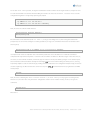
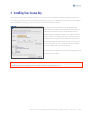
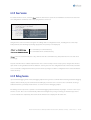
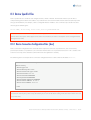
If you run the program for the first time and there is no valid license key installed, the software prompts you to enter a
license key. Please enter the license key exactly as it has been sent to you – including the licensee name or email address.
After entering the license key, use the “Save License” push button to store the license.
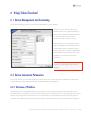
The picture to the left shows the licensing Window. It will
appear if there’s no valid license installed. It will also appear if a
valid license has expired. You also can invoke the licensing
Window from the application menu to enter a different license
key (for example, to configure a full license key and remove an
evaluation license key). The license details in the lower part of
the window display the characteristics of your license key, such
as the license type, the license expiration date (for evaluation
licenses) and the number of licensed devices.
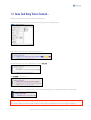
The information you enter will become active only after you click
the “Save License” button.
Depending on the license key you install, the number of devices you can enter in the device list may be limited.
Automatically generated evaluation licenses limit the number of managed devices to 5.
Telconi Terminal Users’s Manual, ©2005 Telconi GmbH, Munich, Germany (DOCV1.0.2)
14/37