1
User’s Manual: Design Wizard
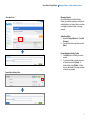
Opening An Existing Project
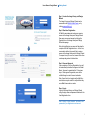
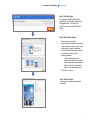
Step One: Identify Existing Files
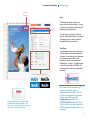
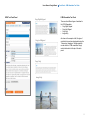
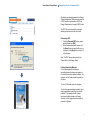
Select “Design Wizard” on the left navigation pane.
Then, select “My Projects” and click the project you
would like to open.
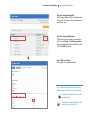
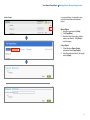
Step Two: Change Editing Status
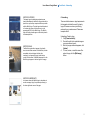
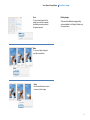
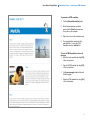
Click the box next to the project you would like to
edit. Then click [View]. Click [Change status] to
change the project status from unlocked to locked.
Then click [Edit] to continue.
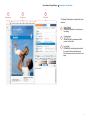
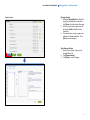
Step 3: Edit Your Project
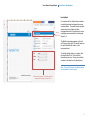
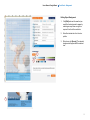
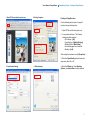
Your project is now ready to be edited.
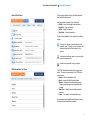
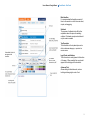
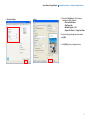
Note: If the same project is being worked on by
multiple users, pay attention to the project status.
The project is locked. Only you can edit
and save the file.
The project is unlocked. Before you start
working, you must lock the file.
7