1
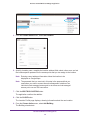
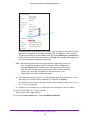
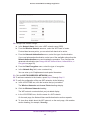
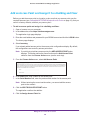
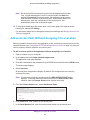
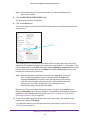
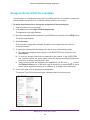
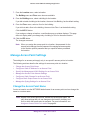
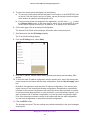
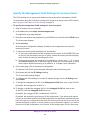
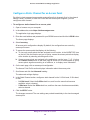
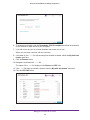
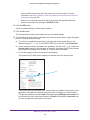
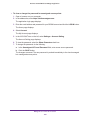
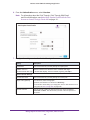
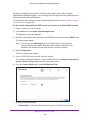
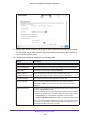
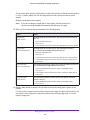
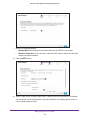
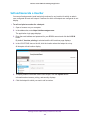
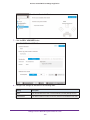
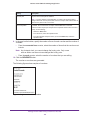
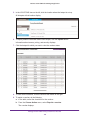
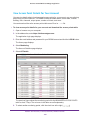
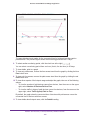
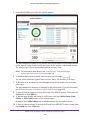
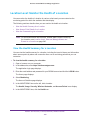
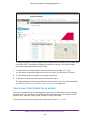
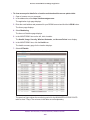
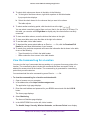
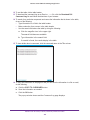
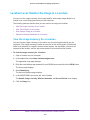
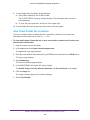
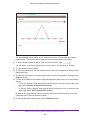
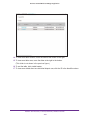
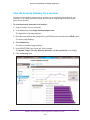
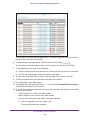
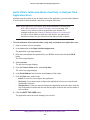
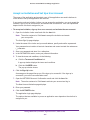
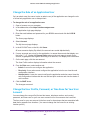
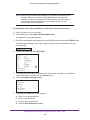
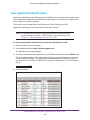
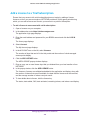
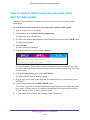
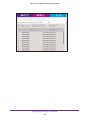
Business Central Wireless Manager Application Location Level: Monitor the Health of a Location You can monitor the health of a location by various criteria and you can customize the monitoring period for which the statistics and data display. The following sections describe how you can monitor the health at a location: • View the Health Summary for a Location • View Access Point Details for a Location • View the Command Log for a Location Note: For information about active alarms, cleared alarms, and the event log for a location, see Location Level: View and Manage Alarms and Events for a Location on page 240. View the Health Summary for a Location You can view the health summary for a location, including the trend of alarms and information about access points by alarm and connection time over a monitoring period that you can customize. To view the health summary for a location: 1. Open a browser on your computer. 2. In the address bar, enter https://wireless.netgear.com. The application login page displays. 3. Enter the email address and password for your BCWM account and click the LOG IN button. The Home page displays. 4. Select Monitoring. The Account Statistics page displays. 5. In the MONITORING tree on the left, click a location. The Health, Usage, Security, Wireless Networks, and Access Points icons display. 6. In the MONITORING tree, click the Health icon. Monitor Your Account, Locations, Networks, and Access Points 198