1
Business Central Wireless Manager Application
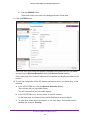
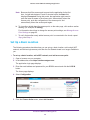
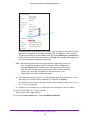
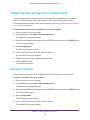
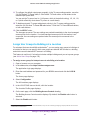
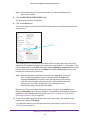
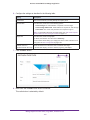
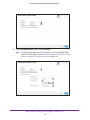
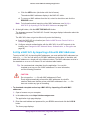
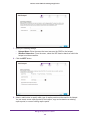
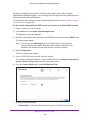
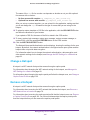
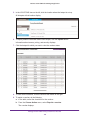
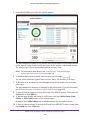
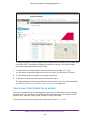
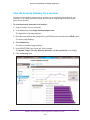
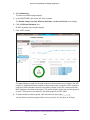
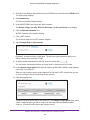
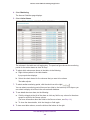
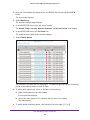
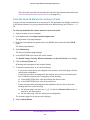
5. In the MONITORING tree on the left, click a location.
The Health, Usage, Security, Wireless Networks, and Access Points icons display.
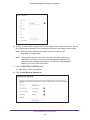
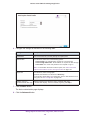
6. Click the Access Points icon.
All access points assigned to the location display.
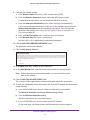
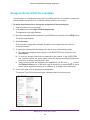
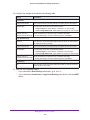
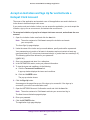
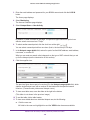
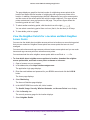
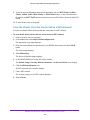
7. To select the access point, do one of the following:
• If only a few access points are assigned to the location, on the main page, click the
access point configuration.
•
If many access points are assigned to the location and you know the building and
floor to which the access point is assigned, do the following:
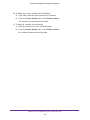
a. In the MONITORING tree, click the building and then the floor.
•
b. In the MONITORING tree, click the access point.
If many access points are assigned to the application and you do not know the
building and floor, do the following:
a. On the main page, use the icons (
search for the access point.
) below the Choose Action menu to
b. On the main page, click the access point configuration.
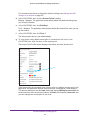
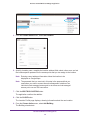
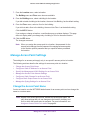
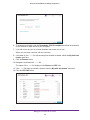
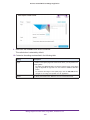
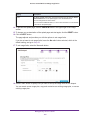
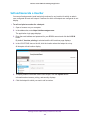
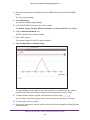
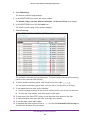
The summary page for the access point displays.
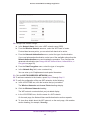
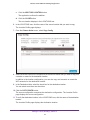
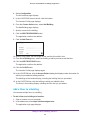
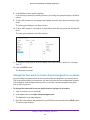
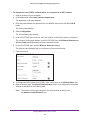
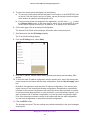
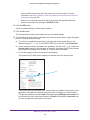
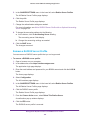
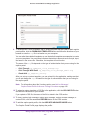
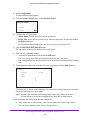
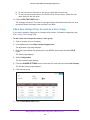
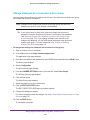
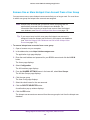
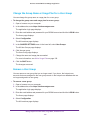
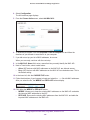
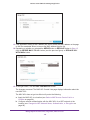
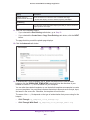
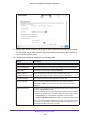
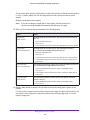
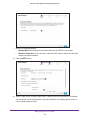
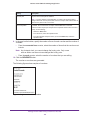
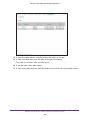
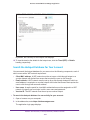
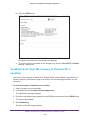
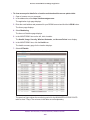
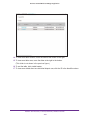
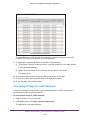
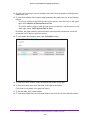
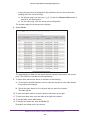
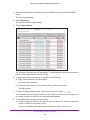
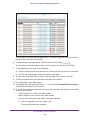
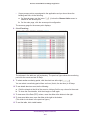
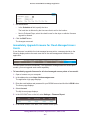
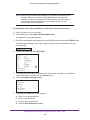
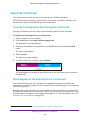
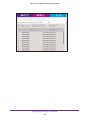
8. Select Active Alarms.
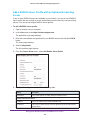
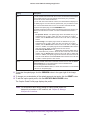
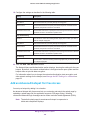
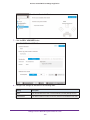
The columns in the table are self-explanatory. The previous figure shows the monitoring
period for the active alarms as Last 30 Days.
View and Manage Alarms and Events
249