1
Business Central Wireless Manager Application
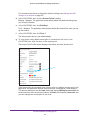
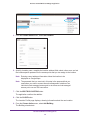
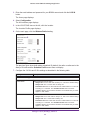
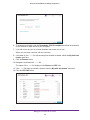
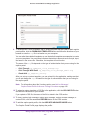
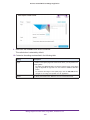
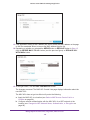
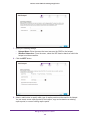
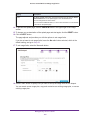
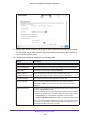
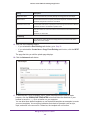
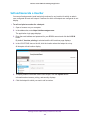
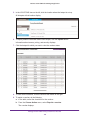
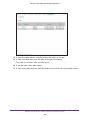
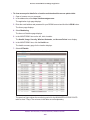
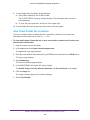
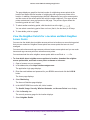
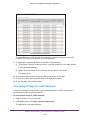
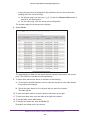
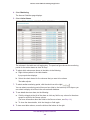
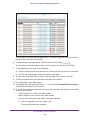
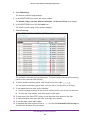
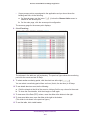
9. To select which columns are shown in the table, do the following:
a. Right-click anywhere in the table header.
A pop-up window displays.
b. Select the check boxes for the columns that you want to be shown.
The table adjusts.
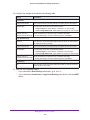
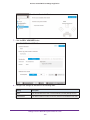
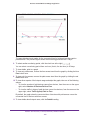
10. To select another monitoring period, click the clock icon at the right (
).
You can select a monitoring period from one hour (that is, the last hour) to 30 days or you
can select to display all entries in the active alarms database.
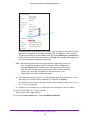
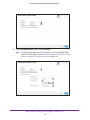
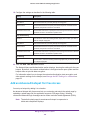
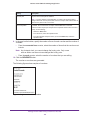
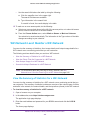
11. To see details about an alarm, do the following:
a. Click the triangle at the left of the alarm or click any field in any column for the alarm
except for a field in the Source column.
b. To close the alarm details, click the triangle or field again.
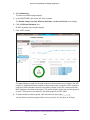
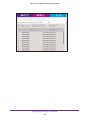
12. To view more table columns, move the slider at the bottom to the right.
13. To view more table rows, move the slider at the right to the bottom.
(This slider is not shown in the previous figure.)
14. To sort the table, click a table header.
15. To download the alarms as an Excel or .csv file, click the Download Full Active Alarms
link and follow the directions of your browser.
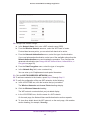
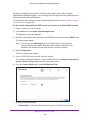
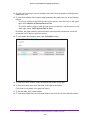
16. To search for a particular component and narrow the information that is shown in the table,
do one of the following:
• Type information in a field in the table header.
•
Make a selection from a menu in the table header.
•
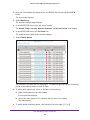
Use the search field above the table by doing the following:
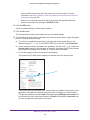
a. Click the magnifier icon in the upper right.
The search field becomes available.
b. Type information in the search field.
If a match is found, the results display in the table.
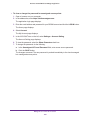
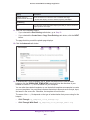
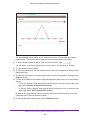
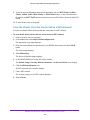
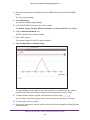
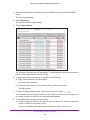
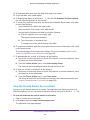
17. To acknowledge one, several, or all alarms, do the following:
a. Select one or more check boxes to the left of the alarms, or to select all alarms, select
the check box in the table header.
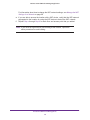
b. From the Choose Action menu, select Acknowledge Alarm.
The entries in the Acknowledged column change from No to Yes.
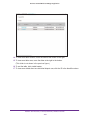
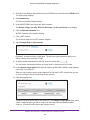
18. To clear one, several, or all alarms, do the following:
a. Select one or more check boxes to the left of the alarms, or to select all alarms, select
the check box in the table header.
b. From the Choose Action menu, select Clear Alarm.
View and Manage Alarms and Events
250