1
SEARCHING
Searching is a powerful tool in CRMS. Once you learn how to set up the
searches, you will find that working with a smaller set of records rather than the
whole database, increases the speed of your tasks, and enables you to see only
the records you want
There are a number of special symbols you may need to perform your searches,
but the most important key to effective searching is determining what criteria are
common to all the records you want, and yet different from the rest of the records
in the database
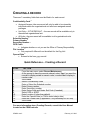
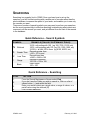
Quick Reference – Search Symbols
SYMBOL
EXAMPLE (VALUE FOR PRIMARY FIELD)
%
Wildcard
>
Greater Than
<
Less Than
:
Range
Blank
%100 = all ending with 100 (eg 100, 7100, 13100, etc)
100% = all beginning with 100 (eg 100, 1000, 1006, etc)
%100% = all with 100 in them (eg 8100, 81003, etc)
Records greater than
>100 = 101 to end
Records less than
<6450 = 6449 to 100
Records in between
100:199 = 100 to 199
Exact match
100 = 100
Quick Reference – Searching
STEP
1.
2.
3.
4.
ACTION
From the Record Maintenance Screen select Find
If you don’t see the Fields you wish to search in, Click on a list of
values button (...) and select the field
Enter your search criteria as a single value, a range of values, or a
partial value using the wildcard (%)
Click on the Find button
CRMS Level I
-8-
February 10. 2010