1
Capacitive Touch API
4. Demo Project
An e2studio project archive which demonstrates features provided by the API is included with this API User’s Manual.
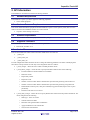
The project is designed to run with the Renesas RX113 CapTouch Demonstration Kit, and demonstrates operation of
Buttons, wheel, and sliders in self-capacitance mode and demonstrates operation of buttons in mutual-capacitance
mode. The figure below shows the initial contents after importing the project with e2studio.
The project contains two build configurations, namely SelfMode, and MutualMode. The .cheat folder contains
parameter files which replace files in the r_ctsu_rel/TouchBase folder. When replacing the parameter file, remove the
suffix _ref_xxxx.h. Ensure that the file being replaced is for the correct build configuration. Proper operation of the
project is not guaranteed if you replace with r_ctsu_parameter_common_ref_self.h when building in MutualMode
configuration.
To import the project into e2studio, open an e2studio workspace (click the go to workbench button, if a new
workspace is created), right click in blank space within the Project Explorer tab and select Import → Import. Then
select the option General → Existing Projects into Workspace. Then select Next. Use the option Select archive file
and navigate to the zip file location using Browse… and select the file. The project should then appear in the Projects
section with the name RX113_CapTouch_Demos. Ensure the checkbox against the name is checked. The option for
Copy projects into workspace should be active. Select Finish. The project should now be visible in the Project
Explorer tab.
To change build configurations, simply change the current configuration through the Project → Build configurations
→ Set Active option.
To enable debugging the project, first build the configuration. Then select a debugging session which matches the build
configuration from those available under Run → Debug Configurations → Renesas GDB Hardware Debugging.
Ensure that the correct Debug hardware is selected under the tab Debugger for the selected hardware debugging
session.
EU00162 Rev.1.00
August 12, 2014
Page 11 of 12