1
Third-party tools
3
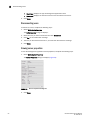
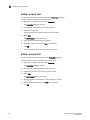
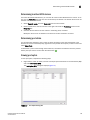
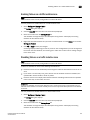
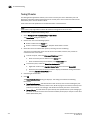
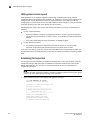
Accepting changes for a fabric
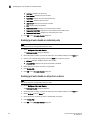
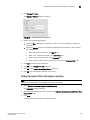
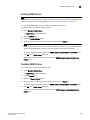
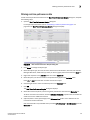
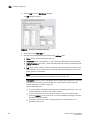
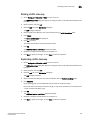
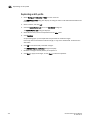
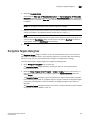
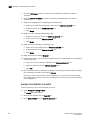
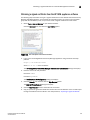
To accept all changes to a fabric, choose from one of the following options:
• Select a fabric on the Product List or Connectivity Map and select Monitor > Accept Changes.
• Right-click a fabric on the Product List or Connectivity Map and select Accept Changes.
The added and removed icons and the missing connection dotted yellow line are cleared from
the display.
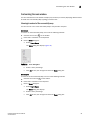
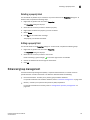
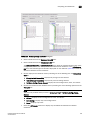
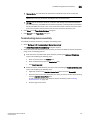
Accepting changes for a device
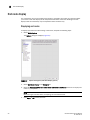
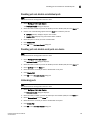
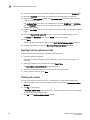
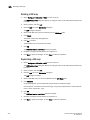
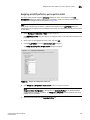
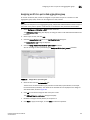
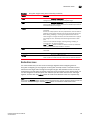
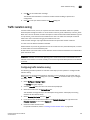
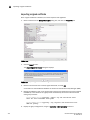
To accept the changes to a device, choose from one of the following options:
• Select the device on the Product List or Connectivity Map and select Monitor > Accept
Changes.
• Right-click the device on the Product List or Connectivity Map and select Accept Change.
The added or removed icon is cleared from the display.
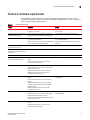
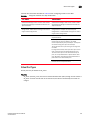
Third-party tools
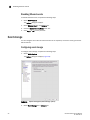
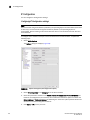
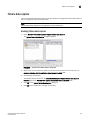
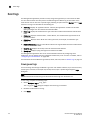
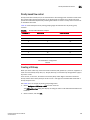
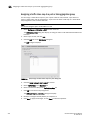
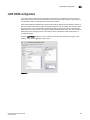
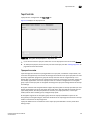
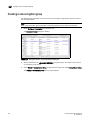
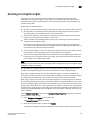
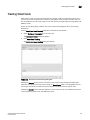
You can open other software products you frequently use from the Tools menu or shortcut menus.
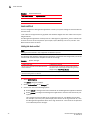
Starting third-party tools from the application
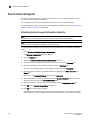
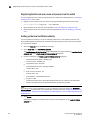
You can open third-party tools from the Tools menu or a device’s shortcut menu. Remember that
you cannot open a tool that is not installed on your computer.
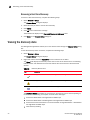
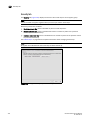
NOTE
Installing tools is only available with the Enterprise Edition.
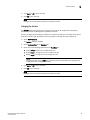
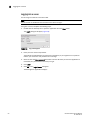
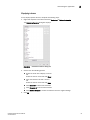
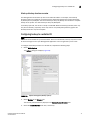
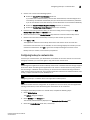
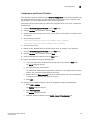
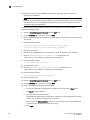
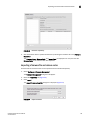
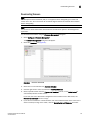
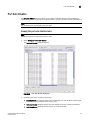
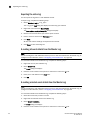
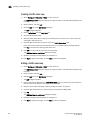
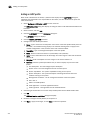
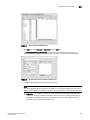
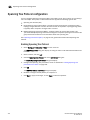
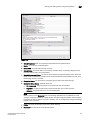
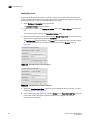
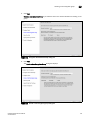
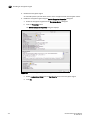
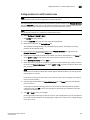
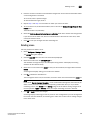
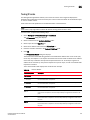
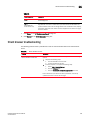
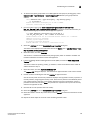
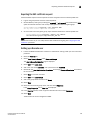
To open an application, perform the following steps.
1. Select the device.
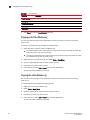
2. Use one of the following techniques:
• Select Tools > Product Menu > <Tool_Name>.
• Select Tools > <Tool_Name>.
• Right-click the device, and select the tool from the menu.
DCFM Professional User Manual
53-1001355-01
111