1
Look and Feel
1
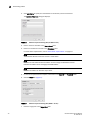
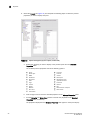
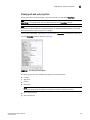
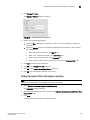
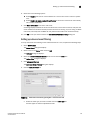
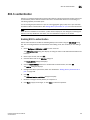
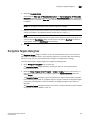
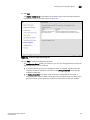
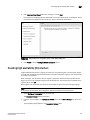
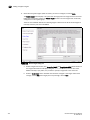
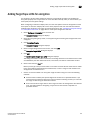
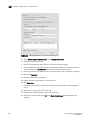
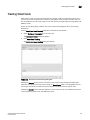
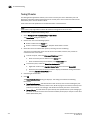
4. Click Apply or OK to save your work.
5. Click OK on the message.
NOTE
Changes do not take affect until after you restart the client.
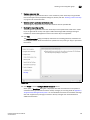
Changing the font size
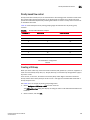
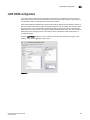
The Options dialog box enables you to change the font size for all components including the
Connectivity map of the Management application interface.
Font size changes proportionately in relation to the system resolution. For example, if the system
resolution is 1024 x 768, the default font size would be 8 and large font size would be 10.
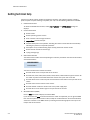
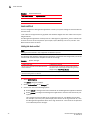
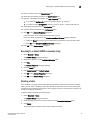
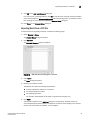
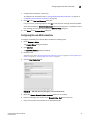
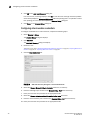
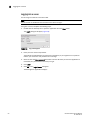
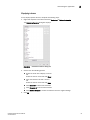
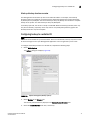
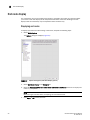
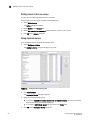
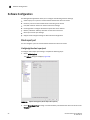
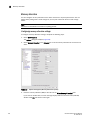
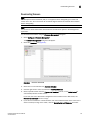
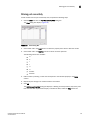
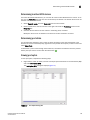
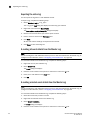
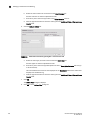
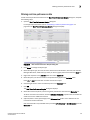
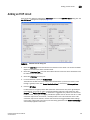
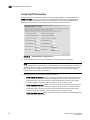
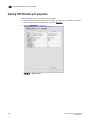
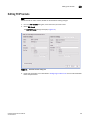
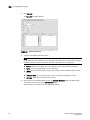
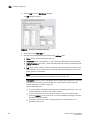
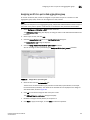
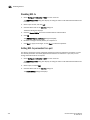
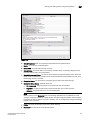
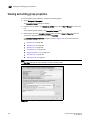
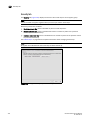
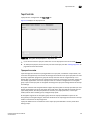
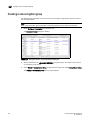
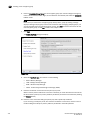
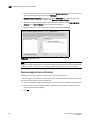
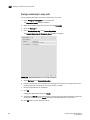
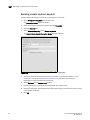
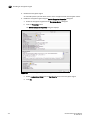
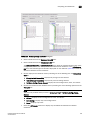
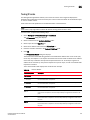
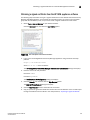
1. Select SAN > Options.
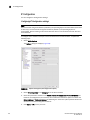
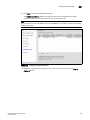
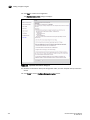
The Options dialog box displays.
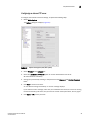
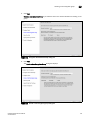
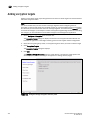
2. Select Look and Feel in the Category list.
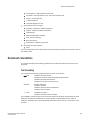
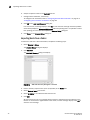
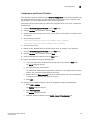
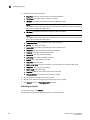
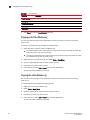
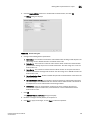
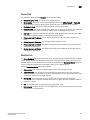
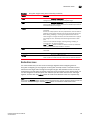
3. Select one of the following options from the Font Size list:
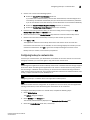
• Select Default to return to the default font size.
• Select Small to change the font to a smaller font size.
• Select Large to change the font to a larger font size.
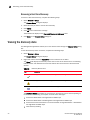
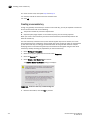
NOTE
Changing the font size to Large may cause the interface components (for example, text
and button labels) to display incorrectly.
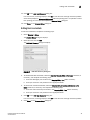
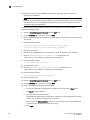
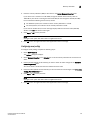
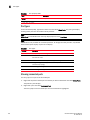
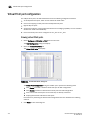
4. Click Apply or OK to save your work.
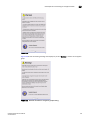
5. Click OK on the message.
NOTE
Changes do not take affect until after you restart the client.
DCFM Professional User Manual
53-1001355-01
35