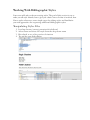
1
Zotero senses information through site translators. Zotero's translators should
work with most library catalogs, some popular websites such as Amazon and the
New York Times, and many gated databases. Just look for icons in the location
bar. The Zotero team will be adding support for additional sites over time. You
need not check back here for these extra translators; they will be automatically
added to your Zotero installation every so often.
Archiving Web Pages
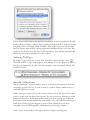
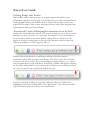
To archive a page click the “Create New Item From Current Page” icon ( ).
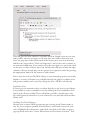
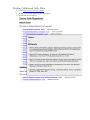
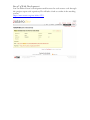
This will archive a copy of the page in your library. To see the page as it was on
the day you captured it double click the snapshot icon associated with the fle,
as shown below.
Manually Adding Items
Zotero's automatic captures make it easy to work with web resources, but not
everything you need to use in your research is online. Zotero makes it easy to
manually add items as well.
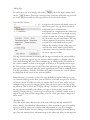
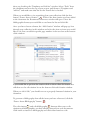
Click on the green plus icon in the center column. Select the type of item you
want to create from the drop down menu. You can view more item types at the
bottom of the menu. If the options do not ft your item exactly, try to fnd the
kind of item that would contain the same felds. Once you select an item type a
blank item of that type will appear in your center column. You can then
manually enter the bibliographic information into the right column.
Click on any of the felds in the right column to begin entering your