1
tags you add manually. It is possible, though, to exclude automatically added
tags from the tag selector or to prevent them from being imported in the frst
place.
Finding and Searching In Zotero
Zotero provides a variety of options to ensure that you are never more than a
few seconds away from the exact information you need. In this document you
will learn about Zotero's sorting and searching functionality. With just a few
clicks you can sort any of your collections by what ever criteria you need. You
can also quickly execute basic searches through your entire collection. Beyond
these two quick options you can also set up advanced searches to make much
more refned searches through your entire collection. You can also view
screencasts detailing these functions.
Sorting
Zotero's sorting functions make it easy to quickly fnd items in your library and
collections. If you prefer you can also watch the sorting screencast.
To sort items in a collection, click on any of the information categories at the
top of the middle column. For example, if you click on “Title,” all your items will
be sorted alphabetically by title. If you click on “Title” again, the
order will be reversed. Similarly, if you click on “Creator,” your
items will be sorted alphabetically by creator, and if you click
“Creator,” again the order will be reversed.
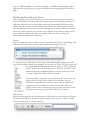
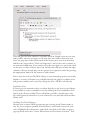
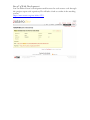
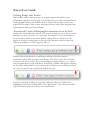
To sort by other categories, you can click on the icon in the top
right corner of your center column. You will then see the
dropdown menu illustrated below. Check off any additional
categories you would like to use for sorting. They will now
appear in the center column and you can click on them to sort
in just the same way you did with “Title” and “Creator”.
Basic Search
Basic searches provide the quickest way to fnd items in your collection. Follow
the directions below or watch the basic search screencast to see how to make
best use of the Zotero's basic searches.