1
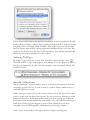
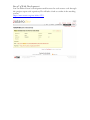
information. If you have additional authors you can click on the + next to the
frst author to add additional felds. When you have fnished entering the
metadata you can drag in attachments.
Organizing and Annotating Items
Using Collections
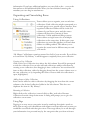
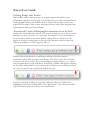
Zotero allows you to organize your records into
collections. Each collection might correspond to a
research project or a specifc area of interest. Your
organized collection folders will be in the left
column of your Zotero pane, and the center
column will show the contents of those
collections. Unlike traditional fling systems
Zotero allows a single item to be in multiple
collections at the same time. In this sense your
collections are more like playlists in iTunes than
folders in a flling cabinet. This allows you to
organize the same item in different ways to suit
your needs.
“My Library” will always contain a master list of all of your records. If you delete
a record from “My Library” it will disappear completely from your collection.
Creating a New Collection
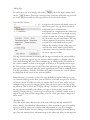
Click on the New Collection icon above the left column. You will be prompted
to title the collection. You can also add sub-collections within collections by
creating a new collection, then dragging it into a collection. You can then add
items to this collection, either by dragging them from the center column over to
the new collection, or by importing the item to Zotero while the collection is
open (highlighted).
Adding Items to Other Collections
Items can be added to other collections by dragging the item from the center
column to the desired collection folder in the left column. This does not
duplicate the item in “My Library”.
Renaming a Collection
Right-click on the collection (control-click on Mac) and select Rename
Collection from the drop-down menu. A dialog will prompt you to give the
collection a new name.
Using Tags
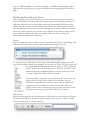
Tagging is an easy way to categorize items by attaching descriptive words to
them. You can tag your information with whatever relevant keyword or term you
would like associated with that given item. These tags allow you to sift through
your information in a personal way, by the categories that you deem relevant.