1
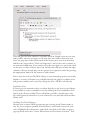
This will open the note editor in a separate window. Simply enter in your note
and it will be saved as you type, so you may close the window whenever you
wish. You may have noticed that, back in the Zotero pane, your note has been
added to the Notes tab for “The Last Judgement” and, in the center column, as
an associated child item. If you wish to view the note again, you need only click
on the note in either of these places. By default, they will open within the right
column in Zotero, though they can be opened in a separate window by pressing
the appropriate button at the bottom of said column.
Zotero uses the rich-text TinyMCE editor, so your formatting options are nearly
limitless. A variety of features are available through the editor's toolbars and a
still greater number can be used by editing the note's HTML code directly.
Standalone Notes
If, however, your annotation does not relate directly to any item in your library,
it is possible to create a standalone note by clicking the New Standalone Note
button in the Zotero toolbar. These will behave just like a regular note, only
they will appear by themselves in your collections, not associated with another
library item.
Grabbing Text From Webpages
Because new research often incorporates pre-existing work, Zotero makes it
easy for you to migrate quotable material from a web-based source into your
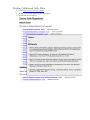
notes. Highlight the relevant text, right-click (ctrl-click on the Mac) to open a
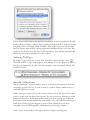
pop-up menu, and select “Create Zotero Item and Note from Selection”. This