1
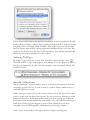
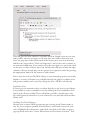
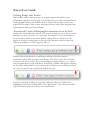
To start a search, click inside the search box at the top of the middle column
and start typing your search term. As you type, Zotero will reduce the total
number of items in the center column to only those that contain your search
term.
What Exactly Am I Searching Through?
With basic searches, Zotero combs through all of your data for results. For
example, a basic search for 1979 will return a wide variety of items. The search
would return books with 1979 in their title, items published in 1979, items
tagged 1979, and websites that have 1979 somewhere in their full text. In short,
basic searches search through all your data.
Taking Notes
Most users don’t like to just read and gather sources; they like to take notes on
them. We’ve all got little scribbles in the margins of books, on post-its, and on
notepads (real and virtual). Zotero makes it easy to keep all those annotations,
jots, and notes in one place, and all searchable. The ability to record notes about
library items is essential to conducting useful research. Notes allow you to relate
items to your own studies, write down brainstorms and highlight important
passages. You may agree, then, that the most obvious way to organize notes in
Zotero is as attachments to library items.
Let's say you have Michelangelo's “The Last Judgment” in your Zotero library
and wish to make a note about the location of the artist's self-portrait hidden in
the fresco. Obviously, this isn't the sort of thing where you can just scribble in
the margins; the Sistine Chapel would probably object and it wouldn't be very
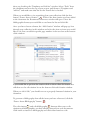
portable, anyway. To create an attached note, frst select “The Last Judgment” in
Zotero's center column. In the right column, you would then click on the Notes
tab, then the Add button.