1
R&S®FSW
Preparing for Use
Connecting USB Devices
Switching users when using the automatic login function
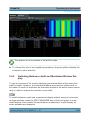
Which user account is used is defined during login. However, you can also switch
the user account to be used when the automatic login function is active.
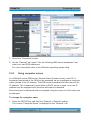
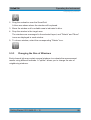
► In the "Start" menu, select the arrow next to the "Shut down" button and then
"Log off".
The "Login" dialog box is displayed, in which you can enter the different user
account name and password.
2.2.4
Accessing the Start Menu
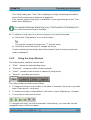
The Windows "Start" menu provides access to the Windows 7
functionality and installed programs. To open the "Start" menu,
select the "Windows" icon on the R&S FSW toolbar, or press the "Windows" key
or the CTRL + ESC key combination on the (external) keyboard.
All necessary system settings can be defined in the "Start > Control Panel" menu
(for required settings refer to the Windows 7 documentation and to the hardware
description).
2.2.5
Accessing the Windows Task Bar
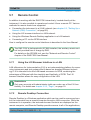
The Windows task bar also provides quick access to commonly used programs,
for example Paint or Wordpad, but also IECWIN, the auxiliary remote control tool
provided free of charge and installed by Rohde & Schwarz.
For details on the IECWIN tool, see the "Network and Remote Control"
chapter of the R&S FSW User Manual.
To open the task bar, select the "Windows" icon on the R&S FSW
toolbar, or press the "Windows" key or the CTRL + ESC key combination on your (external) keyboard.
2.3
Connecting USB Devices
The USB interfaces on the front and (optionally) rear panels of the R&S FSW
allow you to connect USB devices directly to the instrument. This number can be
Getting Started 1312.9420.02 ─ 15
21