1
www.otn.ca
Installation Issues
1
Login Page Hangs or Install Fails
The Short Answer: If you can’t get past the login page or the install doesn’t seem to work, it could be
because your browser’s Java plug-in is out of date. To ensure that your browser loads with the latest Java
applications and applets, you must clear both your computer’s Java cache and browser’s cache.
After clearing both types of cache, restart (close and re-open) the browser and return to
OTN’s personal computer videoconferencing home page tm.otn.ca. The installation should
start automatically. Follow the on-screen prompts to complete the installation.
1.1
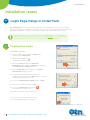
Clearing Java Cache
Windows Systems
1. On your desktop, click the Windows Start button
and then select Control Panel.
2. Double-click the Java icon
.
The Java Control Panel opens.
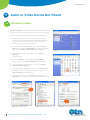
3. Select the General tab and in the Temporary
Internet Files section click the Settings button (Figure 1).
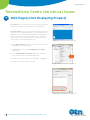
The Temporary Files Settings panel opens.
4. Click the Delete Files button (Figure 2). The Delete
Temporary Files dialog box opens.
Figure 1: Java Control Panel general tab
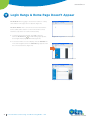
5. To delete all the downloaded Java applications
and applets from the cache, click OK (Figure 3). The cache
is cleared and the dialog box closes.
6. To close the Temporary Files Settings panels, click OK.
7. To close the Java Control Panel, click OK.
8. To close the Control Panel window, click
in the window’s top-right corner.
Figure 2: Temporary Files Settings
9. Restart (close and re-open) the browser.
The next step is to clear your browser’s cache.
(See “Clearing Browser Cache” on page 5.)
Figure 3: Delete Temporary Files dialog box
3
Personal Videoconferencing: Troubleshooting Guide v 4.4
Telemedicine’s Leader