1
Creating a New Sample
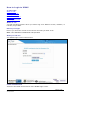
Follow these steps to create a new sample.
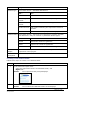
Step
Action
1
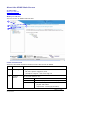
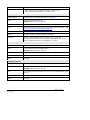
In the Common Project area:
• select the experiment for the new sample, and
• Right Click.
Result:
The experiment task prompt displays.
2
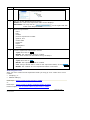
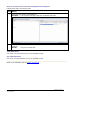
Click on “Create New Sample”.
on the right hand side of the
Alternative: You may click on
“View Experiment” screen.
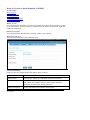
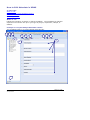
Result: The Create a New Sample Screen displays.
3
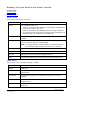
Enter the sample:
• name
• instance information, and
• safety information.
4
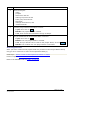
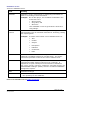
Is all the sample information correct?
• If yes, then click on
.
Result: The sample with basic metadata is created.
•
5
If no, then correct the information and go to Step 5.
Are you satisfied that all the information is correct?
• If yes, then click on
.
Result: The sample with basic metadata is created.
•
If no, and you decide not to create a new sample , click on
Result: The creation of a new sample is cancelled.
.
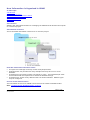
What happens next
After you have created a new sample, you may go on to:
• edit the metadata for the sample, and/or
• create one or more new sample(s) or dataset(s).
Next Topic – How to Create or Modify a Dataset Folder in XDMS
or
How to Edit the Metadata in XDMS
ARCHER Toolset End User Guide v1.0
30 Sept 2008
Page 21 of 36