1
maxgaming Qld
Wildcat User Guide
4 Security
Access to the Wildcat program and it’s available modules can be restricted to particular USERS –
the access afforded to any USER is strictly related to the permissions/priveleges of the GROUP to
which they belong.
A User cannot access a section that they do not have privileges for. When a User logs on, the
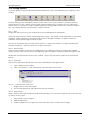
sections not accessible to them will be unavailable on the toolbar (greyed-out).
If a User is in a Group, access will be given for the section enabled for the Group.
Users:
Groups:
Individuals that have access to Wildcat.
Groups of Users with the same access.
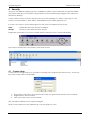
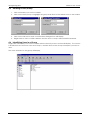
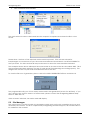
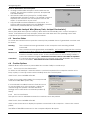
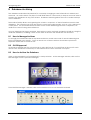
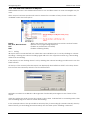
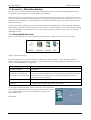
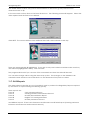
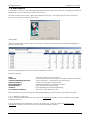
Single click on Security icon on the toolbar and the Security Access screen will display.
The screen is divided into two sections: Users and Groups.
4.1 Create a User
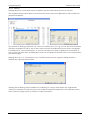
A user can be a single person or a number of people who are given the same User Id. At the top
left of the screen click on ADD USER:
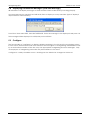
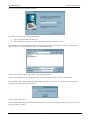
1. Enter User ID, Full name and a password for this user (passwords are NOT case sensitive).
2. Single click on the OK button.
3. Click on the Save icon on the toolbar.
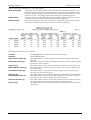
The User will be added to the corresponding list.
NOTE: There cannot be any duplicate ID’s for any groups or users.
8