1
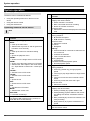
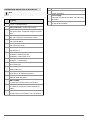
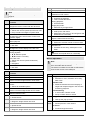
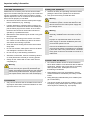
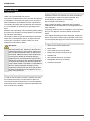
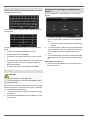
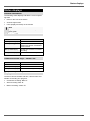
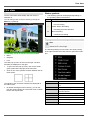
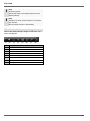
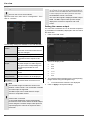
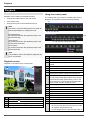
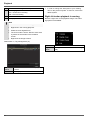
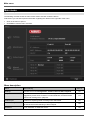
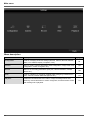
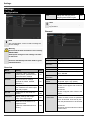
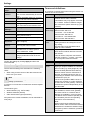
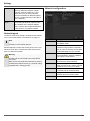
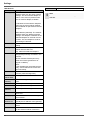
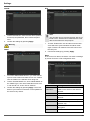
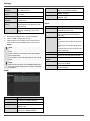
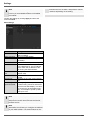
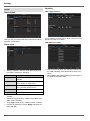
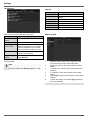
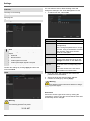
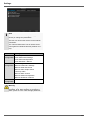
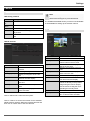
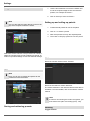
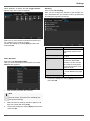
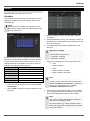
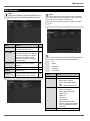
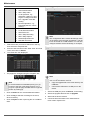
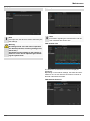
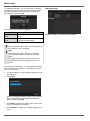
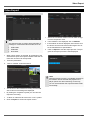
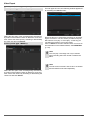
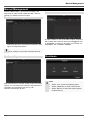
Live view Live view Overview Status symbols The live view starts automatically after the device is switched on. You can also go back to the live view by pressing the Menu key repeatedly. The following symbols are displayed depending on the operating status of the device: Symbol Meaning R Red: Event Recording R Yellow: Motion Recording R Event recording Recording at motion detection Blue: Recording Continuous recording Pop-up menu for mouse operation Note Press the right mouse button when the cursor is positioned on a live image. The following menus are found in the screen header: Menu Playback PTZ The following settings can be made. The arrow pointing to the right indicates that a sub-menu is opened for selection: The view pop-up menu is found on the right. The time and date are displayed on the right. To open the view pop-up menu, click on the rectangular symbol at the top-right of the menu bar. Click on one of the symbols to switch between the different views. Menu Opens the main menu The signals of the connected cameras are displayed on the main screen. Single Screen Full-screen view for selected camera Multi Screen Various camera layouts Changing the presentation of the previous camera Displays the next camera(s) By double-clicking the left mouse key, you can display the camera image as a full-screen view or switch back to the original view. Previous Screen Next Screen Start Auto-Switch Starts the camera sequence All-day Playback Switches to playback mode Output mode Renders the image softer or sharper to spot monitor Aux Monitor 87