1
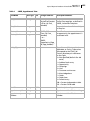
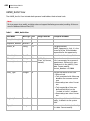
Appendix A
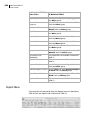
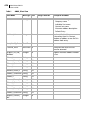
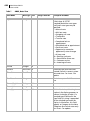
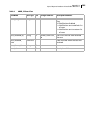
Maximizer CRM 12 Ribbon Interface
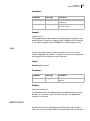
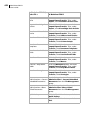
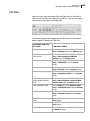
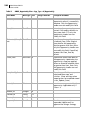
In Maximizer CRM 10.5,
select Search >
457
In Maximizer CRM 12
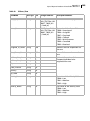
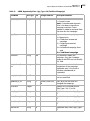
First Name
On the Search tab, select Other Fields >
First Name from the Search By group.
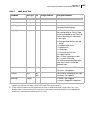
Company
On the Search tab, select Company from
the Search By group.
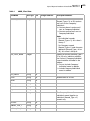
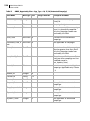
All Email Addresses
On the Search tab, select All Email
Addresses from the Search By group.
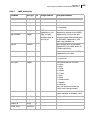
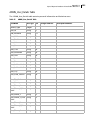
City/Town
On the Search tab, select Other Fields >
City/Town from the Search By group.
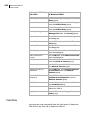
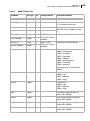
State/County/Province
On the Search tab, select Other Fields >
State/County/Province from the Search
By group.
Zip/Postcode
On the Search tab, select Other Fields >
Zip/Postcode from the Search By group.
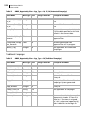
IDentification
On the Search tab, select Other Fields >
IDentification from the Search By group.
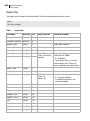
All Phone Numbers
On the Search tab, select All Phone
Numbers from the Search By group.
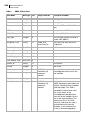
Notes
On the Search tab, select Other Fields >
Notes from the Search By group.
Documents
On the Search tab, select Other Fields >
Documents from the Search By group.
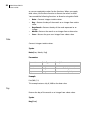
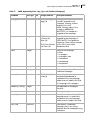
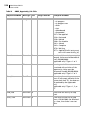
Other > [Field]
On the Search tab, select Other Fields
from the Search By group.
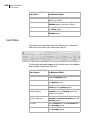
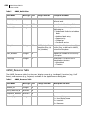
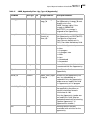
Retrieve Contacts
On the Search tab, select Contacts from
the Retrieve group.
Retrieve
Companies/Individuals
On the Search tab, select
Companies/Individuals from the
Retrieve group.
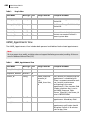
Retrieve Partners
On the Search tab, select Partners from
the Retrieve group.
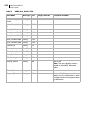
Retrieve Opportunities
On the Search tab, select Opportunities
from the Retrieve group.
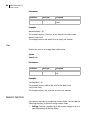
Retrieve Customer Service On the Search tab, select Cases from the
Cases
Retrieve group.
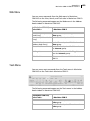
Check [Column Name]
Column for Duplicates
On the Search tab, select Check Duplicate
from the Validation group.
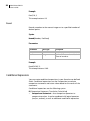
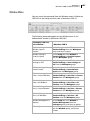
Actions Menu
You can access all commands from the Actions menu in Maximizer
CRM 10.5 on the Home tab in Maximizer CRM 12.