1
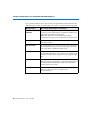
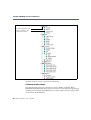
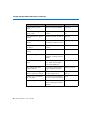
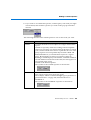
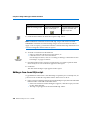
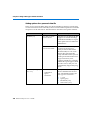
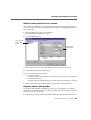
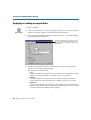
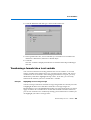
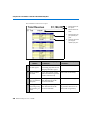
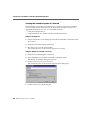
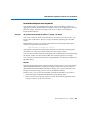
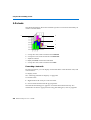
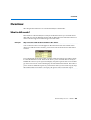
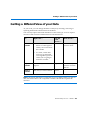
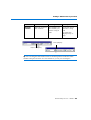
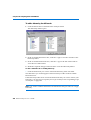
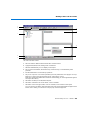
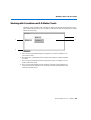
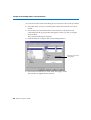
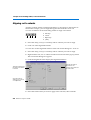
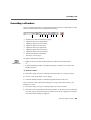
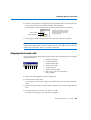
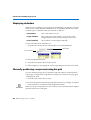
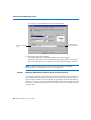
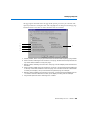
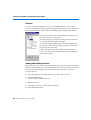
Formulas
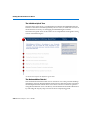
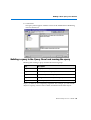
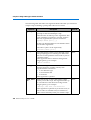
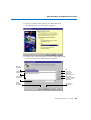
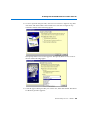
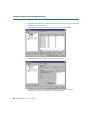
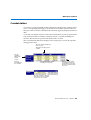
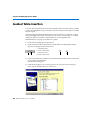
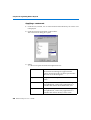
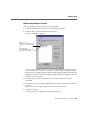
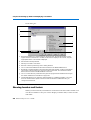
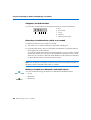
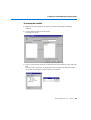
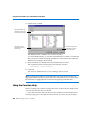
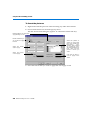
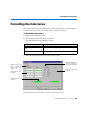
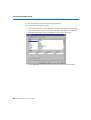
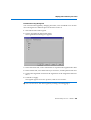
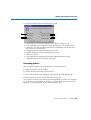
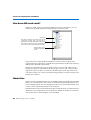
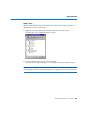
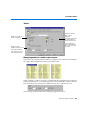
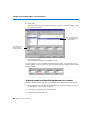
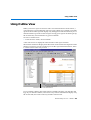
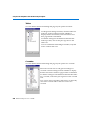
Variables box
Displays a list of all the variables in the document, these can be local variables or
variables returned by the data provider; you can include these variables in your
formula.
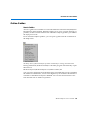
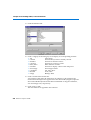
Functions
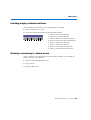
Displays a list of all BUSINESSOBJECTS functions.
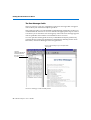
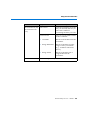
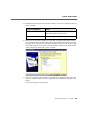
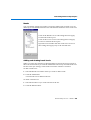
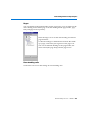
Operators
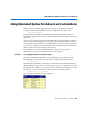
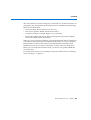
Operators define the relationship between elements in a formula. Operators
include mathematical operators such as addition (+) and division (/), relational
operators such as greater than (>) and between, logical operators such as If Then
Else and context operators such as ForAll, ForEach and In. The list of operators in
this window is updated as you add elements to the formula so that only the
operators that are compatible with the current syntax are displayed.
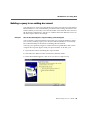
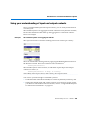
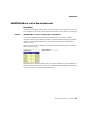
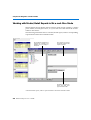
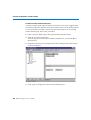
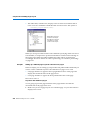
To understand how the Formula Editor works, let's look at an example.
Example
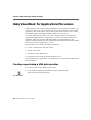
Calculating a running total
............................................................
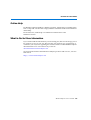
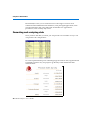
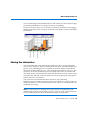
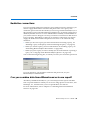
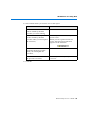
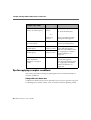
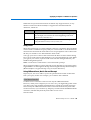
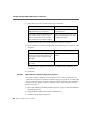
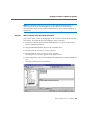
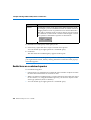
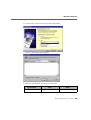
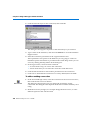
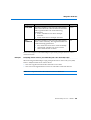
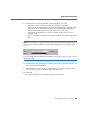
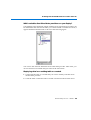
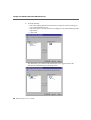
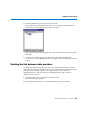
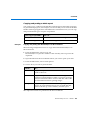
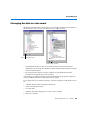
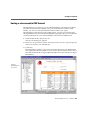
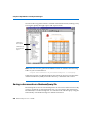
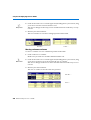
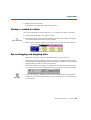
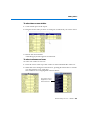
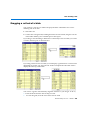
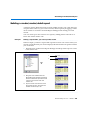
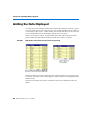
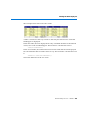
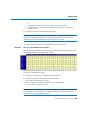
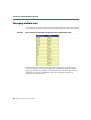
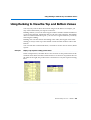
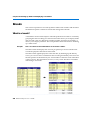
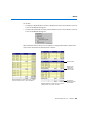
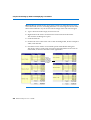
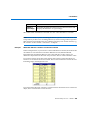
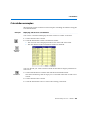
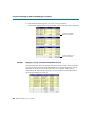
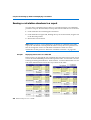
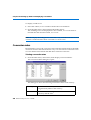
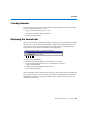
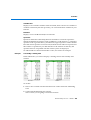
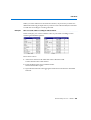
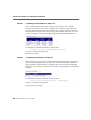
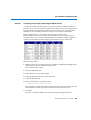
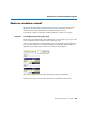
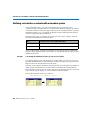
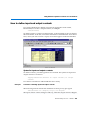
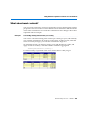
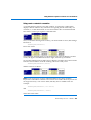
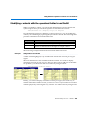
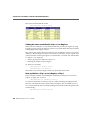
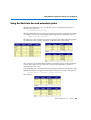
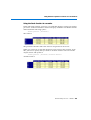
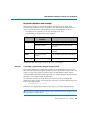
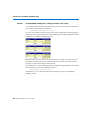
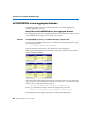
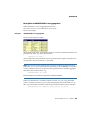
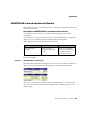
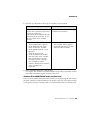
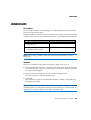
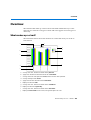
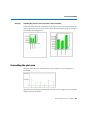
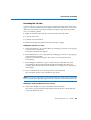
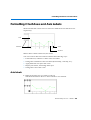
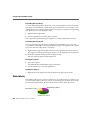
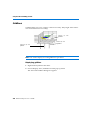
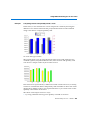
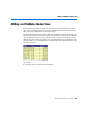
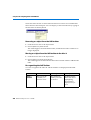
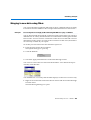
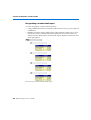
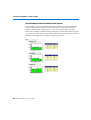
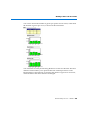
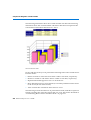
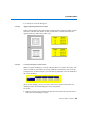
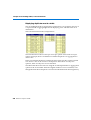
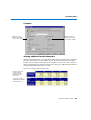
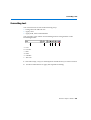
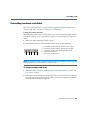
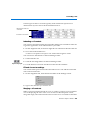
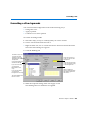
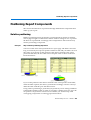
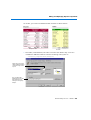
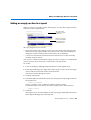
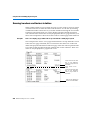
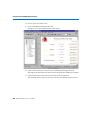
In the table below you want to display a running total for the monthly sales
revenue.
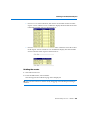
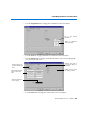
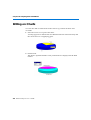
From this......
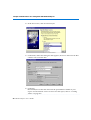
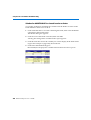
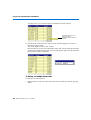
To this......
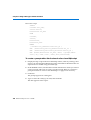
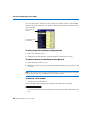
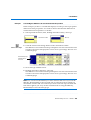
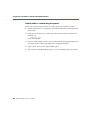
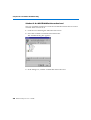
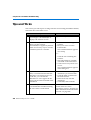
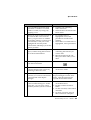
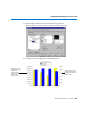
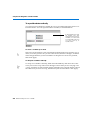
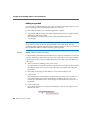
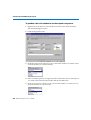
To do this:
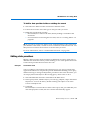
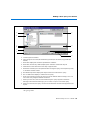
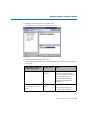
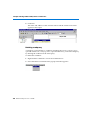
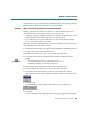
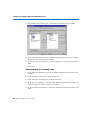
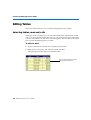
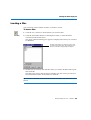
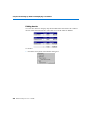
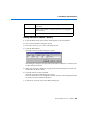
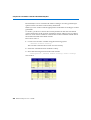
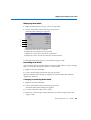
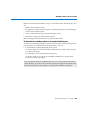
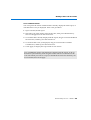
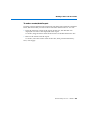
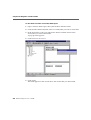
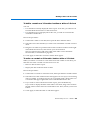
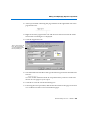
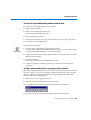
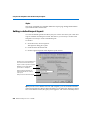
1. Insert a new column after the Sales Revenue column and name it Running
total.
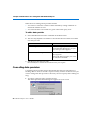
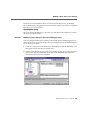
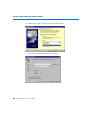
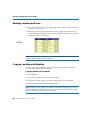
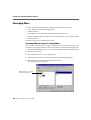
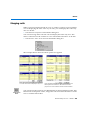
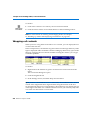
2. Click inside the Running total column.
This is where you are going to insert the formula.
BusinessObjects User’s Guide 319