1
Hiding and Displaying Report Components
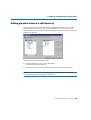
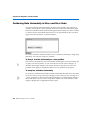
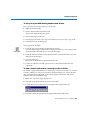
Hiding an empty section in a report
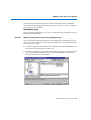
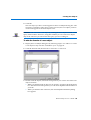
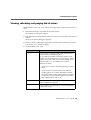
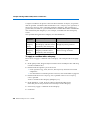
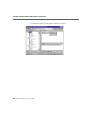
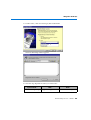
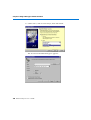
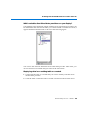
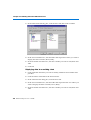
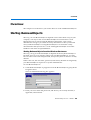
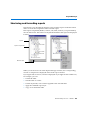
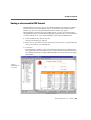
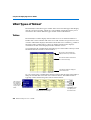
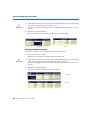
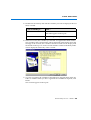
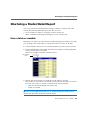
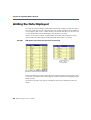
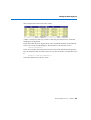
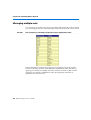
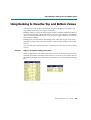
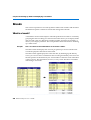
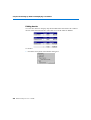
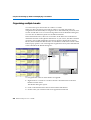
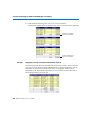
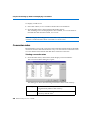
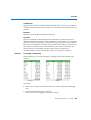
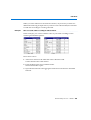
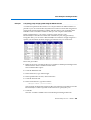
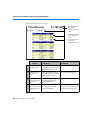
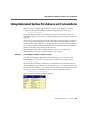
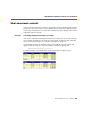
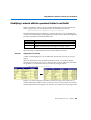
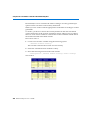
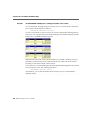
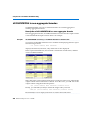
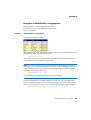
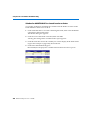
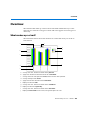
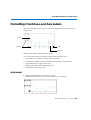
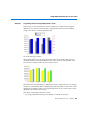
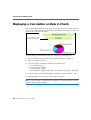
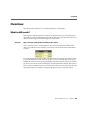
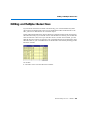
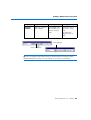
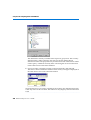
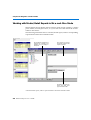
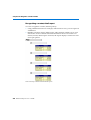
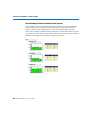
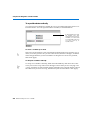
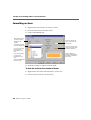
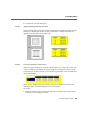
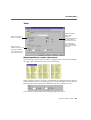
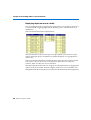
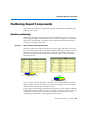
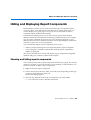
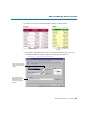
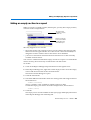
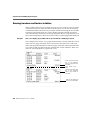
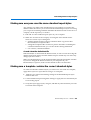
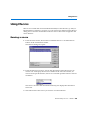
When you create or refresh a master/detail report, you may have empty sections,
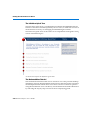
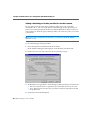
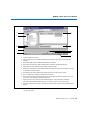
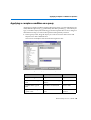
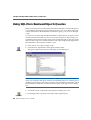
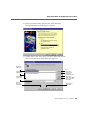
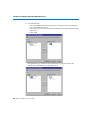
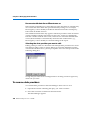
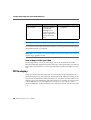
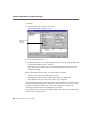
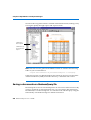
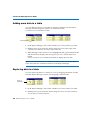
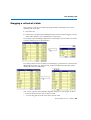
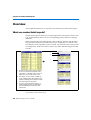
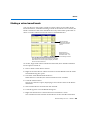
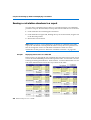
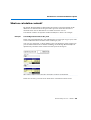
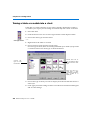
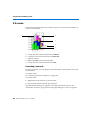
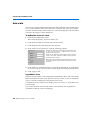
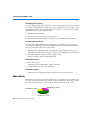
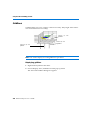
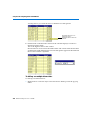
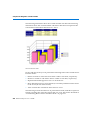
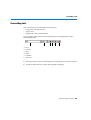
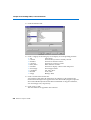
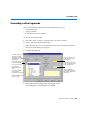
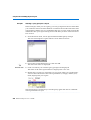
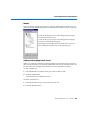
as shown in the example below:
The year section
contains an empty
master cell.
There is no data for
revenue in Australia
and the US for the
unidentified year.
This may happen for two reasons:
• the section master cell is empty because you have data in the data provider
that has not been organized into one of the section values. BUSINESSOBJECTS
designates sections with no value in the master cell as #EMPTY.
• you have a section that contains no data because there is no data currently
available for that section.
You can set a condition to hide these empty sections in a report. You can hide the
master cell only, the section only or both master cell and section.
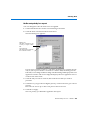
To do this:
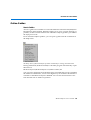
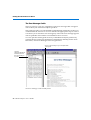
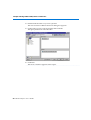
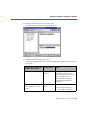
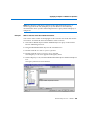
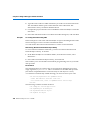
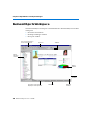
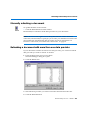
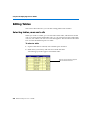
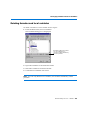
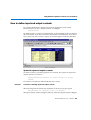
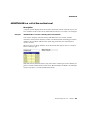
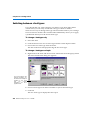
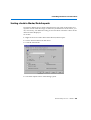
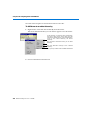
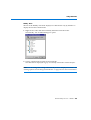
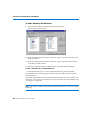
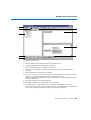
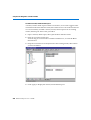
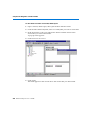
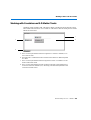
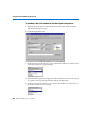
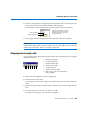
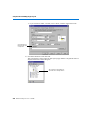
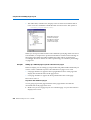
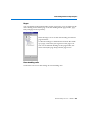
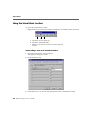
1. Click on the Report Manager Map tab and choose Navigation view.
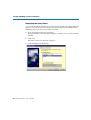
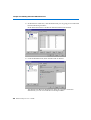
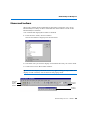
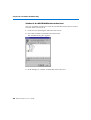
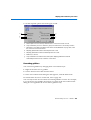
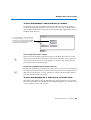
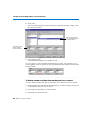
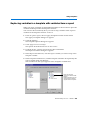
2. In the Report Manager list, right-click on the empty master cell or the empty
section and choose Format Section from the menu.
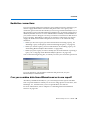
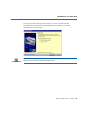
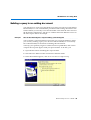
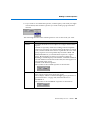
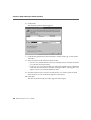
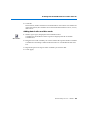
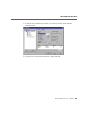
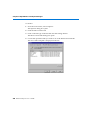
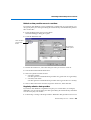
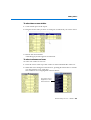
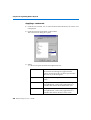
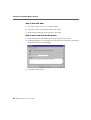
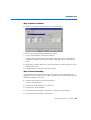
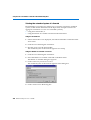
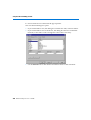
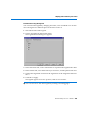
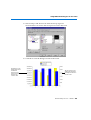
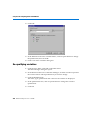
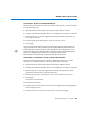
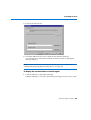
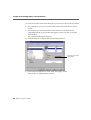
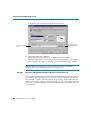
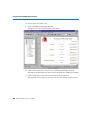
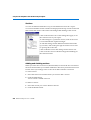
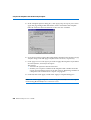
The Section Format dialog box opens.
3. Click the General tab.
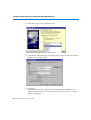
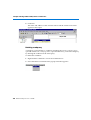
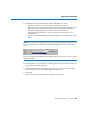
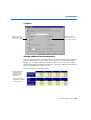
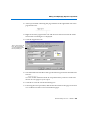
4. Check the Hide Section Header check box and type the following formula in
the formula box:
=IsNull(<variable>)
where <variable> is the variable for which you have no data.
To hide the empty year master cell in the example above, the formula is:
=IsNull(<Year>)
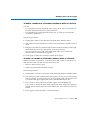
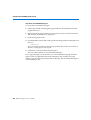
5. Click OK.
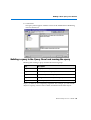
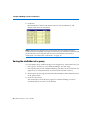
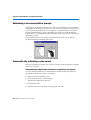
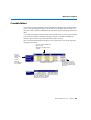
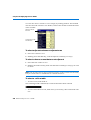
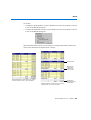
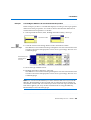
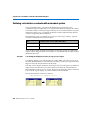
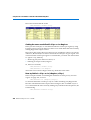
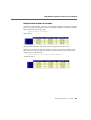
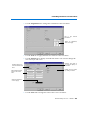
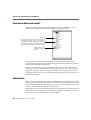
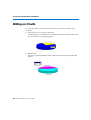
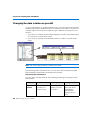
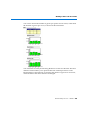
The empty cell or section is hidden on the report page and displayed in italics
in the Report Manager list in the Map tab.
BusinessObjects User’s Guide 577