1
Start Collaborating
Add the sources for your presentation and start collaborating.
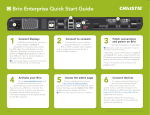
Connect to Brio
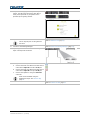
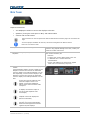
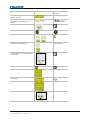
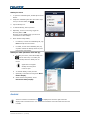
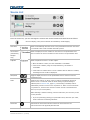
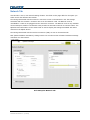
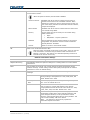
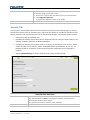
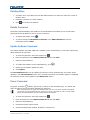
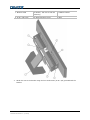
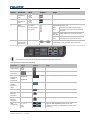
The steps to connect a device to Brio depend on the type of device you are connecting. Once a device
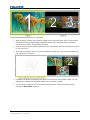
is connected, it is displayed in the source list. The splash screen is displayed when Brio is powered
on. It provides the basic steps to connect to Brio.
Brio supports various operating systems and devices manufactured by multiple manufacturers, refer
to your device’s user documentation.
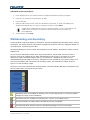
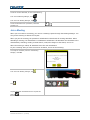
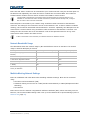
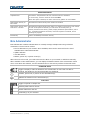
When Brio Team or Team+ is using a WAP, the Wi-Fi maximum connections icon
is displayed
on the lower right of the Brio displays if all connections are in use. Additional connections cannot be
made when this icon is visible.
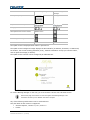
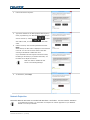
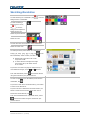
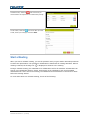
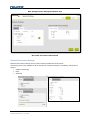
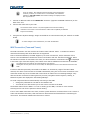
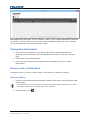
For additional help connecting sources to Brio from the web Meeting Manager, select How to connect
from Help or type Brio’s IP address or Brio’s DNS name (for example, 10.10.30.149 or
http://Brio149) in your web browser address field. The How to connect page provides help for
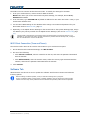
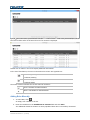
connecting sources using various operating systems. Brio automatically detects the operating system
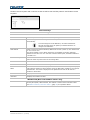
for your device. Additionally, the How to Connect page provides links for the management tools for
administrators. Administrators can access Meeting Manager, Brio Administrator, and System Settings.
Brio User Guide
020-101758-04 Rev. 1 (7-2015)
21