1
Tools
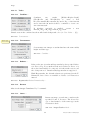
Wand Tool
See also: Point Tool, Cell Counter plugin
18.7
Wand Tool
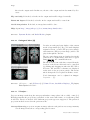
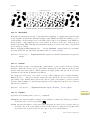
Creates a selection by tracing objects of uniform color or thresholded objects. To trace an object,
either click inside near the right edge, or outside to the left of the object. To automatically
outline and measure objects have a look, e.g., at the WandAutoMeasureTool macro.
To visualize what happens, imagine a turtle that starts moving to the right from where you
click looking for an edge. Once it finds the edge, it follows it until it returns to the starting
point. Note that the wand tool may not reliably trace some objects, especially one pixel wide
lines, unless they are thresholded (highlighted in red) using Image . Adjust . Threshold. . . [T].
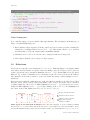
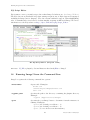
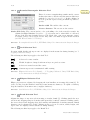
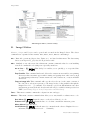
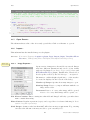
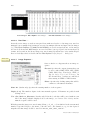
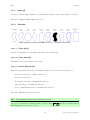
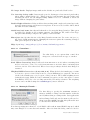
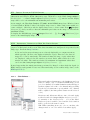
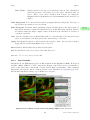
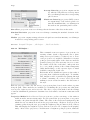
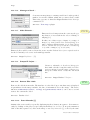
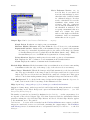
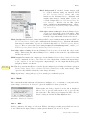
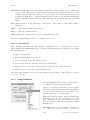
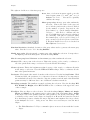
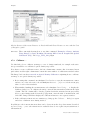
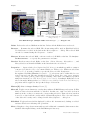
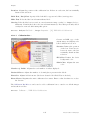
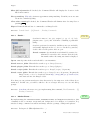
Double clicking on the wand tool icon (or running Edit . Options . Wand Tool. . . ) opens the
configuration dialog box in which three modes (4–connected, 8–connected or ‘Legacy’) plus a
tolerance value can be set [7].
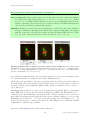
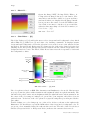
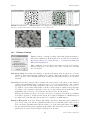
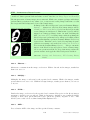
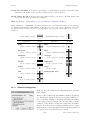
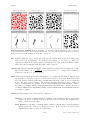
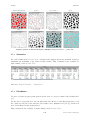
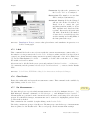
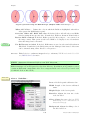
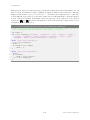
The Wand Tool. 4/8–connected particles can be traced within an intensity range.
Tolerance The wand takes the pixel value where you click as an initial value. It then selects
a contiguous area under the condition that all pixel values in that area must be in the
range initial value − tolerance to initial value + tolerance.
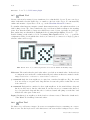
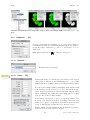
4–connected Only the four neighbors of a pixel are considered neighbors. E.g., the wand
does not follow a one-pixel wide diagonal line because the pixels of that line are not
four-connected.
8–connected Each pixel is considered to have eight neighbors. So the wand follows a diagonal
line if you click onto it. On the other hand, if you have an area of constant value dissected
by a one-pixel wide diagonal line, the 8–connected wand will ‘jump over the line’ and
include the other part of that area.
Legacy In this mode no neighbor is checked and no tolerance is used. This is the default mode
of the Wand Tool in ImageJ 1.42 and earlier.
18.8
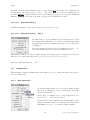
Text Tool
Use this tool to add text to images. It creates a rectangular selection containing one or more
lines of text. Use the keyboard to add characters to the text and the backspace key to delete
31
Latest revision: 2011/08/06